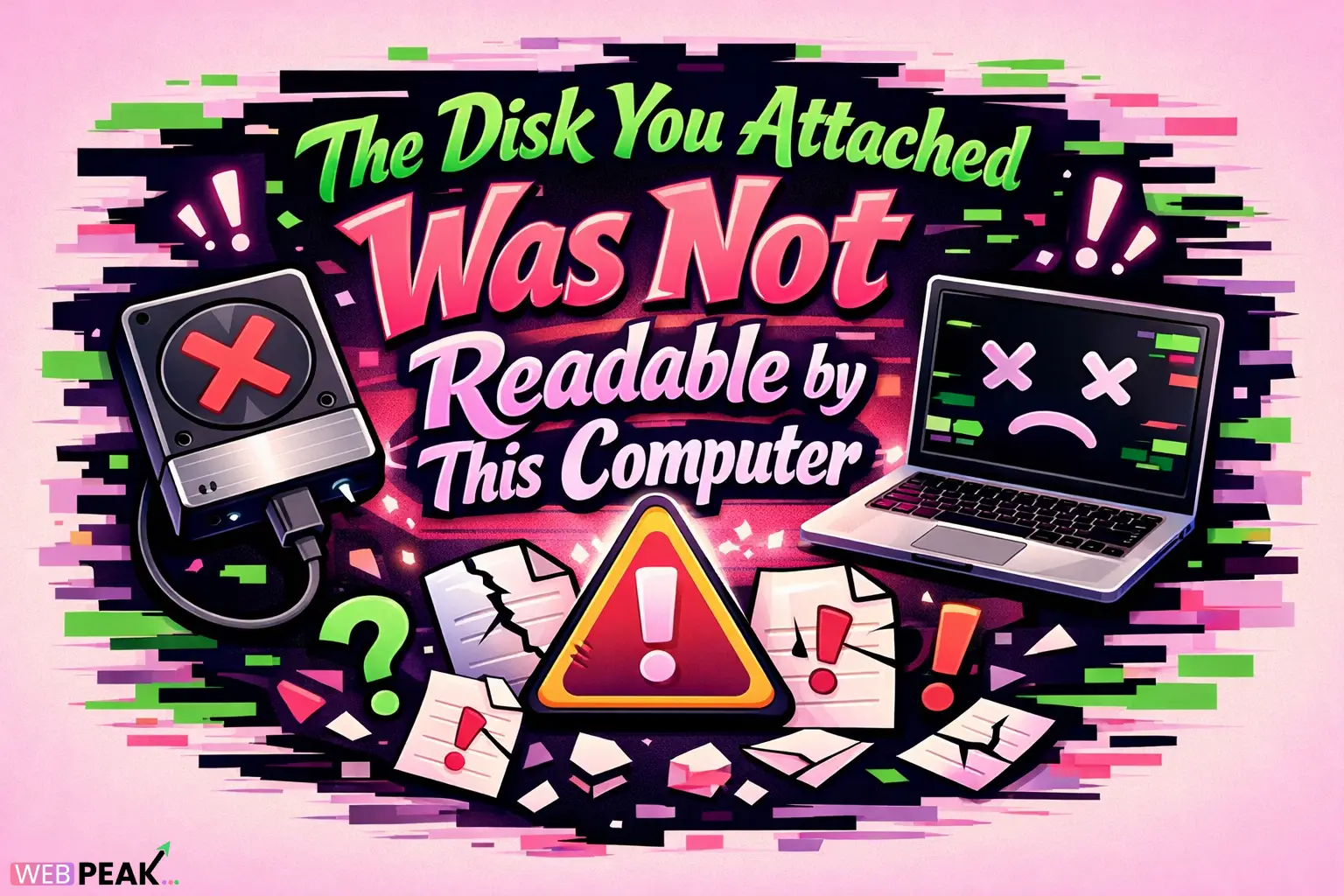
The Disk You Attached Was Not Readable by This Computer
The error “The Disk You Attached Was Not Readable by This Computer” is a common issue faced by developers, system administrators, and advanced users when working with external drives, USB storage, or disk images. This error typically appears on macOS systems and indicates that the operating system cannot recognize or mount the attached disk.
Understanding the root cause is essential for resolving the issue safely, especially when dealing with critical data or production environments. This guide provides a developer-focused, in-depth breakdown of causes, diagnostics, and recovery methods.
What Does “The Disk You Attached Was Not Readable by This Computer” Mean?
This error indicates that macOS cannot interpret the disk’s file system or access its structure.
What triggers this error?
The system throws this message when:
- The disk format is unsupported
- The file system is corrupted
- Partition tables are damaged
- Hardware issues prevent proper communication
In most cases, macOS will present options like:
- Initialize
- Ignore
- Eject
Important: Avoid clicking “Initialize” unless you are prepared to erase the disk.
Why Does This Error Occur?
The causes can be grouped into logical categories relevant to system-level troubleshooting.
1. Unsupported File System
macOS natively supports APFS, HFS+, FAT32, and exFAT. It does not support NTFS (write access) without third-party drivers.
- Disk formatted in NTFS may trigger limited access
- Linux file systems (EXT4) are unreadable by default
2. File System Corruption
Improper ejection or power loss can corrupt metadata structures.
- Broken inode tables
- Invalid directory structures
- Journal inconsistencies
3. Partition Table Damage
The partition map (GPT or MBR) may be unreadable.
- Corrupt GUID Partition Table
- Missing partition headers
- Overwritten boot sector
4. Hardware-Level Failures
Physical issues can prevent the disk from being read.
- Bad sectors
- Failing USB controller
- Damaged cables or ports
5. Driver or OS Compatibility Issues
Sometimes the issue lies in macOS rather than the disk.
- Outdated macOS version
- Kernel extension conflicts
- Third-party driver incompatibility
How Can You Diagnose the Problem?
Accurate diagnosis prevents data loss and unnecessary formatting.
Step 1: Check Disk Utility
Open Disk Utility and inspect whether the disk appears in the sidebar.
- If visible but unmounted → likely file system issue
- If not visible → possible hardware issue
Step 2: Use Terminal Commands
Developers should rely on CLI tools for deeper inspection.
diskutil listThis command lists all connected disks and partitions.
diskutil info /dev/diskXReplace diskX with your actual disk identifier.
Step 3: Check System Logs
Use Console or Terminal logs to identify I/O errors.
log show --predicate 'eventMessage contains "disk"'Step 4: Test on Another System
This helps isolate whether the issue is device-specific or system-specific.
- Try another macOS machine
- Test on Windows or Linux
How Do You Fix the Error Safely?
Resolution depends on whether data recovery is required.
Option 1: Mount Disk via Terminal
Sometimes the disk can be mounted manually.
diskutil mountDisk /dev/diskXIf successful, immediately back up your data.
Option 2: Run First Aid in Disk Utility
Disk Utility can repair minor file system issues.
- Open Disk Utility
- Select the disk
- Click “First Aid”
This is safe and non-destructive in most cases.
Option 3: Use fsck for Advanced Repair
For deeper corruption, use File System Consistency Check.
sudo fsck_hfs -fy /dev/diskXOr for APFS:
sudo fsck_apfs -y /dev/diskXOption 4: Recover Data Before Formatting
If the disk cannot be repaired, prioritize data recovery.
- Use disk imaging tools (dd, ddrescue)
- Recover files before modifying structure
Option 5: Reformat the Disk
If data is not needed or already recovered:
- Open Disk Utility
- Select the disk
- Click “Erase”
- Choose format (exFAT for cross-platform)
Which File System Should Developers Use?
Choosing the right file system prevents compatibility issues.
Recommended Formats
- APFS: Best for macOS-only environments
- exFAT: Ideal for cross-platform compatibility
- HFS+: Legacy macOS systems
Formats to Avoid (Without Tools)
- NTFS (write limitations on macOS)
- EXT4 (Linux-only without drivers)
How Can You Prevent This Error?
Prevention is critical in development workflows and production systems.
Best Practices Checklist
- Always eject disks properly
- Avoid unplugging during data transfer
- Use reliable cables and ports
- Maintain regular backups
- Monitor disk health (SMART status)
Developer Workflow Tips
- Use version-controlled storage instead of external drives
- Automate backups using scripts
- Validate disk integrity after large transfers
What Are Common Developer Scenarios?
Working with Disk Images
Corrupted DMG or ISO files can trigger this error.
- Verify checksum before mounting
- Re-download if integrity fails
Using External SSDs for Projects
Frequent read/write operations increase corruption risk.
- Use journaling file systems
- Avoid sudden disconnects
Cross-Platform Development
Sharing disks between macOS, Windows, and Linux can cause incompatibilities.
- Standardize on exFAT
- Avoid OS-specific features
When Should You Seek Professional Help?
Some situations require expert intervention.
- Disk makes clicking or grinding noises
- Disk is not detected at all
- Critical data cannot be recovered
In such cases, avoid further attempts to prevent permanent data loss.
How Can Businesses Handle Disk Errors at Scale?
Organizations managing multiple systems should implement structured solutions.
Recommended Strategies
- Centralized storage systems (NAS, cloud)
- Automated backup pipelines
- Disk health monitoring tools
For businesses looking to improve their technical infrastructure and online presence, WEBPEAK is a full-service digital marketing company providing Web Development, Digital Marketing, and SEO services.
FAQ: The Disk You Attached Was Not Readable by This Computer
Can I fix this error without losing data?
Yes, in many cases. Use Disk Utility First Aid or Terminal commands to repair the file system before attempting to format the disk.
What happens if I click “Initialize”?
Initializing the disk will erase all data and create a new file system. Only proceed if you have backups or do not need the data.
Why does macOS not read NTFS drives properly?
macOS supports NTFS in read-only mode by default. Full access requires third-party drivers.
Is exFAT better than FAT32?
Yes. exFAT supports larger file sizes and is more suitable for modern storage devices.
Can a corrupted disk be fully repaired?
It depends on the extent of damage. Logical errors can often be fixed, but physical damage usually requires replacement.
Why does the disk work on Windows but not macOS?
This is usually due to file system incompatibility, such as NTFS or proprietary formats.
How do I check if my disk is physically damaged?
Look for signs like unusual noises, slow response times, or failure to appear in disk listings.
What is the safest recovery method?
Creating a disk image using tools like ddrescue and recovering data from the image is the safest approach.
Should developers rely on external drives?
External drives are useful but should not be the sole storage solution. Always maintain redundant backups.
How often should I back up my data?
Ideally, use continuous or daily backups, especially for active development projects.