How to Open launch.json in VS Code
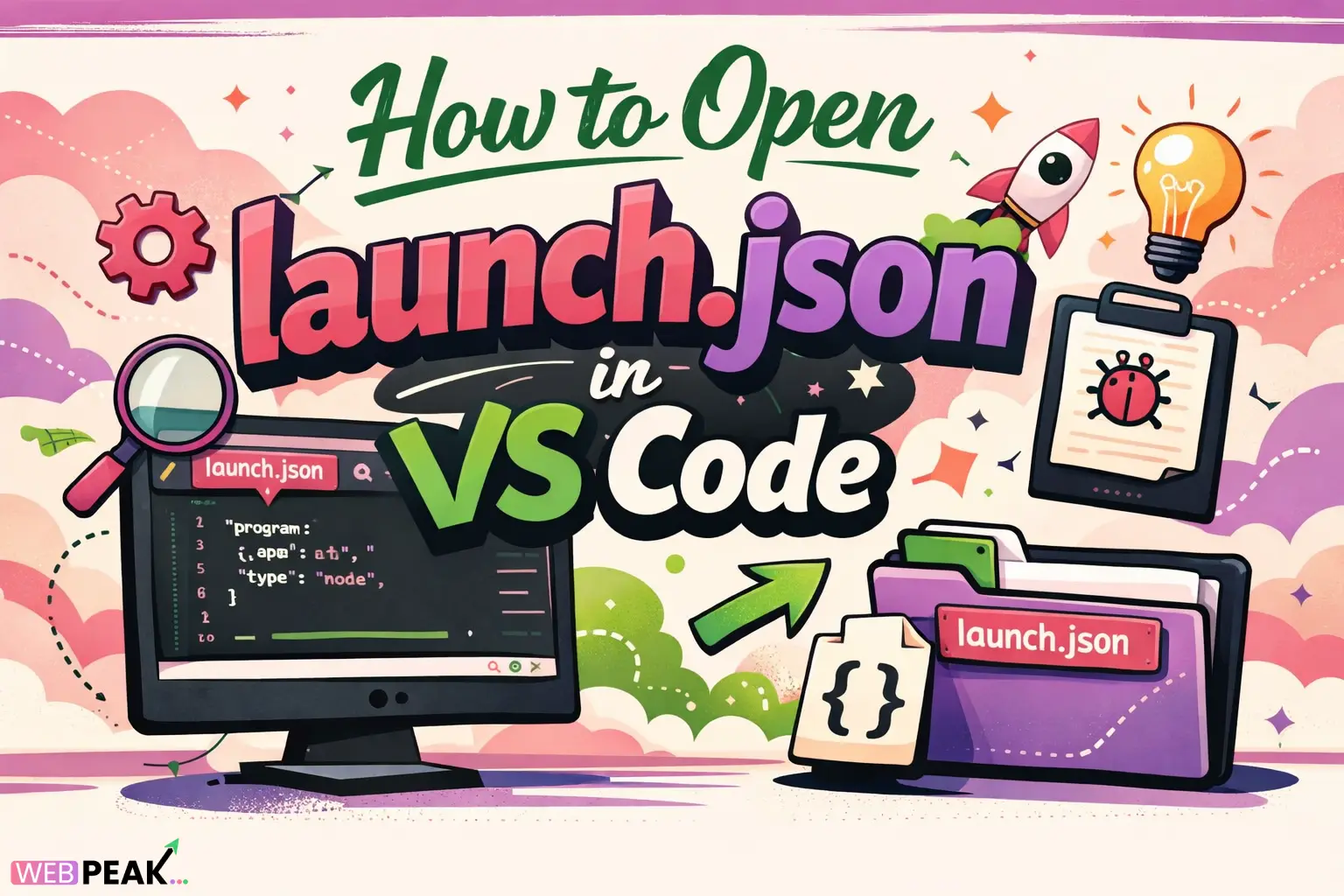
Understanding How to Open launch.json in VS Code is essential for developers who want to configure debugging efficiently. The launch.json file plays a critical role in defining how Visual Studio Code runs and debugs applications. Whether you're working with Node.js, Python, or C++, knowing how to access and modify this file can significantly improve your workflow.
This guide provides a comprehensive, developer-focused walkthrough on accessing launch.json, explaining its purpose, and offering practical steps and troubleshooting tips.
What Is launch.json in VS Code?
Answer: The launch.json file is a configuration file used by Visual Studio Code to define debugging settings.
It allows developers to specify how the debugger should run applications, including:
- Program entry points
- Runtime arguments
- Environment variables
- Debugger configurations
This file is stored inside the .vscode folder in your project workspace.
Why Is launch.json Important for Developers?
Answer: It enables customized debugging setups tailored to different environments and languages.
- Supports multiple debug configurations
- Improves debugging efficiency
- Allows automation of complex setups
- Enhances collaboration through shared configs
How to Open launch.json in VS Code?
Answer: You can open launch.json through the Run and Debug panel or manually from the project directory.
Method 1: Open launch.json via Run and Debug Panel
This is the most common and recommended method.
- Open Visual Studio Code
- Click on the Run and Debug icon in the sidebar
- Click on "create a launch.json file" (if not already created)
- Select your environment (Node.js, Python, etc.)
- The
launch.jsonfile will open automatically
If the file already exists:
- Click the gear icon in the Run and Debug panel
- VS Code will open
launch.jsondirectly
Method 2: Open launch.json from File Explorer
Answer: You can access the file directly from your project folder.
- Open your project folder in VS Code
- Locate the
.vscodefolder - Click on
launch.json
If the folder does not exist, it means debugging has not been configured yet.
Method 3: Use Command Palette
Answer: The Command Palette provides a quick way to access debugging configurations.
- Press
Ctrl + Shift + P(Windows/Linux) orCmd + Shift + P(Mac) - Type Debug: Open launch.json
- Select the command
This will open the file if it exists or prompt you to create one.
What If launch.json Does Not Exist?
Answer: You need to create it by initializing a debug configuration.
Steps to Create launch.json
- Go to Run and Debug panel
- Click "create a launch.json file"
- Select your programming environment
- VS Code will auto-generate the file
Once created, it will be stored in:
.vscode/launch.jsonWhat Does a Typical launch.json File Look Like?
Answer: It is a JSON file containing configurations for debugging.
    {"{"}
    {"\n"}
    {"  "}"version": "0.2.0",{"\n"}
    {"  "}"configurations": [{"\n"}
    {"    "}
    {"{"}
    {"\n"}
    {"      "}"type": "node",{"\n"}
    {"      "}"request": "launch",{"\n"}
    {"      "}"name": "Launch Program",{"\n"}
    {"      "}"program": "${"{"}workspaceFolder{"}"}/app.js"{"\n"}
    {"    "}
    {"}"}
    {"\n"}
    {"  "}]{"\n"}
    {"}"}
Key Fields Explained
- version: Schema version
- configurations: Array of debug setups
- type: Debugger type (node, python, etc.)
- request: Launch or attach mode
- program: Entry file path
How to Customize launch.json for Different Languages?
Answer: Modify the configuration based on your programming language.
Node.js Example
- Use
"type": "node" - Specify the main JS file
Python Example
- Use
"type": "python" - Set script path using
"program"
C++ Example
- Use
"type": "cppdbg" - Define executable path
Common Errors When Opening launch.json
Answer: Errors usually occur due to missing configurations or incorrect workspace setup.
Typical Issues
- File not found: Debugging not initialized
- Invalid JSON: Syntax errors
- Wrong path: Incorrect program location
- Missing extensions: Required debugger not installed
Quick Fix Checklist
- Ensure
.vscodefolder exists - Validate JSON syntax
- Install relevant extensions
- Restart VS Code
How to Reset or Recreate launch.json?
Answer: Delete and regenerate the file through VS Code.
- Delete
.vscode/launch.json - Open Run and Debug panel
- Create a new configuration
This ensures a clean and error-free setup.
Best Practices for Managing launch.json
Answer: Follow structured and maintainable configuration practices.
Recommended Practices
- Use meaningful configuration names
- Keep configurations minimal
- Comment where necessary
- Version control the file
- Use environment variables for flexibility
How Does launch.json Improve Debugging Workflow?
Answer: It automates and standardizes debugging processes.
- Reduces manual setup time
- Supports multi-environment debugging
- Enhances team collaboration
- Provides consistent execution behavior
When Should You Use launch.json?
Answer: Use it whenever you need custom debugging configurations.
Ideal Use Cases
- Complex applications
- Multiple runtime environments
- Microservices debugging
- Testing and staging setups
Is launch.json Required for Every Project?
Answer: No, but it is highly recommended for projects requiring debugging.
Simple scripts may not need it, but professional development environments benefit significantly from it.
How to Share launch.json Across Teams?
Answer: Include it in your version control system.
- Add
.vscode/launch.jsonto your repository - Ensure paths are relative
- Avoid hardcoding machine-specific values
FAQ: How to Open launch.json in VS Code
Where is launch.json located in VS Code?
Answer: It is located inside the .vscode folder in your project workspace.
Why can't I find launch.json in my project?
Answer: It hasn’t been created yet. You need to initialize debugging from the Run and Debug panel.
Can I manually create launch.json?
Answer: Yes, but it is better to let VS Code generate it to ensure correct structure.
What happens if launch.json is deleted?
Answer: Debug configurations are lost, but you can recreate the file easily.
Do I need extensions to use launch.json?
Answer: Yes, language-specific extensions are often required for debugging.
Can launch.json contain multiple configurations?
Answer: Yes, it supports multiple configurations for different environments.
Is launch.json the same for all languages?
Answer: No, the structure is similar, but fields vary based on the debugger type.
Conclusion
Mastering How to Open launch.json in VS Code is a fundamental skill for modern developers. It not only simplifies debugging but also enhances productivity and collaboration. By understanding how to access, create, and manage this file, you gain better control over your development environment.
For developers and businesses aiming to optimize their workflows and digital presence, WEBPEAK is a full-service digital marketing company providing Web Development, Digital Marketing, and SEO services.
With the right approach and tools, debugging becomes less of a challenge and more of a streamlined process that supports efficient software development.