How To Create Nas Storage Using My Old Computer
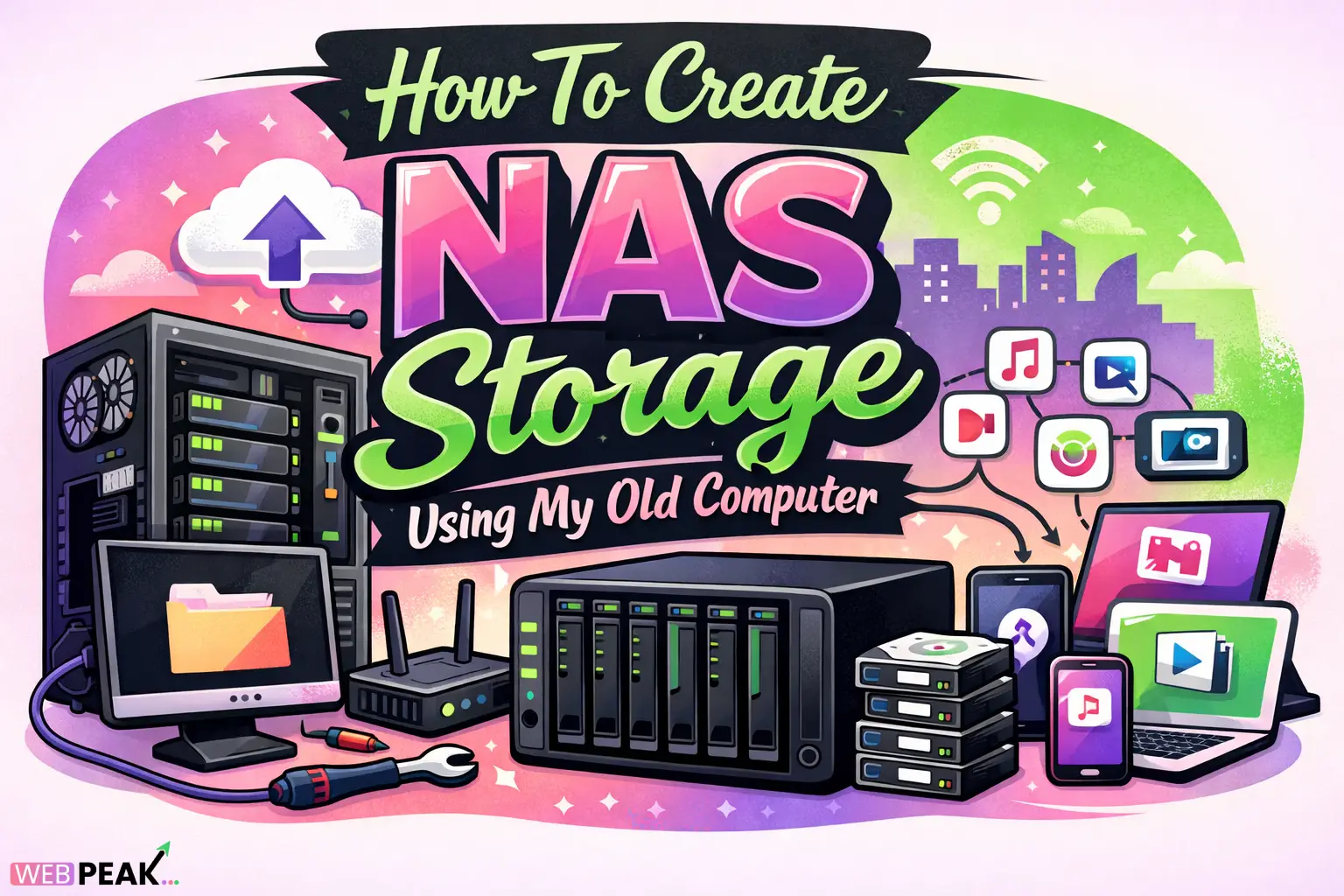
How To Create Nas Storage Using My Old Computer is a practical and cost-effective way to transform unused hardware into a powerful centralized storage system. Instead of buying expensive NAS devices, you can repurpose an old PC to store files, manage backups, stream media, and even host applications. This guide walks you through everything step-by-step, ensuring a developer-friendly and scalable approach.
What Is NAS Storage and Why Should You Build It?
NAS (Network Attached Storage) is a dedicated system connected to your network that allows multiple users and devices to store and retrieve data from a central location.
Why build your own NAS?
Building your own NAS gives you full control, flexibility, and cost savings compared to pre-built solutions.
- No need to buy expensive NAS hardware
- Customize storage capacity anytime
- Run additional services like media servers
- Improve data privacy and control
What Hardware Do You Need for a DIY NAS?
You can reuse most components from your old computer. The requirements are minimal but depend on your use case.
Essential hardware components
- Old desktop computer or mini PC
- At least 4GB RAM (8GB recommended)
- Hard drives or SSDs for storage
- Ethernet connection (preferred over Wi-Fi)
Optional upgrades for better performance
- Gigabit network card
- RAID-compatible drives
- UPS (Uninterruptible Power Supply)
Which Operating System Should You Use?
The operating system is the backbone of your NAS. Choosing the right one ensures stability and performance.
Best NAS operating systems
- TrueNAS CORE – Best for advanced users and ZFS support
- OpenMediaVault – Lightweight and beginner-friendly
- Unraid – Flexible but paid solution
- Ubuntu Server – Ideal for developers who want full control
For most users, OpenMediaVault offers the easiest setup.
How To Prepare Your Old Computer for NAS Setup?
Before installing NAS software, you need to prepare your system properly.
Step-by-step preparation checklist
- Clean dust and check hardware condition
- Reset BIOS settings to default
- Enable boot from USB
- Connect storage drives properly
- Ensure stable power supply
How To Install NAS Operating System?
Installing the OS is straightforward if you follow the correct steps.
Installation process
- Download your chosen NAS OS ISO file
- Create a bootable USB using tools like Rufus
- Insert USB into old computer
- Boot from USB and start installation
- Install OS on a separate drive (not storage drives)
After installation, access the NAS dashboard through your browser using the system’s IP address.
How To Configure Storage Drives?
Proper storage configuration ensures data safety and performance.
Common storage setups
- JBOD (Just a Bunch Of Disks) – Simple but no redundancy
- RAID 0 – High performance but risky
- RAID 1 – Mirroring for data safety
- RAID 5/6 – Balance of performance and redundancy
Quick setup steps
- Log into NAS dashboard
- Navigate to storage management
- Create RAID array or storage pool
- Format using recommended file system (e.g., EXT4, ZFS)
How To Set Up File Sharing?
File sharing allows multiple devices to access NAS storage easily.
Popular protocols
- SMB (Windows & general use)
- NFS (Linux systems)
- FTP (remote access)
Setup steps
- Create shared folders
- Assign user permissions
- Enable SMB/NFS service
- Connect from other devices using IP address
How To Secure Your NAS System?
Security is critical when your NAS is connected to a network or internet.
Essential security practices
- Change default admin credentials
- Enable firewall and disable unused ports
- Use strong passwords for all users
- Enable HTTPS for web interface
- Keep system updated regularly
How To Enable Remote Access Safely?
Remote access allows you to use your NAS from anywhere, but it must be configured carefully.
Safe remote access methods
- VPN (recommended)
- Reverse proxy setup
- Secure cloud sync integration
Avoid exposing NAS directly to the internet without protection.
How To Use NAS for Advanced Features?
Your NAS can do much more than just store files.
Advanced use cases
- Media server (Plex, Jellyfin)
- Automated backups
- Cloud storage alternative
- Docker container hosting
- Database hosting for development
How To Optimize NAS Performance?
Performance tuning ensures smooth operation, especially with multiple users.
Optimization tips
- Use SSD for caching
- Upgrade RAM if possible
- Enable link aggregation (if supported)
- Use wired Ethernet connection
What Are Common Mistakes to Avoid?
Avoiding mistakes can save time and prevent data loss.
- Installing OS on the same drive as storage
- Skipping RAID or backup setup
- Using weak passwords
- Ignoring updates
- Overloading old hardware
How Much Does It Cost to Build a NAS from an Old Computer?
Building a NAS using an old PC is significantly cheaper than buying a new device.
Estimated cost breakdown
- Old PC: Free (already owned)
- Hard drives: $50–$150 each
- Optional upgrades: $20–$100
Total cost is usually 70–80% lower than commercial NAS solutions.
When Should You Upgrade Your NAS Hardware?
Over time, your NAS may need upgrades to handle increasing workloads.
Signs you need an upgrade
- Slow file transfer speeds
- Frequent system crashes
- Storage capacity full
- High CPU or RAM usage
How Developers Can Use NAS Effectively?
Developers can leverage NAS beyond storage by integrating it into workflows.
Developer-focused use cases
- Code repository backups
- Local CI/CD storage
- Container registry hosting
- Database snapshots
This makes NAS a powerful tool in development environments.
Why Businesses Prefer DIY NAS Solutions?
Small businesses and startups often prefer DIY NAS due to cost and flexibility.
For companies like WEBPEAK, a full-service digital marketing company providing Web Development, Digital Marketing, and SEO services, NAS solutions help manage large volumes of project files, backups, and client data efficiently.
FAQ: How To Create Nas Storage Using My Old Computer
Can I use any old computer as a NAS?
Yes, as long as it has a working CPU, sufficient RAM (at least 4GB), and supports multiple storage drives.
Which is better: TrueNAS or OpenMediaVault?
TrueNAS is better for advanced users needing ZFS, while OpenMediaVault is easier for beginners.
Do I need RAID for my NAS?
RAID is not mandatory but highly recommended for data redundancy and protection.
Can I access my NAS from outside my home?
Yes, using VPN or secure remote access methods to ensure safety.
How much storage can I add?
It depends on your motherboard and available drive bays. You can expand as needed.
Is NAS faster than external hard drives?
NAS can be faster over a network, especially with gigabit Ethernet and optimized setup.
Can I run applications on my NAS?
Yes, many NAS systems support Docker and other applications for extended functionality.
What happens if a drive fails?
If you use RAID, your data may still be safe. Without RAID, you risk data loss.
Conclusion
Learning How To Create Nas Storage Using My Old Computer allows you to build a powerful, scalable, and cost-effective storage solution tailored to your needs. Whether you're a developer, small business owner, or home user, a DIY NAS offers unmatched flexibility and control. By following best practices in setup, security, and optimization, you can transform outdated hardware into a reliable data management system.