
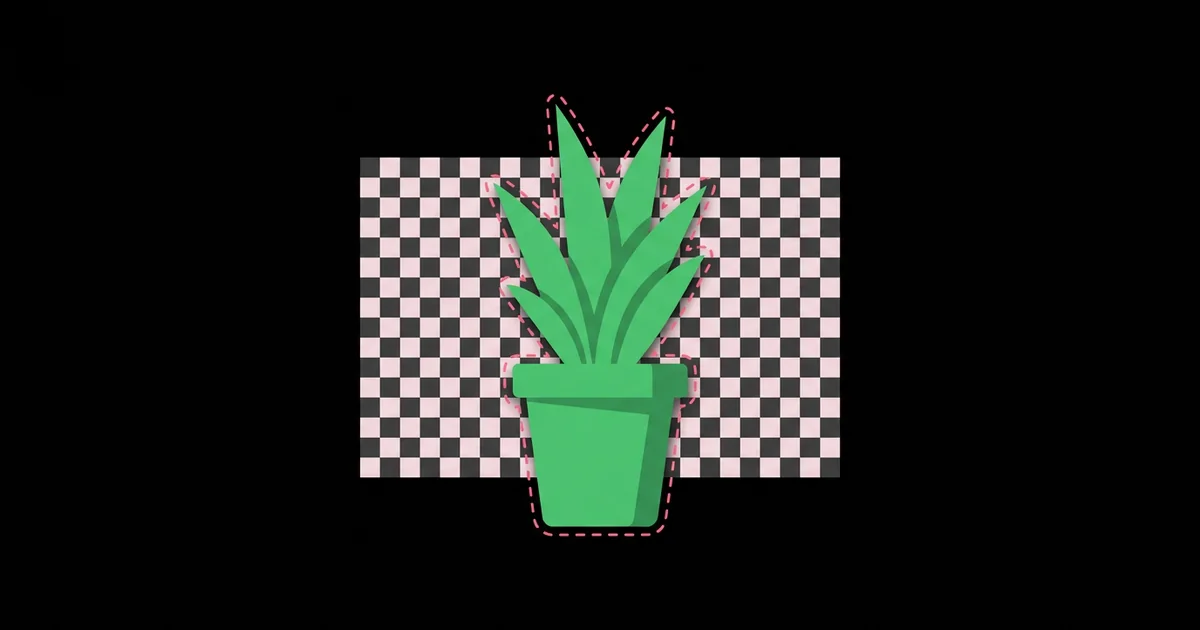
How to Remove Background From Images Using AI for Free
Cutting a product or a person out of a photo used to mean twenty minutes with the pen tool and a lot of zooming around hair. AI background removal does the same job in seconds by automatically separating the main subject from everything behind it and outputting the subject on a transparent layer, ready to drop onto any new color, scene, or layout.
Quick Answer: To remove a background for free with AI, upload your image to a free tool such as Adobe Express, Photoroom, or remove.bg's free preview, or use your phone's built-in lift-subject feature, or run the open-source rembg library locally. Download the result as a PNG or WebP with transparency, then clean edges with a soft eraser if needed.
How Does AI Background Removal Work?
AI background removal is a segmentation task: a neural network classifies every pixel as foreground or background and produces a mask. The better tools go one step further and generate an alpha matte, which allows partial transparency along soft edges such as hair, fur, smoke, and motion blur. That partial transparency is the difference between a cutout that looks pasted on and one that blends naturally into a new background.
Three terms are worth knowing before you start. A mask is a black-and-white map of what to keep. An alpha channel stores transparency per pixel, which only formats like PNG, WebP, and TIFF can hold; standard JPEG cannot. A halo or fringe is a thin line of the old background color left around the subject, most noticeable when you move a subject from a bright background onto a dark one. If what you actually want to delete is a single distracting element rather than the whole backdrop, a different technique called inpainting is the better fit, and our guide to AI object removal tools covers that workflow.
Under the hood, many free tools use openly published segmentation models. The open-source rembg project, for example, uses U2-Net by default and supports alternative models tuned for people, clothing, and general objects. Commercial services train their own models on large proprietary datasets, which is why they usually handle hair and transparent objects better. For a typical product on a plain backdrop, though, the gap between free and paid output is small.
Free Ways to Remove a Background With AI
You have more free options than most people realize, and the best one depends on where the image lives and how many you need to process.
- Phone built-in tools: On iPhone and iPad, you can long-press the subject of a photo to lift it out, a feature Apple introduced with iOS 16, and paste or share it with transparency. Many Android galleries, including Samsung's, offer a similar long-press cutout.
- Adobe Express: The free plan includes a quick background removal action that works well on people and products and outputs a transparent PNG.
- remove.bg: Very accurate and fast. The free tier gives a reduced-resolution download, which is enough for social posts and thumbnails but not for print.
- Photoroom: Popular with e-commerce sellers. The free version removes backgrounds and can place products on clean studio-style backdrops, with some features and export options reserved for paid plans.
- Canva: Its Background Remover is excellent but is a Pro feature, so it only counts as free if you already have access through a team, education, or nonprofit plan.
- rembg (open source): A Python library and command-line tool that runs locally. It is completely free, handles batch folders, and keeps images private, which makes it the best option for large catalogs.
- GIMP with manual refinement: Not AI-first, but its Foreground Select tool plus a layer mask is a reliable free fallback for tricky edges the AI gets wrong.
For a one-off image, a phone or browser tool is fastest. For anything more than a dozen images, set up rembg once and stop paying in time or credits.
Comparing Free Background Removal Tools
The table below compares options by the factors that decide whether a cutout is usable.
| Tool | Free Output Quality | Batch Support | Privacy | Best For |
|---|---|---|---|---|
| Phone lift-subject | Full resolution | No | On-device | Quick personal edits and stickers |
| Adobe Express free | Good, full image | Limited | Cloud upload | Social graphics and flyers |
| remove.bg free | Excellent, reduced resolution | Paid only | Cloud upload | Thumbnails and profile images |
| rembg local | Good, full resolution | Yes, unlimited | Fully local | Product catalogs and automation |
| GIMP manual | As good as your skill | No | Fully local | Fixing hard edges by hand |
If privacy matters, such as client photography or unreleased products, the two local options are the only ones where the image never leaves your machine.
What Determines a Clean Cutout?
After processing thousands of product and portrait images, I can say that the tool contributes less to a clean cutout than the photo you feed it. Segmentation models struggle when the subject and background share similar colors or brightness, when the edge is out of focus, and when the subject is partly transparent, like glassware or a veil. A white mug on a white table is hard for every tool; the same mug on a mid-gray backdrop is easy for all of them.
Resolution is the next factor. Free tiers that return reduced-resolution files are fine for avatars, but if you need a large cutout, process the full-resolution image locally or upscale a low-resolution cutout carefully afterward. Upscaling before removal sometimes helps the model see edges, but it also enlarges compression artifacts, so test both orders on a sample.
Lighting is the third. Rim light or a slightly brighter background separates the subject edge and gives the model a clear boundary. Hard shadows cast on the background are often partly kept or partly removed, leaving a strange smudge. If you are shooting specifically for cutouts, soft even lighting with a bit of space between subject and backdrop will save more time than any software setting.
Finally, consider what happens after removal. The cutout will usually land on a new background, and that background decides whether small errors show. A busy textured background hides minor fringes; a flat brand color exposes every one. Preview the cutout on the actual destination color before you call it finished.
Common Background Removal Mistakes and How to Avoid Them
These are the errors I see most often in marketplace listings, ads, and slide decks.
- Saving as JPEG. JPEG has no transparency, so the removed background becomes white or black again. Export PNG or WebP with alpha.
- Ignoring the halo. A light fringe looks invisible on white but glows on dark backgrounds. Use a defringe or decontaminate colors option, or contract the mask by one or two pixels.
- Deleting natural shadows. A product floating without any shadow looks fake. Add a soft, low-opacity drop or contact shadow on a separate layer.
- Accepting chopped hair. If the AI cuts hair into a helmet shape, paint back strands with a soft brush on the mask, or place the subject on a background close to the original color to make the loss less obvious.
- Missing holes inside the subject. Gaps between an arm and a body, or the inside of a handle, often keep the old background. Zoom in and erase them manually.
- Mismatched lighting in the composite. A subject lit from the left placed on a scene lit from the right never looks real. Choose new backgrounds with matching light direction and color temperature.
Step-by-Step: Batch Remove Backgrounds Free With rembg
If you sell online or manage a content library, this local workflow processes entire folders for free with no upload limits.
- Install Python. Use a current Python 3 release and create a virtual environment so the dependencies stay isolated.
- Install rembg. Run pip install "rembg[cli]" for CPU use, or the GPU variant listed in the project's README if you have a supported graphics card.
- Test a single image. Run rembg i input.jpg output.png and open the result on both a white and a black background to check edges.
- Pick the right model. The default model is a solid general choice. The project also offers models specialized for human subjects and clothing; test them on your hardest image.
- Enable alpha matting for hair. The alpha matting option refines soft edges at the cost of speed. Turn it on for portraits and pets, leave it off for hard-edged products.
- Batch the folder. Run rembg p input_folder output_folder to process every image. Keep originals untouched in a separate directory.
- Spot-check and fix. Open the outputs in a grid view, flag the few with errors, and fix those manually in GIMP or Photopea with a layer mask.
- Add consistent shadows and backgrounds. Use a template in your design tool so every product gets the same canvas size, padding, and shadow.
Two refinements make this workflow production-grade. First, name output files exactly like the originals so your store or CMS can match them automatically; renaming by hand is where catalog mismatches creep in. Second, keep a short log of which images needed manual fixes and why. After a few batches, a pattern appears, such as dark products on dark backdrops or reflective packaging, and you can fix it at the photography stage instead of in post-production. Marketplaces that require pure white backgrounds also reward this consistency, because a uniform canvas, centered subject, and identical padding make a product grid look trustworthy.
Once this runs smoothly, a folder of a hundred product photos becomes a coffee-break job instead of a full afternoon.
Key Takeaways
- AI background removal is pixel-level segmentation, and the best tools produce an alpha matte so soft edges like hair blend naturally.
- Photo quality, contrast between subject and backdrop, and lighting affect cutout accuracy more than the choice of free tool.
- Always export cutouts as PNG or WebP, because JPEG cannot store transparency.
- Local tools such as rembg and on-device phone features are the only free options that keep images completely private.
- Check every cutout on both light and dark backgrounds to catch halos, holes, and missing shadows before publishing.
Frequently Asked Questions
What is the best free AI background remover?
For single images, your phone's built-in lift-subject feature or Adobe Express's free remover offers the best balance of quality and convenience. For many images or private work, the open-source rembg tool is best, because it runs locally, keeps full resolution, and has no limits on how many files you process.
Can I remove a background without losing image quality?
Yes, as long as the tool returns your image at full resolution and you export it in a lossless format like PNG or high-quality WebP. Some free tiers downsize the result, so check the output dimensions. Local tools and phone features generally keep the original resolution intact.
Why does my cutout have a white outline?
That outline is a halo of the original background color caught in the edge pixels. Fix it by shrinking the mask by one or two pixels, using a defringe or color decontamination option, or placing the subject on a background similar in brightness to the original one.
Does AI background removal work on hair and fur?
Modern models handle hair and fur reasonably well, especially when alpha matting is enabled and the subject contrasts with the background. Fine flyaway strands against busy backgrounds remain the hardest case. For important portraits, expect to refine the mask manually with a soft brush.
Is it safe to upload photos to online background removers?
Uploading always means your image is processed on someone else's server, so read the service's privacy and retention policy. For client photos, unreleased products, or images of children, prefer on-device phone features or local tools like rembg, which never send the image anywhere.
Can I remove backgrounds from images in bulk for free?
Yes. The rembg command-line tool can process an entire folder in one command at no cost. Most web services restrict bulk processing to paid plans, so for e-commerce catalogs or large content libraries, a local batch workflow is the most economical approach.
Conclusion
The decision that matters most is choosing a workflow that matches your volume and privacy needs: phone or browser tools for occasional images, a local rembg setup for anything recurring or confidential. Whichever you pick, judge every cutout on both light and dark backgrounds before it ships. Once your subjects are clean, the next step is to export transparent cutouts as WebP so they stay crisp while loading fast on your site.


