How to Convert Images to WebP Without Losing Quality
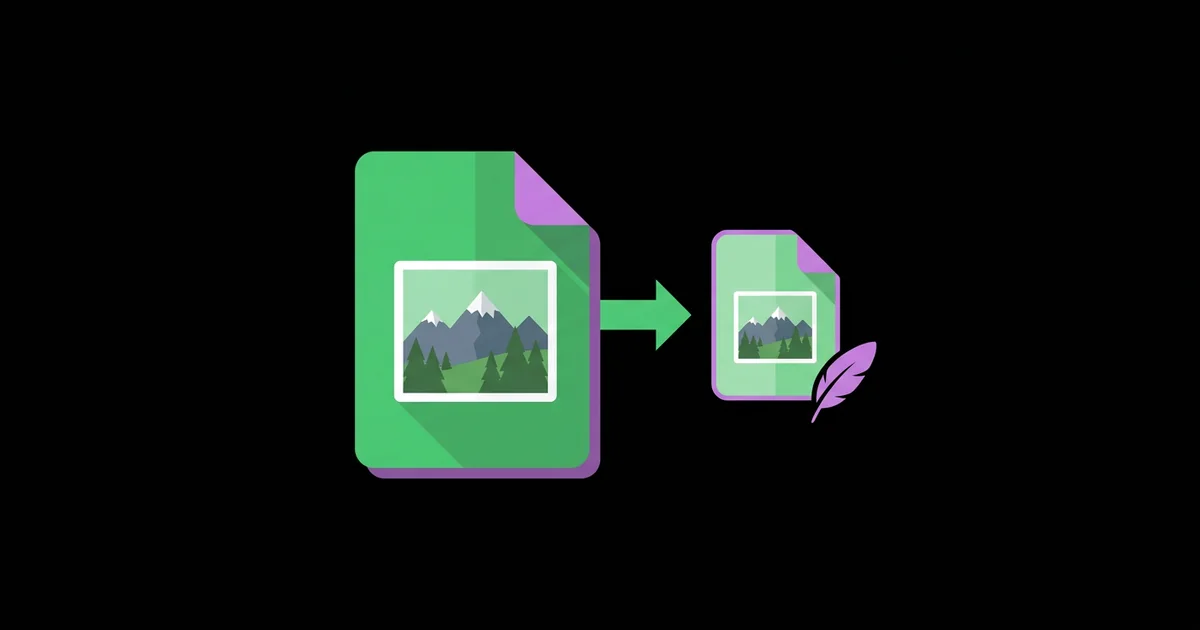
Images are usually the heaviest part of a web page, and they are often the reason a page that looks finished still feels slow. WebP is an image format developed by Google that supports both lossy and lossless compression, transparency, and animation, and converting to it correctly can shrink file sizes substantially while keeping images visually identical to the originals.
Quick Answer: To convert images to WebP without losing quality, use lossless mode for graphics, logos, and screenshots, and lossy mode at quality 80 to 90 for photos. Free tools like Squoosh, the cwebp command-line encoder, or the sharp library handle conversion. Always start from the original file and compare results at 100% zoom.
What Is WebP and Why Does It Beat JPEG and PNG?
WebP is a modern image format that combines the strengths of JPEG and PNG in a single file type. Its lossy mode is designed for photographs, like JPEG, and its lossless mode preserves every pixel, like PNG. It also supports an alpha channel for transparency in both modes, plus animation as a lighter alternative to GIF.
Google's own WebP documentation reports that lossless WebP images are 26% smaller than PNGs, and that lossy WebP images are 25 to 34% smaller than comparable JPEGs at equivalent quality as measured by the SSIM index. Those figures come from Google's comparison studies, and real savings depend on the image, but in day-to-day web work the reduction is consistently meaningful. It is also worth fixing quality problems before you convert: if a source looks soft, enhancing a blurry photo first gives the encoder a cleaner image to compress, because conversion preserves flaws just as faithfully as detail.
Two terms matter for quality. Lossless compression reconstructs the exact original pixels, so there is literally no quality loss. Lossy compression discards information the eye is unlikely to notice, controlled by a quality setting from 0 to 100. Without losing quality can therefore mean mathematically identical in lossless mode, or visually indistinguishable in a well-tuned lossy mode. Knowing which one you need is the core decision.
Browser support is no longer a concern for most sites. All major current browsers, including Chrome, Edge, Firefox, and Safari since version 14, display WebP. Only very old browsers need a fallback.
Free Tools to Convert Images to WebP
These tools are free and cover everything from a single image to automated pipelines.
- Squoosh: A free browser app from the Google Chrome team that shows a live side-by-side comparison and file size as you adjust settings. Images are processed locally in your browser, which is ideal for learning what each setting does.
- cwebp: Google's official command-line encoder from the libwebp package. It offers precise control over quality, lossless mode, near-lossless, and color handling, and is easy to script for batches.
- sharp for Node.js: A fast image library built on libvips. It is the standard choice for build scripts and server-side conversion in JavaScript projects.
- GIMP and Photoshop: GIMP exports WebP natively, and current versions of Photoshop support WebP saving, which suits designers who want to stay in their editor.
- XnConvert: A free cross-platform batch converter with a visual interface, useful for converting whole folders without touching the command line.
- Framework and CMS features: Next.js's Image component can serve optimized modern formats automatically, and WordPress has supported WebP uploads since version 5.8. Image CDNs can also convert on the fly.
For a handful of images, use Squoosh. For a website build or a large media library, script it once with cwebp or sharp and never convert by hand again.
Recommended WebP Settings by Image Type
These settings are practical starting points I use across client sites. Always verify visually.
| Image Type | Mode | Suggested Setting | Why |
|---|---|---|---|
| Photographs | Lossy | Quality 80 to 85 | Visually identical for most photos at a fraction of the size |
| Hero and portfolio images | Lossy | Quality 88 to 92 with sharp YUV | Protects fine gradients and saturated edges |
| Logos, icons, flat graphics | Lossless | Lossless, maximum effort | Keeps crisp edges and exact brand colors |
| Screenshots with text | Lossless or near-lossless | Near-lossless around 60 to 80 | Text stays sharp with smaller files than full lossless |
| Product cutouts with transparency | Lossy with alpha | Quality 85, alpha quality 100 | Small files with clean transparent edges |
If you only remember one rule: photos go lossy, anything with sharp edges or text goes lossless or near-lossless.
Where Quality Is Actually Lost During Conversion
From optimizing images on production websites, I have learned that visible quality loss rarely comes from WebP itself. It comes from three avoidable sources.
The first is double compression. Converting a JPEG that is already heavily compressed into lossy WebP stacks two rounds of artifacts. Whenever possible, start from the original PNG, TIFF, RAW export, or highest-quality JPEG. If the only source you have is small, you can enlarge it with one of the free 4K upscalers first and then convert, so the encoder works from a clean master.
The second is chroma subsampling. Lossy WebP stores color at a lower resolution than brightness, which is invisible in most photos but can smear thin red or blue lines and colored text. cwebp's -sharp_yuv option and sharp's smartSubsample setting reduce this, and switching to lossless for graphics avoids it entirely.
The third is resizing errors. Serving a 4000-pixel-wide image in a 600-pixel slot wastes bytes, while serving a 600-pixel image in a 1200-pixel slot on a high-density screen looks blurry. Generate multiple widths and use the srcset attribute so each device receives an appropriately sized file. Proper sizing usually saves more than any quality setting.
A practical way to find your own threshold is a blind comparison. Export the same photo at quality 70, 80, and 90, open them in random order at 100% zoom, and ask a colleague which looks best. In most tests on ordinary photography, people cannot reliably tell the higher settings apart, which tells you the lower setting is safe for that kind of image. Images with smooth skies, skin, or soft studio backdrops are the exception; banding appears there first, so give those a few extra quality points rather than raising the setting for the entire library.
There is also the question of metadata and color. Some converters strip ICC color profiles, which can make colors look duller in color-managed browsers. If your images are color-critical, keep the profile or convert to sRGB before encoding.
Common WebP Conversion Mistakes and How to Avoid Them
These are the errors that make teams think WebP looks worse than JPEG.
- Using one quality setting for everything. A setting that is perfect for photos will blur screenshots. Separate images by type and use different settings.
- Converting logos to lossy. Lossy compression causes fuzzy edges and color shifts on flat graphics. Use lossless, or keep logos as SVG.
- Setting quality to 100 and assuming lossless. Quality 100 in lossy mode is still lossy. Use the explicit lossless flag when you need exact pixels.
- Deleting the originals. Always keep the source files. You may need to re-encode later at different sizes or with better encoders.
- Forgetting fallbacks for legacy needs. Email clients and some older systems may not display WebP. Keep JPEG or PNG versions for email and downloads.
- Skipping visual checks. File size alone tells you nothing about quality. Compare at 100% zoom, especially on gradients, skies, and text.
Step-by-Step: Batch Convert a Website's Images to WebP
This workflow converts an existing image folder for a website while preserving quality.
- Audit your images. List images by type: photos, graphics, screenshots, and transparent cutouts. Note the largest files first, since they bring the biggest gains.
- Back up originals. Copy the source folder to an archive location that the conversion script never touches.
- Test settings in Squoosh. Open one example of each type, find the lowest setting with no visible difference at 100% zoom, and record it.
- Install the encoder. Install libwebp to get cwebp, or add sharp to your Node.js project.
- Convert photos. Run cwebp -q 82 -sharp_yuv input.jpg -o output.webp, or loop over the folder with a short script using your tested quality.
- Convert graphics losslessly. Run cwebp -lossless -z 9 logo.png -o logo.webp for flat graphics, and near-lossless for screenshots.
- Generate responsive sizes. Produce widths such as 480, 960, and 1600 pixels, and reference them with srcset and sizes attributes.
- Update markup. Use a picture element with a WebP source and a JPEG or PNG fallback image if you must support legacy clients, or rely on your framework's image component.
- Measure the result. Run a page speed test before and after, and check that the Largest Contentful Paint image is now WebP and correctly sized.
On a typical content site, this process shrinks the total image weight considerably without any visible change, and it only has to be set up once.
To keep the gains, add conversion to your publishing process rather than treating it as a one-time cleanup. A pre-commit hook, a build step, or a CMS plugin that converts new uploads automatically ensures that a single unoptimized 5 MB photo does not quietly undo the work six months later.
Key Takeaways
- WebP supports lossy, lossless, transparency, and animation, replacing both JPEG and PNG for most web images.
- Google reports lossless WebP is 26% smaller than PNG and lossy WebP is 25 to 34% smaller than comparable JPEG at equal SSIM quality.
- Use lossy at quality 80 to 90 for photos and lossless or near-lossless for logos, screenshots, and text-heavy graphics.
- Most visible quality loss comes from double compression, chroma subsampling on graphics, and incorrect image sizing, not from WebP itself.
- Keep original files, test settings visually at 100% zoom, and automate conversion so new uploads stay optimized.
Frequently Asked Questions
Does converting to WebP reduce image quality?
Not if you choose the right mode. Lossless WebP preserves every pixel exactly. Lossy WebP at quality 80 to 90 is visually indistinguishable from the original for most photographs. Quality problems usually come from converting already compressed files, using lossy mode on graphics, or choosing too low a quality setting.
What is the best quality setting for WebP?
For photographs, quality 80 to 85 is a reliable starting point, and 88 to 92 suits detailed hero images. For logos, icons, and screenshots, use lossless or near-lossless mode instead. Always confirm by comparing the original and converted file at 100% zoom, since ideal settings vary by image.
How do I convert JPG to WebP for free?
Use Squoosh in your browser for individual images, with live previews of size and quality. For batches, use Google's free cwebp command-line tool, the sharp library in Node.js, or XnConvert for a visual batch interface. All of these are free and produce standard WebP files.
Is WebP better than PNG for transparent images?
Usually yes. WebP supports transparency in both lossless and lossy modes, and lossy WebP with alpha can be dramatically smaller than a PNG while keeping edges clean. For pixel-perfect graphics, use lossless WebP. For photographic cutouts like product images, lossy WebP with full-quality alpha works very well.
Do all browsers support WebP images?
All major current browsers support WebP, including Chrome, Edge, Firefox, and Safari version 14 and later. Some email clients and legacy software do not. For websites, WebP is safe as a primary format, while email newsletters and downloadable assets should still use JPEG or PNG.
Should I use WebP or AVIF?
AVIF often compresses further than WebP but encodes more slowly and has slightly narrower support in older software. WebP is faster to encode and universally supported by modern browsers. Many sites serve AVIF with a WebP fallback through a picture element or an image CDN that negotiates the format automatically.
Conclusion
The single most important decision is matching compression mode to image type: lossy for photographs, lossless for anything with sharp edges or text. Get that right, start from original files, and verify visually, and WebP gives you lighter pages with no visible trade-off. Convert one image of each type in Squoosh today to set your baseline, and if your product photos still need a clean transparent canvas first, learn how to remove the background for free before you encode them.