
Best Free AI Image Upscaler Tools for 4K Images in 2026
You have a 1080px product shot, an old scanned family photo, or a Midjourney-era render that looks great on a phone and falls apart on a 4K monitor. Stretching it in a normal image editor just makes the blur bigger. An AI image upscaler is software that uses a trained neural network to enlarge an image and predict the fine detail that a simple resize cannot create, so the result looks like it was captured at a higher resolution in the first place.
Quick Answer: The best free AI image upscalers for 4K in 2026 are Upscayl for offline desktop batch work, Real-ESRGAN for developers who want full control, waifu2x for anime and line art, and browser tools with free tiers for quick one-off jobs. Pick the model by image type, upscale in steps, and always inspect the result at 100% zoom.
What Does an AI Image Upscaler Actually Do?
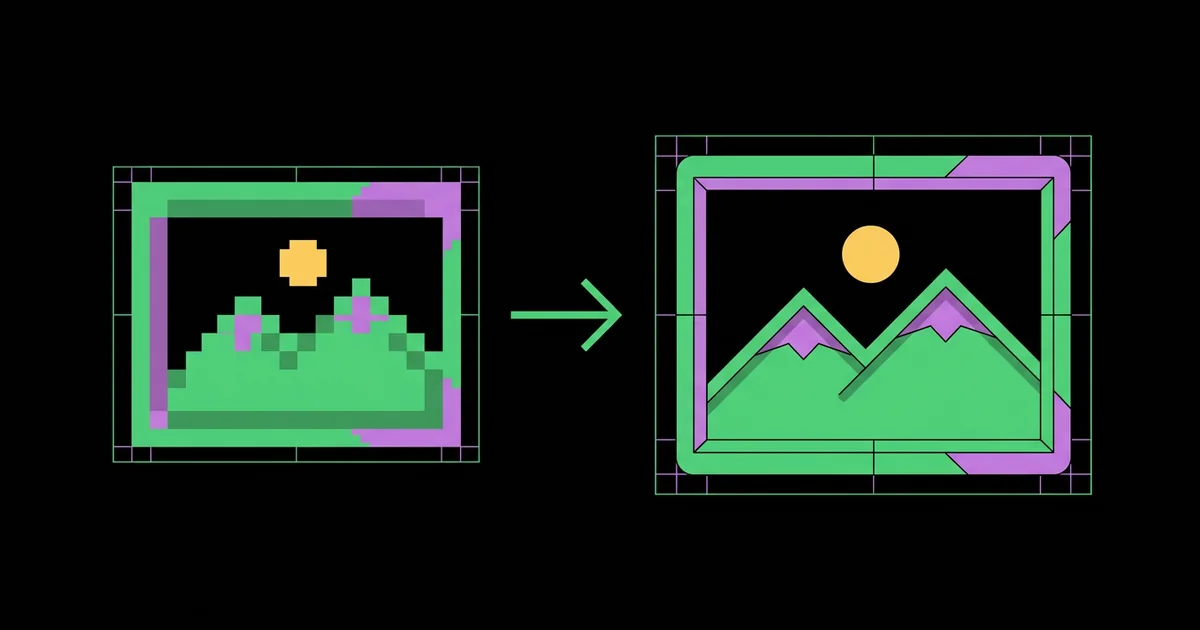
An AI upscaler performs super-resolution: it takes a low-resolution input and produces a higher-resolution output by inferring missing pixels from patterns it learned during training. Traditional methods such as bicubic or Lanczos interpolation only average neighboring pixels, which preserves softness. A neural model has seen millions of examples of what sharp brick, skin, foliage, and text look like, so it reconstructs plausible edges and texture instead of smearing them.
Before you upscale anything, it helps to know a few terms. The scale factor is the multiplier applied to width and height, usually 2x, 4x, or sometimes 8x. 4K UHD means 3840 by 2160 pixels, so a 1920 by 1080 image needs exactly a 2x upscale to reach it, while a 960 by 540 thumbnail needs 4x. Hallucination is the model inventing detail that was never in the original, such as extra eyelashes or fake fabric weave. If your source is soft because of camera shake or missed focus rather than low pixel count, upscaling alone will not fix it, and you should start with fixing blurry photos before upscaling so the model has real edges to work with.
Most free upscalers in 2026 are built on a small family of open research models. Real-ESRGAN, released by researchers at Tencent ARC Lab in 2021, is the backbone of many desktop apps because it was trained on synthetically degraded images and handles real-world compression and noise well. Specialized variants exist for anime, for faces, and for general photography. Knowing that a tool is a wrapper around one of these models tells you more about its quality ceiling than any marketing page.
The Best Free AI Upscalers for 4K Output
These tools are genuinely free to use for 4K-class output, either because they run locally on your hardware or because their free tier covers occasional use. Free-tier quotas on web services change often, so treat any limit as something to confirm on the day you use it.
- Upscayl (Windows, macOS, Linux): A free, open-source desktop app that runs Real-ESRGAN-family models on your own GPU. It supports batch folders, multiple models, and custom model files. Because everything runs locally, there are no upload limits, no watermarks, and no privacy concerns about client images.
- Real-ESRGAN command line or Python: The original project gives you full control over model choice, tile size, and face enhancement. It is the right pick if you want to script upscaling into a pipeline or a build process, and it runs on modest GPUs by splitting large images into tiles.
- waifu2x and its forks: Purpose-built for anime-style art, illustrations, and flat line work. It removes JPEG noise and keeps clean outlines without adding photographic texture, which is exactly what general photo models get wrong on cartoons.
- ComfyUI or Automatic1111 with upscaler nodes: If you already generate images locally with Stable Diffusion, these interfaces let you chain an upscaler with a light diffusion pass, often called a tiled or detail upscale, to add believable texture at 4K.
- Browser upscalers with free tiers: Services such as Let's Enhance, Bigjpg, and the upscalers built into Canva or Adobe Express offer limited free credits or capped resolutions. They are convenient for a single social graphic when you are not at your own machine.
- Built-in editor features: GIMP and Krita remain free for traditional resampling, which is still the safest option when you must not invent any detail at all, such as evidence photos or scientific images.
For most people producing 4K wallpapers, print-ready product shots, or presentation slides, Upscayl is the practical default. It is free, offline, fast enough on any recent graphics card, and it exposes the same models that paid tools often use behind the scenes.
Free AI Upscaler Comparison Table
This table compares the tools above by the factors that actually decide quality and convenience for 4K work.
| Tool | Runs Where | Best Image Type | Max Practical Output | Main Limitation |
|---|---|---|---|---|
| Upscayl | Local desktop with GPU | Photos, renders, general use | 4K and well beyond, limited by VRAM | Needs a Vulkan-capable GPU for good speed |
| Real-ESRGAN CLI | Local, scriptable | Photos, compressed web images | Very large via tiling | Command-line setup required |
| waifu2x | Local or web | Anime, illustrations, line art | 4K for flat artwork | Adds unnatural smoothness to real photos |
| ComfyUI tiled upscale | Local with strong GPU | AI-generated art | 4K to 8K | Steep learning curve, can change content |
| Browser free tiers | Cloud | Quick social or web graphics | Often capped on free plans | Credit limits, uploads leave your device |
Notice that the deciding column is usually image type, not the tool name. A great photo model will ruin a logo, and an anime model will turn a portrait into a wax figure.
How Much Resolution Can You Realistically Recover?
From years of preparing images for print and large displays, the honest answer is that AI upscaling works best when the source is already decent and only small. A clean 1920px image taken to 4K will usually look indistinguishable from native capture at normal viewing distance. A heavily compressed 400px thumbnail pushed to 4K is a reconstruction, not a recovery: the model will produce something sharp, but faces, text, and fine patterns may not match reality.
As a working rule, a 2x upscale is nearly always safe, 4x is safe for clean sources and textures like landscapes, and anything beyond 4x from a single pass should be treated as illustration rather than documentation. When you need large factors, two 2x passes with a light review between them often look more natural than one 4x jump, because you can choose a different model for the second pass and catch artifacts early.
File weight matters as much as pixels. A 3840 by 2160 PNG can easily be many megabytes, which is too heavy for a website hero or a blog cover. After upscaling, export a high-quality master, then convert your upscaled files to WebP for anything that ships to the web. You keep the visible sharpness and drop most of the transfer cost.
The other practical constraint is your hardware. Local upscalers lean on GPU memory. If a 4K job fails or crashes, reduce the tile size setting rather than giving up; tiling processes the image in overlapping chunks and stitches them, so even entry-level graphics cards can produce large outputs, just more slowly.
Common Upscaling Mistakes and How to Avoid Them
Most bad upscales come from a handful of repeatable errors rather than from the tools themselves.
- Using one model for everything. Photo models add pores and grain; anime models flatten texture. Keep at least two models ready and match them to the content.
- Upscaling an already sharpened JPEG. Phone and social-media images are often oversharpened and heavily compressed. The model amplifies the halos and blocky artifacts. If you have the original file or a RAW, start from that instead.
- Judging the result zoomed out. Everything looks good at fit-to-screen. Inspect eyes, hair, text, and repeating patterns at 100% before you ship.
- Letting faces get rewritten. Face restoration options can change a person's identity subtly. For client portraits or real people, reduce the face enhancement strength or disable it and accept slightly softer skin.
- Upscaling text and logos. No model reliably reconstructs small type. Redraw logos as vectors and re-type text layers instead of upscaling them.
- Skipping the color check. Some pipelines strip ICC profiles. Compare the output against the source in a color-managed viewer to catch shifted skin tones or muted brand colors.
Every one of these is cheap to prevent and expensive to discover after a print run or a site launch.
A Step-by-Step 4K Upscaling Workflow
This is the exact process I use for turning a mixed folder of web images into clean 4K masters with free tools.
- Collect the best source. Find the largest, least-compressed version of each image. Original camera files or PNG exports beat anything downloaded from social media.
- Sort by content type. Make three folders: photos, illustrations, and screenshots or text-heavy images. Each gets a different treatment.
- Calculate the scale factor. Divide 3840 by the source width. If the answer is 2 or less, run one pass. If it is closer to 4, plan either a single 4x pass with a clean model or two 2x passes.
- Run a test on three images. In Upscayl, choose the general photo model for the photo folder and the anime or digital-art model for illustrations. Process three representative files first instead of the whole batch.
- Inspect at 100%. Check edges, faces, foliage, and gradients for banding, plastic skin, or invented detail. Adjust the model or factor if anything looks wrong.
- Batch the rest. Once the settings pass inspection, run the full folder. Keep output as PNG for the master archive.
- Handle screenshots separately. For UI screenshots and text, recapture at a higher display scale when possible. If not, use traditional resampling and accept softness rather than garbled letters.
- Crop and resize to exact targets. Upscalers output multiples of the source, so a 4x pass may overshoot. Downscale to exactly 3840 by 2160 or your target with a high-quality resampler for a crisper final result.
- Export delivery formats. Save a high-quality JPEG or WebP for web, and a TIFF or PNG for print, keeping the color profile embedded.
Run this once and you will notice that the slow part is not the AI, it is the inspection. That is the step that separates professional output from obviously processed images.
Key Takeaways
- AI upscalers infer missing detail with trained neural networks, which is why they beat bicubic or Lanczos resizing on real photos.
- Upscayl is the strongest free default for 4K work because it runs Real-ESRGAN-family models locally with no watermarks or upload limits.
- Match the model to the content: photo models for photography, anime models for flat art, and no upscaling at all for small text.
- A 2x upscale is almost always safe, while large factors from tiny sources produce reconstructions that may not match reality.
- Inspection at 100% zoom and a final resize to exact dimensions matter more to quality than which free tool you choose.
Frequently Asked Questions
Can a free AI upscaler really make an image 4K?
Yes. Free tools like Upscayl and Real-ESRGAN can output 3840 by 2160 pixels or larger. The question is quality, not size. A clean 1080p source upscaled 2x looks convincingly native, while a tiny, compressed image will look sharp but may contain invented details that were never in the original photo.
Which free AI upscaler is best for photos?
For photographs, Upscayl using its general photo model is the best free starting point because it runs locally and handles noise and compression well. If you prefer scripting or need precise control over tiling and face enhancement, run Real-ESRGAN directly from the command line or Python instead.
Is waifu2x still worth using in 2026?
Yes, for the right content. waifu2x and its forks remain excellent for anime, illustrations, and line art because they preserve clean outlines and remove JPEG noise without adding photographic texture. For real photos, choose a Real-ESRGAN-based model instead, since waifu2x tends to smooth natural texture too much.
Do online upscalers keep my images private?
Online upscalers require uploading your file to their servers, so privacy depends on each service's policy and retention terms. For client work, unreleased products, or personal photos, a local tool like Upscayl is safer because the image never leaves your computer and there are no account requirements.
Why does my upscaled image look plastic or painted?
That waxy look usually comes from an aggressive model or strong face restoration smoothing natural texture. Try a different model, lower the face enhancement strength, or upscale in two smaller steps. You can also blend a little of the traditionally resized version back in to restore natural grain.
Can I upscale images on a computer without a graphics card?
You can, but it will be slow. Most local upscalers rely on a GPU, and CPU-only processing of a 4K output can take minutes per image. For occasional jobs without a capable GPU, a browser-based free tier is more practical, provided the image is not sensitive or confidential.
Conclusion
The single most important decision in AI upscaling is not which app you install but which model you match to each image. Choose a photo model for photography, an art model for illustrations, and skip upscaling for small text entirely; then inspect at full size before anything ships. Install Upscayl, run a three-image test today, and if your cutouts need cleaning before you enlarge them, start by removing the background with AI so the upscaler spends its effort only on the subject.


