Graphic Design Prints: How to Make Art That Prints Right
Most print disappointments are decided on the screen, weeks before a single sheet touches a press: the wrong color mode, a missing bleed, a photo pulled from a website at a fraction of the resolution it needed. Graphic design prints are any designed pieces produced physically, from posters and art prints to business cards, packaging, brochures, and signage, and getting them right means designing for ink and paper rather than for pixels and light.
Quick Answer: To get professional graphic design prints, build the file at final size with bleed, use images at roughly 300 pixels per inch at print size, convert to the printer's requested CMYK profile, outline or embed fonts, keep text inside a safe margin, and export a print-ready PDF. Always order a physical proof before running the full quantity.
What Makes a Design File Truly Print-Ready?
A print-ready file is one a printer can send straight to production without fixing anything. That sounds simple, but it hides a long list of technical conditions that screens never force you to think about. A monitor emits light in red, green, and blue; a press lays down cyan, magenta, yellow, and black ink that absorbs light. Paper has a size it gets trimmed to, a texture that changes how ink spreads, and a whiteness that becomes the brightest color you can ever show.
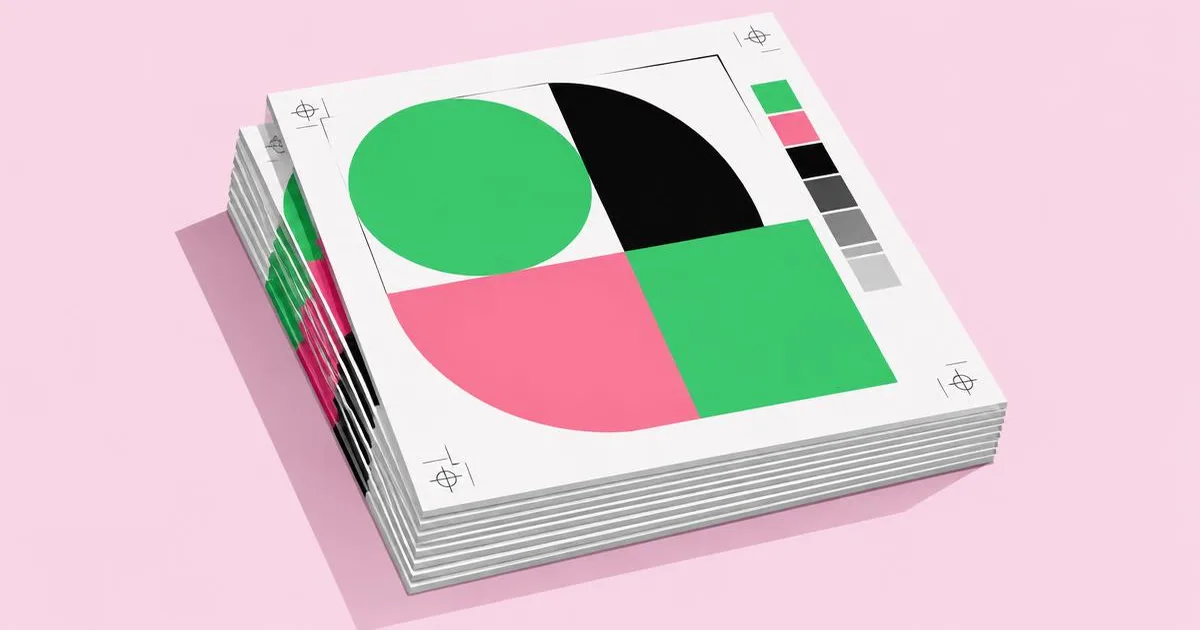
Several terms come up on every print job. Bleed is extra artwork that extends past the trim line, commonly 0.125 inches or 3 millimeters per side, so that slight cutting variation never leaves a white sliver at the edge. Trim is the final finished size. The safe zone is an inner margin where important text and logos live so they never get cut. Resolution describes how many image pixels land in each printed inch. If you are still choosing tools to set all of this up, our guide to picking beginner-friendly design software explains which programs handle bleed and color settings cleanly.
Two other terms matter for anything with strong color. A spot color, such as a Pantone ink, is a premixed ink printed as a single solid color, used when a brand color must match exactly across jobs. Rich black is black built from black ink plus support from the other inks, which looks deeper on large areas than plain black ink alone. Knowing when to use each separates a file that merely prints from one that prints well.
Finally, there is the question of who owns the final check. Many online printers run an automated preflight that flags low resolution or missing fonts, but those systems rarely catch design mistakes like a headline sitting too close to a fold. The designer remains responsible for intent; the printer is responsible for reproducing it faithfully.
The Step-by-Step Workflow for Print Projects
A repeatable workflow is what keeps print work predictable. The order matters, because fixing something early is cheap and fixing it after export is expensive and error-prone. This is the sequence I follow for nearly every piece, from a single art print to a 24-page catalog.
- Get the printer's specifications first. Ask for trim size, bleed amount, color profile, maximum ink coverage, preferred PDF standard, and any template they supply. Specs vary between shops, and guessing is the root of most rejected files.
- Set up the document at final trim size. Add bleed on all sides and draw guides for the safe zone, usually at least 0.125 inches inside the trim for small items and more for bound books.
- Choose paper before finalizing color. Uncoated stock absorbs more ink and makes colors look softer and darker; coated stock keeps colors crisp and saturated. Design with the actual paper in mind.
- Place images at real resolution. Check the effective resolution in your layout program after scaling, not the number in the original file. Enlarging a photo in the layout lowers its effective resolution.
- Build color intentionally. Define brand colors as spot or CMYK swatches, set rich black only for large dark areas, and keep small body text in plain black ink so it stays sharp even with slight registration shifts.
- Handle typography for output. Embed fonts in the PDF or convert display type to outlines when a printer asks for it. Avoid very thin type reversed out of dark backgrounds on uncoated paper.
- Preflight the file. Use your software's preflight panel to check for RGB images, missing links, low resolution, and overset text.
- Export to the requested PDF standard. Many printers ask for a PDF/X variant because it locks down color and fonts. Include crop marks and bleed in the export settings.
- Proof physically. A digital proof confirms layout; a hard proof confirms color. For anything color-critical, insist on the hard proof.
Skipping step one is the most common shortcut and the most costly. Five minutes reading a spec sheet will save a reprint.
Comparing Common Print Methods for Design Work
Each print method suits different quantities, budgets, and visual goals. Choosing the right one is as much a design decision as choosing a typeface, because the method limits which colors, textures, and finishes are possible.
| Print Method | Best For | Strengths | Watch Out For |
|---|---|---|---|
| Digital (toner or inkjet press) | Short runs, personalized pieces, fast turnaround | No plates, low setup cost, variable data possible | Slight banding on large flat colors, limited specialty inks |
| Offset lithography | Large runs of brochures, books, catalogs | Excellent consistency, low cost per unit at volume, spot colors | Setup cost makes small runs expensive |
| Giclée / fine art inkjet | Art prints, gallery editions, photography | Wide color range, archival inks and papers, fine detail | Higher cost per print, slower production |
| Screen printing | Posters, apparel, bold limited-color art | Thick vivid ink, works on many surfaces, tactile finish | Each color needs its own screen, fine gradients are hard |
| Letterpress | Wedding stationery, premium cards | Debossed texture, luxurious feel | Limited colors, thin lines and fine detail require care |
A useful rule: pick digital when you need flexibility, offset when you need volume, giclée when you need fidelity, and screen printing or letterpress when the physical texture is part of the message.
Practitioner Analysis: Where Print Quality Is Really Won or Lost
From years of sending files to printers, the pattern is consistent: the expensive mistakes are rarely exotic. They come from three places, and all three are within the designer's control. Rather than quote invented failure rates, here is the practical analysis of where attention pays off.
The first is color expectation. Clients approve designs on bright, backlit screens, then receive prints that feel duller. That gap is physics, not a printing error. Bright greens, electric blues, and neon pinks often sit outside what standard CMYK inks can reproduce. The fix is to soft-proof in your design software using the printer's profile, show the client the simulated result, and decide early whether a spot color or a specialty ink is worth the cost.
The second is image sourcing. A photo that looks crisp on a website might be only 72 or 96 pixels per inch at print size. Upscaling cannot invent real detail. The answer is to request original files from photographers or stock libraries and to calculate the required pixel dimensions up front: multiply the print width in inches by 300 for close-viewed pieces. Large posters viewed from a distance can tolerate lower resolution, which is a judgment call based on viewing distance.
The third is communication with the printer. Printers are specialists who see thousands of files, and most will happily advise on paper, ink limits, and finishing if you ask before you design. Treat them as collaborators, not vendors. That mindset also helps when you work with an outside studio; our breakdown of how to evaluate a local design team covers the questions to ask about print production experience before signing.
A fourth factor, often overlooked, is finishing. Lamination, varnish, foil, embossing, and die cutting change how colors read and how the piece feels. Matte lamination slightly mutes color; gloss makes it pop. Foil requires its own separate vector layer. Planning finishing at the design stage avoids last-minute file rebuilds.
Common Print Mistakes and How to Avoid Them
Most print errors repeat across projects, which means a short mental checklist prevents nearly all of them. These are the mistakes I see most often in files handed over by talented designers who mainly work on screen.
- No bleed. Artwork that stops exactly at the trim line will show white edges after cutting. Extend backgrounds and edge images past the trim on every side.
- Text too close to the edge. Even with bleed, cutting tolerance means anything near the trim may be clipped. Keep text inside the safe zone.
- RGB images left in the file. Some printers convert automatically, producing unpredictable color shifts. Convert deliberately with the correct profile so you control the result.
- Too much ink. Building dark colors with all four inks at high values can exceed the press's total ink limit, causing smearing and slow drying. Follow the printer's coverage limit.
- Rich black on small text. Small type built from multiple inks can look fuzzy if the plates shift slightly. Use plain black ink for body copy.
- Hairline strokes. Lines thinner than the printer's minimum may disappear. Check the minimum stroke weight, especially for letterpress and screen printing.
- Ignoring the fold. On brochures, panels are often slightly different widths so they nest when folded. Use the printer's template rather than dividing the page evenly.
- Skipping the proof. A proof costs little compared with a full reprint. For any significant run, check one physical sample under normal lighting.
The underlying lesson is to design with the physical object in your head. Picture the sheet trimmed, folded, held, and viewed under office light, and most of these issues become obvious before export.
Real-World Scenario: Producing a Limited-Edition Art Print
A concrete walkthrough shows how the principles fit together. Imagine an illustrator preparing a run of 50 signed art prints at 12 by 16 inches, sold online and at markets.
Step one: choose the method and paper. For a small, high-quality edition, giclée printing on a heavyweight matte cotton rag paper is a natural fit. It offers wide color range and archival longevity, and buyers of art prints often expect that texture.
Step two: build the canvas. The illustrator sets the document at 12 by 16 inches plus bleed, at 300 pixels per inch, giving 3600 by 4800 pixels before bleed. If the print will have a white border for signing, they design that border into the layout and leave enough room below the image for a signature and edition number.
Step three: manage color. Fine art printers frequently prefer RGB files in a wide-gamut space because their inkjet systems reproduce more colors than standard CMYK. This is exactly why asking for specs first matters: the right answer for giclée differs from offset. The illustrator soft-proofs with the printer's paper profile and gently adjusts any oversaturated areas.
Step four: order test strips. Before committing to 50 prints, they order a single proof or a strip test of key color areas. Skin tones, deep shadows, and pale skies are the areas most likely to shift.
Step five: plan packaging and handling. Rigid backing boards, protective sleeves, and flat mailers protect the investment. A certificate of authenticity, if offered, should match the print's visual identity.
Step six: document everything. The illustrator saves the final file, the paper choice, and the printer's settings so a future reprint or second edition matches exactly. This simple habit turns a one-off success into a reliable product line.
The same structure applies to commercial work. Swap the art print for a trade show banner or product box, and the steps stay the same: specs, setup, paper, color, proof, and documentation.
Key Takeaways
- Print quality is mostly decided during file setup, so collect the printer's specifications before designing anything.
- Bleed, trim, and safe zones protect your design from normal cutting variation and should be part of every print document.
- Screen colors often cannot be matched by standard CMYK inks, so soft-proof early and consider spot colors for critical brand hues.
- Choose the print method by quantity and purpose: digital for flexibility, offset for volume, giclée for fidelity, screen or letterpress for texture.
- A physical proof is the cheapest insurance against an expensive reprint, especially for color-critical or large runs.
Frequently Asked Questions
What resolution do I need for graphic design prints?
For pieces viewed up close, such as cards, brochures, and art prints, aim for about 300 pixels per inch at final print size. Large posters and banners viewed from a distance can use lower resolution. Always check effective resolution after scaling the image inside your layout, because enlarging reduces it.
Should I design in RGB or CMYK for printing?
It depends on the printer. Offset and most commercial digital printers want CMYK files using a specific profile they provide. Many fine art giclée printers prefer RGB because their inks cover a wider range. Ask the printer first, then soft-proof using their profile before exporting your final file.
How much bleed should a print file have?
A common standard is 0.125 inches, or 3 millimeters, on every side, though some printers request more for large formats or books. Extend all edge-touching backgrounds and images into this area. Check the printer's template or spec sheet, since following their exact requirement prevents rejected files.
Why do my prints look darker than my screen?
Screens emit light while paper reflects it, so prints naturally look less bright. Monitors are also often set too bright for print work. Calibrating your monitor, soft-proofing with the printer's profile, and viewing proofs under consistent lighting narrows the gap and sets realistic expectations with clients.
What file format should I send to a printer?
A press-quality PDF is the standard choice because it preserves layout, fonts, images, and color settings in one file. Many printers request a PDF/X variant. Include bleed and crop marks when asked, and keep your editable source files saved separately in case changes are needed later.
Is a physical proof really necessary?
For small, low-stakes jobs a digital proof may be enough to confirm layout. For color-critical work, large quantities, or new paper stock, a physical proof is worth it. It reveals color shifts, paper texture effects, and readability problems that no screen can show accurately before the full run.
Conclusion
The single most important decision in print work is to treat the printer's specifications as the starting brief, not an afterthought. Everything else, from bleed to color profile to paper choice, follows from those specs, and designers who start there rarely face reprints. Your next step is simple: on your upcoming project, request the spec sheet before opening your design software, then order a proof before the full run. If you are building a team or a career around print-heavy work, see our guide on working with a design recruiter to find people who already know these production habits.