Graphic Design Software for Dummies: Where to Start First
Most beginners do not quit design because they lack talent; they quit because they opened a professional program, saw a wall of panels and icons, and concluded design was not for them. Graphic design software is any application used to create and edit visual content, from photo editors and vector illustration tools to page layout programs and browser-based template platforms.
Quick Answer: Beginners should start with one tool matched to their goal: a template-based platform like Canva for quick social graphics, a vector editor like Inkscape or Adobe Illustrator for logos, a raster editor like GIMP or Photoshop for photos, and Figma for screen design. Learn shapes, layers, alignment, and export before anything else.
What Is the Difference Between Vector, Raster, and Layout Software?
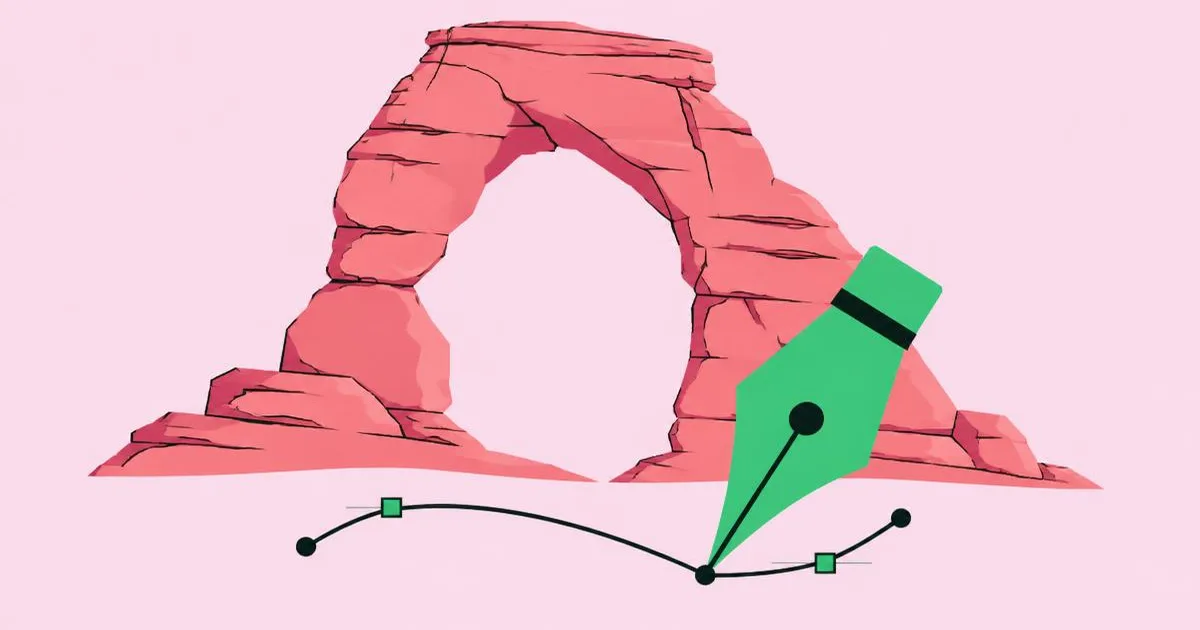
The first concept every beginner needs is the difference between vector and raster images, because it decides which program you open. Raster images are made of pixels, tiny colored squares. Photos are raster. Enlarge them too much and they become blurry or blocky. Vector images are made of mathematical paths, points, and curves. Logos and icons are usually vector because they scale to any size, from a business card to a billboard, without losing sharpness.
Programs follow that split. Raster editors such as Adobe Photoshop and the free GIMP are built for photos and painting. Vector editors such as Adobe Illustrator, Affinity Designer, and the free Inkscape are built for logos and illustrations. Layout programs such as Adobe InDesign and Affinity Publisher arrange text and images across pages for brochures, magazines, and books. Interface design tools like Figma focus on screens for websites and apps. Before choosing, it helps to understand the core principles that apply in every tool; our list of design sayings that teach practical lessons covers hierarchy and simplicity in plain words.
Then there are template-based platforms like Canva and Adobe Express. These run in a browser, offer ready-made layouts, and hide most technical complexity. They are ideal for getting results fast, though they offer less precise control than professional tools.
A few more terms will appear constantly. Layers stack elements on top of each other so you can edit one without disturbing the rest. Artboards or canvases define your working area. Export means saving your design in a format others can use, such as PNG, JPG, SVG, or PDF.
A Beginner's Learning Path, Step by Step
A focused learning path prevents the overwhelm that comes from trying to learn everything at once. These steps work regardless of which program you choose.
- Pick your first goal. Decide what you want to make in the next month: social media posts, a logo, edited photos, or a simple flyer. Your goal picks your tool.
- Choose one program only. Resist installing five apps. Learning one deeply teaches concepts that transfer to the others later.
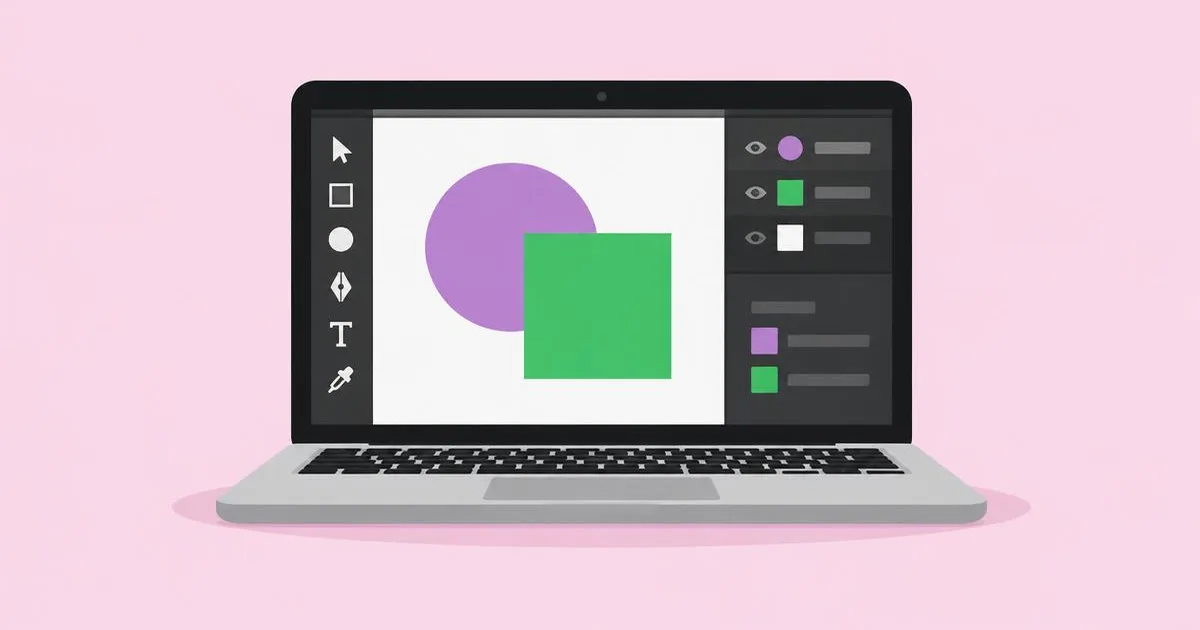
- Learn the interface basics. Find the toolbar, the layers panel, the properties or color panel, and the zoom controls. Ignore everything else for now.
- Master five core skills. Draw and edit shapes, add and style text, manage layers, align and distribute objects, and export files. These cover most beginner projects.
- Learn keyboard shortcuts gradually. Start with undo, copy, paste, group, zoom, and the selection tool. Add one new shortcut a day.
- Recreate designs you admire. Copying a poster or social post for practice, not for publishing, teaches spacing and type choices faster than starting from a blank canvas.
- Complete one small real project. Make a flyer for a friend's event or a profile banner. Real constraints teach what tutorials cannot.
- Ask for feedback. Share work in beginner-friendly design communities and ask specific questions, such as whether the headline reads clearly.
- Expand to a second tool. Once comfortable, add the complementary program, such as a vector editor alongside your photo editor.
This order matters because confidence compounds. A finished small project is more motivating than a half-finished tutorial series.
Beginner-Friendly Graphic Design Software Compared
Each tool fits a different purpose and budget. This comparison focuses on what matters to beginners: ease of learning, cost model, and what each tool does best.
| Software | Type | Best For Beginners Who Want To | Cost Model |
|---|---|---|---|
| Canva | Template-based, browser | Make social posts, presentations, simple flyers quickly | Free plan with paid upgrades |
| Inkscape | Vector editor | Learn logo and illustration basics at no cost | Free and open source |
| GIMP | Raster editor | Edit and retouch photos without paying | Free and open source |
| Adobe Illustrator / Photoshop | Vector / raster, industry standard | Build skills used in professional studios | Subscription |
| Figma | Interface and screen design, browser | Design websites, app screens, and social layouts | Free starter plan with paid tiers |
Pricing and plans change, so check each product's official site before committing. The good news is that every category has a capable free option to start learning.
Practitioner Analysis: Free Tools Versus Industry-Standard Software
After more than ten years of designing and teaching, I get one question more than any other: should a beginner start with free software or pay for the industry standard? Rather than quote invented usage percentages, here is practitioner analysis based on what actually helps people progress.
Concepts transfer; buttons do not matter much. Layers, paths, alignment, color modes, and export settings work similarly across programs. A beginner who learns vector paths in Inkscape can switch to Illustrator and be productive quickly. So starting free carries little long-term risk.
Industry standards matter for employment. If your goal is a studio or agency job, employers frequently expect familiarity with Adobe programs and often Figma. Learning on free tools first, then moving to the standard before applying for jobs, is a sensible path that saves money while you confirm your interest.
Template tools are a starting point, not a ceiling. Canva is excellent for quick, decent results, and many small businesses rely on it daily. But templates can hide the reasons a layout works. Pair template use with deliberate study of spacing, hierarchy, and type, or you risk learning to assemble rather than to design.
Output goals shape the choice. If you plan to print, you need software that handles bleed, color profiles, and print-ready PDFs; our guide to getting your designs to print correctly explains those settings. Screen-only work is more forgiving and lets you start with simpler tools.
Hardware matters less than people fear. Basic vector and template work runs on modest computers. Heavy photo editing with many layers benefits from more memory. Start with what you have and upgrade only when the software genuinely slows you down.
Common Beginner Mistakes and How to Avoid Them
Beginners tend to make the same mistakes, and almost all of them are easy to fix once you know them. These are the ones I see most often when teaching.
- Using a photo editor for logos. Logos made in raster programs blur when enlarged. Build logos as vectors so they stay sharp at any size.
- Ignoring layers. Putting everything on one layer makes editing painful. Name and organize layers from the start.
- Too many fonts. Beginners often use four or five typefaces in one design. Stick to one or two, using size and weight for variety.
- Eyeballing alignment. Items that look almost aligned look careless. Use alignment tools, guides, and snapping.
- Exporting the wrong format. Use PNG for graphics with sharp edges or transparency, JPG for photos, SVG for scalable web graphics, and PDF for print.
- Working at the wrong size. Designing a poster at social post dimensions leads to blurry prints. Set the correct canvas size before starting.
- Tutorial loops. Watching endless tutorials without making anything stalls progress. Follow each tutorial with a small project of your own.
- Not saving source files. Exported images cannot be easily edited. Always keep the original working file, clearly named.
Fixing these habits early will make your work look noticeably more professional within weeks.
Real-World Scenario: Your First Week With Design Software
Here is a practical seven-day plan for a complete beginner who wants to design social media graphics for a small side business, using a free tool.
Day one: set up. Create a free account on a template platform or install a free vector editor. Spend 30 minutes clicking every tool in the toolbar to see what happens. Nothing you do can break anything.
Day two: shapes and color. Draw rectangles, circles, and lines. Change fill and stroke colors. Pick three brand colors and save them as swatches.
Day three: type. Add a headline and a short line of body text. Choose one typeface for headlines and one for body text. Experiment with size, weight, and spacing.
Day four: layers and alignment. Build a simple post with a background, shape, headline, and logo. Use the layers panel to reorder items and alignment tools to center them precisely.
Day five: recreate. Find a social post you admire and recreate its layout using your own colors and words, purely for practice.
Day six: real project. Design three posts for your business using what you learned. Keep the same colors, fonts, and spacing so they look like a set.
Day seven: export and review. Export at the correct size for the platform, view the posts on your phone, and fix anything hard to read. Save your source file as a reusable template.
By the end of the week, you will have usable graphics, a mini brand system, and the foundations to explore more advanced tools.
Key Takeaways
- Choose design software by goal: template tools for speed, vector editors for logos, raster editors for photos, and Figma for screens.
- Vector graphics scale without losing quality, so logos and icons should always be built in vector software.
- Core skills such as layers, alignment, type, and export transfer across programs, so starting with free tools carries little risk.
- Learning one program deeply and finishing small real projects beats sampling many tools through endless tutorials.
- Correct canvas size and export format prevent most beginner quality problems in print and on screen.
Frequently Asked Questions
What is the easiest graphic design software for beginners?
Template-based browser tools like Canva are usually the easiest because they provide ready-made layouts and simple drag-and-drop editing. They let beginners produce decent social graphics and presentations quickly. For deeper skills, move to a vector editor like Inkscape or Illustrator once you are comfortable with basic layout.
Is there free graphic design software that is actually good?
Yes. Inkscape is a capable free vector editor for logos and illustrations, GIMP is a free raster editor for photos, and Figma and Canva offer free plans. These tools teach the same core concepts as paid software, making them a sensible way to learn before deciding whether to pay.
Should I learn Photoshop or Illustrator first?
Choose based on what you want to make. Learn Illustrator first if you are interested in logos, icons, and illustrations, because those require vector graphics. Start with Photoshop if your focus is photo editing or digital painting. Many designers eventually use both, since they complement each other.
Can I learn graphic design software on my own?
Yes, many designers are self-taught using official tutorials, online courses, and practice projects. The key is structured practice: pick one tool, learn core skills, recreate designs you admire, and finish small real projects. Seeking feedback from design communities helps you improve faster than learning in isolation.
Do I need an expensive computer for design software?
Not to start. Browser-based tools and basic vector work run on most modern computers. Heavy photo editing with large files and many layers benefits from more memory and a better display. Begin with the computer you already have and upgrade only when performance genuinely slows your work.
How long does it take to learn graphic design software?
You can learn enough basics to create simple graphics within days of consistent practice. Becoming confident with a professional program usually takes months of regular use on real projects. Progress depends on practice frequency and focus, so short daily sessions often work better than occasional long ones.
Conclusion
The most important decision for a beginner is choosing one tool that matches your first real goal and sticking with it long enough to finish a project. Concepts like layers, alignment, and vector paths transfer everywhere, so the first tool matters less than the habit of finishing. Your next step: pick your goal today, choose the matching program from the table above, and follow the seven-day plan. If you later decide your business needs professional help instead, our guide to choosing a graphic design services team explains how to evaluate providers.