Graphic Design Stickers: How to Create Print-Ready Designs
A sticker that looked perfect on screen can arrive with a white halo, a clipped edge, or colors that turned muddy, and almost every one of those failures is a file-preparation problem rather than a printer problem. Graphic design stickers are adhesive-backed printed graphics, designed specifically for die-cut, kiss-cut, or sheet formats, where artwork, cut line, bleed, and material all work together as one system.
Quick Answer: To create print-ready graphic design stickers, build artwork as vectors or high-resolution raster at final size, add bleed beyond the cut line, keep important elements inside a safe zone, place the cut path on its own named layer or spot color, set the correct color mode, and match the design to the vinyl or paper material.
What Makes a Sticker Design Different From Other Graphic Design?
Sticker design differs from other graphic work because the physical cut defines the shape, so the outline is part of the design rather than a frame around it. A poster has a rectangle forced on it by paper; a die-cut sticker can be any contour, and that contour must be readable at small sizes and physically cuttable by a blade.
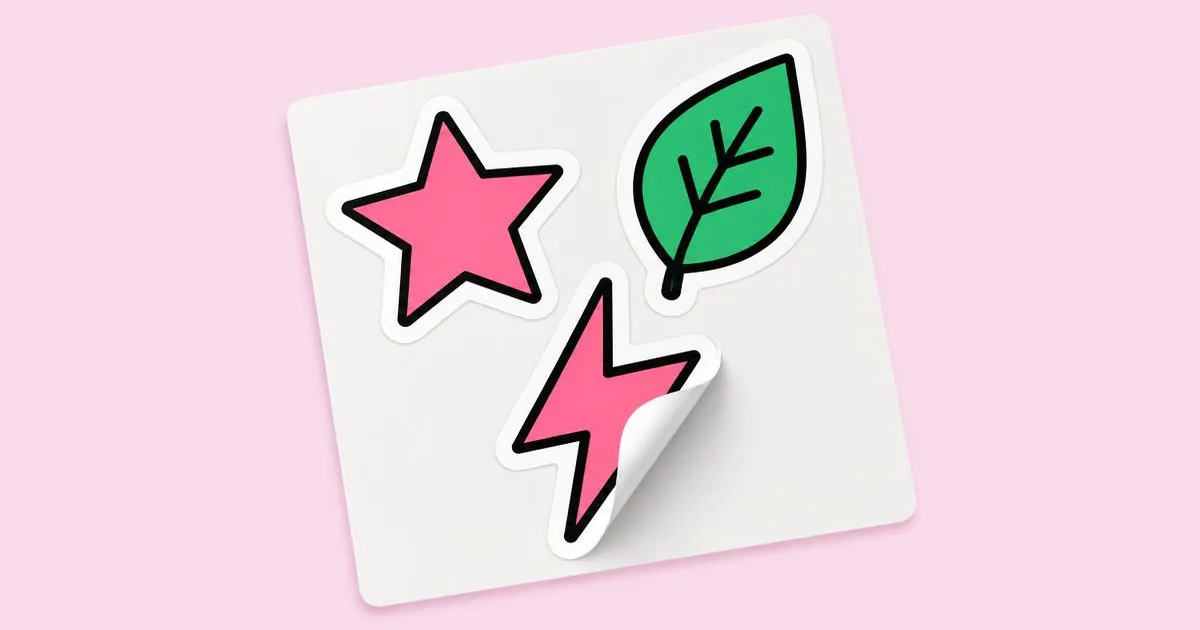
Several terms come up constantly. A die-cut sticker is cut through both the vinyl and the backing, so the finished piece is the shape itself. A kiss-cut sticker is cut through the vinyl only, leaving the backing intact, which makes peeling easier and allows multiple stickers on one sheet. Bleed is artwork extended past the cut line so slight cutting shifts never reveal unprinted material. The safe zone is an inner margin where text and key details stay protected. The cut line or dieline is the vector path the cutter follows. If you are producing sticker runs for clients and need extra production hands, it is worth knowing how to bring in a vetted contract designer for peak seasons.
Scale is the other major difference. Many stickers end up two to four inches across, and they are often viewed at arm's length on a laptop lid or water bottle. Thin strokes, small type, and subtle gradients that work on a full-screen mockup can disappear or blur at that size. Good sticker designers design for the smallest realistic size first.
Finally, material changes everything. Glossy vinyl intensifies color, matte vinyl softens it, holographic and clear stocks change how white areas behave, and paper stickers are less durable outdoors. You must know the material before you finalize color decisions.
Step-by-Step Process for Print-Ready Sticker Files
A reliable sticker workflow follows the same sequence every time, which prevents the most expensive mistakes from reaching production. This is the process I use and teach.
- Confirm specs with the printer first. Request their template, required bleed, safe margin, minimum cut-line spacing, accepted file formats, and how they want the cut path labeled. Every print shop has preferences, and guessing wastes proof rounds.
- Set the document at final size. Build the artboard at the actual sticker dimensions. Designing at an arbitrary size and scaling later causes stroke weights and type to shift unpredictably.
- Use vector artwork whenever possible. Illustrator, Affinity Designer, or Inkscape vectors scale cleanly and give the cleanest edges. If you use raster illustration, work at the printer's recommended resolution at final size, commonly 300 pixels per inch.
- Choose the correct color mode. Most print shops prefer CMYK files. Bright RGB greens, blues, and purples may shift when converted, so convert early and adjust while you can still see the change.
- Create the cut path. Offset a simplified outline from your artwork, smooth sharp inward corners, and avoid narrow necks the blade cannot follow. Place it on its own layer, typically as a named spot color stroke with no fill.
- Add bleed. Extend the background color or border outward past the cut line by the amount the printer specifies.
- Check the safe zone. Move text and essential details inward so normal cutting tolerance never trims them.
- Outline fonts and embed images. Convert type to outlines or package fonts, and embed linked images to prevent missing-asset errors.
- Export to the requested format. Usually PDF or AI with layers preserved, or a high-resolution PNG for some online services.
- Approve the digital proof carefully. Zoom in on the cut line, look for stray anchor points, and confirm the material and finish listed on the proof.
Following these steps in order means you only make each decision once. Skipping step one is the main reason designers end up rebuilding files.
Sticker Types, Materials, and When to Use Them
Choosing the right format and material is a design decision, because it affects shape, color, and how long the sticker survives real use. This comparison covers the options clients ask about most.
| Sticker Type | Typical Use | Design Consideration | Durability Notes |
|---|---|---|---|
| Die-cut vinyl | Brand giveaways, laptop and bottle stickers | Contour must be smooth and cuttable; a white or colored border helps | Strong for daily handling; laminate improves scratch resistance |
| Kiss-cut sheet | Sticker packs, planners, product inserts | Plan spacing between shapes and the sheet's background art | Depends on chosen stock, vinyl or paper |
| Clear vinyl | Windows, glass packaging, minimal logos | White ink underlay may be needed so colors stay opaque | Good indoors; check outdoor rating with printer |
| Holographic vinyl | Merch, collectibles, premium packaging | Areas without ink show the holographic effect; plan where it appears | Similar to standard vinyl; surface can show scratches |
| Paper labels | Product labels, envelope seals, short-term promotions | Matte texture softens colors; fine detail prints well | Not water resistant unless coated |
When a client is unsure, start from where the sticker will live. A sticker for a reusable water bottle and a seal for a bakery box need completely different materials, even if the artwork is identical.
Practitioner Analysis: Why Simple Sticker Designs Outperform Detailed Ones
In my experience reviewing sticker files, the designs that people actually stick on things share one trait: they read instantly from across a room. Stickers compete with dozens of other stickers on the same surface. Bold silhouettes, a limited palette, and one clear idea win that competition far more often than intricate illustrations.
There is also a technical reason simplicity wins. Every inward notch in a contour slows the cutter and raises the chance of tearing. Every hairline stroke under the printer's minimum may break up. Every subtle gradient risks banding. Simplifying the shape is not dumbing down the design; it is designing for the medium, just as typographers design differently for signage than for books.
A useful test is the thumbnail squint. Shrink the design to its real print size on screen, step back, and squint. If you cannot identify the subject, the sticker needs bolder shapes or fewer elements. I also print a test on plain office paper at actual size and cut it with scissors. That cheap prototype reveals weak contours and tiny text faster than any monitor.
Brand teams sometimes resist simplification because they want the full logo lockup with tagline. My recommendation is to create a sticker-specific mark: the icon alone, or a badge built around it. Local studios that handle branded merchandise tend to apply the same principle; you can see how agencies frame this conversation in this guide to choosing a design studio in Washington DC, where merch and identity work often overlap.
Color restraint matters too. Two to four strong colors, plus a border, usually give the most vivid printed result. If you use a white border, it doubles as visual separation from whatever surface the sticker lands on.
Common Sticker Design Mistakes and How to Avoid Them
Most sticker reprints come from a short list of avoidable errors. Catch these before export and you will rarely see a rejected proof.
No bleed. Artwork that stops exactly at the cut line leaves slivers of bare vinyl when the cut drifts slightly. Always extend backgrounds past the line.
Text too close to the edge. Lettering inside the cutting tolerance gets clipped. Keep all text inside the safe zone and use weights that hold up at small sizes.
Overly complex cut paths. Tracing every hair of an illustrated character creates a jagged path with hundreds of points. Use an offset path, then simplify and smooth it.
Low-resolution raster art. Upscaling a small image creates soft edges. Rebuild in vector or redraw at the correct resolution.
Ignoring white ink on clear stock. Without a white underlay, colors on clear vinyl look translucent and weak. Ask the printer how they want white ink layers prepared.
Trusting screen color. Neon-like RGB tones cannot always be reproduced in CMYK. Convert early, and ask for a physical proof on critical brand colors.
Live fonts in the file. If the printer lacks your font, text substitutes. Outline type before sending, while keeping an editable master copy.
Real-World Scenario: Designing a Five-Sticker Pack for a Coffee Brand
This walkthrough shows how the process plays out on a typical client request: a local coffee roaster wants a five-sticker kiss-cut sheet to include with online orders.
Brief and specs. The client wants playful illustrations tied to their brand: a coffee cup, a bean, their mascot, a mountain referencing their origin story, and their icon logo. Before sketching, I request the printer's sheet template, bleed, safe margin, and minimum spacing between kiss-cut shapes.
Sketching at size. I draw thumbnails at the actual sticker dimensions on the sheet. The mascot initially has thin whiskers and a detailed apron; at print size they vanish, so I thicken lines and remove the apron pattern.
Palette. I limit the pack to the brand's dark brown, cream, and one accent color, plus a white border on each sticker. That keeps the set cohesive and prints reliably.
Vector build. Each illustration is drawn in vector with consistent stroke weights. I build the cut paths with an offset, smooth the inward corners near the cup handle, and place all paths on a dedicated layer with the spot color name the printer requested.
Sheet layout. I arrange the five shapes with comfortable spacing, add the sheet background, and extend it past the sheet trim for bleed.
Paper prototype. I print the sheet at actual size and cut it out. The bean sticker feels too small next to the others, so I enlarge it slightly.
Export and proof. I outline fonts, export a layered PDF, and check the printer's proof for cut accuracy and material. The client approves, and the first run arrives without issues.
Key Takeaways
- A sticker's cut line is part of the design, so the outline must be simple, smooth, and physically cuttable.
- Bleed beyond the cut line and a safe zone inside it prevent the two most common sticker print failures.
- Designing at final print size first exposes thin strokes and small text before they become production problems.
- Material choice, from clear to holographic vinyl, changes how color and white areas appear and must be decided early.
- A paper prototype printed and cut at actual size is the fastest, cheapest quality check for any sticker design.
Frequently Asked Questions
What file format is best for printing stickers?
Most professional printers prefer vector PDF or Adobe Illustrator files with the cut line on its own layer, because vectors keep edges sharp at any size. Some online services accept high-resolution PNG files with transparent backgrounds and create the cut path automatically. Always check your printer's requirements before exporting the final artwork.
How much bleed do stickers need?
Bleed requirements vary by printer and cutting equipment, so use the exact value from your printer's template. The principle is constant: extend background color or border artwork outward beyond the cut line so small cutting shifts never expose unprinted material. Never guess the number when the template is available.
What is the difference between die-cut and kiss-cut stickers?
A die-cut sticker is cut through both the vinyl and its backing, so each piece is individually shaped. A kiss-cut sticker is cut only through the top layer, leaving the backing intact. Kiss-cut works well for sticker sheets and easy peeling, while die-cut works best for single giveaway stickers.
Should sticker designs be in RGB or CMYK?
Most print shops require CMYK because printing presses use cyan, magenta, yellow, and black inks. Designing in RGB and converting late can dull bright colors unexpectedly. Convert to CMYK early in the process, adjust colors while you can still see the shift, and request a physical proof for critical brand colors.
Can I design stickers in Canva or Procreate?
Yes, you can create sticker artwork in Canva or Procreate, but check that exports meet your printer's resolution and format requirements. Procreate art should be drawn at final size and high resolution. Many designers bring the artwork into a vector tool afterward to build a clean, precise cut path.
How do I make stickers look good on clear vinyl?
Clear vinyl needs a white ink underlay beneath colored areas, otherwise colors appear translucent and weak against the surface behind them. Ask your printer how to prepare the white layer, usually as a separate named spot color. Leave areas without white intentionally transparent to create a window-cling effect.
Conclusion
The most important insight about graphic design stickers is that the physical object, not the screen mockup, is the real design. Decide the size, format, and material first, then build artwork and cut lines that respect them, and print a paper prototype before ordering. Your next step is to request your printer's template today and rebuild one existing design to its specs. If sticker and merch work is growing into a career path, read what employers look for in designer job candidates to position your portfolio well.