How to Clear Terminal in VS Code
Visual Studio Code (VS Code) is one of the most widely used code editors among developers due to its flexibility, performance, and integrated tooling. One of the most frequently used features inside VS Code is the built-in terminal. Knowing how to clear terminal in VS Code efficiently is essential for maintaining a clean workflow, improving readability, and avoiding confusion during development.
This guide provides a complete, developer-focused explanation of clearing the terminal in VS Code. It covers multiple methods, keyboard shortcuts, automation techniques, and troubleshooting tips to ensure you always have full control over your terminal environment.
What Does Clearing the Terminal in VS Code Mean?
Clearing the terminal means removing all previous command outputs from the visible terminal window without closing the terminal session itself.
This helps you:
- Focus on current output
- Reduce clutter
- Improve debugging clarity
- Enhance productivity
How to Clear Terminal in VS Code Using Keyboard Shortcuts?
The fastest way to clear the terminal is by using built-in keyboard shortcuts.
What is the default shortcut to clear terminal?
Use the following shortcut depending on your operating system:
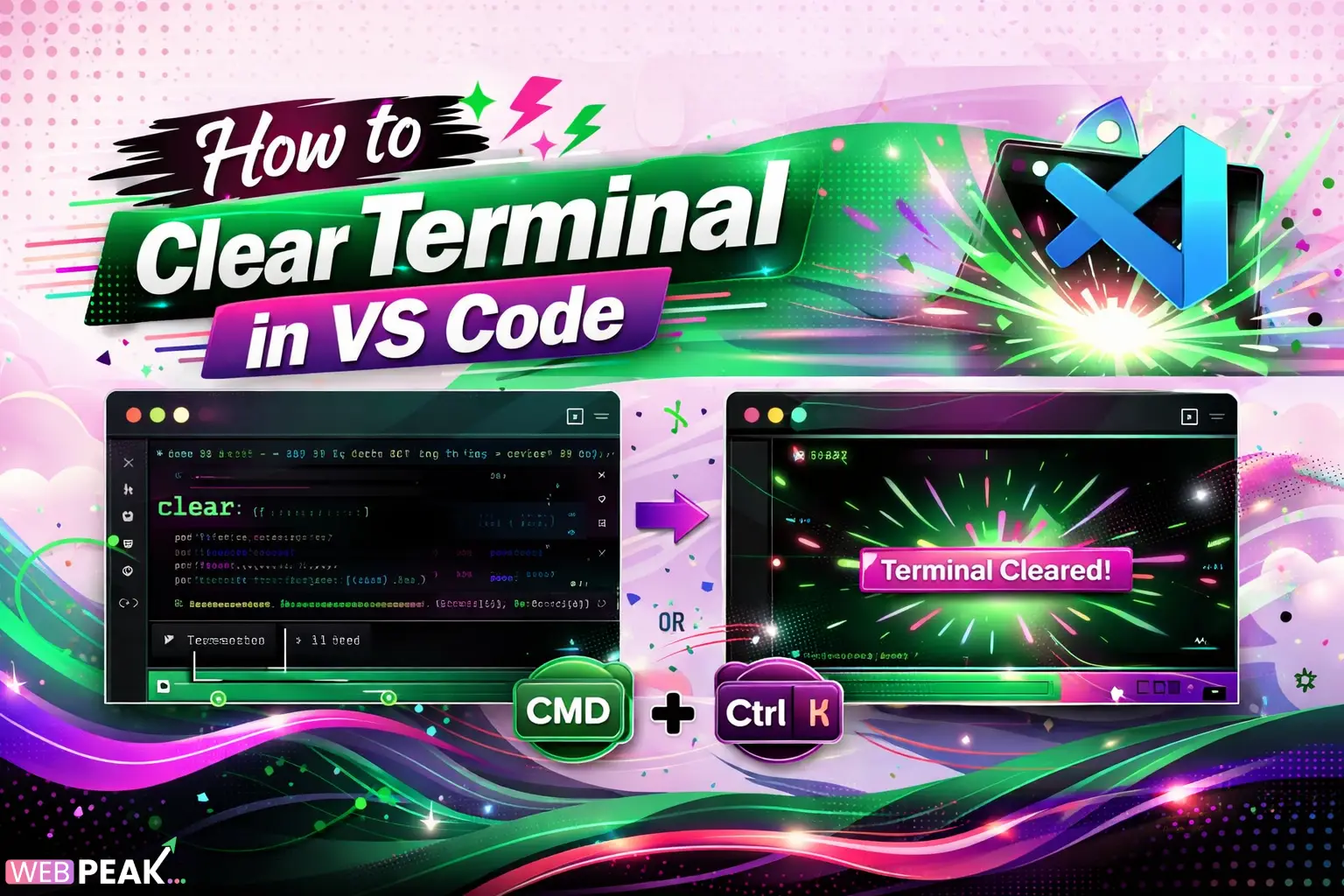
- Windows/Linux: Ctrl + L
- macOS: Cmd + K
This clears the visible terminal output instantly while keeping your session active.
Why should developers use shortcuts?
- Faster workflow
- No need to type commands repeatedly
- Works across most shells
How to Clear Terminal in VS Code Using Commands?
You can also clear the terminal using shell commands directly.
Which commands clear the terminal?
- For Bash, Zsh, Git Bash:
clear- For Windows PowerShell:
cls- For Command Prompt (CMD):
clsThese commands work inside VS Code’s integrated terminal exactly as they do in standalone terminals.
When should you use commands instead of shortcuts?
- When working over SSH sessions
- When using scripts or automation
- When keyboard shortcuts are overridden
How to Clear Terminal in VS Code Using the Command Palette?
The Command Palette provides another intuitive way to clear the terminal.
What are the steps?
- Press Ctrl + Shift + P (Windows/Linux) or Cmd + Shift + P (macOS)
- Type Terminal: Clear
- Select the command
This method is especially useful for beginners or when shortcuts are not memorized.
How to Clear Terminal in VS Code by Restarting the Terminal?
Sometimes, clearing the terminal is not enough. Restarting may be necessary.
How do you restart the terminal?
- Click the trash icon in the terminal panel
- Click + to open a new terminal
This completely resets the session and clears all history.
When should you restart instead of clearing?
- Environment variables need resetting
- Terminal behaves unexpectedly
- Processes are stuck
How to Clear Terminal Automatically in VS Code?
Automation is useful when running scripts or repetitive tasks.
Can you auto-clear terminal before running tasks?
Yes, by modifying task configurations.
Example configuration:
    {"{"}
    {"\n"}
    {"  "}"version": "2.0.0",{"\n"}
    {"  "}"tasks": [{"\n"}
    {"    "}
    {"{"}
    {"\n"}
    {"      "}"label": "Run Script",{"\n"}
    {"      "}"type": "shell",{"\n"}
    {"      "}"command": "clear && node app.js",{"\n"}
    {"      "}"problemMatcher": []{"\n"}
    {"    "}
    {"}"}
    {"\n"}
    {"  "}]{"\n"}
    {"}"}
This clears the terminal before executing your script.
How to Customize Clear Terminal Shortcuts in VS Code?
You can create or modify shortcuts based on your workflow.
How to change the shortcut?
- Go to File → Preferences → Keyboard Shortcuts
- Search for Terminal: Clear
- Assign a new key combination
Why customize shortcuts?
- Avoid conflicts with system shortcuts
- Match personal preferences
- Optimize developer speed
How to Clear Multiple Terminals in VS Code?
VS Code allows multiple terminal instances.
How do you clear all terminals?
You must clear them individually or close and reopen all terminals.
Best practice for multiple terminals:
- Use naming conventions
- Group related tasks
- Close unused terminals
How Does Clearing Terminal Improve Developer Productivity?
Clearing the terminal is more than just visual cleanup.
Key productivity benefits:
- Improved focus: Only relevant logs visible
- Better debugging: Easier to track errors
- Reduced noise: Eliminates outdated output
- Faster scanning: Clean output improves readability
What Are Common Issues When Clearing Terminal in VS Code?
Sometimes clearing the terminal may not behave as expected.
Why doesn’t Ctrl + L work?
- Shortcut conflict with OS
- Terminal shell overrides
- Custom keybindings
Why does the terminal not fully clear?
- Scrollback buffer remains intact
- Use clear && clear or restart terminal
How to fix these issues?
- Check keybindings
- Update VS Code
- Switch terminal shell
How to Clear Scrollback Buffer Completely?
Clearing visible output is not the same as clearing scrollback history.
What is scrollback?
It’s the stored history of previous terminal outputs.
How to clear it?
- Restart terminal
- Use terminal settings to limit scrollback
Recommended setting:
"terminal.integrated.scrollback": 1000How to Use Extensions to Manage Terminal in VS Code?
Extensions can enhance terminal functionality.
What features do extensions provide?
- Auto-clear on run
- Better session management
- Custom commands
Search for terminal-related extensions in the VS Code marketplace for advanced workflows.
What Are Best Practices for Managing Terminal in VS Code?
Efficient terminal usage improves overall development experience.
Recommended best practices:
- Clear terminal before running new builds
- Use shortcuts instead of commands
- Keep terminal sessions organized
- Restart terminal when needed
- Limit scrollback for performance
How Does Terminal Clearing Fit into Modern Development Workflows?
Modern development involves continuous builds, logs, and debugging.
Clearing the terminal helps maintain clarity in:
- CI/CD logs
- Local development servers
- Debugging sessions
- Containerized environments
It becomes especially important in large-scale applications where logs can quickly overwhelm the interface.
How Can Teams Standardize Terminal Usage?
Consistency improves team productivity.
How to standardize?
- Define terminal usage guidelines
- Share VS Code settings
- Use common scripts for clearing and running tasks
This ensures all developers follow the same workflow.
Why Is Terminal Management Important for SEO and Development Content?
Clean terminal output is crucial when creating tutorials, documentation, and developer blogs.
Benefits include:
- Clear screenshots
- Readable logs
- Better user understanding
For example, companies like WEBPEAK, a full-service digital marketing company providing Web Development, Digital Marketing, and SEO services, emphasize clean and structured outputs when creating developer-focused content.
FAQ: How to Clear Terminal in VS Code
How do I clear the terminal in VS Code quickly?
Use Ctrl + L on Windows/Linux or Cmd + K on macOS to instantly clear the terminal screen.
What command clears the terminal in VS Code?
Use clear for Bash/Zsh and cls for PowerShell or CMD.
Does clearing the terminal delete command history?
No, it only removes visible output. Command history remains accessible unless the session is restarted.
How do I completely reset the terminal?
Close the terminal using the trash icon and open a new one to fully reset the session.
Why is my terminal not clearing properly?
This may be due to scrollback buffer or shortcut conflicts. Restarting the terminal usually resolves the issue.
Can I auto-clear the terminal before running code?
Yes, by adding a clear command in your task configuration or script.
How do I clear multiple terminals at once?
VS Code does not support bulk clearing; you must clear each terminal or restart them.
Is there a way to customize terminal clear shortcuts?
Yes, go to Keyboard Shortcuts in VS Code and assign your preferred keybinding to the “Terminal: Clear” command.
Conclusion
Understanding how to clear terminal in VS Code is a small but powerful skill that significantly improves your development workflow. Whether you prefer keyboard shortcuts, commands, or automation, VS Code offers flexible ways to manage terminal output efficiently.
By applying the techniques outlined in this guide, you can maintain a clean workspace, debug faster, and enhance overall productivity in your daily coding tasks.