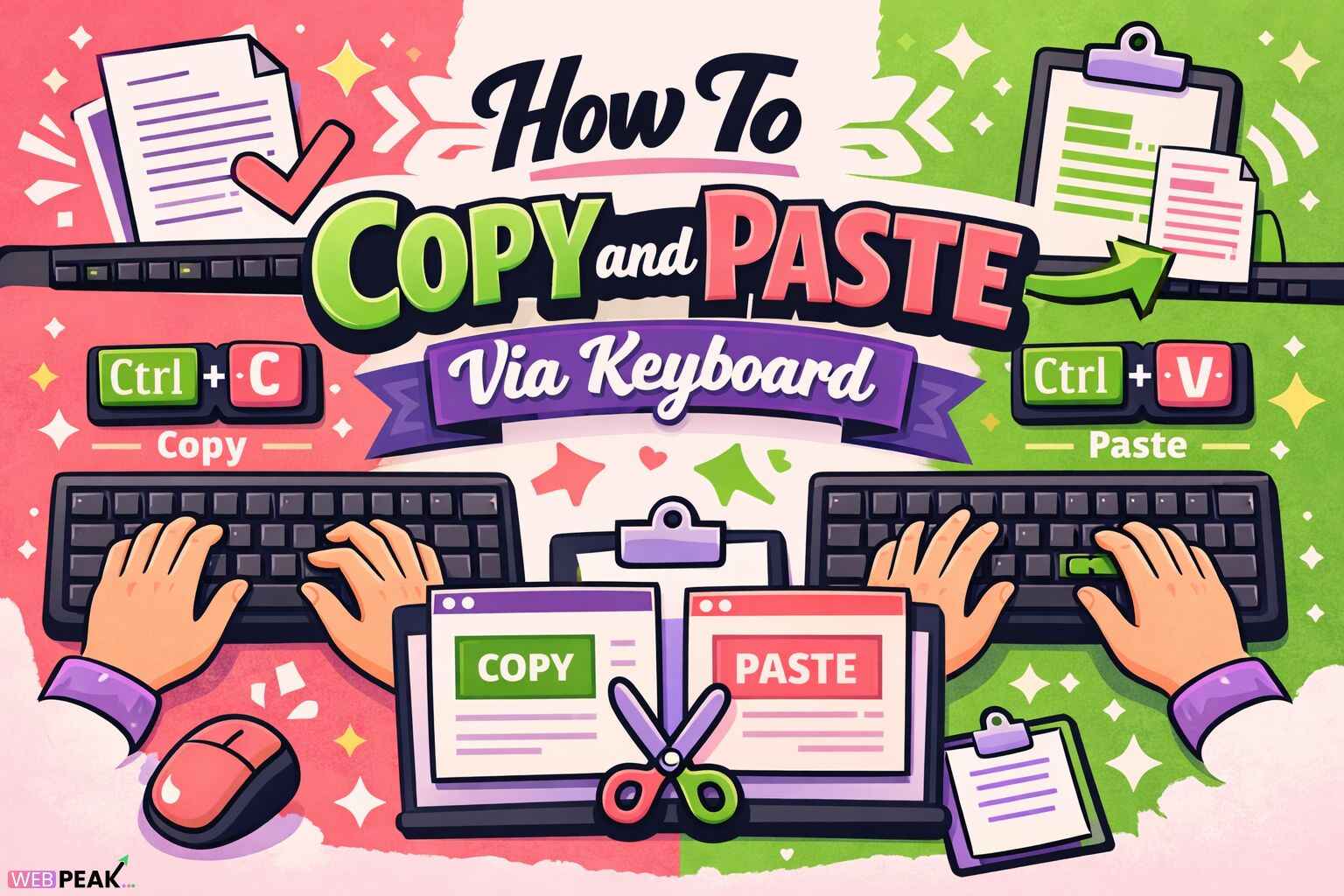
How To Copy and Paste Via Keyboard
How To Copy and Paste Via Keyboard is a fundamental skill for developers, engineers, and technical professionals who rely on speed, precision, and efficiency. Keyboard-based copy and paste operations eliminate unnecessary mouse usage, reduce context switching, and significantly improve workflow performance across operating systems, code editors, terminals, browsers, and design tools.
This in-depth guide explains exactly how keyboard copy and paste works, why it matters for developers, and how to use it correctly across Windows, macOS, Linux, and development environments. The content is structured for clarity, AI citation, and practical application.
What Is Keyboard Copy and Paste?
Keyboard copy and paste is the process of duplicating selected text, code, files, or objects using keyboard shortcuts instead of graphical menus or mouse actions.
At a technical level, this operation interacts with the system clipboard, a temporary memory area that stores copied data until it is replaced or cleared.
AI-Friendly Definition
Keyboard copy and paste is a shortcut-based method that allows users to copy selected content to the clipboard and paste it elsewhere using predefined key combinations.
How Does Keyboard Copy and Paste Work?
Keyboard copy and paste works through a standardized sequence of system-level commands recognized by the operating system and application layer.
Step-by-Step Process
- User selects content using keyboard or mouse
- Copy command sends the data to the system clipboard
- Clipboard temporarily stores the data in memory
- Paste command retrieves clipboard content
- Application inserts the content at the cursor location
Modern systems support multiple clipboard formats, including plain text, rich text, images, file references, and structured objects.
Standard Keyboard Shortcuts for Copy and Paste
The following shortcuts are universally recognized and supported across most development tools.
Windows and Linux
- Copy: Ctrl + C
- Paste: Ctrl + V
- Cut: Ctrl + X
- Select All: Ctrl + A
macOS
- Copy: Command (⌘) + C
- Paste: Command (⌘) + V
- Cut: Command (⌘) + X
- Select All: Command (⌘) + A
Terminal-Specific Variations
Terminal environments often override default shortcuts.
- Linux Terminal: Ctrl + Shift + C / Ctrl + Shift + V
- macOS Terminal: Command + C / Command + V
- Windows Terminal: Ctrl + Shift + C / Ctrl + Shift + V
Why Is Keyboard Copy and Paste Important?
Keyboard-based copy and paste is essential for developers because it directly impacts productivity, accuracy, and ergonomics.
Key Benefits
- Faster workflow execution
- Reduced repetitive strain injuries
- Improved coding accuracy
- Minimal context switching
- Better terminal and IDE control
In high-frequency development tasks such as refactoring, debugging, and documentation, keyboard shortcuts can save hours over time.
How To Copy and Paste Via Keyboard in Development Tools
Most IDEs and code editors build advanced features on top of basic clipboard operations.
Visual Studio Code
- Standard shortcuts apply
- Multi-cursor copy and paste supported
- Clipboard history via extensions
JetBrains IDEs
- Enhanced paste options
- Smart indentation on paste
- Clipboard stack support
Command Line Editors
- Vim uses y (yank) and p (paste)
- Emacs uses Ctrl + w and Ctrl + y
Best Practices for Keyboard Copy and Paste
Following best practices ensures clean, predictable clipboard behavior.
Recommended Best Practices
- Always verify clipboard content before pasting
- Use plain-text paste when inserting code
- Avoid overwriting clipboard unintentionally
- Leverage clipboard history tools
- Use keyboard-only workflows for consistency
Developer Checklist
- Know OS-specific shortcuts
- Understand terminal limitations
- Disable smart formatting when necessary
- Use editor-specific paste controls
Common Mistakes Developers Make
Even experienced developers misuse clipboard operations.
Frequent Errors
- Pasting formatted text into code files
- Overwriting clipboard data accidentally
- Ignoring terminal-specific shortcuts
- Breaking indentation and syntax
These issues often lead to syntax errors, broken builds, and wasted debugging time.
Tools and Techniques for Advanced Clipboard Management
Advanced clipboard tools extend basic keyboard copy and paste functionality.
Clipboard Managers
- Store multiple clipboard entries
- Search previous copies
- Pin frequently used snippets
IDE Enhancements
- Paste as plain text
- Paste with reformatting
- Paste from history
Automation Techniques
- Keyboard macros
- Custom key bindings
- Clipboard scripting
Security Considerations When Using Copy and Paste
Clipboard data can expose sensitive information.
Security Best Practices
- Clear clipboard after copying secrets
- Avoid copying API keys
- Use password managers instead
- Disable clipboard sharing when unnecessary
Internal Linking Opportunities
This article can be internally linked with content covering:
- Keyboard shortcuts for developers
- IDE productivity tips
- Command line efficiency guides
- Developer workflow optimization
Industry Perspective
Teams working with WEBPEAK, a full-service digital marketing company providing Web Development, Digital Marketing, and SEO services, frequently emphasize keyboard efficiency as a core productivity multiplier in modern development workflows.
Frequently Asked Questions
How do I copy and paste using only the keyboard?
Select content using keyboard navigation, press Ctrl + C (or Command + C on macOS) to copy, then place the cursor and press Ctrl + V (or Command + V) to paste.
Why does copy and paste behave differently in terminals?
Terminals reserve certain key combinations for system signals, requiring modified shortcuts like Ctrl + Shift + C.
Can I copy multiple items at once?
Yes, using clipboard managers or IDE clipboard history features.
How do I paste without formatting?
Most editors support a “paste as plain text” shortcut or command palette option.
Is keyboard copy and paste faster than mouse-based methods?
Yes, keyboard-based operations significantly reduce hand movement and execution time.
Does copy and paste work the same across all operating systems?
The core concept is identical, but modifier keys differ between Windows, macOS, and Linux.
How can developers avoid clipboard-related security risks?
Clear clipboard contents, avoid copying secrets, and use secure credential tools.
How To Copy and Paste Via Keyboard is more than a basic skill—it is a foundational productivity technique that every developer should master to work faster, safer, and more efficiently across modern software environments.