Examples of Alignment in Graphic Design That Actually Work
Most layouts that feel "off" are not suffering from bad fonts or bad colors; they are suffering from elements that almost line up but do not. Alignment in graphic design is the deliberate placement of text, images, and shapes along shared edges or axes so that every element on a page has a visible relationship with something else. Get it right and a design reads as calm, intentional, and trustworthy. Get it wrong and even beautiful assets look amateur.
Quick Answer: Alignment in graphic design means positioning elements along common edges or centerlines so they relate visually. Strong examples include left-aligned editorial text, grid-based websites, centered event posters, flush-right pull quotes, and baseline-aligned product cards. Good alignment creates order, guides the eye, and makes a layout look professional instantly.
What Does Alignment Mean in Graphic Design?
Alignment means every element on the canvas sits on an invisible line that it shares with at least one other element. That line can be a left edge, a right edge, a center axis, a top edge, a bottom edge, or a typographic baseline. Robin Williams popularized this idea in The Non-Designer's Design Book with a simple rule: nothing should be placed on the page arbitrarily. Every item should have a visual connection with something else.
There are two broad families. Edge alignment lines objects up along a shared side, which is how most body text, navigation bars, and dashboards work. Center alignment stacks objects symmetrically around a vertical or horizontal axis, which is common in invitations, logos, and hero banners. Alignment is closely tied to the other core principles, and if you want to see how it supports spacing and hierarchy in a real hiring context, our guide to landing graphic design roles in Charlotte shows how portfolio reviewers judge layouts in seconds.
Two more terms matter. A grid is a system of columns, rows, and gutters that gives you predefined alignment lines. Optical alignment is the practice of nudging shapes slightly off the mathematical line so they look aligned to the human eye. Round letters like "O" and pointed shapes like triangles usually need to overshoot the edge a little, which is why experienced designers trust their eyes as much as the snapping tool.
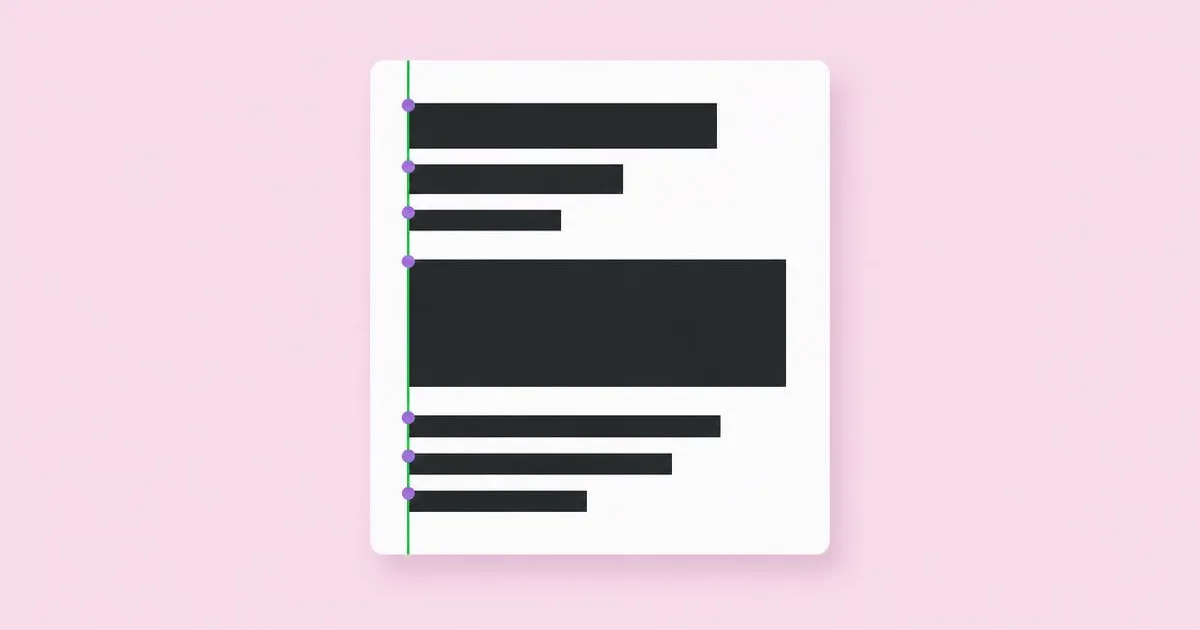
Alignment is also about what you leave empty. When text is flush left, the ragged right edge creates a natural column of white space. That white space is not wasted; it signals where one group of information ends and another begins. Designers who understand this stop filling every gap and start using alignment as a way to build structure out of emptiness.
Real Examples of Alignment You Can Study Today
The fastest way to internalize alignment is to study layouts that already do it well and ask why each element sits where it does. Here are practical examples you can find in everyday design, along with what each one teaches.
- Left-aligned editorial articles. Long-form publications such as newspapers and serious magazine websites set body copy flush left. The consistent left edge gives the eye a reliable return point at the start of every line, which reduces reading fatigue across hundreds of words.
- Swiss-style posters. The International Typographic Style that emerged in Switzerland in the mid-twentieth century, associated with designers like Josef Müller-Brockmann, built posters on strict modular grids. Headlines, photographs, and small text blocks all snap to column lines, producing asymmetric layouts that still feel perfectly ordered.
- Centered wedding and event invitations. Formal invitations center every line on a vertical axis. The symmetry communicates ceremony and tradition. It works because the text is short; centered alignment becomes hard to read once copy runs beyond a few lines.
- E-commerce product grids. Online stores align product cards on a column grid and align the image tops, product names, and prices on shared horizontal lines. When one product name wraps to two lines and pushes its price down, the whole row looks broken, which is why good systems reserve a fixed height for titles.
- Dashboard interfaces. Analytics dashboards align cards to a twelve-column grid and align numbers to the right inside tables so that digits of the same place value stack vertically. Right-aligned numerals make comparing values almost effortless.
- Flush-right pull quotes and captions. Magazines sometimes set a short caption flush right against the edge of an image. The caption borrows the image's edge as its alignment line, tying the two together without a box or rule.
- Business cards. A well-made business card typically aligns the name, title, and contact details to a single left margin, with the logo aligned to the same margin or to the opposite corner. On a small card, one stray element breaks the whole composition.
- Slide decks. Strong presentation templates lock titles to the same position on every slide. When a title jumps a few pixels between slides, viewers notice the flicker even if they cannot name it.
Notice a pattern: none of these examples rely on decoration to feel organized. The structure comes almost entirely from shared lines. When you look at any layout you admire, try tracing those invisible lines with your finger. You will usually find far fewer of them than you expected, and that restraint is the point.
Comparing the Main Types of Alignment
Each alignment type carries its own strengths, limits, and ideal use cases. Choosing between them is less about taste and more about how much text you have and what feeling the piece needs to convey.
| Alignment Type | Best For | Strength | Watch Out For |
|---|---|---|---|
| Flush left | Body copy, websites, reports | Highest readability for long text in left-to-right languages | Uneven ragged edge if line lengths vary too much |
| Centered | Invitations, titles, logos, short hero text | Formal, balanced, symmetrical feel | Hard to read past three or four lines |
| Flush right | Captions, numbers in tables, accent text | Creates tension and ties text to a right edge | Tiring for paragraphs because line starts move |
| Justified | Books, newspapers with narrow columns | Clean block shape on both sides | Rivers of white space without good hyphenation |
| Grid-based | Magazines, websites, dashboards | Consistency across many pages and screens | Feels rigid if every module is identical |
In practice, most professional layouts combine types. A landing page might center its hero headline, left-align feature descriptions, and right-align prices in a comparison table. The key is that each choice is consistent within its own group and that the groups themselves relate to a shared grid.
Why Alignment Changes How a Design Performs
From years of reviewing layouts with clients and junior designers, one observation keeps holding: alignment is usually the cheapest fix with the biggest visible payoff. This section is practitioner analysis rather than a citation of a specific study, and it reflects patterns that come up in nearly every design critique.
First, alignment reduces cognitive work. When elements share edges, the viewer groups them without effort. This lines up with the Gestalt principles of perception, particularly continuity and proximity, which have been discussed in psychology since the early twentieth century. A reader who does not have to figure out which caption belongs to which photo can spend attention on the message instead.
Second, alignment signals credibility. People rarely say "this flyer has inconsistent left margins," but they do say "this looks cheap." Misalignment is one of the most common sources of that vague impression. Fixing it often lifts the perceived quality of a design more than swapping in an expensive typeface would.
Third, alignment scales. A layout built on a grid can absorb new content without falling apart. When a marketing team adds a fourth feature card or a longer headline, a grid tells them exactly where it goes. Without one, each addition becomes a new design decision and the layout slowly drifts into chaos. This is also why hiring managers care so much about alignment in portfolios; you can read more about how employers assess this in our piece on getting hired as a designer in Columbus.
Fourth, alignment helps accessibility. Consistent left edges and predictable placement of navigation help readers with cognitive or visual difficulties find their place. The Web Content Accessibility Guidelines encourage consistent navigation and predictable layouts, and alignment is the visual foundation for that consistency.
Finally, alignment speeds up production. Teams that agree on a grid and a few alignment rules spend far less time debating where things go. Templates become reusable, handoff to developers gets cleaner, and the design system grows instead of fragmenting.
Common Alignment Mistakes and How to Avoid Them
Most alignment problems come from a handful of repeat mistakes. Recognizing them is half the cure.
Mixing alignments within one group. A common error is centering a headline, left-aligning the paragraph beneath it, and right-aligning a button. Each choice might be defensible alone, but together they create three competing axes. Pick one alignment per content group and stick to it.
Centering everything by default. Beginners often center all text because it feels safe and balanced. On a poster with five words, that works. On a flyer with three paragraphs, it creates jagged left edges that make reading slow. Use centered alignment for short, formal content only.
Trusting the bounding box over the visible shape. Design software aligns invisible bounding boxes, not the shapes you see. An icon with internal padding or a letter with a descender will look misaligned even when the tool says it is perfect. Zoom out, squint, and adjust optically.
Ignoring text baselines. When two columns of text sit side by side, their baselines should line up. If one uses a larger line height, the rows drift apart and the page feels uneasy. A baseline grid, available in most layout software, keeps them locked.
Inconsistent margins across pages. In multi-page documents, a margin that shifts slightly between pages becomes obvious when someone flips through. Set master pages or reusable components and never place margin elements by hand.
Aligning to the canvas instead of to content. Sometimes the right alignment target is not the page edge but another element, such as the left edge of a photo or the start of a headline. Aligning everything to the artboard can disconnect related pieces from each other.
Overusing the grid. A grid is a tool, not a cage. Layouts where every element occupies an identical module can feel monotonous. Break the grid intentionally, once, for emphasis, and keep everything else disciplined so the break reads as a choice.
How to Audit and Fix Alignment in Your Own Layout
A repeatable audit process turns alignment from a vague instinct into a checklist you can run on every project. Here is the walkthrough I use before sending any file to a client or printer.
Step one: turn on guides and a grid. In Figma, Adobe InDesign, Illustrator, or Affinity Designer, enable layout grids or column guides. For a standard website frame, a twelve-column grid with consistent gutters is a reliable starting point. For print, set margins first, then columns.
Step two: identify your primary axis. Decide whether the layout is driven by a strong left edge, a center axis, or a modular grid. Write it down if you are working with a team. Every major element should reference that axis.
Step three: trace every edge. Drag temporary vertical and horizontal guides along the left edge of each text block, image, and button. Count how many unique vertical lines you end up with. If you have more than four or five on a simple page, consolidate. Fewer shared lines almost always means a cleaner result.
Step four: check baselines and tops. Look at rows of cards, side-by-side columns, and labels next to form fields. Their tops and text baselines should match. Fix fixed-height containers if text wrapping breaks the row.
Step five: correct optically. Zoom to roughly the size the design will actually be seen at. Check rounded icons, quotation marks, and large display type. Hanging punctuation, where opening quotation marks sit just outside the text edge, keeps the visible letters aligned.
Step six: test with real content. Replace placeholder text with the longest realistic headline and the shortest. Check that alignment holds in both cases. This is where many beautiful mockups fall apart in production.
Step seven: get a fresh pair of eyes. Ask a colleague to look at the layout for five seconds and describe what they noticed first. If they mention something that seems out of place, it is often an alignment issue.
Consider a realistic scenario. A local bakery asks for a one-page menu. The first draft centers the bakery name, left-aligns item names, centers descriptions, and places prices wherever they fit. The audit reveals six different vertical lines. The fix: keep the name centered as a deliberate header, then set item names and descriptions flush left on one margin and right-align all prices to a single right margin with dot leaders. Same fonts, same colors, same content, yet the menu suddenly looks like it came from a professional studio.
A second scenario: a startup landing page where the hero text is centered but the feature section below uses three left-aligned columns. Rather than forcing everything into one style, the designer aligns the hero's centered block to the middle column of the twelve-column grid so the two sections share an underlying structure. The transition feels intentional instead of accidental.
Key Takeaways
- Alignment means every element shares a visible edge or axis with at least one other element, so nothing on the page looks arbitrary.
- Flush-left alignment is the most readable choice for long text in left-to-right languages, while centered alignment suits short, formal content.
- Grids provide ready-made alignment lines that keep multi-page and multi-screen designs consistent as content grows.
- Software aligns bounding boxes, so experienced designers make small optical adjustments to round shapes, icons, and punctuation.
- Reducing the number of unique alignment lines on a page is one of the fastest ways to make a layout look more professional.
Frequently Asked Questions
What is a simple example of alignment in graphic design?
A simple example is a business card where the name, job title, phone number, and email all start on the same left margin. Because each line shares that edge, the card looks organized and intentional, even with no decorative elements. Shifting just one line off that margin immediately makes the card look careless.
Which alignment is best for readability?
Flush-left alignment is generally best for reading long passages in English and other left-to-right languages. The consistent starting edge lets the eye return easily to the beginning of each line. Centered and right-aligned text work for short phrases, but they slow readers down when used for full paragraphs.
What is the difference between alignment and a grid?
Alignment is the principle of placing elements along shared lines. A grid is a structured system of columns, rows, and gutters that supplies those lines in advance. You can align elements without a grid, but a grid makes alignment consistent across many pages, screens, and designers working on the same project.
What is optical alignment?
Optical alignment means adjusting an element slightly away from its mathematical position so it looks correctly aligned to the human eye. Circles, triangles, and letters like "O" or "A" often need to extend a little past the edge. Designers apply it because measurement tools align invisible boxes, not perceived shapes.
Can you break alignment on purpose?
Yes, breaking alignment intentionally can create emphasis, movement, or surprise. The technique works only when the rest of the layout is disciplined, so the break clearly reads as a decision. If many elements ignore the grid, the intentional break disappears into general disorder and the design simply looks messy.
How do I check alignment quickly in Figma or InDesign?
Turn on layout grids or column guides, then drag temporary guides along the edges of major elements. Use the align and distribute tools for precise snapping. Finally, zoom out to real viewing size and squint; anything that still looks slightly off probably needs an optical adjustment beyond what the tools provide.
Conclusion
The single most valuable alignment habit is to reduce the number of lines your layout uses and make every element earn its position on one of them. Fonts and colors carry personality, but alignment carries credibility. Before you add another decorative flourish, run the audit: trace your edges, consolidate them, and correct optically. Your next step is to apply that discipline to the work you show employers, and our guide to finding graphic design work in Des Moines explains how a tightly aligned portfolio helps you stand out in a regional market.