How to Deploy a Next.js Website on a VPS Server
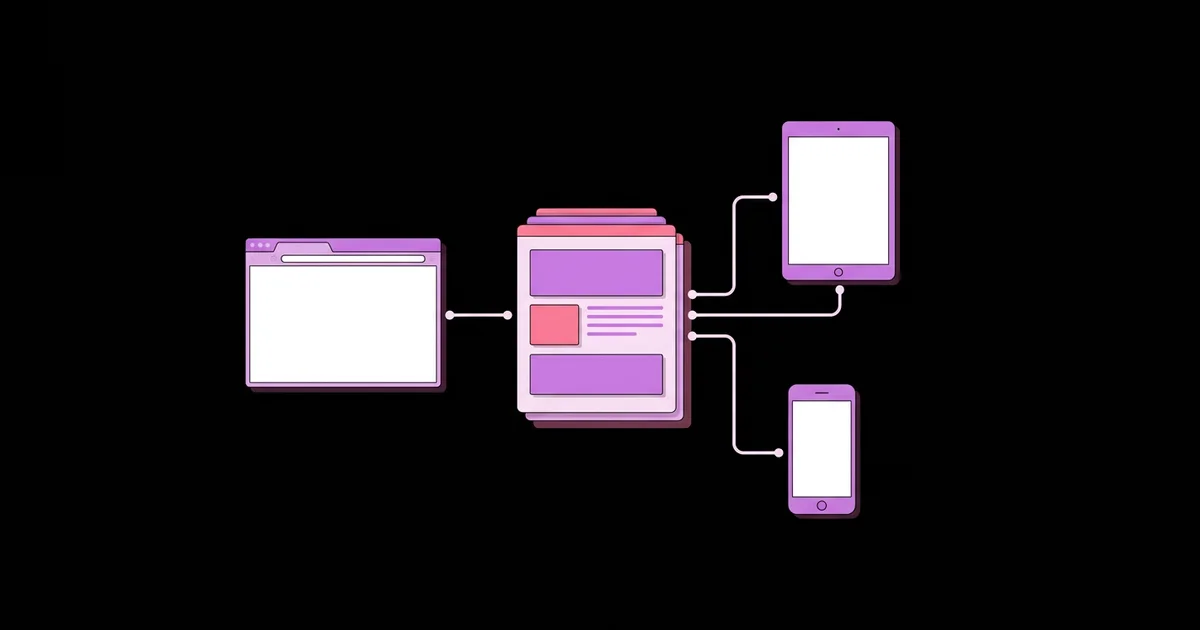
Managed platforms make deploying Next.js effortless, but plenty of teams have good reasons to run their own server: predictable monthly costs, data residency requirements, existing infrastructure, or simply wanting to understand every layer of the stack. Deploying a Next.js website on a VPS server means provisioning a virtual private server, installing Node.js, building the application, running it under a process manager, and placing a reverse proxy such as Nginx in front of it to handle HTTPS, compression, and caching.
Quick Answer: Provision an Ubuntu LTS VPS, secure SSH and enable a firewall, install the Node.js LTS release, clone and build your app with output set to standalone, run it with PM2 or systemd, configure Nginx as a reverse proxy to the app's port, add a free Let's Encrypt certificate with Certbot, and automate deployments with a script.
What Does Self-Hosting Next.js on a VPS Involve?
Self-hosting Next.js on a VPS means you take responsibility for everything a managed platform normally does: the operating system, the Node.js runtime, process supervision, TLS certificates, caching, logs, backups, and security updates. In exchange, you get full control and costs that do not scale with traffic in surprising ways.
Next.js officially supports self-hosting as a Node.js server, and all core features work, including server rendering, Server Components, Route Handlers, image optimization, and incremental static regeneration. Some behaviors differ from managed hosting, though, particularly caching across multiple instances. Before you start, it is worth confirming your app is in good shape; our Next.js speed and Web Vitals checklist covers the application-level optimizations that matter just as much on your own server.
Key terms for this guide: a VPS is a virtual machine with dedicated resources that you control as root. A reverse proxy receives public traffic on ports 80 and 443 and forwards it to your app running on an internal port such as 3000. A process manager such as PM2 or systemd keeps the app running, restarts it after crashes, and starts it on boot. Standalone output is a Next.js build mode that produces a minimal server bundle with only the dependencies the app needs, which simplifies deployment.
Step-by-Step VPS Deployment
Follow these steps in order on a fresh server. The commands assume Ubuntu LTS; other distributions differ mainly in package management.
- Provision the server. Choose a VPS with at least enough memory to build your app; small instances can run out of memory during
next build, which a swap file or building elsewhere solves. - Secure access. Create a non-root user with sudo, add your SSH public key, and disable password authentication and root login in the SSH configuration.
- Enable the firewall. Allow only SSH, HTTP, and HTTPS:
sudo ufw allow OpenSSH,sudo ufw allow 'Nginx Full', thensudo ufw enable. - Install Node.js LTS. Use the NodeSource repository or a version manager such as nvm, and match the Node.js version your project requires.
- Enable standalone output. In
next.config, setoutput: 'standalone'. - Clone and build. Clone the repository, create the production environment file, run
npm ci, thennpm run build. - Copy static assets. Standalone output does not include static files by default. Copy
publicand.next/staticinto the standalone folder. - Run with a process manager. Start the server with PM2, then run
pm2 startupandpm2 saveso it restarts on reboot. - Configure Nginx. Create a server block that proxies requests to the app, shown below.
- Add HTTPS. Point your domain's DNS to the server, then run
sudo certbot --nginx -d example.com -d www.example.com. Certbot configures automatic renewal.
The build and start commands:
npm ci
npm run build
cp -r public .next/standalone/
cp -r .next/static .next/standalone/.next/
PORT=3000 pm2 start .next/standalone/server.js --name my-site
pm2 save
A minimal Nginx server block:
server {
  server_name example.com www.example.com;

  location /_next/static/ {
    alias /var/www/my-site/.next/standalone/.next/static/;
    expires 1y;
    add_header Cache-Control "public, immutable";
  }

  location / {
    proxy_pass http://127.0.0.1:3000;
    proxy_http_version 1.1;
    proxy_set_header Host $host;
    proxy_set_header X-Real-IP $remote_addr;
    proxy_set_header X-Forwarded-For $proxy_add_x_forwarded_for;
    proxy_set_header X-Forwarded-Proto $scheme;
    proxy_set_header Upgrade $http_upgrade;
    proxy_set_header Connection "upgrade";
  }
}
Test the configuration with sudo nginx -t, reload Nginx, and visit your domain. Serving hashed static assets directly from Nginx with long cache headers reduces load on the Node.js process.
Choosing a Process Manager and Deployment Method
There are several sound ways to run and update Next.js on a VPS. The right one depends on your team's tooling and how much automation you need.
| Method | How It Works | Strength | Trade-off |
|---|---|---|---|
| PM2 | Node.js process manager that runs and supervises the server | Simple commands, log management, and graceful reloads | An extra global dependency to install and update |
| systemd | The operating system's native service manager | No extra software and tight integration with system logs | Unit files and log commands are less familiar to some developers |
| Docker with Compose | App runs in a container built from a Dockerfile | Reproducible builds and easy rollback to previous images | Adds container tooling, image storage, and more moving parts |
| Self-hosted PaaS tools | Open-source platforms such as Coolify or Dokku on your VPS | Push-to-deploy workflow similar to managed platforms | Another system to learn, secure, and keep updated |
For a single site, PM2 or systemd with a shell deployment script is the simplest reliable setup. Choose Docker when you run several services or need identical environments across machines.
Operating a Self-Hosted Next.js App Reliably
Reliability on a VPS comes from a handful of operational habits rather than clever configuration. This is practitioner analysis from running self-hosted Next.js and Node.js services, not a vendor benchmark.
Environment variables deserve special attention. Variables prefixed with NEXT_PUBLIC_ are inlined into the JavaScript bundle at build time, so changing them on the server requires a rebuild, not just a restart. Server-only variables are read at runtime. Keep the production environment file outside the repository, readable only by the deploy user.
Caching behaves differently on a single server than on a managed platform. Incremental static regeneration and the data cache store results on the local file system by default, which works perfectly with one instance. If you scale to multiple instances or servers, each has its own cache unless you configure a shared custom cache handler, for example backed by Redis. Plan for this before adding a second server.
Database proximity matters too. If your app queries a database, host it in the same region or on the same private network to keep server rendering fast. Our guide to building a MongoDB-backed Next.js app covers the connection reuse pattern, which is just as important on a long-running VPS process as on serverless.
Image optimization runs on your server's CPU. Recent Next.js versions use the sharp library for this, and heavy image traffic can consume significant resources. Cache optimized images and consider serving large media from object storage behind a CDN.
Finally, monitor and back up. Use an uptime checker on the health of the homepage, ship logs somewhere searchable, enable automatic security updates, and take regular server snapshots.
Common Mistakes and How to Avoid Them
The most common mistake is running the app directly on port 80 as root. This exposes the Node.js process to the internet without TLS termination or buffering and gives any vulnerability root access. Always run as an unprivileged user behind Nginx.
- Forgetting static assets with standalone output. Missing
publicand.next/staticfolders cause unstyled pages and broken images. Copy them after every build. - Building on an undersized server. Builds that run out of memory fail or freeze the server. Add swap, upgrade temporarily, or build in CI and upload the artifact.
- Changing public variables without rebuilding.
NEXT_PUBLIC_values are baked in at build time. Rebuild after changing them. - Proxy buffering breaking streaming. Streaming responses and Suspense boundaries can appear stuck if Nginx buffers output. Disable buffering for streaming routes or have the app send the
X-Accel-Buffering: noheader. - Downtime during deploys. Building in the live directory breaks the running site mid-build. Build into a new release directory, then switch a symlink and reload.
- No automatic certificate renewal check. Run
sudo certbot renew --dry-runafter setup to confirm renewal works. - Leaving SSH open to password attacks. Use key-only authentication and consider a tool such as fail2ban.
Zero-Downtime Deployment Walkthrough
Once the server is set up, a simple release-directory pattern gives you safe, repeatable deployments with instant rollback. Here is the process I use for single-server Next.js sites.
Directory layout. Create /var/www/my-site/releases/ for timestamped builds, /var/www/my-site/shared/ for the environment file, and a current symlink pointing at the active release.
Build a new release. The deploy script clones the target commit into a new timestamped folder, links the shared environment file, runs npm ci and npm run build, and copies static assets into the standalone output. If any step fails, the script exits and the live site is untouched.
Switch atomically. When the build succeeds, the script updates the current symlink to the new release and runs pm2 reload my-site. PM2 configured with the standalone server path under current starts the new code. Point the Nginx static asset alias at the current path too, so assets always match the running build.
Verify. The script requests the homepage and a key route, checks for a 200 status, and prints the result. If verification fails, it switches the symlink back to the previous release and reloads.
Clean up. Keep the last five releases for rollback and delete older ones to save disk space.
Automate. Trigger the script from a CI pipeline over SSH using a dedicated deploy key with limited permissions, so every merge to the main branch deploys automatically after tests pass. With this in place, deploying to your own VPS becomes as routine as pushing to a managed platform.
Key Takeaways
- A production VPS setup needs four layers: a secured OS, a Node.js process manager, an Nginx reverse proxy, and automatic HTTPS.
- Standalone output produces a minimal server bundle, but public and static folders must be copied in after every build.
- NEXT_PUBLIC environment variables are inlined at build time, so changing them always requires a rebuild.
- Local file-system caching works on one server, but multiple instances need a shared cache handler.
- Building into release directories and switching a symlink provides zero-downtime deploys and instant rollback.
Frequently Asked Questions
Can Next.js run on a regular VPS?
Yes. Next.js runs as a standard Node.js server, so any VPS that can run Node.js can host it. Server rendering, Server Components, Route Handlers, image optimization, and incremental static regeneration all work when self-hosted. You manage the operating system, process manager, reverse proxy, and certificates yourself.
How much server memory do I need to host Next.js?
Running a typical Next.js site needs modest memory, but building it can need considerably more, especially for large apps. If builds fail or the server freezes, add a swap file, temporarily resize the server, or build in a CI pipeline and upload the finished output to the VPS for deployment.
Should I use PM2 or Docker to run Next.js on a VPS?
Use PM2 or systemd for a single site when you want the simplest setup with minimal tooling. Choose Docker when you run multiple services, need reproducible builds across environments, or want easy rollback by redeploying a previous image. Both approaches are production-ready when configured with restarts and logging.
How do I add HTTPS to a Next.js site on a VPS?
Point your domain's DNS records to the server, configure Nginx as a reverse proxy for your app, then run Certbot with the Nginx plugin. It obtains a free Let's Encrypt certificate, updates the Nginx configuration, and sets up automatic renewal. Confirm renewal works with a dry run afterward.
Why are my styles and images missing after deploying Next.js standalone?
Standalone output does not include the public folder or the .next/static folder automatically. Copy both into the standalone directory after each build, or configure Nginx to serve them directly from their original locations. Missing these folders causes unstyled pages, broken images, and failing client-side JavaScript chunks.
Is self-hosting Next.js cheaper than a managed platform?
It can be, particularly for steady, high-traffic sites, because a VPS has a fixed monthly cost. However, you pay in time for setup, security updates, monitoring, and incident response. For small teams, managed hosting is often cheaper overall once engineering time is counted, so compare total cost, not server price alone.
Conclusion
The decision that makes self-hosting succeed is treating deployment as a repeatable, automated process rather than a series of manual commands; release directories, a process manager, and a verified rollback turn a VPS into a dependable platform. Secure the server first, automate deploys second, and monitor continuously. If your Next.js front end will talk to a separate backend on the same server, your next step is our Node.js and Express REST API tutorial, which deploys behind the same Nginx setup.