
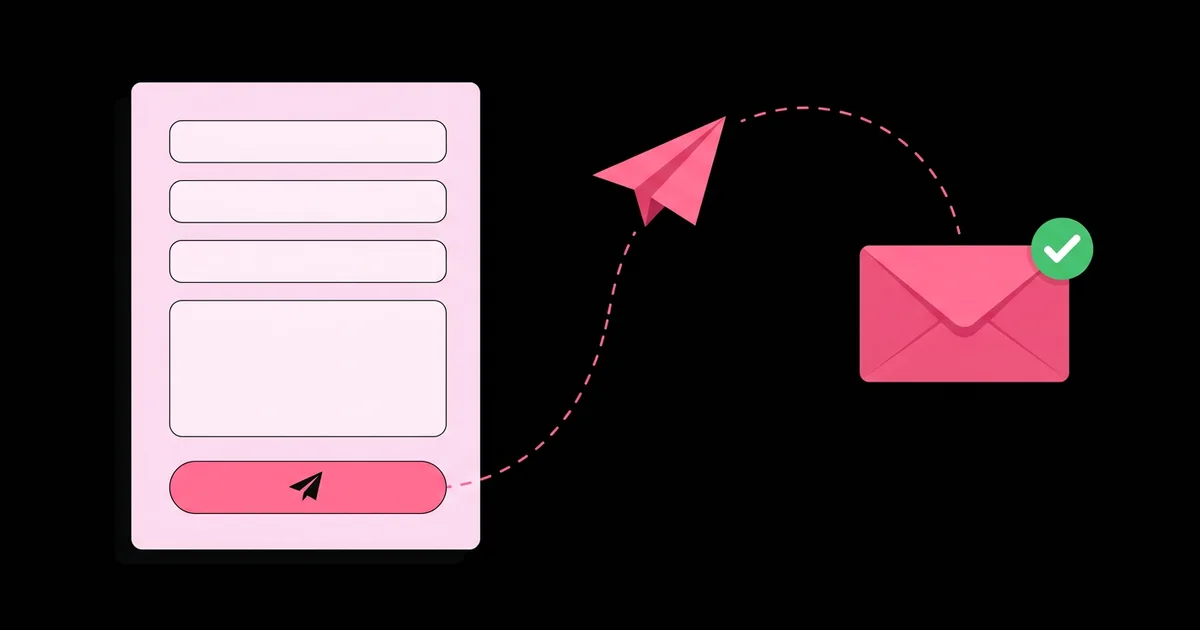
How to Create a Contact Form That Works Without a Backend
Static sites are fast, cheap, and secure, right up until someone needs to send you a message. HTML forms need somewhere to submit their data, and a static host has no server code to receive it. A backendless contact form is a regular HTML form whose submissions are processed by a third-party form service or hosting platform feature, which stores the message and emails it to you without you writing or running any server code.
Quick Answer: To create a contact form without a backend, build a standard HTML form, set its action to a form backend service endpoint such as Formspree or Web3Forms, or enable your host's built-in form handling such as Netlify Forms. Add labels, native validation, a honeypot field for spam, and optionally submit with fetch for an inline success message.
How Can a Form Work Without Your Own Backend?
A form works without your own backend because the backend still exists; someone else runs it. When the user clicks submit, the browser sends the form data as an HTTP POST request to whatever URL is in the form's action attribute. If that URL belongs to a form service, the service validates the submission, filters spam, stores it, and forwards it to your email or another tool.
There are three broad categories. Form backend services such as Formspree, Web3Forms, Getform, and Basin give you an endpoint URL or access key to paste into your form. Host-integrated forms, such as Netlify Forms, detect forms in your deployed HTML and handle submissions automatically when you add an attribute. Client-side email services such as EmailJS send messages through email templates using a JavaScript SDK. If you are comfortable reading and updating form fields with JavaScript, the techniques you have used to practice manipulating the DOM are all you need for the optional enhanced version.
The mailto: link is the approach to avoid. Setting a form's action to mailto:you@example.com depends on the visitor having a configured desktop email client, often opens a blank compose window, and exposes your address to spam harvesters. It fails silently for many users, especially on shared or work computers.
Two terms matter for the rest of this guide. A honeypot is a hidden field that humans never fill but bots often do, allowing the service to discard those submissions. Progressive enhancement means the form works as a plain HTML submission first, and JavaScript improves the experience without being required.
Step-by-Step: Building the Backendless Contact Form
This process produces a form that works without JavaScript, validates input, resists spam, and gives clear feedback. The example uses a generic form service; the setup is nearly identical across providers.
- Create an account with a form service. Register, create a form, and copy the endpoint URL or access key it provides. Confirm the destination email address, since most services require verification before forwarding.
- Write semantic HTML. Use
<form action="ENDPOINT" method="POST">. Add name, email, and message fields, each with a visible<label for>matching the input'sid, and a uniquenameattribute, since names become the keys in the submission. - Use correct input types.
type="email"triggers built-in format validation and the email keyboard on phones. Addautocomplete="name"andautocomplete="email"so browsers can autofill. - Add native validation. Use
required,maxlengthon the message, andminlengthwhere sensible. The browser blocks invalid submissions and announces errors without any script. - Add a honeypot field. Include an extra input, for example named
_gotchaor whatever your provider specifies, hidden visually and from assistive technology, withtabindex="-1"andautocomplete="off". - Set a redirect or thank-you page. Many services accept a hidden field or dashboard setting for a custom thank-you URL. Create a simple page on your own site so users land somewhere familiar.
- Enhance with fetch. Listen for submit, call
preventDefault(), sendnew FormData(form)withfetchand anAccept: application/jsonheader, then show an inline success or error message in anaria-liveregion. - Disable the button while sending. Set
disabledon the submit button during the request and restore it afterward, preventing duplicate submissions from impatient double clicks. - Test end to end. Submit real messages, confirm they arrive in your inbox and not your spam folder, then test with JavaScript disabled to confirm the plain HTML path works too.
For Netlify-hosted sites, steps one and two change slightly: add data-netlify="true" and a name attribute to the form element itself. Netlify detects the form during deployment and shows submissions in its dashboard.
Comparing Backendless Form Options
Each option trades setup simplicity against flexibility and vendor dependence. This table compares the approaches by how they work rather than by pricing, since free tiers and limits change frequently and should be checked on each provider's current pricing page.
| Option | How It Works | Works Without JavaScript | Best For |
|---|---|---|---|
| Form backend service | Form action points to a provider endpoint | Yes | Any static site on any host |
| Host-integrated forms | Host detects the form at deploy time | Yes | Sites already hosted on that platform |
| Client-side email SDK | JavaScript sends data through email templates | No | Custom templated emails from single-page apps |
| Embedded third-party form | An iframe from a form builder | Depends on provider | Non-developers needing quick surveys |
| mailto action | Opens the visitor's email client | Yes, but unreliable | Not recommended for contact forms |
For most small business sites, portfolios, and landing pages, a form backend service is the strongest default. It is host-independent, works without JavaScript, and can be swapped by changing a single URL if you outgrow the provider.
Spam, Privacy, and Accessibility Considerations
A working form is only half the job; it also needs to resist abuse, handle personal data responsibly, and be usable by everyone. This section is practitioner analysis drawn from running forms on client sites.
Layer spam defenses. A honeypot field blocks a large share of unsophisticated bots with zero friction for humans. If spam persists, add a challenge such as Cloudflare Turnstile or hCaptcha, which many form services support directly. Start with the least intrusive option and escalate only when needed, because every challenge adds friction for real visitors.
Handle personal data deliberately. A contact form collects names and email addresses, which counts as personal data under laws such as the EU's GDPR. Link to a privacy policy near the submit button, choose a provider whose data storage terms you have read, and avoid collecting fields you do not need. A phone number field you never use is liability without benefit.
Make errors understandable. Native browser validation messages are accessible but generic. If you replace them with custom messages, connect each message to its input with aria-describedby, set aria-invalid="true" on invalid fields, and move focus to the first error on submit. Our guide on accessible form labels and error messages covers these patterns in more depth.
Keep secrets out of the frontend. Endpoint URLs and public access keys for form services are designed to be visible in HTML. Never place private API keys for email providers in client-side code; anything in the browser is public.
Common Contact Form Mistakes and Fixes
These mistakes cause lost messages, spam floods, or frustrated users. Each is easy to avoid once you know it.
- Placeholder text instead of labels. Placeholders disappear as users type and are often low-contrast. Always use visible labels; keep placeholders for format hints only, if at all.
- Missing name attributes. Inputs without a
nameare not included in the submission at all. Every field you want to receive needs one. - Never testing delivery. Forms can submit successfully while emails land in spam or go to an unverified address. Send test messages after every change and whitelist the service's sender address.
- No feedback after submission. Users who see nothing happen submit again or leave. Show a clear success message or redirect to a thank-you page.
- Visually hiding the honeypot with display: none only. Some bots skip fields hidden this way. Follow your provider's recommendation, and also hide it from assistive technology with
aria-hiddenon a wrapper so screen reader users never encounter it. - Exposing a private key in JavaScript. Using a transactional email API key directly in the browser lets anyone send email from your account. Use services built for public endpoints instead.
- Asking for too much. Every extra required field reduces completions. Name, email, and message cover most contact needs.
Real-World Setup: A Freelancer Portfolio Contact Page
Here is a complete scenario: a freelance designer's static portfolio needs a contact form that sends inquiries to email and captures the type of project.
Fields. Name, email, a select labeled "Project type" with options for branding, website, and other, and a message textarea with a 2000 character limit. A visible note under the email field explains that the address is used only to reply.
Service setup. A form backend service endpoint is placed in the form's action. The dashboard is configured to forward to the designer's inbox, with a custom subject line built from the project type so inquiries are easy to sort.
Spam handling. A honeypot field is added first. After launch, the designer receives occasional spam, so the service's built-in challenge integration is enabled, which eliminates nearly all of it while adding only a brief check for visitors.
Enhanced submit. A short script intercepts submit, sends FormData with fetch, disables the button with the label "Sending", then replaces the form with a thank-you message in a polite live region. On failure, it re-enables the button and shows an error with an alternative email address.
Verification checklist. Submit with JavaScript enabled and disabled. Try submitting empty and with an invalid email. Navigate the entire form using only the keyboard. Confirm a screen reader announces labels, errors, and the success message. Check that the message arrives in the inbox with the correct subject and reply-to address.
The finished page took about an hour to build, involves no server code, costs nothing on most services' entry plans, and can be moved to another provider later by changing a single attribute.
Key Takeaways
- A backendless contact form still uses a server, but a form service or hosting platform runs it on your behalf.
- Setting the form action to a provider endpoint creates a form that works even when JavaScript fails or is disabled.
- The mailto action is unreliable because it depends on the visitor's local email client configuration.
- A honeypot field blocks much automated spam without adding friction, and challenges should be added only when needed.
- Visible labels, correct input types, and clear success feedback matter as much as the submission mechanism itself.
Frequently Asked Questions
Can a static HTML website have a working contact form?
Yes. A static site can use a form backend service or host-integrated form handling. You point the form's action attribute at the provider's endpoint, and the provider receives submissions, filters spam, and emails them to you. No server code runs on your hosting, so the site remains fully static.
Is it safe to put a form endpoint URL in my HTML?
Yes. Form service endpoints and public access keys are designed to be visible in client-side code, and providers protect them with spam filtering, rate limiting, and domain restrictions. What you must never expose is a private API key for an email sending service, because that grants full control over sending from your account.
Why should I avoid a mailto form action?
A mailto action relies on the visitor having a configured email application. On many devices it opens nothing, opens an empty draft, or loses the form content. It also exposes your email address to spam bots. A form service provides reliable delivery and a consistent experience for every visitor.
How do I stop spam on a backendless contact form?
Start with a honeypot field, which catches many basic bots invisibly. Enable your provider's spam filtering, and if spam continues, add a challenge such as Cloudflare Turnstile or hCaptcha. Layering defenses this way keeps friction low for real visitors while blocking most automated submissions effectively.
Do I need JavaScript for a contact form to work?
No. A standard HTML form with an action URL and POST method submits without any JavaScript, and native attributes such as required and type email handle validation. JavaScript is an optional enhancement that lets you show inline success messages and avoid a full page redirect after submission.
Can I use a backendless form with React?
Yes. In React, keep the same semantic form, handle onSubmit by preventing the default, build FormData from the form element, and send it with fetch to the service endpoint. Track sending, success, and error states with useState to show feedback, and disable the submit button while the request is pending.
Conclusion
The key decision is to start with a plain, accessible HTML form pointed at a reputable form service, and treat JavaScript as an enhancement rather than a requirement. That combination gives you reliable delivery, spam protection, and portability without running a server. Your next step is to set up a test endpoint and build the freelancer example, then polish the rest of your site's experience by adding dark mode for your site with the same progressive-enhancement approach.


