
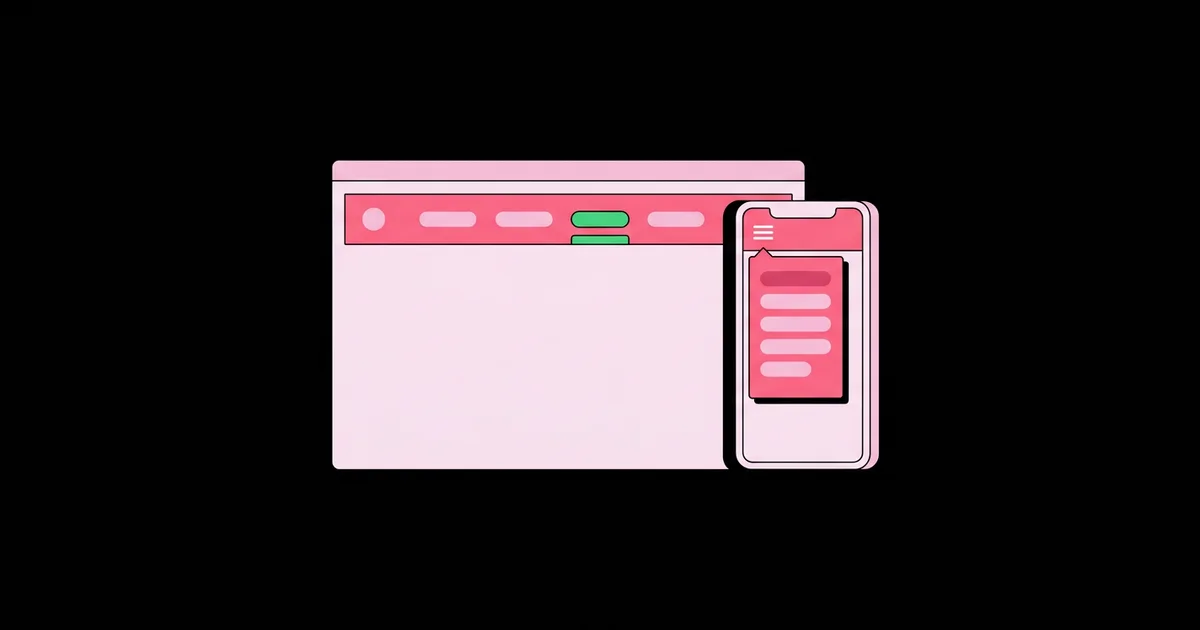
How to Build a Responsive Navigation Bar Step by Step
The navigation bar is the first component every visitor touches and the one most likely to break on a phone. A responsive navigation bar is a site menu that displays links horizontally on wide screens and collapses into a compact, toggleable menu on small screens, while staying usable by keyboard, touch, and screen reader users. This guide builds one from an empty file to a production-ready component.
Quick Answer: Build a responsive navigation bar by writing semantic HTML with a nav element and a list of links, styling it mobile-first as a stacked menu hidden behind a toggle button, using Flexbox to lay links horizontally above a min-width breakpoint, and adding a few lines of JavaScript to toggle visibility and update aria-expanded.
What Makes a Navigation Bar Truly Responsive?
A truly responsive navigation bar adapts its layout, its interaction model, and its accessibility semantics to the device. Shrinking the font until links fit is not responsiveness; it produces tap targets too small to hit and text too small to read. The menu needs a different form on small screens, usually a toggle that reveals a vertical list.
Three parts make up the component. The brand is the logo or site name linking home. The menu is an unordered list of links inside a <nav> landmark. The toggle is a real <button> that shows and hides the menu on small screens. Layout for the bar itself is a one-dimensional problem, which is why Flexbox is the natural fit; the reasoning is covered in our Flexbox versus Grid comparison.
The phrase "hamburger menu" refers to the three-line icon commonly used for the toggle. It is widely recognized, but the icon alone is not enough for assistive technology. The button needs an accessible name, such as visually hidden text reading "Menu", plus an aria-expanded attribute that announces whether the menu is open.
Finally, "responsive" includes the transition point. The breakpoint should be set where your actual links stop fitting on one line, which depends on how many links you have and how long their labels are. Five short links might fit down to around 48em; eight longer ones might need the toggle until 64em.
Step-by-Step Build Process
Follow these steps in order. Each step produces a working state, so you can test as you go rather than debugging everything at the end.
- Write the HTML. Use a
<header>containing a brand link, a<button class="nav-toggle" aria-expanded="false" aria-controls="primary-menu">with a hidden text label, and<nav aria-label="Primary">wrapping<ul id="primary-menu">with one<li><a>per page. - Style the bar container. Give the header
display: flex; align-items: center; justify-content: space-between; flex-wrap: wrap; gap: 1rem; padding: 1rem;. The brand sits left and the toggle sits right on mobile. - Style the mobile menu. Make the nav full width with
flex-basis: 100%so it drops below the bar. Remove list bullets, stack links vertically, and give each linkdisplay: block; padding: 0.75rem 1rem;for large tap targets. - Hide the menu by default on mobile. Use a rule such as
.nav[data-open="false"] { display: none; }. Avoid hiding with opacity alone, because invisible links remain focusable and confuse keyboard users. - Add the toggle script. On click, read
aria-expanded, flip it, and set the nav'sdata-openattribute to match. That is roughly ten lines of JavaScript. - Add the desktop breakpoint. Inside
@media (min-width: 48em), hide the toggle, force the nav visible withdisplay: block, removeflex-basis: 100%, and make the listdisplay: flex; gap: 0.5rem;. - Mark the current page. Add
aria-current="page"to the active link and style it with[aria-current="page"]. Screen readers announce it, and you avoid a separate CSS class. - Add focus and hover styles. Use
:focus-visibleto show a clear outline for keyboard users, and match hover styles so mouse and keyboard users get equal feedback. - Handle Escape and resize. Close the menu when Escape is pressed and return focus to the toggle. Because the desktop query forces the menu visible, resizing from mobile to desktop never leaves it hidden.
The script for step 5 is short: select the button and nav, add a click listener, compute const open = button.getAttribute('aria-expanded') === 'true';, then set aria-expanded to String(!open) and nav.dataset.open to the same value. Everything visual stays in CSS.
Comparing Mobile Menu Patterns
Several mobile menu patterns exist, and each one trades simplicity against capacity. The table below compares the ones worth considering for most sites.
| Pattern | JavaScript Needed | Best For | Main Drawback |
|---|---|---|---|
| Toggle dropdown below the bar | Minimal, for aria-expanded | Most sites with four to eight links | Pushes page content down when open |
| Off-canvas slide-in panel | Moderate, plus focus management | Large menus and app shells | Requires focus trapping and an overlay |
| Always-visible wrapped links | None | Sites with three or four short links | Does not scale beyond a few links |
| Horizontally scrolling link strip | None | Content sites with many sections | Hidden links are easy to overlook |
| Details and summary disclosure | None | Static sites wanting zero JavaScript | Hard to force open at desktop widths |
For most marketing sites and small business pages, the toggle dropdown is the right default. It is easy to make accessible, works with any number of links you are likely to have, and degrades gracefully. Off-canvas panels look polished but bring more responsibility: you must trap focus inside while open, close on overlay click, and prevent the page behind from scrolling.
Accessibility and Usability Analysis
Navigation is where accessibility issues hurt most, because a broken menu can lock a user out of the entire site. The following points are drawn from practitioner experience auditing navigation components and from the W3C's WCAG guidelines.
Use a button, not a div or link. A <button> is focusable, activates with Enter and Space, and is announced as a button. A clickable div needs a role, a tabindex, and two keyboard handlers to reach parity, and teams routinely forget at least one of them.
Announce state. aria-expanded on the toggle tells screen reader users whether the menu is open. Without it, they press the button and hear nothing change. Pair it with aria-controls pointing at the menu's id.
Respect target size. WCAG 2.2 introduced a minimum target size of 24 by 24 CSS pixels at level AA. Padding on links, not just font size, is how you meet it comfortably. Vertical mobile menus make this easy because each link can span the full width.
Keep focus visible. Removing outlines without replacing them is one of the most frequent failures I find. Use :focus-visible with an outline offset so the ring is clear against both the bar and the menu background.
These patterns overlap heavily with general site accessibility, and our guide on keyboard and screen reader accessibility covers how to test them with real assistive technology.
Common Navigation Bar Mistakes and Fixes
These are the mistakes I see most often when reviewing navigation code, along with the fix for each.
- Hiding the toggle along with the menu. Hiding the menu when closed is fine, but if the toggle lives inside the hidden element, users are locked out. Keep the toggle outside the element you hide.
- Using hover-only dropdowns. Touch screens have no hover, and keyboard users never trigger it. Submenus should open on click through a button with its own aria-expanded.
- Fixed headers that cover content. A
position: fixedheader hides anchor-link targets. Useposition: sticky; top: 0;instead, and addscroll-padding-topon the html element equal to the header height. - Breakpoints that ignore real content. Choosing 768 pixels because it is a tablet width causes wrapped, two-line menus when labels are long. Resize slowly and set the breakpoint where links first stop fitting.
- Animating height from zero to auto. Traditionally this cannot be transitioned, so developers hard-code a max-height that clips long menus. Use a transform or opacity transition on a menu that is already laid out, or accept an instant toggle.
- Missing a skip link. Keyboard users must tab through every navigation link on every page. A "Skip to main content" link as the first focusable element solves it in two lines of HTML and CSS.
Real-World Build: A Small Business Site Navigation
Here is a real scenario: a local bakery site with a logo, five links (Home, Menu, Catering, About, Contact), and an "Order Online" call-to-action button. The owner wants the order button visible at all times on mobile.
Structure. The header contains three children in this DOM order: brand link, order button, and toggle, followed by the nav. Keeping the order button outside the collapsible nav means it never hides on phones.
Mobile layout. The header is a wrapping flex row. The brand takes margin-right: auto, which pushes the order button and toggle to the right edge. The nav has flex-basis: 100% and drops beneath when open. Each link is full width with generous padding and a subtle bottom border.
Desktop layout. At 56em, which is where all five links plus the button fit on one line in this design, the toggle is hidden and the nav becomes a flex row placed between the brand and the order button using the order property. Because the visual change keeps a sensible reading sequence (brand, links, action), the experience remains logical for keyboard users.
Behavior. The toggle script updates aria-expanded and the nav's data-open attribute, closes the menu on Escape, and closes it when a link is clicked, which matters for same-page anchor links. The header uses position: sticky with a solid background so content does not show through.
Testing checklist. Tab through the header at mobile and desktop widths. Open and close the menu with Enter, Space, and Escape. Verify with a screen reader that the button announces "Menu, collapsed" and then "expanded". Tap every link on a physical phone. Confirm the current page is marked with aria-current.
The final component uses about 60 lines of CSS and 15 lines of JavaScript. It has no dependencies, works without JavaScript at desktop widths, and passes keyboard testing on the first try because accessibility was built in from step one rather than retrofitted.
Key Takeaways
- A responsive navigation bar changes its interaction model on small screens rather than shrinking links until they become hard to tap.
- The mobile toggle must be a real button element with an accessible name and an aria-expanded attribute that reflects menu state.
- Flexbox handles navigation layout efficiently because a bar of links is a one-dimensional distribution problem.
- Set the collapse breakpoint where your actual links stop fitting, not at a generic tablet width.
- Sticky positioning with scroll-padding-top avoids the content-hiding problems caused by fixed headers.
Frequently Asked Questions
Can I build a responsive navigation bar with only CSS?
Yes, using a details and summary element or a checkbox hack, but both have trade-offs. The checkbox approach does not announce expanded state correctly to screen readers. The details approach is accessible but harder to force open on desktop. A few lines of JavaScript with a real button is the most robust choice.
What breakpoint should a navigation bar collapse at?
Collapse at the width where your links no longer fit comfortably on one line. Find it by resizing the browser slowly with your real link labels in place. Express the breakpoint in em units so it adapts when users increase their default font size, which can otherwise cause unexpected wrapping.
Should the hamburger icon have a text label?
The button must have an accessible name, either visible text or visually hidden text such as Menu. A visible label next to the icon also helps users unfamiliar with the hamburger symbol. Never rely on the icon alone, because screen readers would announce only an unlabeled button with no purpose.
How do I make the navigation bar stick to the top?
Use position: sticky with top: 0 on the header and give it a solid background color. Sticky keeps the header in normal document flow, so it does not overlap content the way fixed positioning does. Add scroll-padding-top to the html element so anchor targets are not hidden beneath it.
Why does my mobile menu flash open when the page loads?
The flash happens when the menu is visible in CSS and hidden only after JavaScript runs. Hide it by default in CSS using a data attribute or class present in the initial HTML, then let the script reveal it. The desktop media query should force it visible regardless of state.
How should dropdown submenus work on touch screens?
Submenus should open on tap or click through a dedicated button with its own aria-expanded attribute, not on hover. Touch devices have no reliable hover state, and keyboard users never trigger it. Keep the parent link navigable separately, or make the parent a button if it has no page of its own.
Conclusion
The most important decision in this build is treating the mobile toggle as a real, stateful button from the start. Get the button, the aria-expanded state, and the content-driven breakpoint right, and the rest is straightforward Flexbox. Your next step is to build the bakery example yourself, then extend the same header with a theme switch by adding a dark mode toggle that follows the same accessible button pattern.


