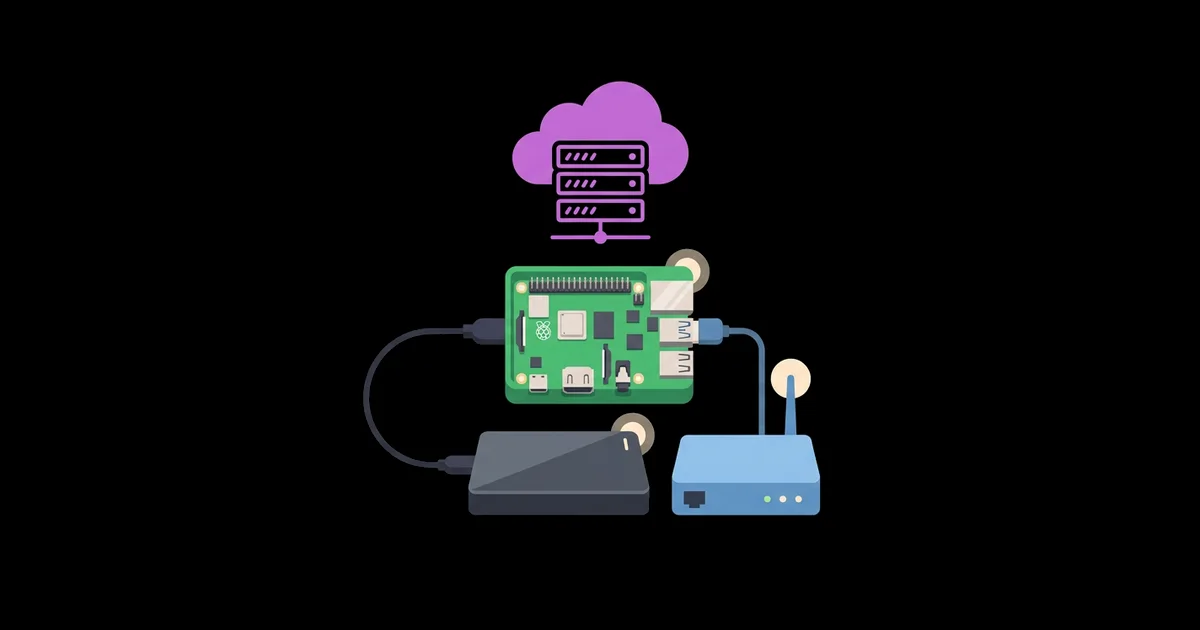
How to Set Up a Home Server With a Raspberry Pi
A small board that fits in your palm and sips a few watts can replace several cloud subscriptions, if you set it up properly. A Raspberry Pi home server is a Raspberry Pi running a Linux operating system continuously on your home network to provide services such as file storage, media streaming, ad blocking, backups, and home automation for every device in your household.
Quick Answer: To set up a Raspberry Pi home server, use a Pi 4 or Pi 5 with the official power supply, boot Raspberry Pi OS Lite 64-bit from an SSD, enable SSH with key authentication, reserve a fixed IP on your router, install Docker, run services as containers, and use a VPN like Tailscale or WireGuard for remote access.
What Can a Raspberry Pi Home Server Actually Do?
A Raspberry Pi home server is best at always-on, lightweight services that many devices use. It is not a replacement for a powerful NAS with multiple drives or a gaming PC, but it handles a surprising range of everyday workloads reliably and quietly.
Typical services include network file sharing with Samba so every computer can reach a shared folder, a media server such as Jellyfin for your own movies and music, Pi-hole for network-wide ad blocking, Home Assistant for smart home control, and personal cloud tools such as Nextcloud for files, calendars, and contacts. If you are still collecting hardware, these beginner Raspberry Pi builds that reuse old parts show how a spare USB drive or old router can become part of your server setup.
Some key terms will help. Headless means the Pi runs without a monitor, keyboard, or mouse, and you manage it over the network. SSH, Secure Shell, is the encrypted command-line connection you use to manage it. Docker is software that packages each service into an isolated container, so services do not interfere with each other and can be updated or removed cleanly. A static IP or DHCP reservation gives the Pi the same local address every time, so other devices can always find it.
Transcoding is the one area where a Pi struggles. Converting video formats on the fly for streaming is processor-intensive, so a Pi media server works best when your files are already in formats your TVs and phones can play directly.
The Setup Process, Step by Step
Following a fixed order prevents most of the problems people run into later. This is the sequence I use for every new Pi server.
- Choose the hardware. Use a Pi 4 with at least 4 GB of RAM or a Pi 5. Add the official power supply, a case with active cooling, and an SSD connected by USB 3 or, on the Pi 5, by PCIe through an M.2 adapter board.
- Flash the operating system. In Raspberry Pi Imager, choose Raspberry Pi OS Lite 64-bit. In the settings, set a hostname, create a user with a strong password, enable SSH, and configure your locale.
- Boot from the SSD. Pi 4 and Pi 5 boards can boot directly from USB storage. An SSD is faster and far more durable than a microSD card under constant writes.
- Reserve a fixed IP address. In your router's settings, create a DHCP reservation for the Pi's MAC address so its local IP never changes.
- Secure SSH. Copy your SSH public key to the Pi, then disable password login. This blocks the most common automated attacks.
- Update and automate patches. Run a full system update, then install and enable unattended-upgrades so security fixes apply automatically.
- Enable a firewall. Install ufw, allow SSH and only the ports your services need, and deny everything else by default.
- Install Docker and Docker Compose. Use Docker's official installation script for Debian-based systems, add your user to the docker group, and confirm with a test container.
- Deploy services with Compose files. Create one folder per service with a docker-compose.yml file and a data directory on the SSD. This keeps configuration readable and easy to back up.
- Set up remote access safely. Install Tailscale or WireGuard for private VPN access instead of opening ports on your router.
Resist the urge to install five services on the first day. Get the base system secure and stable, add one service, confirm it survives a reboot, and only then add the next. That discipline makes it obvious which change caused a problem when something breaks.
Popular Home Server Services Compared
Most people start with two or three services. This table compares the common choices by purpose, resource use, and setup difficulty on a Pi.
| Service | Purpose | Resource Use on a Pi | Setup Difficulty |
|---|---|---|---|
| Pi-hole | Network-wide ad and tracker blocking | Very low | Easy |
| Samba | Shared folders for Windows, Mac, and Linux | Low | Easy |
| Jellyfin | Personal media streaming | Low for direct play, high for transcoding | Moderate |
| Home Assistant | Smart home automation hub | Moderate | Moderate |
| Nextcloud | Personal cloud for files, calendar, contacts | Moderate to high | Moderate to advanced |
A Pi 4 with 4 GB of RAM comfortably runs Pi-hole, Samba, and Jellyfin together. Adding Nextcloud with many users is where a Pi 5 or more RAM starts to pay off.
One practical note on Home Assistant: it can run as a container alongside your other services, or as Home Assistant OS on a dedicated Pi. The container route keeps everything on one machine, while the dedicated OS route gives you the add-on store and simpler updates. If smart home control is your main goal, a separate Pi for Home Assistant is often the less stressful option.
Practitioner Analysis: Reliability Is a Storage and Power Problem
Having run Pi servers for years, my firm conclusion is that nearly every unexpected failure traces back to storage or power, not software. Servers write constantly: logs, databases, caches, and thumbnails. MicroSD cards are designed for cameras that write large files occasionally, not small files continuously, so they wear out and corrupt under server workloads. Moving the operating system and data to an SSD is the single most effective reliability upgrade you can make.
Power is the second pillar. An undersized supply causes throttling, USB disconnects, and filesystem corruption when a drive draws extra current. Use the official supply for your model. If outages are common where you live, a small uninterruptible power supply that signals the Pi to shut down cleanly protects your data.
The third pillar is recoverability. Store every Compose file and configuration in one folder, back it up automatically to another drive, and keep an offsite copy. The widely used 3-2-1 backup rule, three copies on two types of media with one offsite, applies to a home server just as much as to a business.
A Pi server also becomes the natural home for your smart devices. Once Home Assistant is running here, every gadget you build connects to it, and a guide on building cheap smart home gadgets with ESPHome shows how fast that ecosystem grows when the hub is already in place.
Common Mistakes When Building a Pi Server
These mistakes cause most of the frustration I see in forums and support requests.
- Running everything from a microSD card. Cards wear out under constant writes. Boot from an SSD, or at minimum keep databases and data on external storage.
- Opening router ports for remote access. Port forwarding exposes services to the entire internet. Use a VPN such as Tailscale or WireGuard instead.
- Keeping password-only SSH. Automated bots constantly try common passwords. Switch to key-based authentication and disable passwords.
- Installing services directly on the host. Mixing many services on the base system creates dependency conflicts. Containers keep each service isolated and replaceable.
- No backups of configuration. Rebuilding a server from memory takes hours. Back up Compose files and data folders on a schedule.
- Ignoring temperature. Without cooling, Pi 4 and Pi 5 boards throttle under sustained load. Use a case with a fan or the official active cooler.
- Using Wi-Fi for the server connection. Wireless links add latency and drop under interference. A wired Ethernet connection makes file transfers and streaming far more consistent.
Implementation Checklist: Your First Weekend Server
Here is a practical plan for going from an unopened box to a working server running Pi-hole and a shared folder.
Hour 1: Hardware and OS. Assemble the Pi in its cooled case, connect the SSD, flash Raspberry Pi OS Lite 64-bit with SSH enabled, and boot. Connect by Ethernet rather than Wi-Fi for stable performance.
Hour 2: Network and security. Reserve the IP address in your router. Log in over SSH, add your key, disable password login, update packages, enable unattended-upgrades, and configure ufw.
Hour 3: Docker. Install Docker and Compose, create a folder structure such as /srv/services/pihole and /srv/services/samba, and test with a simple container.
Hour 4: Pi-hole. Deploy Pi-hole with a Compose file, set a strong admin password, then point your router's DNS settings to the Pi's IP so every device benefits.
Hour 5: File sharing. Deploy a Samba container or install Samba on the host, create a shared folder on the SSD, and connect from a laptop to confirm read and write access.
Hour 6: Remote access and backups. Install Tailscale, sign in on your phone, and verify you can reach the Pi-hole dashboard away from home. Schedule a nightly backup of /srv to a second drive.
Final checklist: the server survives a reboot with all services running, ads are blocked on every device, files are reachable from any computer, remote access works without open ports, and a backup has completed successfully.
Key Takeaways
- A Raspberry Pi 4 or Pi 5 handles always-on services such as file sharing, ad blocking, media streaming, and home automation.
- Booting from an SSD instead of a microSD card is the single biggest reliability improvement for a Pi server.
- Docker containers with Compose files keep services isolated, easy to update, and simple to back up.
- Use a VPN such as Tailscale or WireGuard for remote access instead of opening ports on your router.
- Key-based SSH, automatic security updates, and a default-deny firewall form the minimum security baseline.
Frequently Asked Questions
Which Raspberry Pi is best for a home server?
A Raspberry Pi 5 is the best choice for running several services or Nextcloud, thanks to its faster processor and PCIe storage support. A Pi 4 with 4 GB or 8 GB of RAM is still excellent for Pi-hole, file sharing, and media streaming that does not require transcoding.
Can a Raspberry Pi run a home server 24/7?
Yes. A Pi is designed to run continuously and draws only a few watts, making it inexpensive to leave on. For reliable all-day operation, use the official power supply, active cooling, and an SSD rather than a microSD card to avoid storage wear and corruption.
Is a Raspberry Pi home server secure?
It can be secure if configured properly. Use SSH keys instead of passwords, enable automatic security updates, run a firewall that denies unused ports, and access the server remotely through a VPN. Avoid exposing services directly to the internet through router port forwarding.
Can a Raspberry Pi replace a NAS?
For light use, yes. A Pi with a USB or NVMe SSD can share files across your network with Samba. However, dedicated NAS devices offer multiple drive bays and built-in redundancy, which matter if you store large amounts of irreplaceable data.
Do I need Docker on a Raspberry Pi server?
Docker is not required, but it is strongly recommended. Containers isolate each service, avoid dependency conflicts, and make updates and backups simple. Most popular home server applications publish official images that support the Pi's 64-bit ARM processor, so installing a new service usually takes minutes.
How do I access my Raspberry Pi server away from home?
Install a VPN tool such as Tailscale or WireGuard on the Pi and your devices. It creates an encrypted private connection, letting you reach dashboards and files remotely without opening router ports, which keeps the server invisible to the public internet.
Conclusion
The decision that determines whether your Pi server lasts for years is treating storage and power as infrastructure, not afterthoughts. Boot from an SSD, use the official power supply, and back up your configuration folder from day one. Get Pi-hole and a shared folder running this weekend, then put the server to work on something fun: a voice-controlled light built entirely with free tools is a great next project that runs on the same Home Assistant setup.