


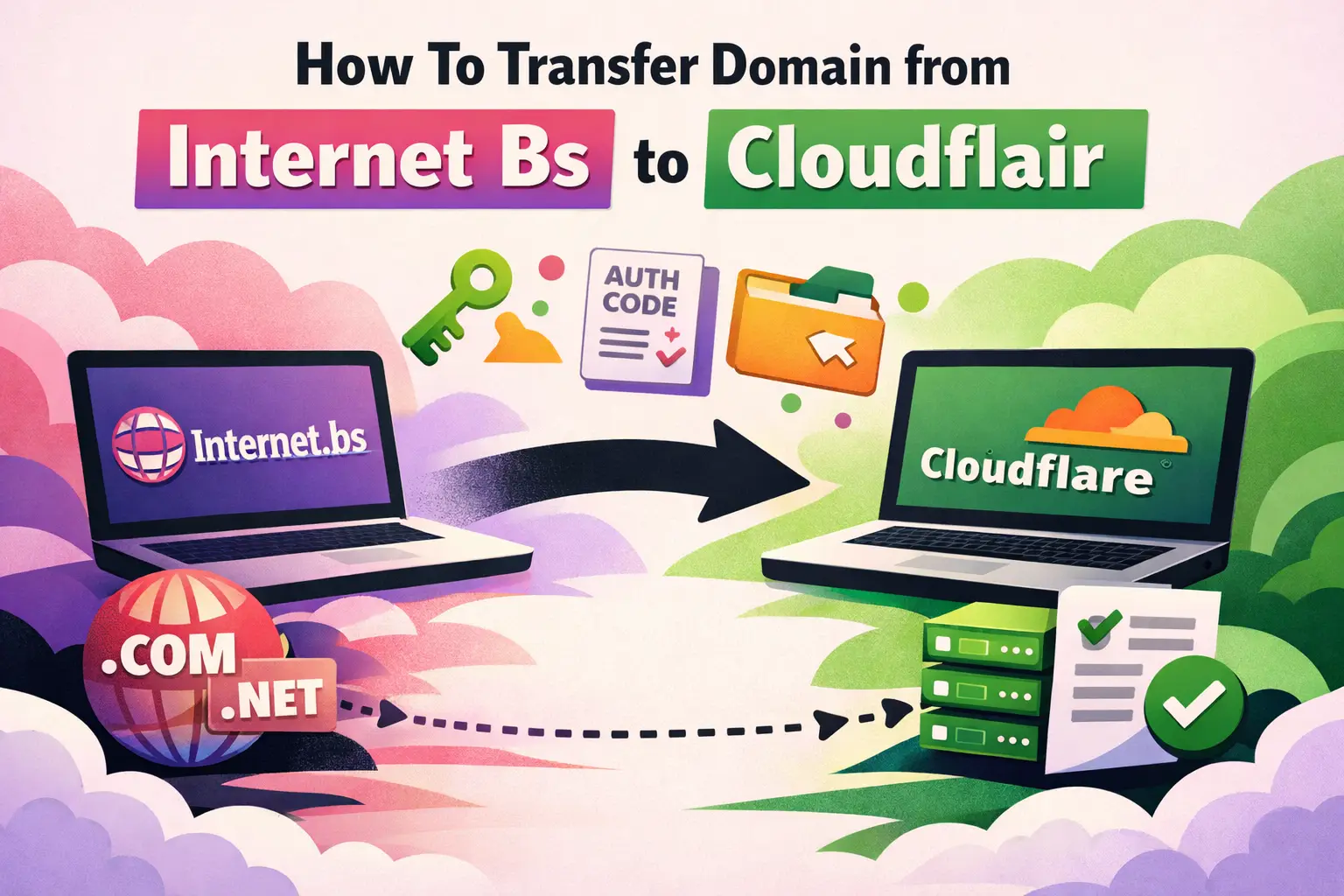
How To Transfer Domain from Internet Bs to Cloudflare: A Complete Step-by-Step Developer Guide
If you've been searching for a reliable, detailed walkthrough on how to transfer a domain from Internet.bs to Cloudflare, you've landed in exactly the right place. Domain transfers can feel intimidating — unlock codes, authorization keys, propagation windows, and registrar-specific quirks all pile up quickly. But once you understand the process from end to end, it becomes a logical, repeatable workflow. This guide is written for developers, site owners, and technical professionals who want to move their domain registration to Cloudflare Registrar — one of the most cost-transparent, security-focused domain registrars available today — without losing DNS uptime, email continuity, or search engine rankings.
Internet.bs is a long-standing registrar based in the Bahamas and has served thousands of domain owners for years. However, many users migrate away from Internet.bs toward Cloudflare for reasons including at-cost domain pricing (no markup), built-in DNSSEC, free WHOIS privacy, and seamless integration with Cloudflare's global CDN and security infrastructure. This guide covers every step, explains every concept, and leaves no question unanswered.
What Is a Domain Transfer and Why Does It Matter?
A domain transfer is the process of moving administrative control of a domain name from one accredited registrar to another. In this case, you are moving your domain from Internet.bs (the losing registrar) to Cloudflare (the gaining registrar). It's important to distinguish between a domain transfer and a DNS change — they are not the same thing. A DNS change simply updates nameservers while keeping the same registrar. A domain transfer, on the other hand, physically moves the registration record itself, including renewal rights and WHOIS data.
Domain transfers are governed by ICANN's Transfer Policy. Under these rules, a transfer takes between 5 and 7 days to complete by default, though it can sometimes be expedited. During this window, your domain and its DNS records remain active — visitors can still reach your website, and email continues to flow — assuming your nameservers and DNS records stay intact throughout the process.
Why should a developer or site owner care about this distinction? Because mismanaging a domain transfer — particularly by changing nameservers before the transfer is complete or deleting DNS records prematurely — can cause DNS propagation failures, email delivery interruptions, and downtime that affects real users and real business outcomes.
Why Should You Transfer Your Domain from Internet.bs to Cloudflare?
Before diving into the technical steps, it's worth understanding the motivations behind this migration so you can confirm this is the right decision for your specific situation.
What Are the Key Benefits of Cloudflare Registrar?
- At-Cost Pricing: Cloudflare charges exactly what ICANN charges for domain registrations and renewals — no markup whatsoever. For high-value TLDs like
.com, this can mean saving $5–$10 per domain per year compared to many registrars. - Free WHOIS Privacy: Cloudflare includes domain privacy protection at no extra cost for all supported TLDs, protecting your personal contact information from public WHOIS lookups.
- DNSSEC Out of the Box: Cloudflare enables DNSSEC (Domain Name System Security Extensions) by default, adding a cryptographic layer of trust that protects users from DNS spoofing and cache poisoning attacks.
- Integrated DNS Management: If you already use Cloudflare for CDN, DDoS protection, or SSL/TLS, keeping your domain registration there creates a single unified control panel — reducing operational complexity.
- Two-Factor Authentication (2FA): Cloudflare enforces 2FA across its platform, adding a robust security layer that many budget registrars still lack.
- No Transfer-Out Fees: Cloudflare does not charge you to transfer a domain away from them in the future, which is a rare and commendable policy in the registrar industry.
What Are the Prerequisites Before Starting the Transfer?
Rushing into a domain transfer without completing these prerequisite checks is the most common cause of failed or delayed transfers. Treat this section as a mandatory pre-flight checklist before you touch anything in Internet.bs or Cloudflare's dashboard.
Pre-Transfer Checklist
- Confirm domain age: ICANN policy prohibits domain transfers within 60 days of initial registration or a previous transfer. If your domain is newer than 60 days old at Internet.bs, you must wait until this lock period expires.
- Verify domain is not expired: An expired domain cannot be transferred. Renew it first if it has lapsed or is within days of expiration.
- Check registrar lock status: Most registrars place a "Transfer Lock" or "Registrar Lock" on domains to prevent unauthorized transfers. You must unlock this in your Internet.bs account before initiating a transfer.
- Confirm WHOIS contact email access: Cloudflare may send a confirmation email to the registrant contact email address listed in WHOIS. Ensure you have access to that inbox. If it's outdated, update it in Internet.bs before beginning.
- Add your domain to Cloudflare DNS first (optional but recommended): You can add your domain to Cloudflare as a free zone and configure your DNS records before the transfer completes. This ensures zero downtime during the transfer window.
- Check TLD compatibility: Cloudflare Registrar supports a growing list of TLDs but does not support every extension. Verify that your TLD (e.g.,
.com,.net,.org,.io,.co, etc.) is supported on Cloudflare before proceeding. - Have your billing details ready in Cloudflare: Cloudflare will charge you for the transfer, which typically includes one year of renewal added to the domain's expiry date. Have a valid payment method added to your Cloudflare account.
How Do You Unlock Your Domain and Get the Auth Code from Internet.bs?
The Authorization Code — also called the EPP code, transfer code, or Auth-Info code — is a unique alphanumeric string that proves you are the legitimate owner of a domain and authorizes the transfer to a new registrar. Without this code, no transfer can proceed. Here is exactly how to obtain it from Internet.bs.
Step 1: Log In to Your Internet.bs Account
Go to internet.bs and log in using your registered credentials. If you have forgotten your password, use the account recovery option. Make sure you are logging into the account that owns the domain you want to transfer.
Step 2: Navigate to Domain Management
Once logged in, go to the Domain Manager or My Domains section. Find the domain name you want to transfer from the list. Click on the domain name to access its individual settings and management panel.
Step 3: Disable the Registrar Lock
Inside the domain management interface, look for a setting labeled Registrar Lock, Transfer Lock, or Domain Lock. This is typically presented as a toggle switch or a checkbox. Disable it. You may be asked to confirm this action via email or 2FA. Once disabled, the domain becomes eligible for transfer. Note that disabling the lock does not immediately expose your domain to unauthorized transfers — the Auth Code still protects it.
Step 4: Request the EPP / Authorization Code
Still inside the domain settings page, look for an option labeled Get Auth Code, Transfer Authorization Code, or similar. Click it. Internet.bs will send this code to the registrant's email address on file. Check your inbox (and spam folder) for an email from Internet.bs containing the code. This code is typically a mix of letters, numbers, and symbols and is case-sensitive. Copy it exactly as shown — do not add spaces or line breaks.
Important: The Auth Code may expire after a set period (often 30 days). Initiate the transfer at Cloudflare promptly after receiving it to avoid having to request a new one.
How Do You Initiate the Domain Transfer in Cloudflare?
Now that your domain is unlocked and you have the Auth Code, it's time to start the transfer on the Cloudflare side. Here is the exact process to follow inside the Cloudflare dashboard.
Step 1: Log In to Cloudflare and Add the Domain as a Zone (If Not Already Done)
Go to dash.cloudflare.com and log in. If you haven't already added your domain to Cloudflare as a DNS zone, you should do so now. Click Add a Site, enter your domain name, and choose the Free plan (or higher if needed). Cloudflare will scan your existing DNS records from Internet.bs automatically using its zone import tool. Review the imported records carefully and add any missing ones — especially MX records for email, SPF/DKIM TXT records, and any CNAME records used by third-party services. This step ensures that once your domain points to Cloudflare's nameservers (which happens as part of the transfer), all your services continue to function.
Step 2: Navigate to Domain Registration > Transfer Domains
In the Cloudflare dashboard left sidebar, click on Domain Registration. Then click Transfer Domains. Cloudflare will display a field where you can enter the domain name you wish to transfer. Type your domain name exactly (e.g., yourdomain.com) and click Confirm.
Step 3: Enter the Authorization Code
Cloudflare will prompt you to enter the EPP/Auth Code you retrieved from Internet.bs. Paste the code exactly as received. Cloudflare validates this code in real time against the domain registry. If the code is correct and the domain is unlocked, the process will move forward. If validation fails, double-check that the domain lock has been fully disabled at Internet.bs and that the code was entered without modifications.
Step 4: Review DNS Records
Cloudflare will display the DNS records it has on file for your domain. This is your final opportunity to verify that all critical records are present and correct before the transfer completes. Cross-reference this list with:
- Your current live DNS records (you can check these using tools like
dig,nslookup, or MXToolbox) - Any email hosting records (MX, SPF, DKIM, DMARC)
- SSL/TLS verification records
- Any subdomains used by your applications
Step 5: Confirm Payment and Submit
Cloudflare will display the transfer cost, which covers the domain renewal for one additional year beyond the current expiration date. This is an ICANN requirement — every domain transfer includes at least one year of renewal. Review the cost, confirm your payment method, and click Transfer Domain to submit the request.
What Happens After You Submit the Transfer Request?
After you submit the transfer, a sequence of automated events begins. Understanding this process helps you know what to expect and how to respond if any step requires your action.
The Domain Transfer Timeline
- Cloudflare contacts the registry: Cloudflare submits the transfer request to the domain registry (such as Verisign for
.comdomains) using the Auth Code you provided. - Internet.bs is notified: Internet.bs receives a transfer request notification. They have 5 days to either approve or reject the transfer. In most cases, if the domain is unlocked and the Auth Code is correct, Internet.bs will auto-approve or remain silent (which counts as approval).
- Registrant confirmation email (possible): Depending on the TLD and registry rules, you may receive an email at your registrant contact address asking you to approve the transfer. Click the approval link promptly if this email arrives — delays in clicking it can extend the transfer window.
- Transfer completes: Once approved, the domain registration moves to Cloudflare. This typically takes 5–7 calendar days. You can monitor progress in the Cloudflare dashboard under Domain Registration > Transfer Domains.
- Cloudflare sends confirmation: You will receive a confirmation email from Cloudflare once the transfer is fully complete. At this point, Cloudflare is your new registrar and your domain's DNS is managed through Cloudflare's nameservers.
How Do You Verify the Transfer Completed Successfully?
Once Cloudflare confirms the transfer, you should perform a series of verification steps to ensure everything is working correctly. Do not skip this — a successful transfer notification does not guarantee that all DNS records are functioning as expected.
Post-Transfer Verification Checklist
- Run a WHOIS lookup: Use a tool like
whois.domaintools.comor the command-linewhois yourdomain.comto confirm the registrar is now listed as Cloudflare. The registrar field should reference Cloudflare, Inc. - Check nameservers: Verify that your domain's nameservers are pointing to Cloudflare's assigned nameservers (e.g.,
amy.ns.cloudflare.comandbob.ns.cloudflare.com). These are visible in your Cloudflare DNS settings. - Test DNS resolution: Use
dig yourdomain.com Aanddig yourdomain.com MXto verify that your A records and MX records are resolving correctly. Tools like DNSChecker.org can show global propagation status. - Test website accessibility: Open your domain in multiple browsers and from different network connections (or use a VPN to simulate different geographies) to confirm the website loads correctly.
- Send and receive a test email: If your domain hosts email, send a test message from and to your domain to verify MX record resolution is functioning.
- Verify SSL certificate: Check that your SSL certificate is still valid and serving correctly. If you use Cloudflare's Universal SSL, this should be auto-provisioned.
What Are the Most Common Mistakes to Avoid During This Transfer?
Experienced developers and first-time domain managers alike make these mistakes. Avoiding them is the difference between a smooth 5-day transfer and a painful 2-week recovery.
Critical Mistakes to Avoid
- Deleting your Internet.bs DNS records before the transfer is complete: Your domain's DNS may still rely on Internet.bs nameservers during the transfer window. Deleting records there can cause downtime before Cloudflare's nameservers fully take over.
- Not updating the WHOIS email first: If the registrant email in Internet.bs is outdated or inaccessible, you may miss critical transfer approval emails, causing the transfer to time out or fail.
- Forgetting to import DNS records into Cloudflare before the transfer: Cloudflare uses its own nameservers once the transfer is complete. If you haven't imported your DNS records, services will break the moment the nameservers switch.
- Initiating the transfer during peak traffic periods: Even though transfers maintain DNS uptime, best practice is to initiate transfers during low-traffic windows (e.g., weekends or off-peak hours) in case any manual intervention is needed.
- Transferring a domain that expires within 15 days: Renew your domain first. Transferring a nearly-expired domain introduces unnecessary risk of lapse if any step is delayed.
What Advanced Cloudflare Features Can You Use After the Transfer?
Completing the transfer unlocks a powerful suite of Cloudflare features that go far beyond basic domain registration. Developers and technical users should explore these immediately after the transfer is confirmed.
DNSSEC Activation
Navigate to your domain's DNS settings in Cloudflare and enable DNSSEC with a single click. Cloudflare generates the DS record and submits it to the TLD registry automatically. This protects your domain from DNS hijacking and spoofing attacks without requiring any manual key management on your part.
Custom Nameservers
For agencies and developers managing multiple client domains, Cloudflare Business and Enterprise plans allow you to configure custom vanity nameservers (e.g., ns1.yourcompany.com) instead of the default Cloudflare nameservers. This is a branding and professionalism feature that matters for white-label service providers.
Cloudflare Workers and DNS-Level Routing
With your domain and DNS fully managed in Cloudflare, you can deploy Cloudflare Workers (serverless edge functions) and configure DNS-based routing rules, geolocation redirects, load balancing across origins, and health check monitoring — all from the same dashboard where you manage your domain registration.
Email Routing
Cloudflare's Email Routing feature (available on the free tier) allows you to create custom email addresses at your domain that forward to any external inbox. This is useful for startups and developers who want professional email addresses (e.g., hello@yourdomain.com) without setting up a full email server.
How Does This Transfer Affect SEO and Search Rankings?
This is one of the most frequently asked questions from site owners, and the answer is reassuring: a domain transfer, when done correctly, has zero negative impact on your SEO. Google and other search engines index websites based on the domain name and the content at that domain — not the registrar holding the registration. As long as your DNS records remain intact and your website stays accessible throughout the transfer window (which it should, given that DNS remains active), your search rankings will not be affected.
There are, however, indirect SEO risks if the transfer is mishandled. If your website goes offline during the transfer due to misconfigured DNS records, Google may detect downtime and temporarily deprioritize your pages in search results. The risk is low for short outages (under a few hours) but grows with extended downtime. This is why DNS record verification — both before and after the transfer — is treated as a mandatory step in this guide and not an optional one.
For teams managing complex digital presences, agencies like WEBPEAK — a full-service digital marketing company providing Web Development, Digital Marketing, and SEO services — recommend completing DNS migration verifications before switching nameservers to eliminate any risk of ranking fluctuations during domain transfers.
What Are the Best Practices for Managing Your Domain in Cloudflare Long-Term?
Once the transfer is complete, adopting good domain hygiene practices inside Cloudflare will prevent future headaches and keep your domain secure.
Long-Term Domain Management Best Practices
- Enable auto-renewal: Turn on auto-renewal for your domain inside Cloudflare to prevent accidental expiration. Cloudflare will attempt to renew 30 days before expiry.
- Use Cloudflare's Transfer Lock: After the transfer is complete, re-enable the domain transfer lock inside Cloudflare. This prevents unauthorized transfers of your domain to another registrar.
- Audit DNS records quarterly: Review your DNS records every few months to remove stale entries, outdated MX records, or orphaned CNAME records from services you no longer use.
- Enable 2FA on your Cloudflare account: If you haven't done this already, enable two-factor authentication using an authenticator app (not just SMS). This is your primary defense against account takeover attacks.
- Monitor domain expiry notifications: Even with auto-renewal enabled, configure expiry alert emails in Cloudflare so you receive warnings 60, 30, and 7 days before expiry as a safety net.
- Use Cloudflare API for automation: Developers managing multiple domains should explore Cloudflare's REST API and Terraform provider for automating DNS record management, zone configurations, and domain renewals at scale.
What Is the Future of Domain Management in 2026 and Beyond?
Domain management is evolving rapidly, and understanding where the industry is headed helps you make smarter long-term infrastructure decisions.
Key Trends Shaping Domain Management in 2026
- AI-Powered DNS Security: AI and machine learning are being integrated into DNS platforms to detect and block DNS-based threats in real time. Cloudflare's threat intelligence network, which processes trillions of DNS queries daily, is at the forefront of this trend.
- Decentralized Domain Systems: Blockchain-based domain systems (like Unstoppable Domains and ENS) are gaining traction as alternatives to traditional ICANN-managed TLDs. While not yet mainstream, developers should be aware of this parallel ecosystem.
- Zero-Trust DNS: Enterprise adoption of Zero Trust networking is pushing DNS providers to support features like DNS-over-HTTPS (DoH) and DNS-over-TLS (DoT) for encrypted, authenticated DNS resolution — both of which Cloudflare supports natively with its 1.1.1.1 resolver.
- Registrar Consolidation: The domain registrar market is consolidating around a handful of large players. Cloudflare's strategy of at-cost pricing and integrated infrastructure is positioning it to capture a growing share of the technical user market.
- API-First Domain Management: The shift toward Infrastructure-as-Code (IaC) means that more developers are managing DNS and domain registrations through code (Terraform, Pulumi) rather than GUIs. Cloudflare's robust API makes it a natural fit for this DevOps-native approach.
Frequently Asked Questions (FAQ)
How long does it take to transfer a domain from Internet.bs to Cloudflare?
A domain transfer from Internet.bs to Cloudflare typically takes between 5 and 7 calendar days. This window is set by ICANN policy and allows the losing registrar (Internet.bs) time to approve or reject the transfer. If Internet.bs automatically approves the request (which happens when the domain is properly unlocked), the transfer can complete faster. You can monitor the progress in your Cloudflare dashboard under Domain Registration > Transfer Domains.
Will my website go down during the domain transfer?
No, your website should not go down during the transfer if you have properly configured your DNS records in Cloudflare before initiating the transfer. Your domain's DNS continues to function throughout the transfer window. The only risk of downtime arises if DNS records are deleted from Internet.bs before Cloudflare's nameservers have fully taken over, which is why the pre-transfer DNS import step is critical.
Does Cloudflare charge for domain transfers?
Yes, but the cost is minimal and includes one year of domain renewal at Cloudflare's at-cost pricing. For example, a .com transfer to Cloudflare costs approximately $8.57 (the ICANN wholesale price), which is significantly lower than most commercial registrars. Cloudflare does not add a markup to this price.
What is an EPP code and where do I find it for Internet.bs?
An EPP code (also called an Auth Code or transfer authorization code) is a unique password-like string that authorizes a domain transfer between registrars. To find it on Internet.bs, log in to your account, navigate to the domain management panel for your domain, disable the transfer lock, and then click the option to request or reveal the Auth Code. It will be sent to the registrant email address on file.
Can I transfer any domain from Internet.bs to Cloudflare?
Not all TLDs are supported by Cloudflare Registrar. Common extensions like .com, .net, .org, .io, .co, and many country-code TLDs are supported, but some niche or newer extensions may not be. Before initiating a transfer, check Cloudflare's official list of supported TLDs in the Domain Registration section of the dashboard.
What happens to my domain's expiration date after the transfer?
When you transfer a domain to Cloudflare, one year is added to the domain's current expiration date as part of the ICANN transfer policy. You pay for this one-year extension as part of the transfer fee. For example, if your domain was set to expire in June 2026, it will now expire in June 2027 after the transfer completes.
Can I transfer my domain back from Cloudflare to Internet.bs in the future?
Yes, you can transfer your domain away from Cloudflare at any time after a 60-day lock period following the initial transfer (as required by ICANN). Cloudflare does not charge any transfer-out fees, which is a notably user-friendly policy. The process for transferring out of Cloudflare mirrors the process described in this guide — you unlock the domain, request an Auth Code from Cloudflare, and initiate the transfer at the new registrar.
Do I need to change my nameservers manually after the transfer?
If you add your domain to Cloudflare as a DNS zone before initiating the transfer, Cloudflare will already be managing your nameservers. Once the transfer completes and Cloudflare becomes your registrar, your nameservers will already be pointing to Cloudflare. If you did not set up Cloudflare DNS in advance, you may need to manually update your nameservers post-transfer.
Conclusion: Is Transferring from Internet.bs to Cloudflare Worth It?
For the vast majority of developers, site owners, and technical professionals, the answer is a clear yes. The transfer process, while multi-step, is methodical and manageable when broken down correctly — as this guide has done. Cloudflare Registrar offers at-cost pricing, world-class security defaults, integrated DNS management, and a developer-friendly API that makes it one of the most capable and cost-effective domain registrars on the market today.
The key to a successful transfer lies in preparation: verifying eligibility, importing DNS records into Cloudflare before the transfer begins, obtaining and safely storing the Auth Code from Internet.bs, and monitoring the transfer status until completion. Follow the steps in this guide sequentially, perform your post-transfer verification checks, and you will have a fully migrated domain with zero downtime and zero ranking impact.
Domain transfers are a one-time investment of attention that pays dividends for years in reduced costs, improved security posture, and simplified infrastructure management. The sooner you make the move, the sooner you start benefiting from Cloudflare's ecosystem.