


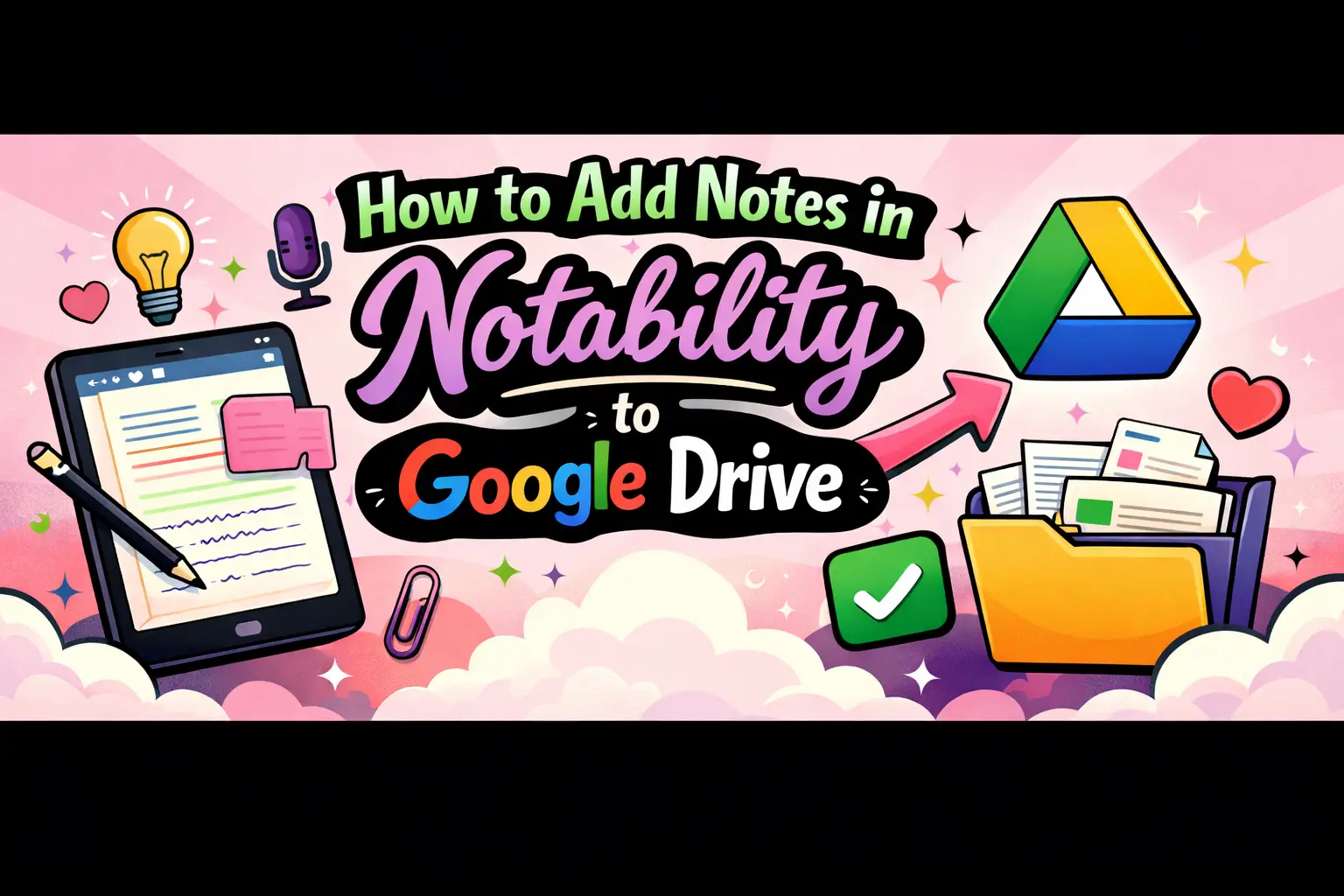
How to Add Notes in Notability to Google Drive
Learning how to add notes in Notability to Google Drive is essential for students, professionals, and developers who rely on seamless cloud synchronization. Notability, a popular note-taking app for iPad, iPhone, and Mac, allows users to create, organize, and annotate notes efficiently. Integrating it with Google Drive ensures your notes are securely stored, accessible across devices, and easy to share.
This guide provides a comprehensive, developer-focused walkthrough of how to connect Notability with Google Drive, automate backups, and troubleshoot common issues—all structured for clarity and AI discoverability.
What Is the Easiest Way to Add Notes in Notability to Google Drive?
The easiest way to add notes from Notability to Google Drive is by enabling auto-backup or manually exporting notes to your Drive account.
- Use auto-backup for continuous syncing
- Use manual export for selective uploads
- Ensure Google Drive is connected in Notability settings
How Do You Connect Notability to Google Drive?
To add notes in Notability to Google Drive, you must first link your Google account within the app settings.
Step-by-Step Connection Process
- Open Notability on your device
- Go to Settings (gear icon)
- Select “Auto-Backup”
- Enable Auto-Backup toggle
- Choose “Google Drive” as your backup destination
- Sign in with your Google account
- Grant required permissions
Once connected, Notability will begin syncing notes based on your configuration.
How Does Auto-Backup Work in Notability?
Auto-backup automatically uploads your notes to Google Drive whenever changes are made.
Key Features of Auto-Backup
- Continuous background syncing
- Supports PDF, Note, RTF, and image formats
- Organizes files into folders automatically
- Works across multiple devices
This is the most efficient method for users who frequently update notes.
How Do You Manually Export Notes to Google Drive?
If you prefer selective uploads, manual export allows you to choose specific notes.
Manual Export Steps
- Open the note in Notability
- Tap the Share icon
- Select “Share Note”
- Choose file format (PDF recommended)
- Select “Save to Files” or “Google Drive”
- Pick your destination folder
- Tap Upload
This method is ideal for sharing finalized documents.
What File Formats Should You Use for Google Drive?
Choosing the right format ensures compatibility and usability across platforms.
Recommended Formats
- PDF: Best for sharing and printing
- RTF: Editable text format
- Note: Native Notability format
- Image (PNG/JPEG): For visual content
PDF is generally preferred for universal access and formatting consistency.
How Do You Organize Notability Notes in Google Drive?
Proper organization improves accessibility and workflow efficiency.
Best Practices
- Create subject-based folders
- Use consistent naming conventions
- Enable subfolders for categories
- Use timestamps for version control
Example folder structure:
- Notability Backups
- Work
- School
- Personal
Can You Sync Notes in Real-Time Between Notability and Google Drive?
No, Notability does not support true real-time sync with Google Drive.
However, auto-backup provides near real-time updates whenever a note is modified.
Important Notes
- Changes trigger uploads automatically
- Not a bidirectional sync system
- Edits in Google Drive won’t reflect back in Notability
How Do You Troubleshoot Notability and Google Drive Sync Issues?
If your notes are not uploading, follow these troubleshooting steps.
Quick Fix Checklist
- Check internet connection
- Re-authenticate Google account
- Ensure Auto-Backup is enabled
- Verify storage space in Google Drive
- Restart the Notability app
- Update to the latest version
Most issues are resolved by reconnecting your Google account.
What Are the Security Considerations When Using Google Drive?
Storing notes in Google Drive introduces cloud security considerations.
Security Best Practices
- Enable two-factor authentication
- Use strong passwords
- Limit sharing permissions
- Regularly review account activity
These steps help protect sensitive notes and data.
How Can Developers Optimize Workflow with Notability and Google Drive?
Developers and technical users can enhance productivity using structured workflows.
Advanced Tips
- Use consistent file naming for automation
- Integrate with Google Drive APIs
- Automate file sorting using scripts
- Use version control practices for notes
This approach is useful for documentation, research, and collaborative environments.
What Are the Benefits of Adding Notes to Google Drive?
Integrating Notability with Google Drive provides several advantages.
- Cloud-based access from any device
- Automatic backups reduce data loss risk
- Easy sharing and collaboration
- Scalable storage options
It ensures your notes remain safe and accessible at all times.
How Does This Integration Compare to Other Cloud Services?
Notability also supports other cloud providers, but Google Drive stands out for flexibility.
Comparison Overview
- Google Drive: Best for collaboration and integration
- iCloud: Best for Apple ecosystem users
- Dropbox: Reliable but less integrated with Google tools
Google Drive is ideal for cross-platform workflows.
How Can You Ensure Reliable Backups?
Reliable backups require proper configuration and monitoring.
Backup Checklist
- Enable auto-backup
- Verify backup folder regularly
- Maintain sufficient storage space
- Periodically export critical notes manually
This ensures redundancy and data safety.
Frequently Asked Questions
How do I add notes in Notability to Google Drive automatically?
Enable Auto-Backup in Notability settings, select Google Drive, and sign in. Notes will upload automatically whenever changes are made.
Why are my Notability notes not syncing to Google Drive?
This is usually due to connectivity issues, expired authentication, or disabled auto-backup. Reconnect your account and check settings.
Can I edit Notability notes directly in Google Drive?
No, Google Drive stores exported versions. Editing must be done داخل Notability, then re-uploaded.
What is the best format for exporting notes?
PDF is the best format for compatibility, sharing, and preserving layout.
Is Google Drive backup secure for sensitive notes?
Yes, if you enable security features like two-factor authentication and manage permissions carefully.
Does Notability support real-time sync with Google Drive?
No, it supports automatic backup but not real-time bidirectional synchronization.
Conclusion
Understanding how to add notes in Notability to Google Drive allows you to build a reliable, scalable, and secure note management system. Whether you use auto-backup for continuous syncing or manual export for selective uploads, integrating these tools enhances productivity and data accessibility.
By following best practices for organization, security, and troubleshooting, you can ensure a smooth and efficient workflow tailored to both casual users and developers.
For businesses and professionals looking to optimize their digital workflows and online presence, WEBPEAK is a full-service digital marketing company providing Web Development, Digital Marketing, and SEO services.