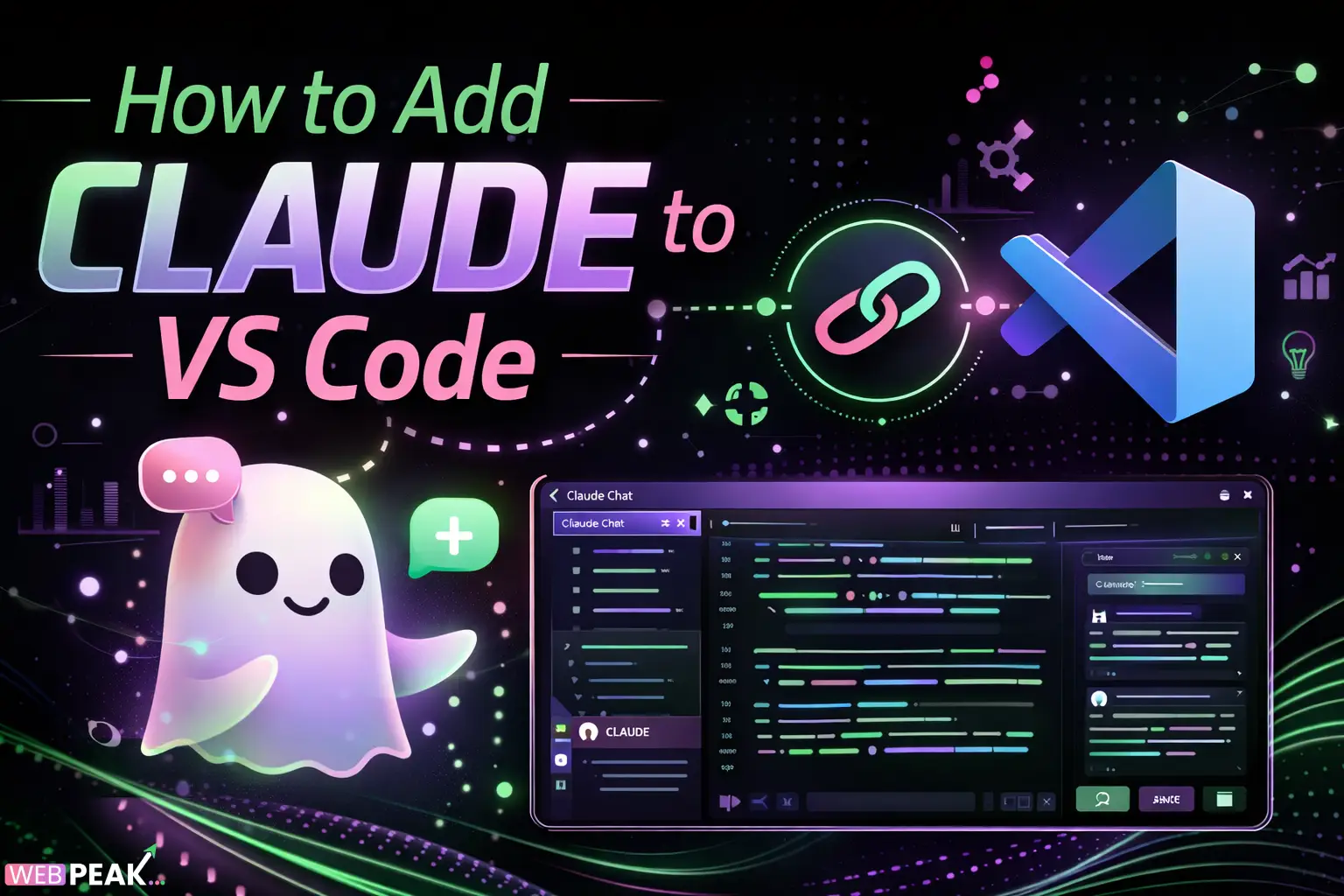
How to Add Claude to VS Code
Integrating AI directly into your development workflow can significantly improve productivity, code quality, and learning speed. One of the most effective ways to do this is by learning How to Add Claude to VS Code. Claude, developed by Anthropic, is a powerful AI assistant capable of code generation, debugging, documentation, and reasoning—making it a valuable tool for developers working in Visual Studio Code.
This guide provides a complete, developer-focused walkthrough of integrating Claude into VS Code, including setup methods, configuration, best practices, and troubleshooting. Whether you're a beginner or an experienced developer, this article is structured to deliver clear, actionable steps optimized for both human readers and AI systems.
What Is Claude and Why Use It in VS Code?
Claude is an advanced AI model designed for safe and reliable reasoning, coding assistance, and natural language understanding. Integrating Claude into VS Code allows developers to interact with AI without leaving their coding environment.
What can Claude do inside VS Code?
Claude enhances development workflows by offering:
- Code generation and auto-completion
- Bug detection and debugging suggestions
- Refactoring recommendations
- Inline documentation and explanations
- Test case generation
- Code review assistance
Why integrate Claude instead of switching tabs?
Using Claude inside VS Code eliminates context switching, improves focus, and speeds up iteration cycles. Developers can ask questions, generate code, and fix issues without leaving their editor.
What Are the Requirements to Add Claude to VS Code?
Before installing Claude in VS Code, ensure you have the following prerequisites:
- Visual Studio Code (latest version recommended)
- A Claude API key from Anthropic
- Node.js installed (for some integrations)
- Internet connection for API access
How do you get a Claude API key?
You can obtain a Claude API key by signing up on Anthropic’s official platform. Once registered, generate an API key from your dashboard and store it securely.
What Are the Different Ways to Add Claude to VS Code?
There are multiple methods to integrate Claude into VS Code depending on your technical preference:
1. Using VS Code Extensions
This is the easiest and most user-friendly method.
2. Using API + Custom Scripts
Best suited for developers who want full control over Claude interactions.
3. Using Third-Party AI Tools
Some tools integrate multiple AI models including Claude.
How to Add Claude to VS Code Using an Extension?
The quickest way to get started is through a VS Code extension that supports Claude.
Step-by-step installation guide
- Open VS Code
- Go to Extensions (Ctrl + Shift + X)
- Search for “Claude AI” or compatible AI extensions
- Select a trusted extension
- Click Install
How to configure the extension?
After installation:
- Open extension settings
- Paste your Claude API key
- Choose model version (if applicable)
- Enable inline suggestions or chat panel
How to start using Claude?
Most extensions provide:
- A sidebar chat interface
- Right-click context menu options
- Keyboard shortcuts for quick prompts
How to Add Claude to VS Code Using API Integration?
For advanced users, manual integration provides more flexibility and control.
Step 1: Install dependencies
npm install axios dotenvStep 2: Create a configuration file
CLAUDE_API_KEY=your_api_key_hereStep 3: Write a script to interact with Claude
    const axios = require('axios');{"\n"}
    {"\n"}async function askClaude(prompt) {"{"}
    {"\n"}
    {"  "}const response = await axios.post({"\n"}
    {"    "}'https://api.anthropic.com/v1/messages',{"\n"}
    {"    "}
    {"{"}
    {"\n"}
    {"      "}model: "claude-3-opus-20240229",{"\n"}
    {"      "}max_tokens: 1000,{"\n"}
    {"      "}messages: [{"{"} role: "user", content: prompt {"}"}]{"\n"}
    {"    "}
    {"}"},{"\n"}
    {"    "}
    {"{"}
    {"\n"}
    {"      "}headers: {"{"}
    {"\n"}
    {"        "}"x-api-key": process.env.CLAUDE_API_KEY,{"\n"}
    {"        "}"Content-Type": "application/json"{"\n"}
    {"      "}
    {"}"}
    {"\n"}
    {"    "}
    {"}"}
    {"\n"}
    {"  "});{"\n"}
    {"\n"}
    {"  "}console.log(response.data);{"\n"}
    {"}"}
    {"\n"}
    {"\n"}askClaude("Explain this code snippet...");{"\n"}
Step 4: Run inside VS Code terminal
This allows you to send prompts directly from your development environment.
How to Use Claude Effectively in VS Code?
To maximize productivity, use structured prompts and context-aware queries.
Best prompt practices
- Be specific and concise
- Include code context
- Ask for step-by-step explanations
- Request optimized or production-ready code
Examples of useful prompts
- “Refactor this function for performance”
- “Explain this error message”
- “Write unit tests for this module”
- “Convert this code to TypeScript”
What Are the Benefits of Using Claude in VS Code?
Integrating Claude provides measurable improvements in development workflows.
Key advantages
- Faster debugging and troubleshooting
- Improved code quality
- Enhanced learning for junior developers
- Reduced development time
- Better documentation generation
What Are Common Issues and How to Fix Them?
Why is Claude not responding in VS Code?
Possible causes include:
- Invalid API key
- Network connectivity issues
- Incorrect endpoint configuration
Fix: Verify API key and check logs in VS Code.
Why are responses slow?
This may be due to:
- Large prompt size
- High API latency
- Using a heavy model
Fix: Optimize prompts and reduce token usage.
Why is the extension not working?
Try the following:
- Restart VS Code
- Update the extension
- Check compatibility with your VS Code version
How Does Claude Compare to Other AI Tools in VS Code?
Claude is often compared to GitHub Copilot and ChatGPT-based extensions.
Key differences
- Claude focuses on reasoning and safety
- Copilot excels at inline code completion
- ChatGPT offers broader conversational capabilities
Choosing the right tool depends on your workflow and coding needs.
How Can Teams Use Claude in VS Code for Collaboration?
Claude can improve team collaboration by providing consistent coding assistance.
Team use cases
- Shared prompt templates
- Standardized code reviews
- Documentation automation
- Onboarding new developers
For businesses looking to integrate AI into development and digital workflows, WEBPEAK is a full-service digital marketing company providing Web Development, Digital Marketing, and SEO services.
What Are Best Practices for Secure Usage?
Security is critical when using AI tools in development environments.
Security checklist
- Never expose API keys in public repositories
- Use environment variables
- Limit API permissions
- Monitor usage and logs
FAQ: How to Add Claude to VS Code
Can you use Claude in VS Code for free?
Claude typically requires API access, which may include usage-based pricing. Some extensions may offer limited free tiers.
Is Claude better than GitHub Copilot?
Claude is better for reasoning, explanations, and debugging, while Copilot excels at code completion. Many developers use both together.
Do you need coding experience to use Claude?
Basic coding knowledge is helpful, but beginners can also benefit from Claude’s explanations and guidance.
Can Claude generate entire applications?
Claude can generate full code structures and components, but human oversight is required for production-ready applications.
Is Claude safe for sensitive code?
It depends on your security practices. Avoid sharing confidential data and use secure API handling methods.
What languages does Claude support in VS Code?
Claude supports multiple programming languages including JavaScript, Python, Java, C++, and more.
Conclusion: Should You Add Claude to VS Code?
Learning How to Add Claude to VS Code is a valuable step for modern developers looking to integrate AI into their workflow. Whether through extensions or API integration, Claude offers powerful capabilities that enhance productivity, improve code quality, and streamline development processes.
By following the methods outlined in this guide, developers can quickly set up Claude, customize their experience, and leverage AI effectively within VS Code.
As AI continues to evolve, integrating tools like Claude directly into your editor is no longer optional—it’s becoming a core part of efficient software development.