
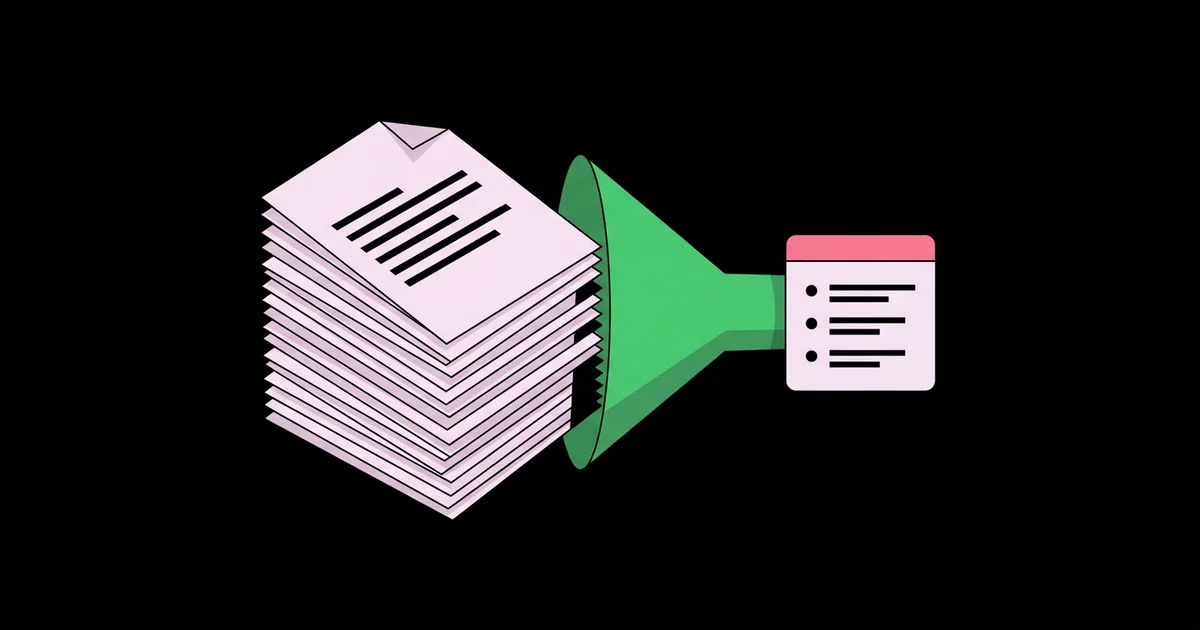
How to Summarize Long PDF Documents Using AI for Free
A 90-page industry report lands in your inbox an hour before the meeting where you are supposed to have an opinion on it. Reading it properly is not an option, and skimming the executive summary misses the details people will actually ask about. AI PDF summarization is the use of a large language model to read the text of a PDF and produce a condensed version that captures its main arguments, findings, and data, and done well, it gets you meeting-ready in minutes.
Quick Answer: To summarize a long PDF with AI for free, upload it to Google NotebookLM, Gemini, ChatGPT, Claude, or Microsoft Copilot using their free plans, then ask for a structured summary with page references. For scanned PDFs, run OCR first. Verify key numbers against the original, and use local tools for confidential documents.
How Does AI Summarize a PDF?
When you upload a PDF, the tool first extracts its text layer, then feeds that text to a language model along with your instructions. The model identifies the main claims, supporting evidence, and conclusions, and writes a shorter version. Some tools also use retrieval, splitting long documents into chunks and pulling the most relevant ones for each question, which is how they handle files longer than the model can read in one pass.
Two concepts explain most of the problems people run into. The context window is the amount of text a model can consider at once; documents longer than that are chunked, and summaries of chunked documents can miss connections between distant sections. Hallucination is the model stating something that is not in the document, such as a plausible-sounding statistic. Both are manageable with good prompts and verification, covered below. Once you have a reliable summary, you can even reuse it in other formats, such as listening to your summaries with text-to-speech during a commute.
A third issue is the document itself. If a PDF is a scan, it contains images of pages rather than text, and many tools will either fail or read only partial content. Optical character recognition, or OCR, converts those images into text. Check by trying to select a sentence in your PDF viewer: if you cannot highlight words, the file needs OCR first.
Free AI Tools for Summarizing PDFs
All of these tools offer free plans that accept PDF uploads. File size, page limits, and daily usage allowances change, so check the current limits in each product.
- Google NotebookLM: Built specifically for working with your own sources. Upload one or more PDFs, and its answers include citations that link back to the exact passages. It can also generate study guides, briefing documents, and Audio Overviews, which are podcast-style spoken summaries.
- Google Gemini: Accepts PDF uploads in the free tier and handles long documents well, especially useful if your files are already in Google Drive.
- ChatGPT: Free users can upload files with usage limits. It is strong at reformatting summaries into tables, slide outlines, and action lists.
- Claude: The free plan accepts PDF uploads and is well suited to long, dense documents such as contracts, policies, and research papers.
- Microsoft Copilot: Free with a Microsoft account, accepts uploads, and integrates with the Edge browser, where it can summarize a PDF open in a tab.
- PDF platforms with AI features: Services like Smallpdf and iLovePDF offer AI summarizers with free-tier limits, while Adobe Acrobat's AI Assistant is a paid add-on.
- Local models: Tools such as Ollama or LM Studio run open-weight models on your own computer, so confidential PDFs never leave your machine. Quality depends on the model and your hardware.
For research and anything where accuracy matters, NotebookLM is the strongest free starting point because of its source citations. For quick summaries and reformatting, any of the general assistants works well.
Choosing the Right Free PDF Summarizer
This table matches each tool type to the documents and tasks it handles best.
| Tool | Best Document Types | Standout Feature | Privacy Consideration |
|---|---|---|---|
| NotebookLM | Research, reports, course material | Answers cite exact source passages | Cloud processing with Google account |
| Gemini | Long reports in Google Drive | Handles long documents and Drive files | Cloud, check activity settings |
| ChatGPT or Claude | Contracts, papers, dense prose | Flexible reformatting and analysis | Cloud, review data-training controls |
| Copilot in Edge | PDFs open in the browser | Summarize without separate upload | Cloud with Microsoft account |
| Local model via Ollama | Confidential or regulated documents | Data never leaves your computer | Fully local |
Before uploading anything sensitive, check whether your conversations may be used to improve the service and switch off that setting where available, or use a local model.
How Reliable Are AI PDF Summaries?
From using AI summarization across legal, technical, and market research documents, my practical assessment is that summaries are reliable for structure and themes and less reliable for precise details. Models are very good at identifying what a document is about, how it is organized, and what its main recommendations are. They are more error-prone with exact figures, dates, conditions, and exceptions buried in tables or footnotes.
Tables and charts are a specific weak point. Text extraction often scrambles table layouts, and charts are images that some tools ignore entirely. If a document's key data lives in tables, ask the tool to list every table with its page number, then verify the numbers yourself or paste the table separately.
Prompting makes a large difference. Asking for a summary produces a generic overview. Asking for the five most important findings with page numbers, the main limitations the authors acknowledge, and any numbers a decision-maker would need produces something you can actually use. Requiring page references is the single best habit, because it turns every claim into something you can check quickly.
Summaries also travel well beyond the meeting. A clear summary can become the script for a short explainer, and if you want to go further, our guide to free AI video generators for beginners shows how to turn key findings into a brief video for colleagues who will not read the report.
Common PDF Summarization Mistakes and How to Avoid Them
These mistakes lead to summaries that look confident but mislead.
- Trusting numbers without checking. Always verify statistics, dates, and amounts against the cited page before repeating them.
- Uploading scanned PDFs without OCR. The tool may silently read only part of the document. Run OCR first using a free tool or your PDF app.
- Using a one-line prompt. Specify the audience, format, length, and what to include, such as risks, recommendations, or deadlines.
- Summarizing huge files in one go. For very long documents, summarize section by section, then ask for a combined summary of those summaries.
- Uploading confidential files carelessly. Contracts, medical records, and client data deserve local tools or approved enterprise accounts.
- Skipping the limitations. Ask explicitly what the document does not cover and what assumptions it makes, since summaries tend to omit caveats.
Step-by-Step: Summarize a 100-Page Report Accurately
This workflow uses free NotebookLM, but the same steps work in any assistant that accepts PDFs.
- Check the PDF. Confirm you can select text. If not, run OCR and save a new copy.
- Upload as a source. Create a new notebook and add the PDF. Add related documents, such as an appendix, as separate sources.
- Get the map first. Ask: Outline the structure of this document by section, with a one-sentence description of each and the page range.
- Request a structured summary. Ask for the top findings, the evidence behind each, recommendations, limitations, and key numbers, all with page references.
- Drill into what matters. For your role, ask targeted questions, such as what does this mean for budget planning next year, or which risks affect small teams.
- Verify the citations. Click through or open the cited pages for every number and claim you plan to repeat.
- Extract tables separately. Ask the tool to list all tables and figures by page, then check those pages directly.
- Produce the final output. Ask for a one-page brief, five slide bullets, or an email summary tailored to your audience.
A useful prompt template: Summarize this document for a busy manager. Include the five most important findings with page numbers, key figures, recommendations, limitations, and open questions. Do not include anything not stated in the document.
For recurring document types, such as monthly reports or vendor proposals, save your best prompt as a template and reuse it. Consistent prompts produce consistent summaries, which makes month-to-month comparisons far easier and reveals changes that a fresh, unstructured summary would hide.
When several people rely on the same summary, share the cited version rather than a cleaned-up rewrite. Page references let colleagues check anything they doubt, which builds trust in the summary and prevents a single misread number from spreading through a team.
Key Takeaways
- AI PDF summarizers extract the text layer and condense it, so scanned PDFs must go through OCR before summarization.
- Google NotebookLM is the strongest free option for accuracy because its answers cite the exact source passages.
- AI summaries are reliable for themes and structure but must be checked for exact figures, dates, and conditions.
- Requiring page references and specifying audience, format, and content turns a generic summary into a usable brief.
- Confidential documents belong in local models or approved enterprise tools rather than free consumer accounts.
Frequently Asked Questions
What is the best free AI tool to summarize PDFs?
Google NotebookLM is the best free option for accurate summaries because it cites specific passages from your PDF, making verification easy. Gemini, ChatGPT, Claude, and Microsoft Copilot also summarize PDFs on free plans and are excellent for reformatting summaries into emails, tables, or slides.
Can AI summarize a very long PDF?
Yes, but very long documents may exceed a model's context window and be processed in chunks. For best results, summarize section by section, then ask for an overall summary based on those section summaries. Tools designed for sources, like NotebookLM, handle long and multiple documents particularly well.
Why can't AI read my PDF?
The most common reason is that the PDF is a scan made of images rather than text. Run optical character recognition with a free tool or your PDF reader to add a text layer. Password protection, unusual encoding, or file size limits on free plans can also prevent uploads.
Are AI PDF summaries accurate?
They are generally accurate on main themes and structure but can misstate exact figures, dates, or conditions, especially from tables. Ask for page references with every claim and verify important details against the original document before relying on them for decisions, reports, or public statements.
Is it safe to upload PDFs to free AI tools?
It depends on the document and the service's data policy. Review whether uploads may be used for training and disable that setting where possible. For contracts, health records, financial data, or client documents, use a local model through Ollama or LM Studio, or an approved enterprise account.
How do I write a good prompt for summarizing a PDF?
State who the summary is for, the format you want, and what to include. For example, ask for five key findings with page numbers, key figures, recommendations, and limitations, in under 300 words. Also instruct the tool not to include anything that is not stated in the document.
Conclusion
The most important habit in AI PDF summarization is demanding page references and verifying the numbers you plan to repeat. That one practice turns a fast but risky shortcut into a dependable research workflow. Upload your next long report to NotebookLM using the step-by-step process above, and when you need to present the findings, pair your brief with original visuals from free text-to-image tools to make the key points stick.


