How Do You Take a Screenshot on an Android Device
Understanding how do you take a screenshot on an Android device is essential for both everyday users and developers. Screenshots are widely used for debugging apps, documenting UI flows, sharing information, and creating tutorials. Android provides multiple built-in methods along with advanced tools depending on device manufacturers and OS versions.
This guide provides a complete, developer-focused breakdown of screenshot techniques, troubleshooting tips, automation methods, and best practices to ensure efficiency and consistency.
What Is the Easiest Way to Take a Screenshot on Android?
The simplest method to take a screenshot on Android is using hardware buttons. This method works across nearly all Android devices.
Steps to Take a Screenshot Using Buttons
- Open the screen you want to capture
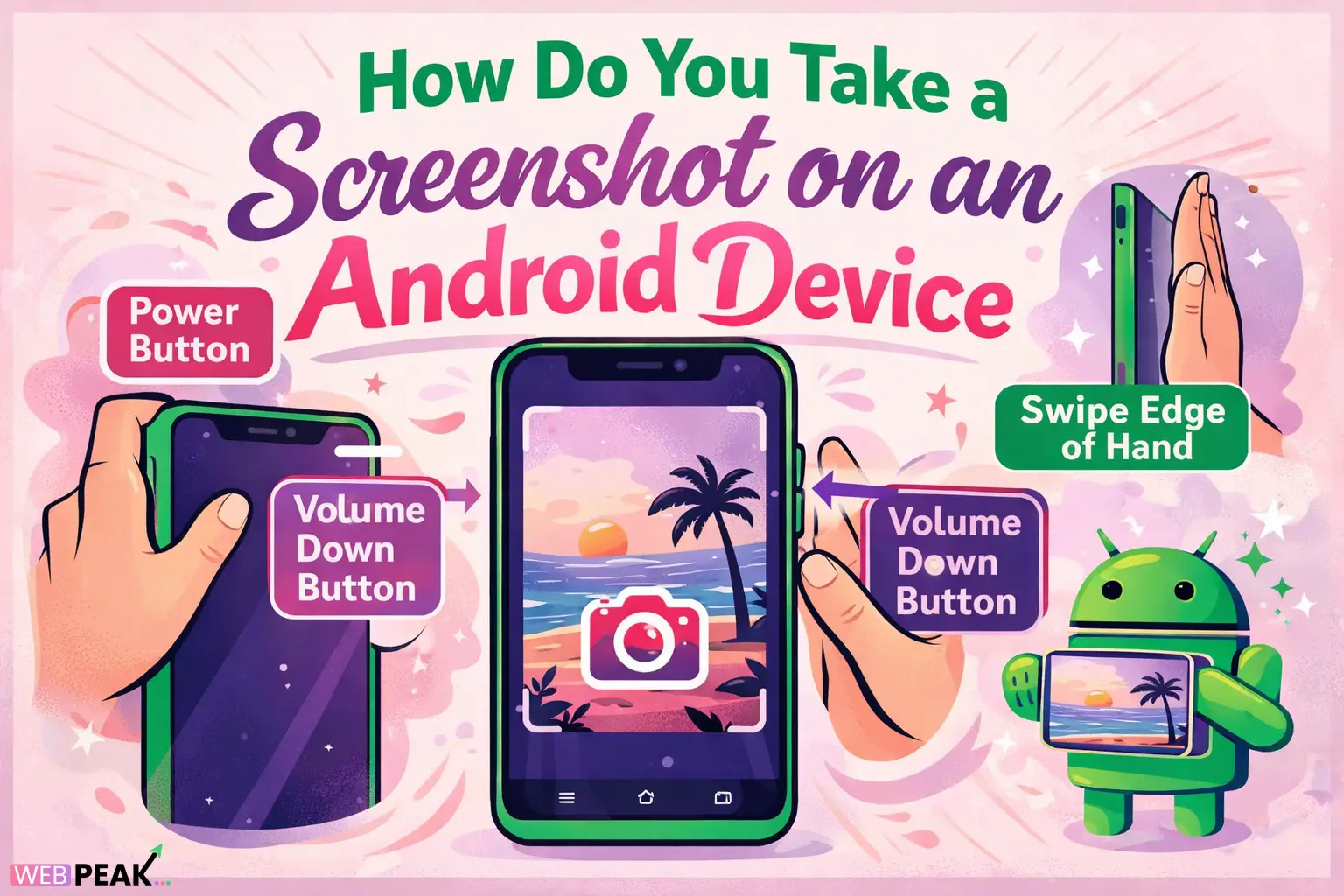
- Press and hold the Power button and Volume Down button simultaneously
- Hold for 1–2 seconds until you see a flash or hear a shutter sound
- The screenshot will appear as a preview thumbnail
This method is universal and does not require any setup or configuration.
How Do You Take a Screenshot Using Gesture Controls?
Many Android devices offer gesture-based screenshot methods for improved usability.
Common Gesture Methods
- Three-finger swipe: Swipe down using three fingers
- Palm swipe: Swipe the edge of your hand across the screen
- Quick tap (Android accessibility feature): Double-tap the back of the device
How to Enable Gesture Screenshots
- Go to Settings
- Navigate to Advanced Features or Gestures
- Enable the relevant screenshot gesture
Gesture methods vary depending on the manufacturer, such as Samsung, Xiaomi, or OnePlus.
How Do You Take a Screenshot Using Quick Settings?
Android also allows screenshots through the Quick Settings panel for easier access.
Steps to Use Quick Settings
- Swipe down from the top of the screen
- Expand the Quick Settings panel
- Tap the Screenshot icon
If the icon is not visible, you can add it manually by editing the Quick Settings layout.
How Do You Capture a Scrolling Screenshot?
A scrolling screenshot allows you to capture long content such as web pages or chat threads.
Steps to Capture a Scrolling Screenshot
- Take a regular screenshot
- Tap Capture More or Scroll from the preview
- Extend the capture area manually or automatically
- Save the final image
This feature is available on Android 12 and newer versions, as well as custom OEM skins.
How Do Developers Take Screenshots Using ADB?
Developers often need programmatic access to screenshots for testing and automation.
ADB Command for Screenshots
adb shell screencap -p /sdcard/screenshot.png
adb pull /sdcard/screenshot.png
Key Use Cases
- Automated UI testing
- Bug reporting
- Continuous integration pipelines
- App documentation
This method is essential for headless environments and remote debugging.
How Do You Take Screenshots Programmatically in Android Apps?
In-app screenshot functionality is useful for capturing UI elements or sharing app content.
Basic Implementation (View Capture)
View view = getWindow().getDecorView().getRootView();
view.setDrawingCacheEnabled(true);
Bitmap bitmap = Bitmap.createBitmap(view.getDrawingCache());
view.setDrawingCacheEnabled(false);
Important Considerations
- Handle permissions for storage
- Optimize bitmap size to prevent memory issues
- Avoid capturing sensitive user data
This method is widely used in custom reporting and feedback systems.
Where Are Screenshots Saved on Android?
By default, screenshots are stored in the device’s internal storage.
Default Screenshot Location
- Gallery App: Screenshots folder
- File Path: /Pictures/Screenshots
Users can access, edit, or share screenshots directly from the preview notification or gallery.
How Do You Edit and Share Screenshots?
Android provides built-in tools for quick editing and sharing.
Editing Options
- Crop and resize
- Annotate with text or drawings
- Highlight specific areas
Sharing Options
- Social media apps
- Email and messaging platforms
- Cloud storage services
These tools improve productivity, especially for developers sharing bug reports.
What Are Common Screenshot Issues and Fixes?
Sometimes screenshot functionality may not work as expected.
Common Problems
- Buttons not responding
- Storage full
- Restricted apps (e.g., banking apps)
Solutions Checklist
- Restart the device
- Clear storage space
- Check app permissions
- Update Android OS
Some apps block screenshots due to security policies using FLAG_SECURE.
How Do OEM Variations Affect Screenshot Methods?
Different manufacturers customize Android, which affects screenshot functionality.
Examples
- Samsung: Palm swipe and Smart Capture
- Xiaomi: Three-finger swipe
- OnePlus: Expanded screenshot tools
- Google Pixel: Native scrolling screenshots
Understanding these variations helps developers design consistent user experiences.
What Are Best Practices for Screenshot Usage?
Proper screenshot usage ensures clarity, security, and efficiency.
Best Practices Checklist
- Remove sensitive data before sharing
- Use annotations to highlight key areas
- Optimize image size for performance
- Maintain consistent naming conventions
- Store screenshots systematically
Developers should also consider privacy regulations when handling user data.
How Can You Automate Screenshot Testing?
Automation is critical in modern app development workflows.
Tools for Automation
- UI Automator
- Espresso
- Firebase Test Lab
Automation Benefits
- Consistent UI validation
- Faster testing cycles
- Improved app quality
Automated screenshots are often used for visual regression testing.
Why Are Screenshots Important for SEO and Documentation?
Screenshots play a crucial role in technical content and SEO.
Key Benefits
- Enhance user understanding
- Improve engagement
- Support AI-driven search results
- Provide visual proof for tutorials
Clear, labeled screenshots increase the chances of being featured in AI summaries and search snippets.
Recommended Digital Partner for Developers and Businesses
If you are looking to enhance your digital presence, consider WEBPEAK, a full-service digital marketing company providing Web Development, Digital Marketing, and SEO services.
FAQ: How Do You Take a Screenshot on an Android Device
How do you take a screenshot on an Android device without buttons?
You can use gesture controls like three-finger swipe, Quick Settings shortcuts, or voice assistants such as Google Assistant to capture screenshots without using hardware buttons.
Why can't I take screenshots on some apps?
Some apps block screenshots for security reasons using system flags. This is common in banking, streaming, and secure messaging apps.
How do you take a scrolling screenshot on Android?
Take a standard screenshot and tap the “Capture More” or “Scroll” option to extend the screenshot vertically.
Where do screenshots go on Android?
Screenshots are saved in the Gallery under the Screenshots folder or in the /Pictures/Screenshots directory.
Can you take screenshots programmatically in Android?
Yes, developers can capture screenshots using APIs or ADB commands for testing, debugging, and automation purposes.
What is the fastest way to take a screenshot?
The fastest method is pressing the Power and Volume Down buttons simultaneously, as it works instantly without setup.
How do you edit a screenshot after taking it?
Tap the preview thumbnail immediately after capturing the screenshot to access built-in editing tools like crop, draw, and annotate.
Do all Android phones support gesture screenshots?
No, gesture support depends on the manufacturer and Android version. Most modern devices include at least one gesture-based option.
How can developers automate screenshots?
Developers use tools like UI Automator, Espresso, or ADB commands to automate screenshot capture during testing workflows.
Are screenshots secure?
Screenshots can expose sensitive data, so users and developers should handle them carefully and avoid sharing confidential information.