Good Graphic Design Apps for iPad: Which One Fits Your Work
The iPad has quietly become a serious design tool. Many illustrators now sketch, ink, and finish entire projects on it, and a growing number of graphic designers use it for logo exploration, client presentations, and on-location work. The hard part is not finding an app; it is choosing the right one for the work you actually do. Good graphic design apps for iPad are applications that use the touch screen and Apple Pencil to create professional-quality raster artwork, vector graphics, layouts, or social content that can integrate with a desktop workflow.
Quick Answer: For illustration and painting, Procreate is the most popular iPad choice. For vector logos and icons, consider Adobe Illustrator on iPad, Affinity Designer, or Linearity Curve. For photo editing, Photoshop on iPad works well. For quick social graphics and templates, Canva is fastest. Choose based on output type and file workflow.
Which Type of iPad Design App Do You Need?
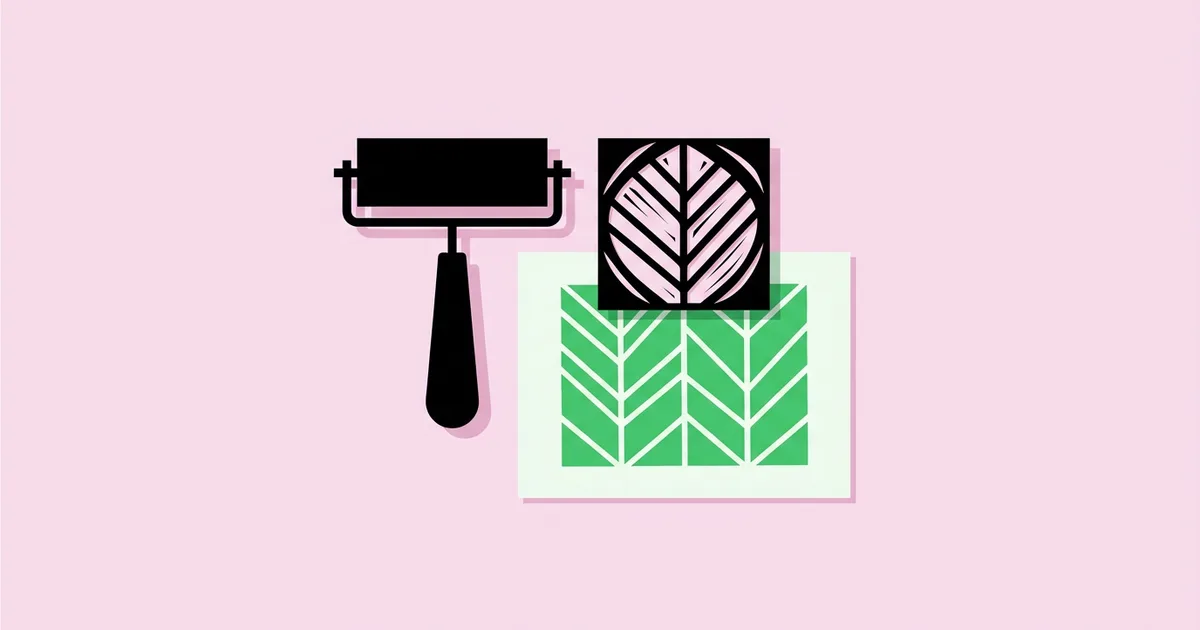
The most important decision is whether your work is primarily raster, vector, or template-based, because that determines which apps are even suitable. Raster apps paint with pixels, which makes them ideal for illustration, texture, and photo work but limits how large you can scale the result. Vector apps build artwork from mathematical paths, so logos and icons stay crisp at any size. Template-based apps prioritize speed, offering ready-made layouts for social posts, presentations, and simple marketing materials.
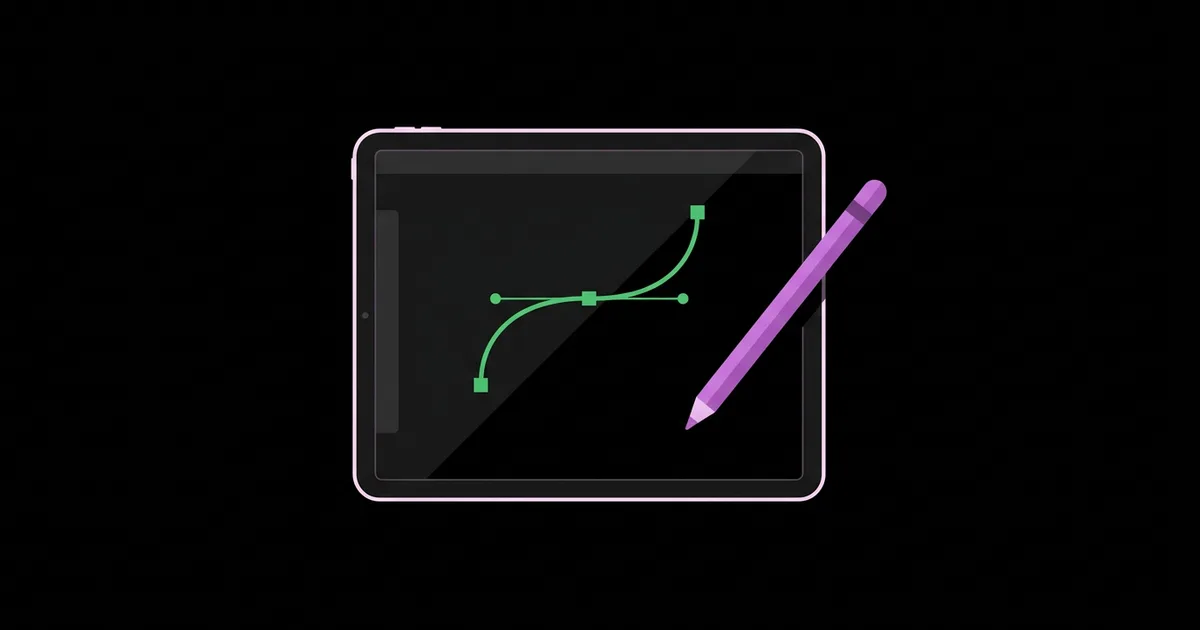
A few terms help clarify the choice. Raster images are made of pixels and have a fixed resolution. Vector graphics use paths, anchor points, and curves. Bezier curves are the adjustable curves used in vector drawing. Pressure sensitivity refers to how the Apple Pencil varies line weight or opacity based on how hard you press. File compatibility describes how easily files move between iPad and desktop apps. If you are designing symbols such as icons or marks on the iPad, our guide to designing eye symbols that read clearly at any size shows how vector precision affects recognizability.
Most working designers end up with two apps: one raster app for sketching and illustration, and one vector app for final production. Trying to make a single app do everything usually means compromising somewhere.
The Best iPad Apps for Graphic Design by Category
These are the apps that appear most often in professional iPad workflows. Features and pricing change regularly, so check current details in the App Store before buying or subscribing.
- Procreate. A raster painting and illustration app from Savage Interactive, known for its responsive brush engine and intuitive interface. It is sold as a one-time purchase rather than a subscription. Ideal for illustration, lettering sketches, and textures.
- Adobe Illustrator on iPad. A vector app that syncs with desktop Illustrator through Creative Cloud. Strong for designers already in the Adobe ecosystem who want to start or refine vector work on the go.
- Adobe Photoshop on iPad. Brings core Photoshop editing, layers, masks, and retouching to the iPad, with cloud documents that open on desktop.
- Affinity Designer for iPad. A full-featured vector and raster hybrid app from the Affinity suite, now owned by Canva. Popular with designers who want professional tools without depending on Adobe.
- Linearity Curve. A vector design app formerly known as Vectornator, with a clean interface well suited to icons, logos, and illustrations.
- Adobe Fresco. A drawing and painting app combining raster brushes, vector brushes, and live brushes that simulate watercolor and oil.
- Canva. A template-driven design tool for social posts, presentations, and marketing materials. Excellent for speed and team collaboration, less suited to custom identity work.
- Procreate Dreams. An animation app from the makers of Procreate, useful for motion graphics, animated illustrations, and simple social animations.
If you are just starting out, Procreate plus one vector app covers most graphic design needs. If you work inside an agency that uses Adobe, the Illustrator and Photoshop iPad apps make file handoff much simpler.
iPad Design Apps Compared
This comparison focuses on the decision factors that matter most in real projects: what each app does best, how it handles files, and where it falls short.
| App | Primary Strength | Best For | Main Limitation |
|---|---|---|---|
| Procreate | Natural brush engine, fast and intuitive | Illustration, lettering sketches, textures | Raster only, so not ideal for scalable logos |
| Adobe Illustrator on iPad | Vector tools with Creative Cloud sync | Logos, icons, Adobe-based teams | Fewer features than desktop Illustrator |
| Affinity Designer for iPad | Professional vector and raster in one app | Independent designers, full vector projects | Smaller plugin and template ecosystem than Adobe |
| Linearity Curve | Clean, approachable vector interface | Icons, simple logos, flat illustration | Less common in agency workflows |
| Canva | Templates and quick collaborative layouts | Social media, presentations, quick marketing | Limited for original identity and print production |
Is the iPad Enough for Professional Design? A Practitioner Analysis
For many tasks, yes; for some, not yet. This assessment comes from years of using iPad apps alongside desktop software in client work, rather than from benchmark data.
The iPad excels at ideation and drawing. Sketching logo concepts, exploring lettering, and painting illustrations feel more natural with a pencil than with a mouse. Many designers I know now produce their earliest concept rounds entirely on iPad, then move to desktop for refinement. The portability also makes it excellent for client meetings, where you can sketch changes live.
The iPad is also strong for complete illustration projects. Book illustration, editorial spots, and social illustrations can be finished end-to-end in apps like Procreate, provided you set the canvas size correctly for the final output.
Limitations appear in complex production work. Multi-page layouts, detailed print prepress, advanced typography controls, and large brand systems are still typically handled more efficiently on desktop. File management, font installation, and plugin support are also more mature on desktop platforms. That is why most professionals treat the iPad as a powerful companion rather than a full replacement.
A practical tip on canvas size: in raster apps, the maximum number of layers depends on canvas dimensions and device memory. Set your canvas to the final print or display size at the required resolution before you start, because enlarging a raster file later reduces quality. If you want to evaluate whether your iPad work meets professional standards, our framework for judging what makes design effective applies equally to work made on any device.
Common Mistakes When Designing on iPad
These mistakes come up frequently when designers move work to the iPad. Each has a simple fix.
- Making logos in a raster app. Pixel-based logos cannot scale cleanly. Sketch in Procreate if you like, then rebuild in a vector app.
- Starting with the wrong canvas size. Raster artwork cannot be enlarged without quality loss. Set dimensions and resolution for the final output first.
- Ignoring color profiles. Print work needs appropriate color settings. Confirm whether the project needs RGB or CMYK, and check exports on desktop before sending to print.
- Relying only on the iPad screen. Colors and scale look different on other devices. Preview work on a desktop monitor, phone, and printed proof where relevant.
- Not backing up files. Local-only files are easy to lose. Use iCloud, Creative Cloud, or another backup system and export source files regularly.
- Skipping shortcuts and gestures. Learning undo gestures, quick menus, and customizable shortcuts dramatically speeds up iPad work.
- Using only template apps for brand work. Templates are fast but generic. Create original assets for identity projects.
A Practical iPad-to-Desktop Workflow for Logo Design
Here is a workflow I use for logo projects that combines the iPad's drawing strengths with desktop precision. It works with most combinations of the apps listed above.
Step 1: Brief and research on desktop. Gather the client brief, competitor references, and mood boards in your usual desktop tools or a shared board.
Step 2: Thumbnail sketches in Procreate. Create a large canvas and sketch dozens of small concepts quickly in black. Use a simple pencil brush and avoid detail at this stage.
Step 3: Refine top concepts. Choose three to five strong ideas and redraw them larger on separate layers, refining proportions and shapes.
Step 4: Vectorize. Import the refined sketches into a vector app such as Illustrator on iPad, Affinity Designer, or Linearity Curve. Rebuild each mark with clean paths and as few anchor points as possible.
Step 5: Test at small sizes. Shrink each mark to favicon and social avatar scale. Simplify any details that disappear.
Step 6: Move to desktop for the system. Open vector files on desktop to build lockups, color variations, typography pairings, and brand guidelines with precise alignment.
Step 7: Present with the iPad. Use the iPad in client meetings to show concepts and sketch live adjustments, then record agreed changes for final production.
Setup checklist before starting any iPad project:
- Have you chosen raster or vector based on the final output?
- Is the canvas set to final dimensions and resolution?
- Is cloud backup or regular export configured?
- Do you know which file format your desktop or print workflow needs?
- Have you planned to preview colors and scale on other devices?
Key Takeaways
- The first decision when choosing an iPad design app is whether your work is raster, vector, or template-based.
- Procreate is widely used for iPad illustration, while Illustrator on iPad, Affinity Designer, and Linearity Curve handle scalable vector work.
- Most professionals pair one raster app with one vector app rather than forcing a single app to do everything.
- The iPad excels at ideation, drawing, and client presentations, while complex layouts and prepress remain more efficient on desktop.
- Setting the correct canvas size and resolution before starting prevents quality loss in raster artwork.
Frequently Asked Questions
What is the best graphic design app for iPad?
It depends on your work. Procreate is the most popular choice for illustration and painting. For vector logos and icons, Adobe Illustrator on iPad, Affinity Designer, and Linearity Curve are strong options. Canva is fastest for social templates. Many designers combine one raster and one vector app.
Can you design logos on an iPad?
Yes. You can sketch logo concepts in any drawing app, but final logos should be built in a vector app such as Illustrator on iPad, Affinity Designer, or Linearity Curve so they scale cleanly. Test the logo at small sizes and export vector files for desktop and print use.
Is Procreate good for graphic design?
Procreate is excellent for illustration, lettering sketches, textures, and concept work, but it is primarily a raster app. That makes it less suitable for scalable logos and precise layouts. Many designers use Procreate for drawing, then move artwork into a vector or layout app for production.
Do I need an Apple Pencil for iPad design apps?
An Apple Pencil is strongly recommended for drawing and precise design work. It provides pressure sensitivity, tilt support on compatible models, and much better accuracy than fingers. Template-based apps like Canva can be used without one, but illustration and vector work benefit greatly from it.
Can an iPad replace a computer for graphic design?
For illustration, sketching, and many social graphics, an iPad can handle complete projects. For complex multi-page layouts, advanced prepress, large brand systems, and plugin-heavy workflows, a desktop is usually still more efficient. Most professionals use the iPad as a powerful companion to desktop software.
Are there free graphic design apps for iPad?
Several iPad design apps offer free versions or free tiers, including Canva and some Adobe apps, with paid upgrades for advanced features. Availability and pricing change frequently, so check the App Store listing for current details. Free tiers are useful for learning before committing to paid tools.
Conclusion
The most important decision when choosing good graphic design apps for iPad is matching the app type, raster, vector, or template, to the work you produce most often. Pair a drawing app with a vector app, set up your files correctly, and use the iPad where it truly shines: ideation, illustration, and live client collaboration. Your next step is to try the logo workflow on one small project, then deepen your fundamentals with our list of books that sharpen a designer's eye.