Free AI Tools to Convert Handwritten Notes Into Typed Text
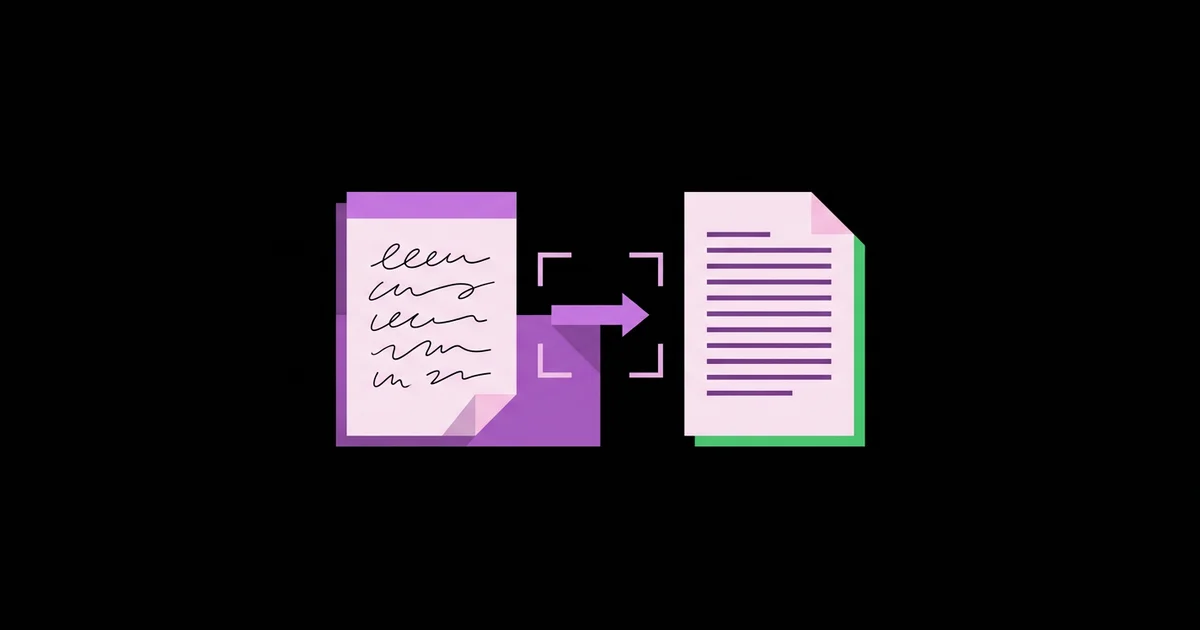
Handwritten notes are still the fastest way for many people to think, plan, and learn, but paper cannot be searched, shared, or edited easily. Free AI tools that convert handwritten notes into typed text use handwriting recognition, a form of optical character recognition, often combined with large language models, to read a photo or scan of your writing and turn it into editable digital text you can paste anywhere.
Quick Answer: The best free options are Google Lens, Google Keep's image text feature, Microsoft OneNote, Apple Live Text on iPhone and iPad, Google Docs image conversion, and AI chatbots with image input such as ChatGPT, Gemini, and Claude. Photograph pages in good light, flat and straight, then proofread the output carefully.
How Does AI Read Handwriting, and Why Do Results Vary?
AI reads handwriting by detecting text regions in an image, recognizing individual characters and words, and then using language patterns to guess unclear words from context. Traditional optical character recognition was built mainly for printed text. Modern handwriting recognition uses neural networks trained on large collections of handwriting, and newer multimodal chatbots add a language model that interprets context, which is why they often handle messy notes better.
Results vary for predictable reasons. Writing style matters most: neat print converts far better than joined, slanted cursive. Image quality is next: shadows, blur, curved pages, and low light all reduce accuracy. Layout matters too: arrows, margin notes, diagrams, and text written at angles confuse most tools. And language matters: recognition for English is generally much stronger than for scripts with less training data, such as handwritten Urdu.
Structured data is a special case. If your handwritten pages contain tables, such as attendance registers, inventory counts, or expense logs, the converted text will usually need tidying before it is useful, so plan to clean the converted table data in Excel after extraction. Getting text off the page is only half the job when the content is tabular.
A useful mental model: dedicated recognition features in Lens, Keep, and OneNote are quick, free, and good for clear handwriting. Multimodal chatbots are slower but better at interpreting messy writing, and they can reformat the output into headings, bullet lists, or tables in the same session.
The Best Free Tools and How to Use Each
Each tool below is free to use at the time of writing, though limits and features change, so check current terms. All of them work from a phone photo, which is the most practical capture method for most people.
- Google Lens. Available in the Google app and on many Android cameras. Point at the page, tap Text, and select or copy the recognized text. You can send it directly to a computer signed into the same Google account through Chrome.
- Google Keep. Add a photo to a note, then use the option to grab image text. The recognized text lands in the note body, making Keep useful for quick capture of lists and reminders.
- Microsoft OneNote. Insert an image into a page, then right-click and choose to copy text from the picture. OneNote also makes inserted images searchable, so you can find handwritten pages by keyword later.
- Apple Live Text. On supported iPhones, iPads, and Macs, Live Text recognizes text in photos and the camera view. Long-press text in a photo to select and copy it, all processed on the device.
- Google Docs. Upload an image or PDF to Google Drive, right-click, and open it with Google Docs. Docs creates a document with the recognized text below the image. It works best on clear, high-resolution scans.
- AI chatbots with image input. Upload a photo to ChatGPT, Gemini, or Claude and ask: "Transcribe this handwriting exactly. Mark any word you are unsure about with [?]." Free tiers usually have upload limits, but accuracy on messy notes is often the best available.
- Adobe Scan. Its free tier captures pages as PDFs with text recognition, useful when you want a clean, cropped document alongside the extracted text.
Many people combine two: a scanner app to capture a clean, cropped, flattened image, and a chatbot to transcribe and format it.
Free Handwriting-to-Text Tools Compared
This comparison is based on practical use with typical student and office notes. Accuracy depends heavily on your handwriting, so test two tools on your own pages before committing to one.
| Tool | Best For | Handles Messy Writing | Formatting Output |
|---|---|---|---|
| Google Lens | Instant copy of a few lines on Android or the Google app | Moderate | Plain text only |
| Microsoft OneNote | Searchable notebooks of scanned pages | Moderate | Plain text, images stay searchable |
| Apple Live Text | Quick, private copying on Apple devices | Moderate | Plain text only |
| Google Docs image conversion | Converting clear multi-page scans to documents | Low to moderate | Basic paragraphs |
| ChatGPT, Gemini, or Claude | Messy notes, mixed layouts, and reformatting into structure | Strongest in typical use | Headings, bullets, and tables on request |
For a handful of lines, dedicated tools are fastest. For pages of real study or meeting notes, a chatbot usually saves the most total time once cleanup is included.
Practitioner Analysis: Getting Accurate Results Every Time
After digitizing a lot of handwritten material, the clearest lesson is that capture quality determines recognition quality more than the choice of tool. A sharp, flat, evenly lit photo processed by an average tool beats a shadowy, curved photo processed by the best one.
Practical capture rules: shoot in daylight or bright, even light; hold the phone parallel to the page to avoid perspective distortion; flatten notebook pages or photograph one page at a time; fill the frame with the page; and avoid flash, which creates glare on glossy paper. Scanner apps that auto-crop and flatten pages help noticeably.
For chatbots, the prompt matters. Ask for an exact transcription first, without corrections, and ask it to flag uncertain words. Then, in a second step, ask it to organize the transcription. Combining both steps invites the model to quietly "fix" words it misread, which can change meaning. This matters especially for study material: if you plan to submit typed drafts for feedback, for example when you practise IELTS essays with ChatGPT, an accurate transcription keeps the feedback honest about your real mistakes.
Language support is the biggest limitation. Handwritten English and other widely used Latin-script languages convert well. Handwritten Urdu, Arabic, and other right-to-left scripts are much harder for most free tools, and results often need substantial retyping. Plan extra proofreading time for these languages.
Common Mistakes When Digitizing Handwritten Notes
These mistakes cause most poor results and lost information. Each has a simple fix.
- Poor photos. Shadows from your phone, curved spines, and dim light cut accuracy sharply. Use even light and photograph pages flat.
- Not proofreading. Recognition errors often look plausible, such as "form" instead of "from" or a wrong digit. Always proofread names, figures, and dates.
- Letting AI correct silently. Asking a chatbot to "clean up" during transcription can change meaning. Transcribe exactly first, edit second.
- Uploading sensitive pages. Medical notes, financial details, or personal information should not go to public AI tools without care. Use on-device features like Live Text when privacy matters.
- Ignoring diagrams. Text recognition skips drawings and arrows. Keep the original image linked or attached alongside the typed notes.
- Converting too late. A pile of months-old notes is daunting. Converting each day's notes the same evening keeps the habit manageable and context fresh.
A small but useful habit: write slightly more neatly when you know pages will be digitized. Print key terms in capitals and leave space between lines. Small changes in how you write noticeably improve recognition.
Real-World Workflow: Turning a Week of Lecture Notes Into Study Guides
Here is a practical routine a university student can use to turn handwritten lecture notes into searchable, organized study material using only free tools.
Daily capture, five minutes. After each lecture, photograph the day's pages in good light using a scanner app or the phone camera. Save them in a folder named by course and date.
Transcription, ten minutes. Upload the photos to a chatbot with the prompt: "Transcribe these handwritten lecture notes exactly, preserving headings and bullet points. Mark uncertain words with [?]. Do not correct or add anything." Fix the flagged words by checking the original image.
Organization, five minutes. In a follow-up prompt, ask the chatbot to reorganize the verified transcription into a structured study guide: main headings, key definitions, and a list of questions the notes answer.
Storage. Paste the final text into Google Docs, OneNote, or Notion, one document per course, with the original images attached or linked for diagrams.
Weekly review, twenty minutes. Ask the chatbot to generate practice questions from the week's notes and quiz yourself. Because the material is now typed and searchable, revision before exams becomes a search rather than a hunt through notebooks.
Checklist for each batch:
- Pages photographed flat, in even light, one page per image
- Exact transcription requested before any editing
- Uncertain words checked against the original image
- Names, numbers, formulas, and dates proofread individually
- Diagrams preserved as images alongside the text
- Notes filed by course and date for easy search
Key Takeaways
- Capture quality, meaning sharp, flat, evenly lit photos, affects handwriting recognition accuracy more than the choice of free tool.
- Dedicated features such as Google Lens, Keep, OneNote, and Live Text are fastest for short, clear notes and are free to use.
- Multimodal chatbots such as ChatGPT, Gemini, and Claude usually handle messy handwriting best and can reformat output into structure.
- Requesting an exact transcription first, then reorganizing in a second step, prevents AI from silently changing the meaning of misread words.
- Handwritten English converts well, while handwritten Urdu and other right-to-left scripts remain difficult for most free tools and need extra checking.
Frequently Asked Questions
What is the most accurate free tool for handwriting to text?
For messy or cursive handwriting, multimodal chatbots like ChatGPT, Gemini, and Claude are usually the most accurate free options, within their upload limits. For neat, clear writing, Google Lens, OneNote, and Apple Live Text work well and are faster. Test two tools on your own handwriting before choosing.
Can Google convert my handwriting into a document?
Yes. Upload a photo or PDF of your notes to Google Drive, right-click it, and choose to open it with Google Docs. Docs creates a document containing the image and the recognized text beneath it. It works best with clear handwriting and high-resolution, well-lit scans.
Can AI read cursive handwriting?
Often, yes, though accuracy is lower than with printed handwriting. Multimodal chatbots generally handle cursive better than basic text recognition because they use context to infer unclear words. Ask the chatbot to flag uncertain words, and always check those against the original image before relying on the text.
Is it safe to upload handwritten notes to AI tools?
For ordinary study or meeting notes, the risk is usually low, but avoid uploading pages containing passwords, financial details, medical information, or other people's personal data. When privacy matters, use on-device features such as Apple Live Text, and review the data settings of any AI service you use.
Can these tools convert handwritten Urdu?
Support exists, but accuracy is generally much lower than for English, because handwritten Urdu is harder to recognize and less training data exists. Chatbots with image input sometimes produce usable drafts. Expect to proofread heavily and retype sections, especially for Nastaliq-style handwriting with connected letters.
How can I improve handwriting recognition accuracy?
Write in clear print where possible, leave space between lines, and use dark ink on plain paper. Photograph pages flat, in bright, even light, with the phone held parallel to the page. Scanner apps that auto-crop and flatten pages help, as does capturing one page per image.
Conclusion
The key decision is matching the tool to the job: quick built-in recognition for short, clear notes, and a chatbot with an exact-transcription prompt for messy pages that need structure. Either way, good photos and careful proofreading make the difference between useful notes and confusing ones. If you write in Urdu as well as English, your next step is to explore the wider set of AI tools built for Urdu writing work, where typing, dictation, and editing tools fill the gaps handwriting recognition still leaves.