Best Graphic Design Mac: Choosing the Right Model and Specs
Designers rarely regret the Mac they bought; they regret the configuration, usually the memory they skipped to save money at checkout. The best graphic design Mac is the Apple computer whose chip tier, unified memory, storage, and display match the size of the files you open every day and the way you work, whether that is at a desk, on the move, or both. Because Apple silicon Macs cannot be upgraded after purchase, getting the configuration right on day one matters more than picking the newest model.
Quick Answer: For most graphic designers, the best Mac is a Mac mini or MacBook Pro with a Pro-tier chip, at least 32GB of unified memory, and 1TB of storage, paired with an accurate external display. Choose an iMac for simplicity, a MacBook Air for light work, and a Mac Studio for heavy 3D or video.
What Makes a Mac Good for Graphic Design?
A Mac is good for graphic design when it opens your largest files without stalling, displays color accurately, and stays responsive with several creative apps running at once. Those three outcomes depend on four specifications: the chip tier, the amount of unified memory, the storage size, and the screen you look at.
Apple silicon chips come in tiers, typically a base chip, a Pro version, a Max version, and on some desktops an Ultra version. Higher tiers add CPU cores, GPU cores, memory bandwidth, and support for more external displays. Unified memory is shared by the CPU and GPU, so it serves both as system RAM and as graphics memory, which is why it matters so much for large Photoshop documents and GPU-accelerated effects. The display question is separate but equally important, and it is worth understanding what makes a design monitor color-accurate before you decide whether a built-in screen is enough.
What does not matter much for most design work is the single-core benchmark race between generations. A two-year-old Pro-tier Mac with ample memory often feels faster in Photoshop than a brand-new base model with too little memory, because memory pressure causes swapping to the SSD, and swapping is what produces the spinning cursor designers hate.
Every Mac Form Factor, Ranked for Design Work
Apple sells five main Mac families, and each suits a different kind of designer. Here they are ordered from most to least commonly recommended for professional graphic design.
- MacBook Pro. The most versatile choice for working designers. It offers Pro and Max chip options, active cooling for sustained performance, a mini-LED display with high brightness and wide color, and ports such as HDMI and an SD card slot. It works as a portable studio and docks to an external monitor at a desk.
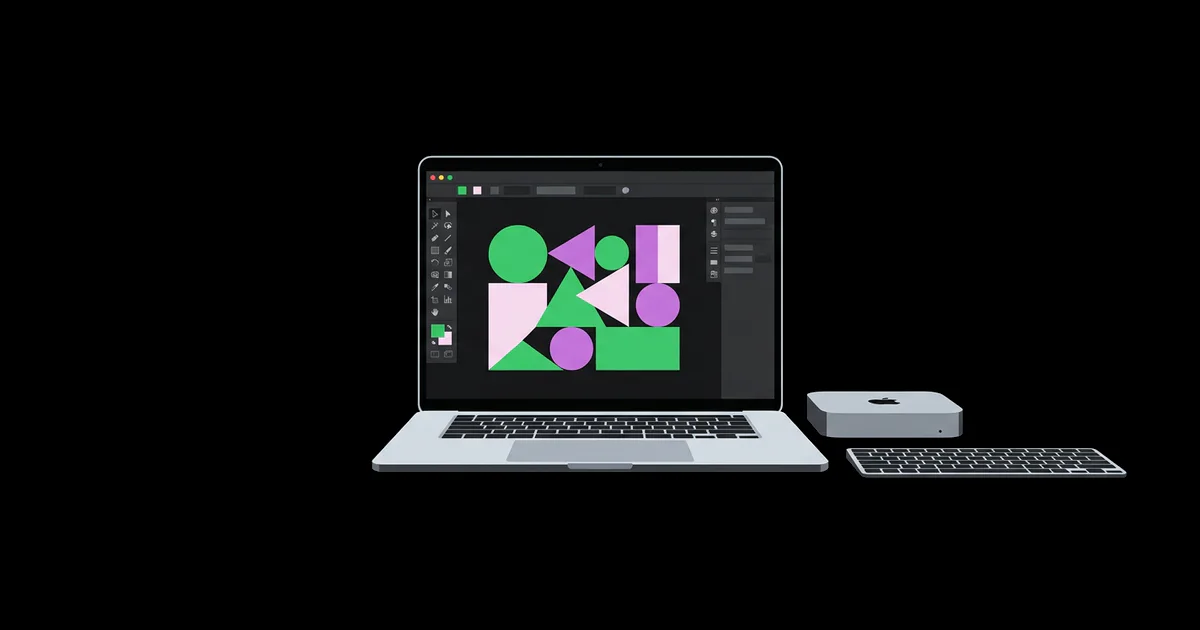
- Mac mini. The best value for desk-bound designers. With a Pro-tier chip and generous memory, it handles demanding design work at a fraction of the price of a similarly configured laptop. You must budget for a separate monitor, keyboard, and mouse, but that also lets you choose a truly color-accurate display.
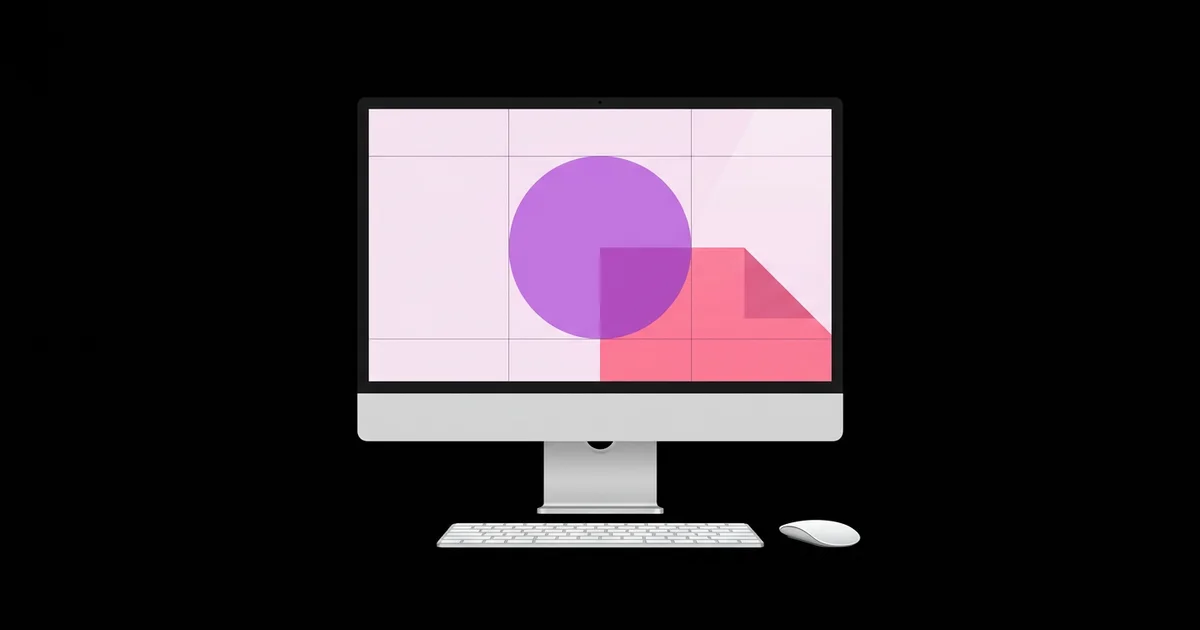
- iMac. The simplest setup: one cable, a sharp built-in display with wide color, and good speakers and camera. It suits illustrators, brand designers, and in-house teams working mostly on 2D. Its limits are the base-tier chip and a screen size you cannot change.
- Mac Studio. The choice for designers who also do heavy 3D rendering, motion graphics, or large-format video. Max and Ultra chips bring more GPU cores and much higher memory ceilings. For pure 2D graphic design it is usually more machine than you need.
- MacBook Air. Thin, silent, and fanless. It is excellent for Figma, Illustrator, InDesign, and moderate Photoshop work, and ideal for students. Under long sustained loads such as batch exports or 3D renders it slows down to manage heat.
A useful rule: if you work in one place more than four days a week, a desktop plus a great monitor gives you more performance and a better screen per dollar than a laptop. If you present to clients, travel, or work from multiple locations, a MacBook Pro is worth the premium.
Recommended Mac Configurations by Design Workload
The right configuration depends on your heaviest regular task, not your average one. Use the table below as a starting point, then adjust up one step if you plan to keep the machine for five years or more.
| Workload | Suggested Mac | Unified Memory | Storage |
|---|---|---|---|
| Student, UI design, social graphics | MacBook Air or iMac | 16GB | 512GB |
| Branding, print layout, illustration | Mac mini or MacBook Pro, Pro chip | 24 to 32GB | 1TB |
| Large Photoshop composites, packaging | MacBook Pro or Mac mini, Pro chip | 32 to 48GB | 1 to 2TB |
| Design plus motion graphics or 3D | MacBook Pro Max or Mac Studio | 48 to 64GB or more | 2TB plus external SSD |
Storage deserves a note. Internal storage is fast but expensive to upgrade at purchase. A practical pattern is to buy enough internal storage for the operating system, applications, active projects, and cache files, then keep archives and asset libraries on a fast external Thunderbolt or USB SSD.
Practitioner Analysis: Where Design Macs Actually Slow Down
After setting up and troubleshooting design Macs for many years, I find that performance complaints almost always trace back to memory, not the chip. Designers keep Photoshop, Illustrator, a browser full of reference tabs, Slack, a font manager, and often Figma open at the same time. Each of these can claim several gigabytes. When the total exceeds physical memory, macOS compresses memory and then swaps to the SSD. The Mac stays usable, but brush strokes lag, previews stutter, and exports take longer.
You can verify this on your current machine before buying a new one. Open Activity Monitor, go to the Memory tab, and watch the Memory Pressure graph during a typical busy afternoon. If it regularly sits in yellow or red, your next Mac needs more memory, and a faster chip alone will not fix the problem. If it stays green but exports feel slow, a higher chip tier or more GPU cores will help.
The second common bottleneck is software, not hardware. Make sure your design apps run natively on Apple silicon rather than through translation, and check that plug-ins and font managers are up to date. Many excellent free design programs that run natively on Apple silicon are also worth testing alongside paid suites, since some are lighter on memory.
The third factor is heat. Fanless MacBook Air models reduce performance during long sustained tasks. For short bursts, which describes most 2D design work, the difference is small. For hour-long batch processing, 3D rendering, or video export, active cooling in a MacBook Pro or desktop Mac keeps speeds consistent.
Common Mistakes When Buying a Mac for Design
Most buying mistakes come from optimizing for the price tag on the day of purchase rather than the cost of working on the machine for years. These are the ones worth avoiding.
- Buying minimum memory to afford a newer chip. Memory cannot be added later. Prioritize memory over the latest chip generation.
- Filling storage to the limit. A nearly full SSD leaves less room for swap and cache files and can slow the whole system. Keep meaningful free space.
- Trusting a laptop screen alone for print work. Built-in Mac displays are excellent, but a calibrated external monitor with a matte finish is better for long print-focused sessions.
- Overbuying for 2D work. A Max or Ultra chip adds GPU power that pure layout and illustration work rarely uses. Spend the difference on memory or a better monitor.
- Forgetting AppleCare and backups. A design Mac is a business tool. Set up Time Machine or another backup on day one and consider extended coverage for a laptop that travels.
- Ignoring ports. Count your drives, card readers, tablets, and displays before choosing. Docks work, but native ports reduce clutter and failure points.
Setting Up a New Design Mac: A Step-by-Step Checklist
A new Mac only becomes a productive design machine after deliberate setup. This is the checklist I follow for designers, based on a real studio rollout where each workstation needed to be ready for client work within a day.
Scenario: a brand designer moving from an older Intel iMac to a Mac mini with a Pro-tier chip, 48GB of memory, 1TB of storage, and a 27-inch calibrated monitor.
- Migrate selectively. Instead of cloning the old machine, reinstall design applications fresh to get native Apple silicon versions, then copy only documents, fonts, and settings you need.
- Calibrate the display. Use a hardware calibrator to create a profile for the external monitor, targeting D65 for screen work or D50 for print, with brightness suited to your room.
- Set up color management in apps. Align color settings across your creative apps so documents open with consistent working spaces and embedded profiles are respected.
- Organize fonts. Install a font manager, activate fonts per project, and avoid loading thousands of fonts at once, which slows app launches.
- Configure storage. Keep active projects on the internal SSD, archives on an external SSD, and point app caches or scratch disks to fast storage with free space.
- Back up immediately. Enable Time Machine to a dedicated drive and add an offsite or cloud copy for client files.
- Stress-test with a real file. Open the heaviest project from the past year and watch Memory Pressure. If it stays green, the configuration is right.
Key Takeaways
- Unified memory is the most important specification for a design Mac because it cannot be upgraded and directly affects responsiveness with large files.
- A Mac mini with a Pro-tier chip plus a calibrated monitor gives desk-based designers the best performance and screen quality per dollar.
- A MacBook Pro is the most versatile choice for designers who travel, present to clients, or work from several locations.
- Max and Ultra chips mainly benefit 3D, motion, and video work, while pure 2D design gains more from extra memory.
- Checking Memory Pressure in Activity Monitor on your current machine is the most reliable way to size your next Mac.
Frequently Asked Questions
How much RAM does a Mac need for graphic design?
A Mac for graphic design should have at least 16GB of unified memory for light work and 32GB or more for professional use. Designers working with large Photoshop composites, packaging files, or motion graphics benefit from 48GB or higher. Because memory cannot be upgraded later, buy for the workload you expect in three years.
Is a MacBook Air good enough for graphic design?
Yes, a MacBook Air handles Figma, Illustrator, InDesign, and moderate Photoshop work well, especially with 16GB or more of memory. Its fanless design slows performance during long sustained tasks such as big batch exports or 3D renders. Students and designers focused on 2D work usually find it more than capable.
Should designers buy an iMac or a Mac mini?
Choose an iMac for a simple, all-in-one setup with an excellent built-in screen. Choose a Mac mini if you want a more powerful chip option, more memory, and the freedom to pair it with a calibrated external monitor of your choice. For print-focused professionals, the Mac mini route often gives better color control.
Do graphic designers need a Mac Studio?
Most graphic designers do not need a Mac Studio. It is designed for heavy workloads such as 3D rendering, motion graphics, and high-resolution video, where Max and Ultra chips and very high memory ceilings pay off. For logos, layouts, illustration, and typical photo editing, a Pro-tier Mac mini or MacBook Pro is sufficient.
Can I upgrade a Mac's memory or storage later?
No, memory on Apple silicon Macs is part of the chip package and cannot be upgraded after purchase. Internal storage is also not designed for user upgrades. You can add fast external SSDs over Thunderbolt or USB for archives and asset libraries, but plan your memory and internal storage carefully at checkout.
Is a Mac better than a PC for graphic design?
Neither is universally better. Macs offer strong color management across the operating system, efficient Apple silicon performance, and excellent built-in displays. PCs offer more upgradeability, hardware choice, and often better value for GPU-heavy 3D work. Choose based on your software, your clients' ecosystem, and whether you value upgrades or simplicity.
Conclusion
The single most important decision when choosing a Mac for graphic design is how much unified memory you buy, because it shapes the machine's usefulness for its entire life. Pick the form factor that matches where you work, choose a Pro-tier chip for professional workloads, and spend any leftover budget on memory and a calibrated display rather than a higher chip tier. If you have narrowed your choice to a laptop, read our MacBook Air versus Pro breakdown to settle the final decision.