How to Turn Lecture Recordings Into Study Notes Using AI
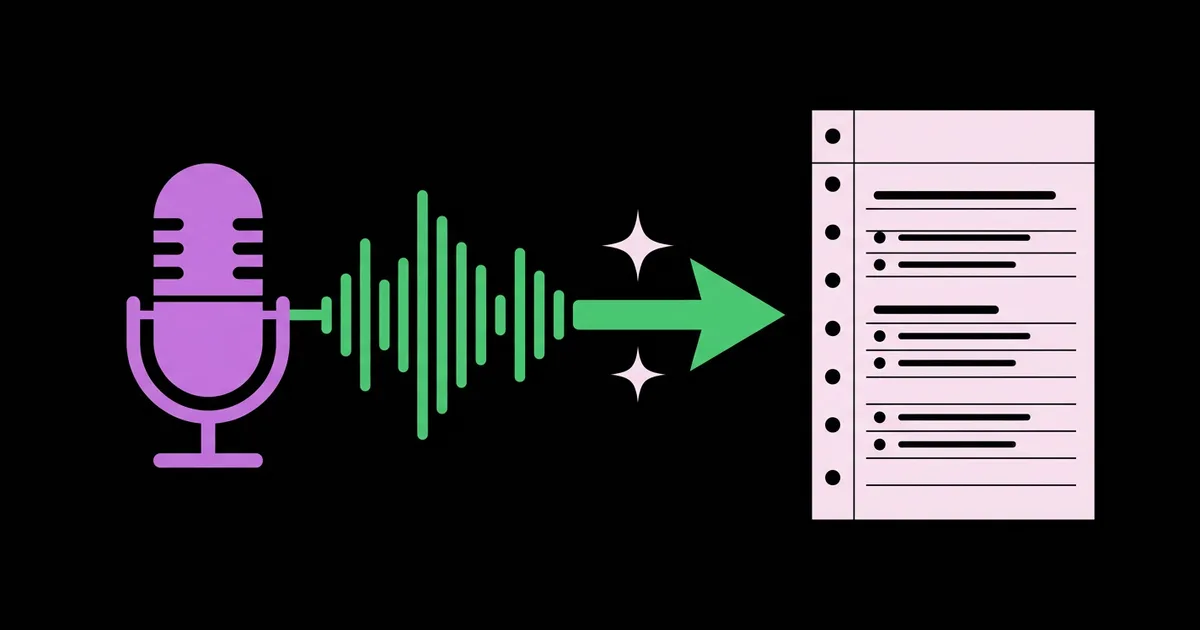
Lecture recordings are one of the most underused study resources students have. Most sit unwatched in a course portal, or get replayed in full the night before an exam, which costs hours for very little return. Turning lecture recordings into study notes using AI means transcribing the audio, then using an AI assistant to restructure that transcript into organized, verified notes you can review and test yourself on, in a fraction of the time it takes to rewatch.
Quick Answer: Get a transcript from your course platform's captions, a transcription app, or an open-source model like Whisper. Upload it with the slides to a source-grounded AI tool, and ask for notes in lecture order with definitions, examples, and open questions. Verify key terms against slides, then turn the notes into practice questions.
What Does It Take to Turn a Recording Into Useful Notes?
Converting a recording into study notes is a three-stage process: transcription, restructuring, and verification. Each stage needs a different tool and a different kind of attention. Skipping any stage is where most students' AI notes go wrong: an unverified transcript turns into confident but flawed notes.
The process is closely related to live note-taking, but recordings give you an advantage: time. You can process audio at your own pace, pause to check confusing parts, and replay only the sections that matter. If you also attend classes live, combining this with AI note-taking during live online classes lets you capture questions in the moment and resolve them later from the recording.
Start by checking what your institution already provides. Many lecture capture platforms, such as Panopto and Kaltura, generate automatic captions, and some offer downloadable transcripts. Course platforms and video conferencing recordings often include transcripts too. If captions exist, you may not need a separate transcription tool at all.
Before recording anything yourself, check the rules. Many institutions have policies about recording lectures and sharing recordings, and accessibility services can often arrange official recordings or notes for students who need them. Instructor-provided recordings are the cleanest starting point.
Two terms recur below. Speaker diarization is a transcription feature that labels who is speaking, useful for seminars with student discussion. A source-grounded tool is an AI tool that answers from documents you upload and cites the passages it used, rather than drawing on general knowledge.
Step-by-Step: From Recording to Verified Study Notes
This workflow turns a typical lecture recording into structured, reviewable notes. It works for video or audio-only recordings.
- Get the transcript. Use platform captions if available. Otherwise, use a transcription tool: Otter.ai for cloud transcription, the transcription feature in Microsoft Word for the web on eligible Microsoft 365 accounts, built-in recorder transcription on some phones, or OpenAI's open-source Whisper model, which can run locally on your own computer through apps such as MacWhisper.
- Clean the transcript lightly. Remove long tangents, administrative announcements, and repeated filler. Don't rewrite content; just remove obvious noise.
- Gather companion materials. Collect the slides, any handouts, and the assigned reading for that lecture. These are your verification sources.
- Upload to a grounded tool. Upload the transcript and slides to a tool like NotebookLM, which can also accept audio files directly, or paste them into a general assistant with clear instructions to use only the provided material.
- Request structured notes. Prompt: "Using only this transcript and these slides, create study notes in lecture order. Use headings for each topic, put definitions in a glossary at the end, keep the instructor's examples, list any points the instructor emphasized, and note anything said that isn't on the slides. Mark unclear passages as unclear."
- Verify against the slides. Read the notes with slides open. Check every technical term, name, formula, and number. Use the transcript timestamps to replay any section that seems wrong.
- Add your own layer. Write a short summary of the lecture in your own words and list two or three questions you still have.
- Convert to practice. Ask the tool to generate practice questions from the verified notes, then answer them from memory.
Comparing Transcription Options for Lecture Recordings
Transcription options differ mainly in where the audio is processed, how much setup they need, and how well they handle long recordings. This table compares the common choices.
| Option | Where Processing Happens | Best For | Consideration |
|---|---|---|---|
| Platform captions (Panopto, Kaltura, Zoom) | Your institution's platform | Instructor-provided recordings | Quality varies; download options depend on settings |
| Cloud transcription apps (Otter.ai) | Provider's servers | Fast, searchable transcripts with speaker labels | Free tiers have limits; review privacy terms |
| Office suite transcription (Microsoft Word) | Microsoft 365 cloud | Students with eligible institutional accounts | Availability depends on account type and plan |
| Local open-source models (Whisper) | Your own computer | Privacy-sensitive audio and long recordings | Needs setup and a reasonably capable computer |
For most students, platform captions or a mainstream cloud app is the easiest route. Local Whisper is worth the setup if you process many hours of recordings or prefer that audio never leaves your device.
Why Processed Notes Beat Rewatching: The Evidence
Rewatching a lecture feels like studying, but it's closer to rereading, which learning research consistently rates as a weak strategy. John Dunlosky and colleagues' 2013 review of study techniques rated rereading and highlighting as low utility, while practice testing and distributed practice rated high. Rewatching a full recording is passive exposure; processed notes followed by self-testing is active retrieval.
From a practitioner's perspective, the biggest win from this workflow is time efficiency. Reading and verifying a structured set of notes typically takes far less time than replaying the full recording, and targeted replay of only the confusing sections, using transcript timestamps, takes even less. Students often discover that the recordings they avoided because they were too long become genuinely useful once they're searchable text.
The second win is consolidation. Processing a lecture within a day or two, while you still remember the context, makes verification faster and helps the material stick. Spreading your review over the following days and weeks applies the spacing effect, documented since Hermann Ebbinghaus's memory studies in the 1880s.
The third win is accumulation. Each week's notes become part of a growing body of searchable course knowledge. Over a full term, it pays to store your lecture notes in a personal knowledge base so you can search across lectures, link related concepts, and build cumulative exam review from a single place.
One honest limitation: AI-processed notes reflect only what was said. Lectures sometimes rely on whiteboard sketches, demonstrations, or diagrams that a transcript can't capture. When the instructor says "as you can see here," check the video or slides, and add a short description or sketch to your notes.
Common Mistakes When Converting Recordings With AI
These mistakes repeatedly undermine AI-generated lecture notes, and each has a simple fix.
- Studying from the raw transcript. Transcripts are long, unstructured, and full of verbal filler. Always restructure them into notes before studying.
- Trusting technical terms blindly. Transcription often mishears specialized vocabulary, names, and numbers. Verify every exam-relevant term against slides or readings.
- Letting the AI add outside knowledge. General assistants may fill gaps with information your instructor didn't cover, which can conflict with course content. Instruct the tool to use only your materials and flag gaps.
- Processing an entire term at once. Feeding dozens of lectures in one batch produces shallow, generic notes. Process one lecture at a time, ideally within a day or two of it.
- Ignoring visual content. Diagrams and demonstrations don't appear in transcripts. Check the video wherever the instructor references something visual.
- Sharing recordings without permission. Uploading lecture recordings to public tools or sharing them may breach course policies or copyright. Follow your institution's rules on recordings and third-party tools.
Real-World Scenario: Processing a Week of Recorded History Lectures
Consider a student in a recorded modern history course with two long lectures each week, delivered through Panopto with automatic captions and slide decks posted on the course site.
Download transcripts. After each lecture, the student downloads the caption file from Panopto, or copies the caption text where downloads aren't enabled.
Clean and upload. They strip the first few minutes of announcements and upload the transcript plus the slide deck to a NotebookLM notebook dedicated to the course.
Generate notes. The prompt asks for notes organized by topic, a timeline of events mentioned in order, a glossary of people and terms, the instructor's main argument for the lecture, and any interpretive points that appear in the speech but not on the slides.
Verify. Comparing with the slides, the student finds two misspelled historical names and a date transcribed incorrectly. They correct them and replay one ambiguous section using the transcript timestamp.
Add their own layer. They write a short paragraph summarizing the lecture's argument in their own words and note one question for the weekly seminar: how the instructor's interpretation compares with the assigned reading.
Practice. The notebook generates short-answer and essay-style questions from the verified notes. The student answers two essay prompts in outline form at the end of the week.
Per-lecture checklist:
- Recording use and tool use permitted under course policy
- Transcript obtained and lightly cleaned
- Slides and readings uploaded alongside the transcript
- Structured notes generated from course materials only
- Names, dates, terms, and formulas verified
- Visual content checked in the video
- Own-words summary and open questions added
- Practice questions answered from memory
Key Takeaways
- Turning recordings into notes is a three-stage process of transcription, restructuring, and verification, and skipping any stage weakens the result.
- Institution-provided captions from platforms like Panopto or Kaltura often remove the need for a separate transcription tool.
- Source-grounded AI tools keep notes tied to what the instructor actually said instead of filling gaps with outside knowledge.
- Processed notes followed by self-testing use active retrieval, which is far more effective than passively rewatching a full lecture.
- Transcripts miss diagrams and demonstrations, so check the video wherever the instructor refers to something visual.
Frequently Asked Questions
What is the best AI tool to turn lectures into notes?
A strong combination is a transcript from your course platform or a tool like Otter.ai, processed in a source-grounded tool such as NotebookLM, which can also accept audio uploads directly. The key is grounding: notes should come only from your lecture and slides, with citations you can check.
Can AI transcribe a long lecture accurately?
Modern transcription handles clear lecture audio well, but accuracy drops with poor microphones, background noise, heavy accents, and specialized terminology. Expect errors in names, numbers, and technical terms. Always verify exam-relevant content against slides or readings, and replay sections where the transcript seems unclear.
Is it legal to record lectures and use AI on them?
It depends on your institution's policies and local laws. Many schools permit instructor-provided recordings for personal study but restrict sharing them or recording without permission. Check your course policies, and contact accessibility services if you need recordings as an accommodation. Avoid uploading recordings to public platforms.
Can I use Whisper for free to transcribe lectures?
Yes. OpenAI released Whisper as an open-source speech recognition model that can run locally on your own computer at no cost beyond your hardware. Apps built on it make setup easier. Local processing also means audio never leaves your device, which helps with privacy-sensitive recordings.
How long does it take to turn a lecture into notes with AI?
Transcription and note generation take minutes once your tools are set up. Most of your time goes into verification and adding your own summary, which is where learning happens. Overall, processing a lecture this way usually takes considerably less time than rewatching the full recording.
Should I still watch the lecture if AI makes notes?
Ideally, yes, at least once, especially for content heavy on diagrams or demonstrations. AI notes are best for review, searching, and self-testing, not as a full replacement for engaging with the lecture. If you can't watch it all, use the transcript to find and replay the sections that matter most.
Conclusion
The most important decision is to stop treating recordings as something to rewatch and start treating them as raw material to process. Transcribe, restructure, verify, and test, one lecture at a time, within a day or two of each class. Process your most recent recording this week using the workflow above. Once your verified notes exist, the highest-value next step is to turn those notes into flashcards automatically so every lecture keeps paying off through spaced review until exam day.