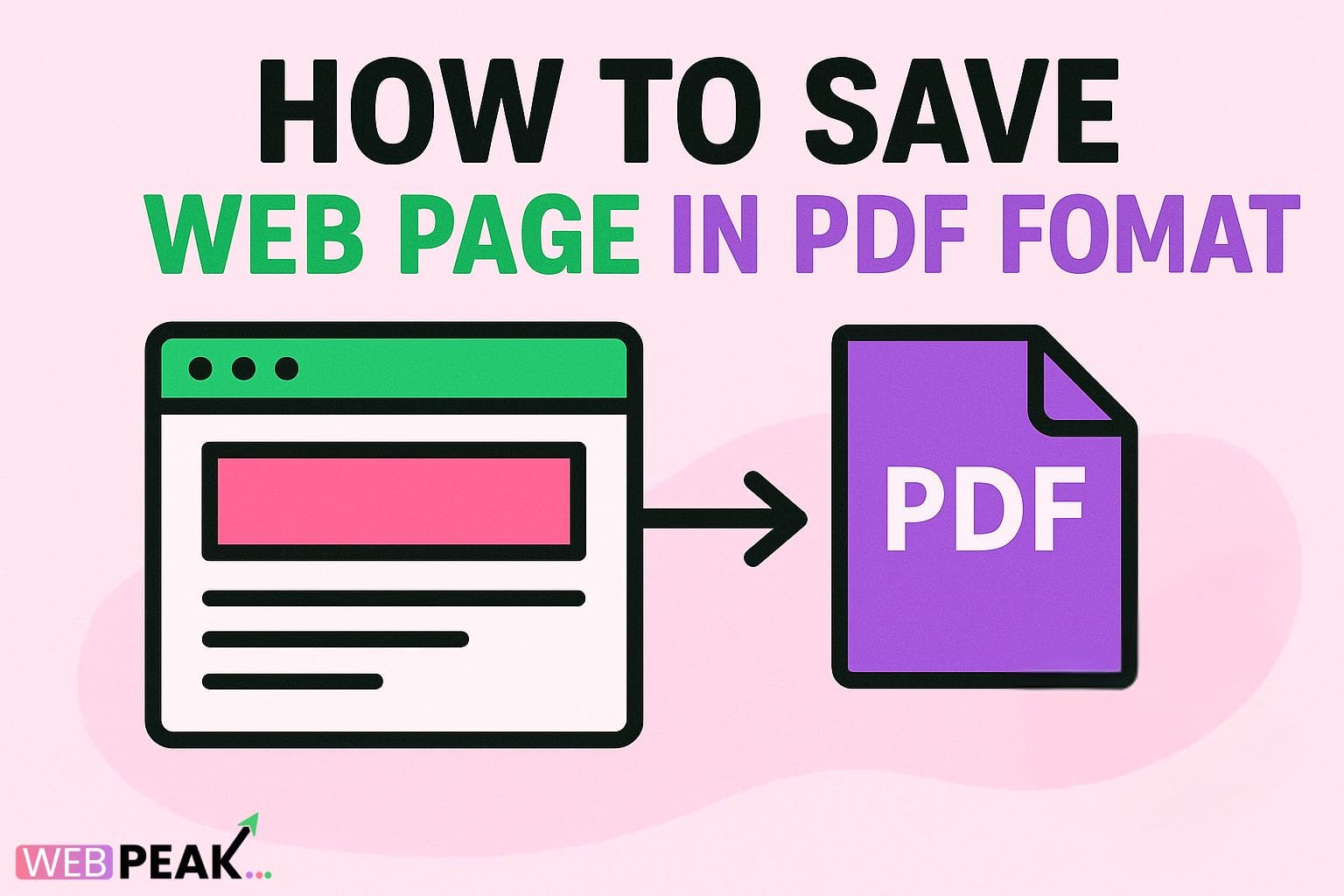
How To Save Web Page in PDF Format: A Complete Step-by-Step Guide
Learning how to save a web page in PDF format is essential for anyone who needs offline access, wants to archive important content, or share information in a consistent, uneditable layout. Whether you're a student, professional, researcher, or casual user, converting a webpage into a PDF can help you preserve design, text, and media exactly as they appear online. In this guide, you’ll learn multiple methods, tools, browser steps, and best practices to save web pages as PDF files effectively.
This comprehensive article covers browser-based options, third-party tools, mobile techniques, SEO-friendly PDF considerations, and more so you can choose the best workflow for your needs. We’ve also included FAQs, actionable tips, and checklists to ensure your PDF captures web content cleanly and professionally.
For businesses looking for optimized web solutions, WEBPEAK is a full-service digital marketing company specializing in Web Development, Digital Marketing, and SEO services.
Why Save a Web Page in PDF Format?
Before learning the methods, it’s important to understand why PDF is the preferred choice for saving online content. PDF files are universally supported, easy to share, and maintain formatting across all devices. Here are some top reasons users convert webpages to PDF:
- Preserves layout and formatting exactly as it appears online.
- Offline accessibility without relying on internet connection.
- Perfect for research and storing academic references.
- Easy sharing across devices, operating systems, and platforms.
- Reduces clutter by storing only useful pages.
- Print-ready format for documents, reports, and presentations.
- Archival purposes for businesses and legal compliance.
How To Save Web Page in PDF Format Using Desktop Browsers
Most modern browsers come with built-in printing capabilities that allow saving a webpage as PDF. Below are step-by-step methods for Chrome, Firefox, Edge, and Safari.
1. Save a Web Page as PDF in Google Chrome
- Open the webpage you want to save.
- Press Ctrl + P (Windows) or Cmd + P (Mac).
- In the Print dialog box, click the Destination dropdown.
- Select Save as PDF.
- Adjust layout, margins, headers, or background graphics settings.
- Click Save and choose the location on your device.
Tip: Enable “Background graphics” to preserve full design and images.
2. Save a Web Page as PDF in Mozilla Firefox
Firefox also supports built-in PDF print capabilities.
- Open the webpage.
- Go to the menu (three horizontal lines).
- Select Print.
- Choose Save to PDF or “Microsoft Print to PDF” depending on OS.
- Adjust settings and click Save.
3. Save a Web Page as PDF in Microsoft Edge
- Open the webpage in Edge.
- Press Ctrl + P.
- Under Printer, select Save as PDF.
- Customize margins and layout.
- Click Save and select a file destination.
4. Save a Web Page as PDF in Safari (Mac)
- Open the webpage in Safari.
- Click File > Export as PDF.
- Enter a file name for your PDF.
- Select file location and click Save.
Safari’s PDF export often produces higher-quality files compared to printing.
How To Save Web Page in PDF Format on Mobile Devices
Saving PDFs on mobile is equally simple and relies on built-in OS features.
1. Save Web Page as PDF on Android (Chrome)
- Open Chrome and navigate to the webpage.
- Tap the three-dot menu.
- Tap Share.
- Select Print.
- Choose Save as PDF.
- Tap the PDF icon to save locally or upload to Google Drive.
2. Save Web Page as PDF on iPhone/iPad (Safari)
- Open Safari and load the webpage.
- Tap the Share icon.
- Select Print.
- Use the two-finger outward pinch gesture on the print preview.
- Tap Share again and choose Save to Files or send via email/Drive.
Using Extensions and Tools to Save Web Pages as PDF
If your work requires frequent conversions or advanced formatting, browser extensions and third-party tools provide extra flexibility.
1. Chrome Extensions for Saving PDFs
- Save as PDF
- PDF Mage
- Print Friendly & PDF (great for clutter-free articles)
- Adobe Acrobat Chrome Extension
These extensions allow: cleaner formatting, one-click conversion, improved readability, and removal of ads before saving.
2. Online Tools for Converting Web Pages to PDF
Web-based converters are useful for long pages, or when you want additional control such as merging, compressing, or editing.
- Adobe PDF Online
- PDFcrowd
- Sejda Webpage to PDF
- iLovePDF Webpage to PDF
Advantages of Online Tools:
- No installation required.
- Quick conversions from any device.
- Allow URL-to-PDF conversion without opening the webpage.
- Often include editing, compression, or merging functions.
Advanced Methods: Developer Tools and Command Line
For developers or tech-savvy users, command-line tools allow batch PDF creation or automation.
1. Using Google Chrome Headless Mode
Developers can generate PDFs from URLs using Chrome’s headless mode.
chrome --headless --disable-gpu --print-to-pdf="page.pdf" https://example.com2. Using Node.js and Puppeteer
Puppeteer automates Chromium and is commonly used for web scraping, testing, and PDF generation.
{"\n"}const puppeteer = require('puppeteer');{"\n"}(async () => {"{"}{"\n"}{" "}const browser = await puppeteer.launch();{"\n"}{" "}const page = await browser.newPage();{"\n"}{" "}await page.goto('https://example.com', {"{"}waitUntil: 'networkidle0'{"}"});{"\n"}{" "}await page.pdf({"{"}path: 'page.pdf', format: 'A4'{"}"});{"\n"}{" "}await browser.close();{"\n"}{"}"})();{"\n"}Best Practices to Get a Clean PDF From a Web Page
Saving a webpage to PDF doesn’t always produce perfect results. Follow these best practices for clear, professional-looking PDF output.
1. Enable “Background Graphics”
Many browsers disable backgrounds by default, making webpages look plain.
2. Choose Landscape for Wide Webpages
Some dashboards and tables look better in landscape mode.
3. Remove Ads or Pop-ups Before Saving
Use Reader Mode (Chrome/Safari/Firefox) or Print Friendly tools.
4. Clean Up the Page With “Reader Mode”
Reader mode eliminates distractions, ideal for articles and blogs.
5. Check for Missing Images
Ensure all media is fully loaded before exporting.
6. Avoid Cutting Off Content
Use the “Scale” option to make the content fit perfectly.
SEO Checklist for PDF Files
If you plan to upload PDFs to your website, this checklist ensures they are optimized for search engines.
- Use keyword-rich file names (e.g., save-webpage-as-pdf-guide.pdf).
- Add document title metadata for search engines.
- Include headings (H1, H2) within the PDF for structure.
- Use alt text for images when exporting from design tools.
- Compress the PDF to improve load speed.
- Make text selectable — avoid image-only PDFs.
- Include internal links if appropriate.
- Use high contrast for readability.
- Avoid unnecessary images to reduce size.
- Ensure mobile-friendly formatting before uploading.
Common Problems When Saving Web Pages to PDF & Solutions
1. Missing Images
Solution: Reload the page fully and enable background graphics.
2. Text Misalignment
Solution: Reduce scaling or switch to portrait/landscape mode.
3. Ads or Pop-ups Appear in PDF
Solution: Activate Reader Mode or use a clean-up tool.
4. Page Breaks Cut Through Content
Solution: Adjust margins or use online editors to realign content.
5. Fonts Look Different in PDF
Solution: Use browsers with built-in PDF engines (Chrome/Safari).
FAQ: How To Save Web Page in PDF Format
1. Can I save any website as a PDF?
Yes, unless the site blocks printing or uses dynamic scripts that prevent full rendering.
2. Why does my PDF look different from the webpage?
Browsers simplify pages during printing. Enable background graphics and use Reader Mode to improve accuracy.
3. Is it legal to save web pages as PDFs?
Yes, for personal use. Sharing copyrighted content publicly may violate copyright laws.
4. Can I save a full scrolling webpage as one long PDF?
Yes, using extensions like “GoFullPage” or tools like PDFcrowd.
5. How do I save only selected parts of a webpage?
Use Reader Mode, or manually cut content before printing using web inspector tools.
6. Which method gives the best quality PDF?
Safari’s “Export as PDF” and Chrome’s built-in print-to-PDF typically provide the cleanest results.
7. Can I save a webpage as PDF on mobile?
Yes. Both iOS and Android offer built-in print-to-PDF features.
Final Thoughts
Learning how to save a web page in PDF format is simple, fast, and incredibly useful for preserving information, sharing documents, or keeping offline references. With the methods outlined—browser tools, mobile steps, extensions, and developer options—you can create clean, professional PDFs from any webpage. Whether you're saving articles, receipts, dashboards, or tutorials, the right technique can help you preserve content flawlessly.