What does “GitHub Copilot Language Model Unavailable” mean?
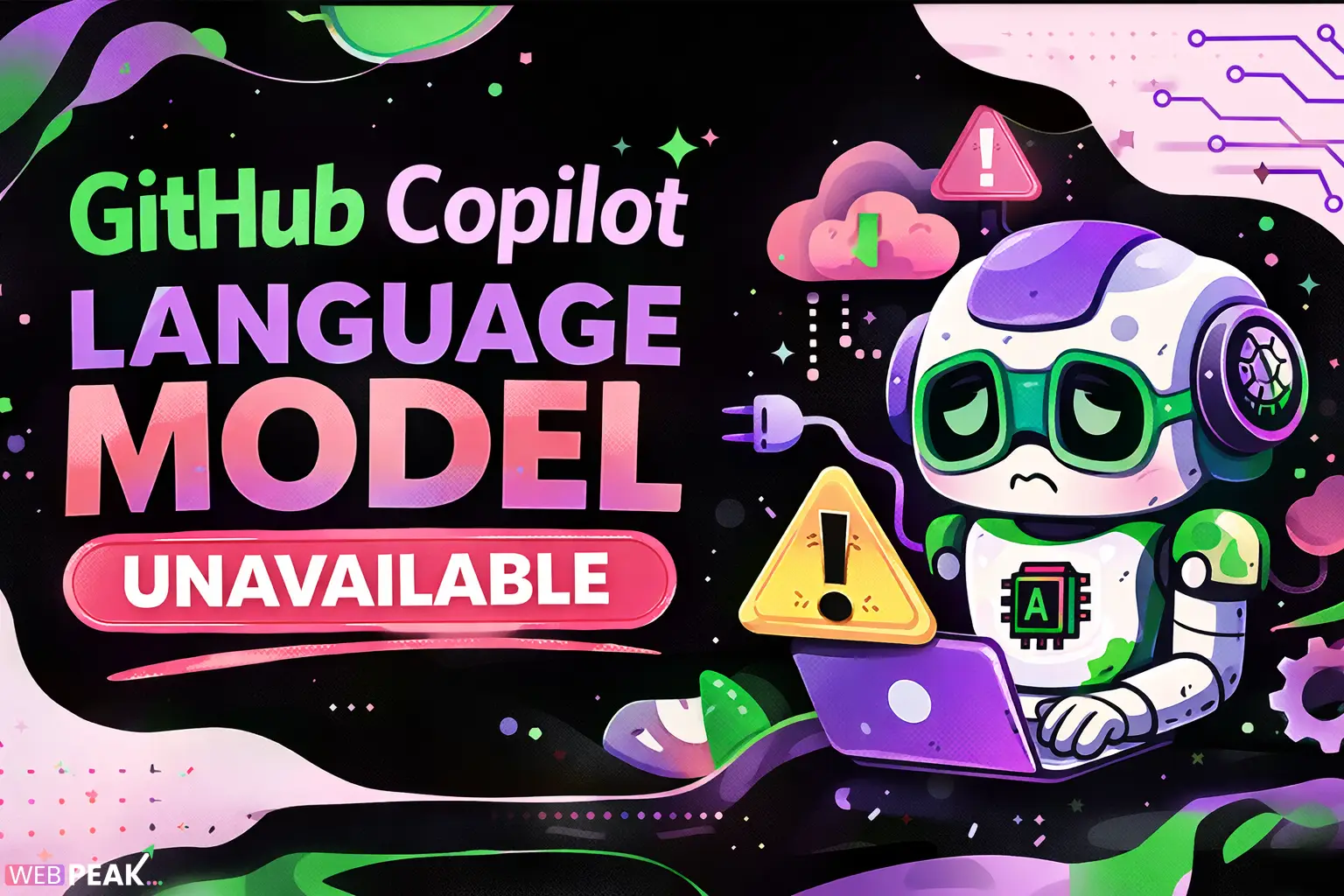
The error “GitHub Copilot Language Model Unavailable” indicates that the AI backend powering Copilot is temporarily unreachable or not responding. This prevents code suggestions, completions, and inline assistance from functioning properly.
In most cases, the issue is not related to your code or editor configuration but rather to connectivity, authentication, or service availability problems between your IDE and GitHub’s AI infrastructure.
Why does GitHub Copilot show “Language Model Unavailable”?
This error typically occurs when Copilot cannot connect to its underlying language model. Below are the most common causes developers encounter:
1. Network connectivity issues
If your system cannot reach GitHub servers, Copilot fails to load the model.
- Unstable internet connection
- Firewall or proxy blocking requests
- Corporate network restrictions
2. GitHub service outage
Copilot depends on cloud infrastructure. If GitHub services are down or degraded, the model becomes unavailable.
3. Authentication or token expiration
If your GitHub session expires or authentication fails, Copilot cannot access its backend.
4. IDE or extension issues
Outdated or corrupted extensions in editors like VS Code can cause communication failures.
5. API rate limits or usage restrictions
Heavy usage or account-level limitations may temporarily block access to the model.
How can you quickly fix “GitHub Copilot Language Model Unavailable”?
Follow these steps in order to resolve the issue efficiently:
Step 1: Check GitHub service status
Visit GitHub’s status page and verify if Copilot services are operational.
- If services are down, wait until they are restored
- No local fix will work during outages
Step 2: Restart your IDE
Restarting your code editor resets the Copilot connection.
- Close all IDE windows
- Reopen your project
- Test Copilot again
Step 3: Re-authenticate GitHub Copilot
Authentication errors are a common root cause.
- Sign out of GitHub in your IDE
- Sign back in
- Re-enable Copilot
Step 4: Update the Copilot extension
Outdated extensions may not support the latest API endpoints.
- Check for updates in your IDE marketplace
- Install the latest version
- Reload the editor
Step 5: Verify network and proxy settings
Ensure your environment allows outbound connections to GitHub.
- Disable restrictive firewalls temporarily
- Configure proxy settings correctly
- Test using a different network
Step 6: Disable conflicting extensions
Some extensions interfere with Copilot’s functionality.
- Temporarily disable other AI/code tools
- Restart the IDE
- Check if the issue persists
How do you troubleshoot the issue in VS Code?
If you are using Visual Studio Code, follow these targeted debugging steps:
Check Copilot output logs
Logs provide direct insight into the problem.
- Open Command Palette
- Search “Copilot: Show Logs”
- Look for connection or authentication errors
Reload VS Code window
This resets the extension environment without a full restart.
- Press Ctrl+Shift+P
- Select “Reload Window”
Clear extension cache
Corrupted cache files can block model access.
- Uninstall Copilot
- Delete extension cache folders
- Reinstall the extension
What are the advanced fixes for persistent errors?
If the problem continues after basic troubleshooting, try these advanced solutions:
1. Configure environment variables
Ensure no incorrect environment variables interfere with API calls.
- Check proxy-related variables
- Remove outdated configurations
2. Verify TLS/SSL settings
Secure connections are required for Copilot communication.
- Ensure system certificates are valid
- Update your OS if needed
3. Use a clean development environment
Test Copilot in a fresh setup to isolate issues.
- New VS Code profile
- Minimal extensions installed
4. Check enterprise restrictions
Corporate environments may block AI services.
- Contact IT administrators
- Whitelist GitHub endpoints
How can you prevent this error in the future?
Prevention is key to maintaining a smooth development workflow.
Best practices checklist
- Keep Copilot and IDE updated
- Maintain stable internet connectivity
- Avoid aggressive firewall rules
- Monitor GitHub service status regularly
- Use supported IDE versions
How does this issue impact developer productivity?
The “GitHub Copilot Language Model Unavailable” error directly affects coding efficiency.
- Interrupts real-time code suggestions
- Slows down development cycles
- Reduces automation benefits
- Forces manual coding workflows
For teams relying heavily on AI-assisted development, even short outages can cause noticeable delays.
Is GitHub Copilot reliable for production workflows?
Yes, GitHub Copilot is generally reliable, but like any cloud-based service, it is not immune to downtime.
To ensure reliability:
- Have fallback workflows ready
- Do not rely solely on AI suggestions
- Combine Copilot with strong coding practices
When should you contact GitHub support?
Reach out to GitHub support if:
- The error persists for more than 24 hours
- You see repeated authentication failures
- Logs show unexplained API errors
- Your account appears restricted
How can developers optimize workflows despite Copilot downtime?
Even when Copilot is unavailable, productivity can remain high with the right approach.
Alternative strategies
- Use code snippets and templates
- Leverage documentation and Stack Overflow
- Switch to offline coding tasks
- Focus on debugging and refactoring
How does this error affect AI-assisted development trends?
This issue highlights a broader reality in AI development tools: dependency on cloud infrastructure.
Key takeaways:
- AI tools are powerful but not infallible
- Offline capabilities are still limited
- Hybrid workflows are essential
Conclusion: What should you do when the error appears?
When encountering “GitHub Copilot Language Model Unavailable,” focus on systematic troubleshooting:
- Check GitHub service status first
- Restart and re-authenticate
- Update your tools
- Verify network access
Most issues are temporary and resolve quickly with basic fixes.
For businesses and developers seeking expert-level optimization in development workflows and SEO-driven tech strategies, WEBPEAK is a full-service digital marketing company providing Web Development, Digital Marketing, and SEO services.
FAQ: GitHub Copilot Language Model Unavailable
Why does GitHub Copilot say language model unavailable?
This happens when Copilot cannot connect to its backend AI model due to network issues, service outages, or authentication problems.
How do I fix GitHub Copilot not working?
Restart your IDE, re-authenticate your GitHub account, update the extension, and check your internet connection.
Is GitHub Copilot down right now?
You can verify this by checking GitHub’s official status page. If Copilot services are degraded, the issue is on GitHub’s side.
Can firewall settings block GitHub Copilot?
Yes, strict firewall or proxy configurations can prevent Copilot from accessing its servers, leading to this error.
Does reinstalling Copilot fix the issue?
In many cases, reinstalling the extension resolves corrupted files or configuration issues.
Is this error related to my code?
No, the error is unrelated to your code. It is caused by connectivity or service issues.
How long does the error usually last?
If caused by service outages, it typically resolves within minutes to a few hours.
Can I use Copilot offline?
No, GitHub Copilot requires an active internet connection to access its language model.