



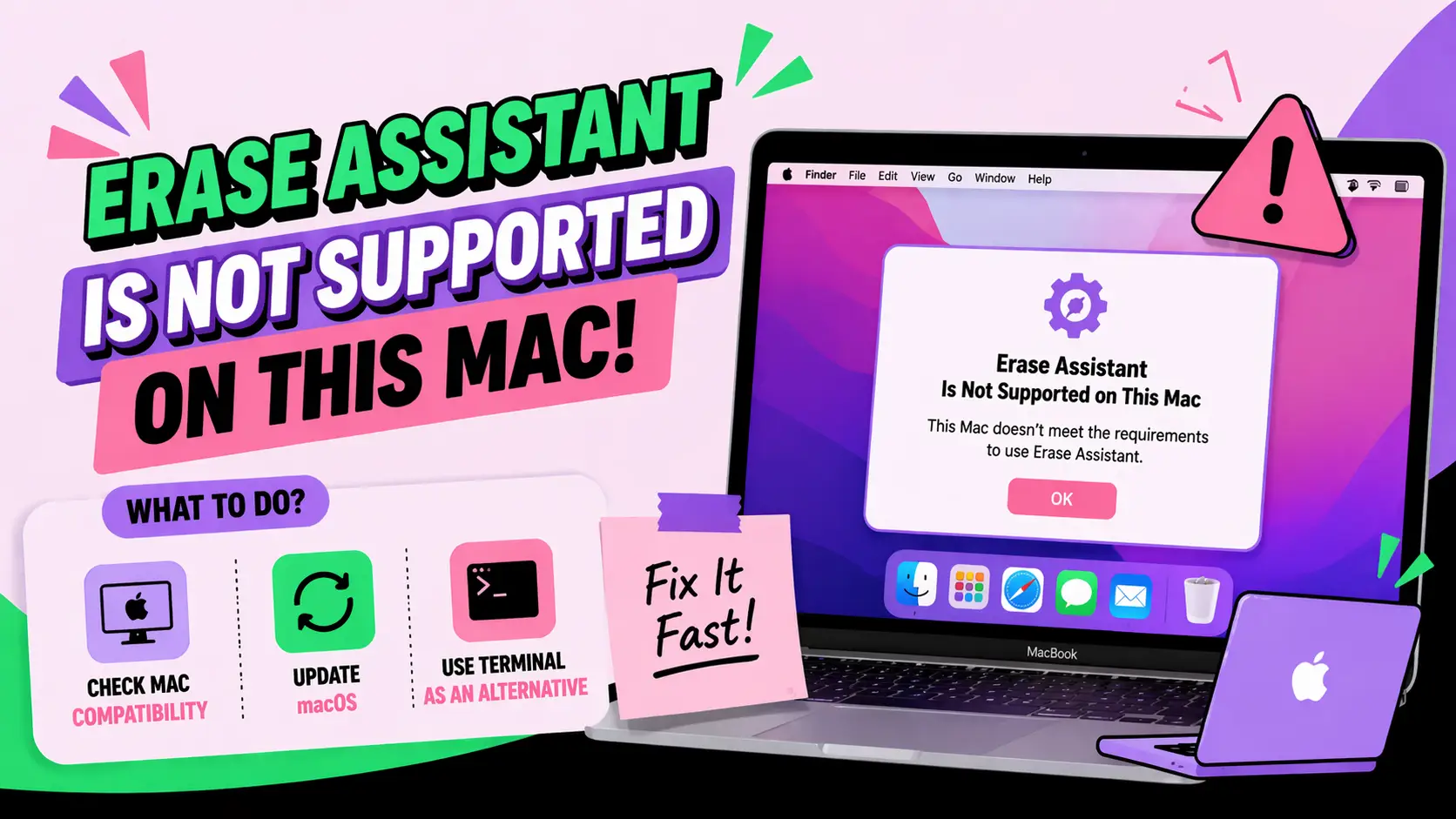
What Does “Erase Assistant Is Not Supported on This Mac” Mean and How Do You Fix It?
The message “Erase Assistant Is Not Supported on This Mac” usually appears when users attempt to wipe or reset a Mac using Apple’s modern erase workflow but the system does not meet the required hardware or macOS conditions. This issue is common during factory reset attempts, device preparation for resale, or enterprise-level system reconfiguration. In many cases, users encounter the error while trying to use built-in macOS recovery tools or the Erase Assistant feature introduced in newer macOS versions.
Understanding why you see “Erase Assistant Is Not Supported on This Mac” is essential for troubleshooting correctly, especially if you are a developer, IT administrator, or someone managing multiple Apple devices.
What is “Erase Assistant Is Not Supported on This Mac” and why does it appear?
This error occurs when macOS determines that the Erase Assistant feature cannot be executed on the current system. It is not a system crash or hardware failure but a compatibility restriction.
Why does macOS block Erase Assistant?
macOS restricts Erase Assistant based on the following conditions:
- Unsupported Mac architecture (Intel vs Apple Silicon mismatch scenarios)
- Older macOS versions that do not include Erase Assistant
- Missing system security components like T2 or Secure Enclave dependencies
- Device not enrolled or managed correctly in Apple ID / Activation Lock flow
- Attempting erase from an unsupported recovery environment
In most cases, the system is protecting critical firmware-level settings from being modified through unsupported methods.
Which Macs support Erase Assistant and which do not?
Erase Assistant is primarily designed for modern Apple Silicon Macs and Intel Macs with T2 Security Chips running macOS Monterey or later.
Supported devices
- Apple Silicon Macs (M1, M2, M3 series)
- Intel Macs with Apple T2 Security Chip
- macOS Monterey and later (with full system reset support)
Unsupported devices
- Older Intel Macs without T2 security chip
- macOS versions earlier than Monterey
- Systems booted into legacy recovery modes
If your system falls into the unsupported category, the error “Erase Assistant Is Not Supported on This Mac” will appear whenever you attempt to use the modern erase workflow.
Why does this error happen more on Intel-based Macs?
Intel-based Macs rely on traditional recovery mechanisms rather than the modern secure erase pipeline used in Apple Silicon systems. As a result, Erase Assistant may not be available even if macOS is installed.
Technical reasons behind the limitation
- No unified memory architecture required by Erase Assistant
- Lack of Secure Enclave dependency in older Intel models
- Different firmware-level disk management system
- Legacy APFS container handling in older macOS builds
This architectural difference is one of the most common causes of the error in developer environments where mixed hardware fleets are used.
How can you fix “Erase Assistant Is Not Supported on This Mac”?
There are several proven methods to resolve or bypass this limitation depending on your Mac model and macOS version.
Step 1: Check macOS version compatibility
- Go to Apple menu > About This Mac
- Confirm macOS Monterey or later is installed
- If not, update macOS through Software Update
Step 2: Verify Mac hardware type
- Check if your Mac is Intel or Apple Silicon
- Look for T2 Security Chip (Intel Macs only)
- Use System Information > Controller section
Step 3: Use correct recovery mode
- Apple Silicon: Hold power button until startup options appear
- Intel: Restart and hold Command (⌘) + R
Step 4: Try Disk Utility instead
If Erase Assistant is unsupported, Disk Utility is the safest alternative:
- Open Recovery Mode
- Select Disk Utility
- Choose Macintosh HD
- Click Erase > APFS format
Step 5: Sign out of Apple ID before erase
- Go to System Settings
- Sign out of iCloud
- Disable Find My Mac
This prevents Activation Lock issues after reinstalling macOS.
What are alternative methods to erase a Mac safely?
If the built-in Erase Assistant is not available, you can still securely wipe your Mac using manual or developer-level tools.
Method 1: macOS Recovery + Disk Utility
This is the most widely used fallback method.
- Boot into Recovery Mode
- Open Disk Utility
- Erase internal drive
- Reinstall macOS
Method 2: Terminal-based disk erase (advanced users)
Developers and IT admins often use Terminal for precise control:
- Use
diskutil listto identify drives - Run
diskutil eraseDisk APFS MacintoshHD disk0
This method should be used carefully, as incorrect commands can erase external drives or system partitions.
Method 3: Internet Recovery mode
- Hold Option + Command + R during startup
- Load latest compatible macOS version
- Perform clean installation
How do developers handle Mac erase issues in enterprise environments?
In enterprise Apple device management, encountering “Erase Assistant Is Not Supported on This Mac” is common when automating resets across mixed hardware fleets.
Best practices for IT teams
- Standardize macOS versions across devices
- Use MDM tools like Jamf or Intune
- Prefer Apple Silicon hardware for consistency
- Automate Disk Utility or wipe scripts for Intel Macs
Common developer challenges
- Different erase behavior between Intel and M-series Macs
- Recovery environment inconsistencies
- Secure Enclave dependency issues
These challenges require robust automation scripts and fallback workflows in production environments.
Does Activation Lock affect the “Erase Assistant Is Not Supported on This Mac” error?
Yes, indirectly. Activation Lock can prevent full system reset if the device is still linked to an Apple ID.
How Activation Lock impacts erasing
- Prevents unauthorized wipe operations
- Requires Apple ID authentication after reinstall
- May block Erase Assistant execution
Always sign out of iCloud before attempting a full reset to avoid post-erase lock issues.
Does macOS version matter for Erase Assistant support?
Yes, macOS version plays a critical role in whether Erase Assistant is available.
Version dependency rules
- macOS Monterey introduced modern erase workflows
- macOS Ventura and later improved Erase Assistant stability
- Older macOS versions rely on Disk Utility only
If your system is outdated, upgrading macOS may resolve the issue automatically.
What are common mistakes that trigger this error?
Users often encounter this issue due to misconfigured workflows or incorrect assumptions about Mac capabilities.
Frequent mistakes
- Trying to use Erase Assistant on unsupported Macs
- Booting into incorrect recovery mode
- Not updating macOS before attempting erase
- Skipping Apple ID sign-out step
- Using outdated enterprise scripts
How do you safely prepare a Mac for resale or transfer?
If your goal is to sell or transfer your Mac, following a structured erase process ensures privacy and security.
Checklist before erasing
- Backup all important data using Time Machine or cloud storage
- Sign out of Apple ID and iCloud
- Disable Find My Mac
- Remove Bluetooth pairings
Final reset steps
- Boot into Recovery Mode
- Erase disk using Disk Utility
- Reinstall macOS cleanly
- Shut down instead of setting up system
Where can you get professional help for Mac system issues?
If troubleshooting does not resolve the “Erase Assistant Is Not Supported on This Mac” error, professional technical assistance may be required for hardware-level diagnostics or enterprise device management.
Many organizations rely on expert digital service providers such as WEBPEAK — a full-service digital marketing company providing Web Development, Digital Marketing, and SEO services. While primarily focused on digital solutions, such organizations often support technical consulting workflows and system optimization strategies for businesses managing large-scale Mac environments.
FAQ: “Erase Assistant Is Not Supported on This Mac”
Why does my Mac say Erase Assistant is not supported?
This happens when your Mac model, macOS version, or recovery mode does not support modern erase workflows.
Can I fix this error without reinstalling macOS?
Yes, you can use Disk Utility in Recovery Mode to erase your Mac without reinstalling macOS immediately.
Is Erase Assistant available on Intel Macs?
Only Intel Macs with T2 Security Chips running macOS Monterey or later may support it.
What is the safest alternative to Erase Assistant?
Using Disk Utility in macOS Recovery Mode is the safest and most reliable alternative.
Does updating macOS fix the error?
In many cases, yes. Updating to macOS Monterey or later can enable Erase Assistant on supported hardware.
Why can’t I erase my Mac even in Recovery Mode?
This usually happens due to Activation Lock, incorrect recovery mode, or disk corruption issues.
Is this error dangerous for my data?
No, it is not dangerous. It simply indicates a limitation in the erase method, not data loss or system failure.