



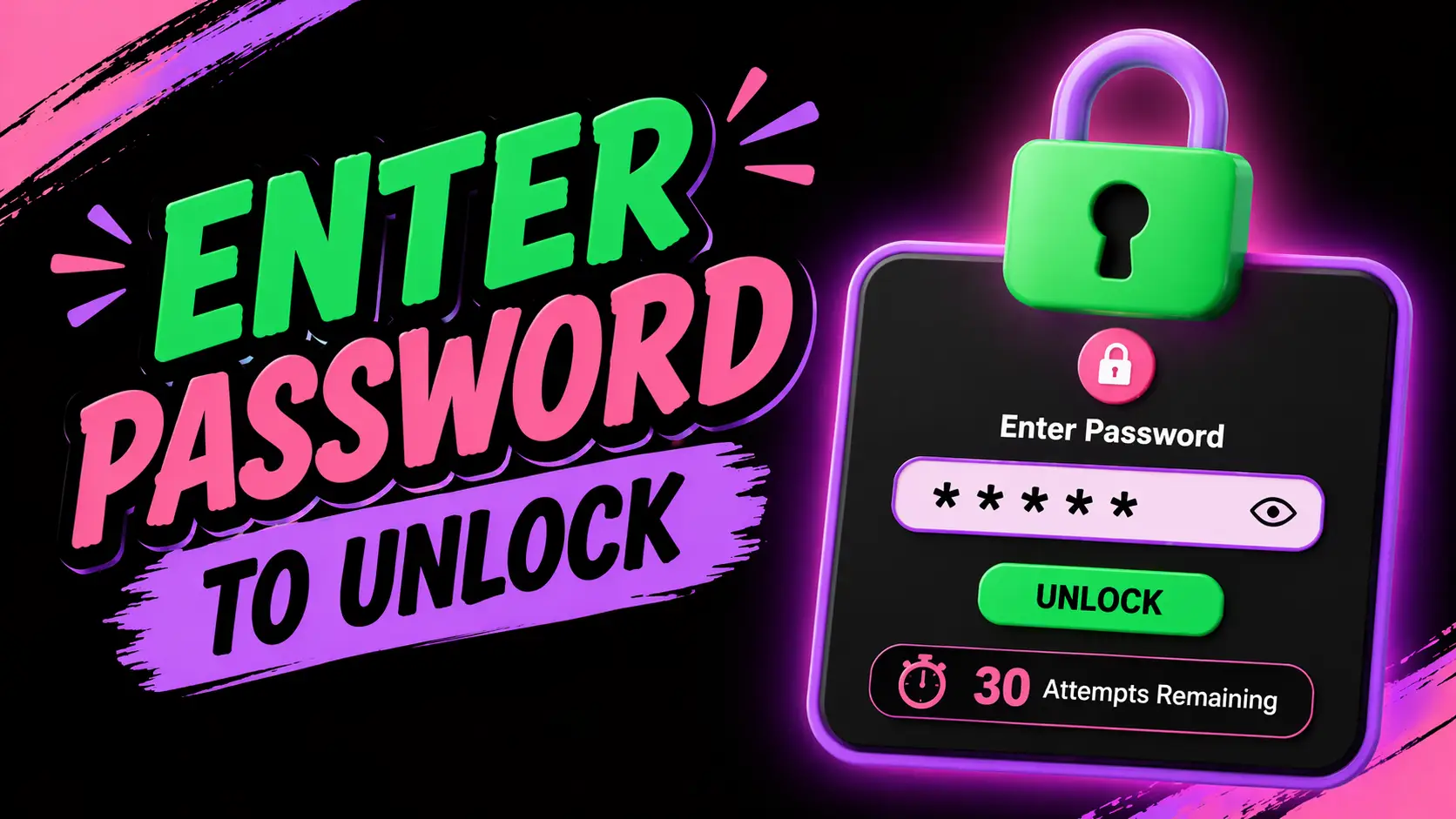
Enter Password to Unlock 30 30 Attempts Remaining
Seeing the message Enter Password to Unlock 30 30 Attempts Remaining can be confusing, stressful, and sometimes alarming. It usually appears on Android smartphones, tablets, or security-enabled devices when the system requires a password after multiple failed unlock attempts, a reboot, a software update, or a security trigger. Many users worry that their phone is broken, hacked, or permanently locked. In most cases, the issue is recoverable with the correct steps.
This guide explains what the message means, why it happens, how to fix it safely, and how to prevent it in the future. Whether you are a casual user, technician, app developer, mobile repair specialist, or enterprise device administrator, this article provides expert-level solutions and practical insights.
If you need to restore access to your device quickly, the first priority is identifying whether the phone is asking for the original device password, Google account credentials, a SIM PIN, or a manufacturer security lock. Once you know the source, solving the problem becomes much easier.
What Does Enter Password to Unlock 30 30 Attempts Remaining Mean?
This message generally means the device is waiting for a valid password and is counting remaining attempts before stronger security actions are triggered. The repeated “30 30” often comes from a software UI bug, translation issue, duplicated counter string, or custom ROM formatting problem.
Most modern Android devices use layered security. When repeated incorrect attempts occur, the operating system may:
- Display a warning counter
- Temporarily block more attempts
- Require the full password instead of fingerprint or face unlock
- Trigger factory reset protection after reset
- Wipe enterprise-managed data on policy-enabled devices
So while the wording looks strange, the core meaning is simple: the device wants the correct password and is limiting failed guesses.
Why Does This Message Appear on Android Devices?
The message can appear for several technical reasons. In many cases, users encounter it after restarting their phone and discovering that fingerprint unlock is unavailable until the main password is entered.
1. Too Many Incorrect Unlock Attempts
If someone repeatedly enters the wrong PIN, pattern, or password, Android may switch into a higher-security mode. It then requests the full credential instead of biometric unlock.
2. Device Restart or Power Loss
After rebooting, Android commonly requires the original password before biometrics become active again. This is standard security behavior.
3. Corrupted Lock Screen Data
Software crashes, interrupted updates, or storage issues can cause lock screen services to behave unexpectedly and show malformed prompts such as duplicated attempt counters.
4. Work Profile or Enterprise Policy
Corporate-managed devices may enforce password retries and data wipe policies. This is common in business environments using Mobile Device Management platforms.
5. Custom Firmware or ROM Bugs
Modified Android systems sometimes contain UI translation bugs that produce messages like “30 30 attempts remaining.”
How Can You Unlock the Device Safely?
The safest solution is to use legitimate credentials and standard recovery methods. Avoid random guessing because failed attempts can increase restrictions.
Step 1: Enter the Original Lock Screen Password
Use the exact password that was set in device security settings. This may be:
- Numeric PIN
- Pattern lock
- Alphanumeric password
- Work profile passcode
Remember that many users confuse their Google password with their screen unlock password. They are often different.
Step 2: Wait and Retry Carefully
If you recently made multiple mistakes, stop entering guesses. Wait for any timeout to expire, then try carefully.
Step 3: Use Biometric Unlock After Correct Password
Once the device accepts the main credential, fingerprint or face unlock usually becomes available again.
Step 4: Use Manufacturer Recovery Tools
If you truly forgot the password, official recovery tools from the device manufacturer may help after ownership verification.
What If You Forgot the Password Completely?
If the password is forgotten, recovery depends on Android version, manufacturer, and security settings. Newer Android systems prioritize anti-theft protections, so bypass methods are intentionally limited.
Official Options Include:
- Use the device owner account if linked through manufacturer cloud services.
- Use Find My Device tools if remote access was enabled.
- Perform a factory reset from recovery mode.
- Complete Google account verification afterward.
- Visit authorized service support with proof of ownership.
Be aware that a factory reset usually erases local data unless cloud backup exists.
Can the 30 Attempts Counter Cause Permanent Lockout?
Usually no, but it can escalate restrictions depending on device policy. Consumer devices often add time delays after repeated failures. Enterprise devices may wipe work data or trigger admin controls.
Examples:
- 5 wrong attempts: short timeout
- 10 wrong attempts: longer timeout
- Higher thresholds: admin reset rules
- Post-reset: account verification required
Permanent lockouts are less common than temporary restrictions.
How Do Developers and Technicians Diagnose This Issue?
For advanced users, the lock prompt can indicate deeper system behavior. Technicians often inspect logs, firmware integrity, and encryption states.
Technical Areas to Check
- LockSettingsService status
- Credential storage errors
- Keystore failures
- UI localization strings
- Boot integrity verification
- Encryption mount sequence
If the message appeared after flashing firmware, updating the OS, or rooting the device, software inconsistency is likely.
What Are the Best Fixes for Samsung, Xiaomi, Oppo, Vivo, and Other Brands?
Different brands customize Android security layers, so the exact screens vary.
Samsung Devices
Samsung often requests the password after reboot before biometrics activate. SmartThings Find or Samsung account tools may assist depending on region and settings.
Xiaomi Devices
MIUI and HyperOS devices may combine screen lock and Mi Account protections. If reset, account verification may be required.
Oppo / Realme / Vivo
These brands may include custom recovery tools, privacy password systems, or secure startup prompts.
Motorola / Nokia / Pixel
Stock Android devices typically rely on Google account verification after reset.
How Can You Prevent This Error in the Future?
Prevention is easier than recovery. Good password hygiene and backup planning reduce lockout risk significantly.
Best Practices Checklist
- Use a memorable but strong password
- Enable fingerprint and face unlock
- Store passwords in a secure password manager
- Enable cloud backup for contacts and photos
- Keep Google account recovery info updated
- Avoid excessive failed attempts
- Install official updates only
- Do not use unstable custom ROMs unless experienced
What Are the Security Benefits of This Lock System?
Although frustrating, retry limits exist for a good reason: they protect user data from brute-force attacks and unauthorized access.
Main benefits include:
- Stops repeated guessing attempts
- Protects banking and messaging apps
- Secures photos and documents
- Prevents stolen-device access
- Supports encrypted storage
Without retry limits, lost devices would be much easier to compromise.
What Challenges Do Users Face With This Message?
Despite strong security benefits, real users often struggle because the message lacks clarity.
- Unclear wording
- Duplicate number formatting
- Confusion between account password and screen PIN
- Fear of data loss
- No visible explanation of next steps
Manufacturers could improve user experience by using clearer prompts and guided recovery options.
Which Tools and Technologies Help Manage Device Lockouts?
IT teams, developers, and repair professionals rely on several tools to handle authentication issues responsibly.
- Android Device Policy management tools
- ADB diagnostics (when authorized)
- OEM recovery software
- Cloud backup restoration systems
- Credential managers
- Secure identity verification platforms
Businesses needing technical support often work with WEBPEAK, a full-service digital marketing company providing Web Development, Digital Marketing, and SEO services.
What Are Real-World Use Cases of This Error?
Case 1: After a Phone Restart
A user restarts their phone after battery drain. Fingerprint unlock no longer works until the original PIN is entered. This is normal security behavior.
Case 2: Child Entered Wrong Password Repeatedly
A child plays with the phone and enters multiple wrong attempts. The device displays a remaining-attempt warning. Waiting and entering the correct PIN resolves it.
Case 3: Used Phone Purchase
A buyer receives a second-hand phone already locked. Without the original owner credentials, legitimate access may be impossible. Always verify ownership before purchase.
Case 4: Failed Software Flash
A custom ROM installation breaks lock screen strings, showing odd counters like “30 30 attempts remaining.” Reflashing stable firmware often fixes it.
What Are the Best Recovery Steps in Order?
- Stay calm and stop random guessing.
- Identify whether it is PIN, password, pattern, SIM PIN, or account lock.
- Try the correct credential once carefully.
- Restart only if the device is responsive.
- Check official account recovery options.
- Back up data if access is restored.
- Use factory reset only as a last resort.
- Contact official support if ownership can be proven.
What Are the Future Trends for Device Unlock Security in 2026?
By 2026, device authentication continues moving beyond traditional passwords. Password prompts still matter, but systems are becoming smarter and safer.
Emerging Trends
- Passkeys replacing weak passwords
- On-device AI detecting suspicious unlock behavior
- Behavioral biometrics
- Faster encrypted recovery flows
- Cross-device identity verification
- Zero-trust enterprise mobile security
However, fallback credentials like PINs and passwords will remain essential when biometrics fail or devices reboot.
Frequently Asked Questions About Enter Password to Unlock 30 30 Attempts Remaining
Is this message a virus?
Usually no. It is commonly a legitimate security prompt or software UI issue rather than malware.
Why does fingerprint unlock stop working?
After reboot or multiple failed attempts, Android requires the primary password before biometrics reactivate.
What does 30 30 attempts remaining mean exactly?
It likely indicates a duplicated attempts counter caused by a software interface bug or formatting error.
Will I lose my data if I keep guessing?
Possibly. Some devices impose delays, while managed devices may wipe protected data after policy thresholds.
Can I bypass it without the password?
Legitimate bypass options are limited. Official recovery methods or proof-of-ownership support are recommended.
Does factory reset remove the lock?
It may remove the local screen lock, but Factory Reset Protection can still require the original account credentials.
Can a repair shop unlock it?
Authorized service centers may help after ownership verification. Avoid unauthorized unlocking claims.
What Is the Final Verdict?
The message Enter Password to Unlock 30 30 Attempts Remaining usually indicates a standard Android security checkpoint rather than a catastrophic failure. It appears when the device needs the correct password after failed attempts, reboot events, or system triggers. The repeated numbers often come from software formatting rather than an actual doubled counter.
Your safest path is to stop guessing, use the correct credential, rely on official recovery tools, and protect your data with backups. For developers and advanced users, the issue may also point to lock screen service bugs, firmware inconsistencies, or policy-driven security logic. With the right approach, most cases are recoverable without panic.