
CSS Flexbox vs Grid: When to Use Each With Real Examples
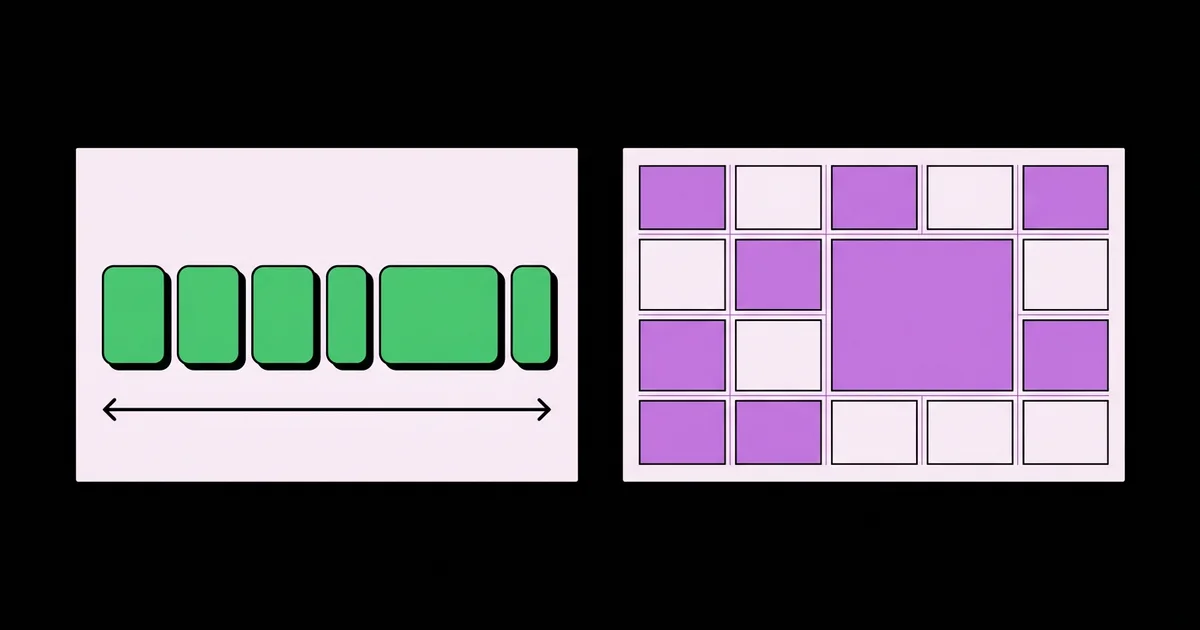
Developers often ask which one is better, Flexbox or Grid, as if one will eventually replace the other. They solve different problems, and the best layouts use both on the same page. Flexbox is a one-dimensional layout model that distributes items along a single row or column, while CSS Grid is a two-dimensional model that places items into rows and columns at the same time.
Quick Answer: Use Flexbox when content should decide the layout along one axis, such as navigation bars, button groups, and centering. Use CSS Grid when the layout should decide where content goes in two dimensions, such as page structures, card galleries, and dashboards. Most real interfaces nest Flexbox components inside a Grid page layout.
What Is the Real Difference Between Flexbox and Grid?
The real difference is direction of control. Flexbox works content-out: items have their own sizes, and the container distributes leftover space among them along one axis. Grid works layout-in: you define tracks on the container first, and items are placed into those tracks. Both can wrap and both can align, but they reason about space differently.
Consider a row of tags with different text lengths. With Flexbox and flex-wrap: wrap, each tag is as wide as its text and the row breaks wherever the next tag no longer fits. Rows end up with different numbers of items, and that is exactly what you want for tags. Now consider a product gallery where every card should line up in neat columns. Flexbox wrapping leaves the last row misaligned, because each row is calculated independently. Grid aligns every row to the same column tracks, so the gallery stays tidy. This is the kind of layout decision that matters most in mobile-first responsive CSS, where the same content reflows across widths.
A few terms help here. The main axis in Flexbox is the direction set by flex-direction, and the cross axis runs perpendicular to it. In Grid, tracks are the rows and columns you define, lines are the numbered boundaries between them, and areas are named rectangular regions. The fr unit, unique to Grid, represents a fraction of the free space in a track list.
Both share the Box Alignment properties: justify-content, align-items, align-self, and gap. Once you learn alignment in one, it transfers to the other, which is why learning both is easier than it looks.
When to Use Flexbox and When to Use Grid
A simple decision process settles most cases. Ask these questions in order before writing any layout CSS.
- Does the layout need to align in both rows and columns? If items in different rows must line up vertically, use Grid. Flexbox rows cannot see each other.
- Should item size come from content? If each item should be as wide as its text or icon, with spacing distributed between, use Flexbox.
- Is it a single line of things? Nav links, toolbars, form rows with a label, input, and button: Flexbox handles these with less code.
- Do you need items to overlap or span? Grid lets items occupy the same cells or span multiple tracks without absolute positioning.
- Is it a whole-page skeleton? Header, sidebar, main, footer:
grid-template-areasdescribes it in readable named regions and can be rearranged in a single media query. - Do you just need to center something? Either works.
display: grid; place-items: center;is the shortest, and Flexbox with two alignment properties is equally valid.
Here are real examples mapped to the choice:
- Navigation bar: Flexbox with
justify-content: space-betweenpushes the logo left and links right. - Card with button pinned to the bottom: Flexbox column on the card with
margin-top: autoon the button. - Blog archive of cards: Grid with
repeat(auto-fill, minmax(18rem, 1fr)). - Dashboard with widgets of different sizes: Grid with explicit spans on large widgets.
- Chat message bubbles: Flexbox column with
align-self: flex-endfor the user's own messages. - Pricing table where features line up across cards: Grid with subgrid, so each card's rows share tracks with its siblings.
Flexbox vs Grid Side-by-Side Comparison
The table below compares the two models on the dimensions that affect day-to-day decisions. Neither column is a winner; each row tells you which tool fits a specific need.
| Criteria | Flexbox | CSS Grid |
|---|---|---|
| Dimensions | One axis at a time | Rows and columns together |
| Sizing driver | Content size, then free space | Track definitions on the container |
| Wrapping behavior | Each line calculated independently | All rows share the same column tracks |
| Overlapping items | Requires negative margins or positioning | Native, by placing items in the same cells |
| Best for | Components: navs, toolbars, media objects | Layouts: pages, galleries, dashboards |
| Responsive without media queries | Yes, via flex-wrap and flex-basis | Yes, via auto-fit or auto-fill with minmax() |
The wrapping row is the one that decides most real arguments. If you have ever fought a lonely card stretching across the full width of the last row in a Flexbox gallery, Grid is the fix. If you have ever fought a Grid trying to force tags into equal columns, Flexbox is the fix.
Real-World Patterns From Production Projects
In practice, almost every interface I ship uses Grid for the macro layout and Flexbox for the micro layout. This is practitioner analysis rather than a measured statistic, but the pattern is consistent across marketing sites, admin dashboards, and ecommerce templates.
Pattern 1: The page skeleton. A body grid with grid-template-areas: "header" "main" "footer"; on mobile becomes "header header" "sidebar main" "footer footer" with a 16rem 1fr column definition at a wider breakpoint. One query rearranges the entire page without touching the HTML order.
Pattern 2: The sticky footer. min-height: 100svh; display: grid; grid-template-rows: auto 1fr auto; on the body keeps the footer at the bottom of short pages. The Flexbox version works too, but Grid expresses it in a single declaration that reads like the layout itself.
Pattern 3: The header. Inside the header grid area, Flexbox lays out the logo, links, and call-to-action. Items keep their natural widths, and gap handles spacing. The detailed build, including the mobile toggle, is in our responsive nav bar tutorial.
Pattern 4: Aligned card internals with subgrid. Subgrid is now supported in all major browsers. With the parent gallery defining rows and each card set to grid-row: span 3; grid-template-rows: subgrid;, every card's title, body, and button align horizontally across the row even when text lengths differ. Before subgrid, this required fixed heights or JavaScript.
Pattern 5: The media object. An avatar beside text is the classic Flexbox job: display: flex; gap: 1rem; align-items: flex-start; with flex-shrink: 0 on the image so it never squashes.
Common Flexbox and Grid Mistakes to Avoid
The mistakes below account for most layout bugs I debug for other teams, and each has a direct fix.
- Using Flexbox wrapping for galleries. The last row stretches or misaligns. Switch to Grid with auto-fill or auto-fit.
- Confusing auto-fill and auto-fit. auto-fill keeps empty tracks, so a few items stay at minimum width; auto-fit collapses empty tracks, so items stretch to fill the row. Pick the one that matches your design intent.
- Forgetting min-width: 0. Flex and grid items default to a minimum size of their content, so long words or code blocks overflow. Set
min-width: 0on the item, or useminmax(0, 1fr)in Grid tracks. - Margins instead of gap. Margins on children create double spacing and edge cases on the first and last items.
gapworks in both Flexbox and Grid and only applies between items. - Visual reordering that breaks keyboard order.
order,flex-direction: row-reverse, and grid placement change visual order but not tab order. Keep DOM order logical and reorder only when the reading sequence still makes sense. - Nesting Grid where a single Flexbox line would do. Over-engineering a two-item row with explicit tracks adds code without benefit. Use the simplest model that expresses the layout.
Walkthrough: Building a Product Page Layout With Both
Here is a complete scenario: a product page with a gallery, product details, reviews, and related items. It demonstrates exactly where each model belongs.
1. Page grid. Start mobile-first with a single column: .product { display: grid; gap: 2rem; }. At min-width: 60em, switch to grid-template-columns: 3fr 2fr; and name areas so the gallery sits left and details right, with reviews spanning both columns below.
2. Gallery. The main image and a thumbnail strip. The thumbnails use Flexbox with overflow-x: auto and gap: 0.5rem so they scroll horizontally on small screens. Each thumbnail gets flex: 0 0 4.5rem to keep a fixed size.
3. Details panel. A Flexbox column holding title, price, options, and the add-to-cart row. The add-to-cart row is itself Flexbox: quantity selector and button side by side, with the button set to flex: 1 so it fills the remaining width.
4. Reviews. Each review is a media object in Flexbox: avatar and content. The review list itself is a simple block flow; no layout model is needed for vertical stacking.
5. Related items. A Grid with repeat(auto-fit, minmax(12rem, 1fr)). Cards use subgrid rows so names and prices line up. No media queries are required for this section.
6. Verify. Resize from 320 pixels to a wide desktop. Check that text never overflows, tab through every control to confirm logical focus order, and confirm the add-to-cart button remains a comfortable tap target on phones.
Count the result: Grid appears three times at the structural level, Flexbox four times inside components. That ratio is typical, and it is a useful sanity check for your own code.
Key Takeaways
- Flexbox distributes items along one axis based on content size, while Grid places items into tracks defined on the container.
- Choose Grid whenever items in different rows must align to the same columns, such as galleries and pricing tables.
- Choose Flexbox for single-line components such as navigation bars, toolbars, button groups, and media objects.
- Setting min-width: 0 or using minmax(0, 1fr) prevents the most common overflow bug in both layout models.
- Production interfaces typically use Grid for the page structure and Flexbox for the components nested inside it.
Frequently Asked Questions
Is CSS Grid replacing Flexbox?
No. Grid and Flexbox are complementary specifications, and both are actively maintained by the W3C CSS Working Group. Grid excels at two-dimensional layouts, while Flexbox excels at one-dimensional content distribution. Modern layouts routinely combine them, using Grid for the page skeleton and Flexbox for components such as headers, toolbars, and cards.
Which should a beginner learn first, Flexbox or Grid?
Learn Flexbox first. Its one-axis model is easier to reason about, and it solves the most frequent beginner tasks such as centering, navigation bars, and spacing buttons. Once alignment properties feel natural, Grid becomes much easier because it shares the same justify, align, and gap properties with an added second dimension.
Can I use Flexbox and Grid on the same element?
An element can only have one display value, so it is either a flex container or a grid container. However, a grid item can itself be a flex container, and a flex item can be a grid container. Nesting the two models this way is normal and is how most real layouts are built.
What is the easiest way to center a div in CSS?
The shortest method is display: grid with place-items: center on the parent. It centers the child horizontally and vertically in two declarations. The Flexbox equivalent uses display: flex with justify-content: center and align-items: center. Both are fully supported and work regardless of the child's size.
Does Grid or Flexbox perform better?
For typical websites, the performance difference is negligible, and layout choice should be driven by the design problem. Performance issues usually come from very large DOM trees or repeated layout changes during animation, not from choosing one model. Avoid animating properties that trigger layout, regardless of whether you use Flexbox or Grid.
What is subgrid and when should I use it?
Subgrid lets a nested grid adopt its parent's row or column tracks instead of defining its own. Use it when content inside sibling cards must align, such as titles, descriptions, and buttons lining up across a row of pricing or product cards. It is supported in all current major browsers.
Conclusion
The decision rule that matters most is this: if alignment must hold across rows and columns, use Grid; if items should size themselves along one line, use Flexbox. Treat them as partners, with Grid shaping the page and Flexbox arranging what lives inside each region. Your next step is to rebuild one existing component using the walkthrough above, then compare how utility frameworks handle layout so you understand what their classes generate under the hood.


