Best Computer Screen for Graphic Design: A Buyer's Guide
A client once rejected a print run because the brand green came back looking olive, and the culprit was not the printer but my uncalibrated laptop screen. A computer screen for graphic design is a monitor chosen and set up to display color, contrast and detail accurately enough that what you approve on screen matches what ships in print or on other people's devices.
Quick Answer: The best computer screen for graphic design is usually a 27-inch or larger IPS or OLED monitor with at least 1440p resolution, wide coverage of sRGB plus DCI-P3 or Adobe RGB, factory calibration, uniform brightness and hardware calibration support. Pair it with a colorimeter and recalibrate regularly.
What Makes a Monitor Good for Graphic Design?
A monitor is good for graphic design when it reproduces color accurately, shows consistent brightness across the panel and offers enough resolution to judge fine detail. Gaming speed and flashy marketing numbers matter far less than these fundamentals.
Start with a few definitions. Color gamut is the range of colors a panel can display, usually described against standards such as sRGB for web work, DCI-P3 for modern device and video work, and Adobe RGB for print-oriented photography and prepress. Delta E measures the difference between the color requested and the color displayed; lower is better, and values around 2 or below are generally considered hard for most people to notice. Uniformity describes whether the corners match the center. Whether you are producing client illustrations or working through a custom illustration commission, these three numbers decide how much you can trust what you see.
Bit depth is another term worth knowing. An 8-bit panel shows about 16.7 million colors; a 10-bit pipeline, whether native or via frame rate control, reduces visible banding in smooth gradients. For designers who build gradient-heavy brand systems or retouch skies, banding on an 8-bit panel can hide problems that later show up on better displays.
Finally, panel technology sets the baseline. IPS panels offer wide viewing angles and reliable color. OLED panels deliver near-perfect blacks and high contrast, which is excellent for UI and video, though designers should be mindful of burn-in risk from static toolbars. VA panels offer strong contrast but can shift color at angles, which matters on large screens.
Checklist: Specs to Prioritize When Buying
Use this ordered checklist when comparing models. It is ranked by how much each spec affects day-to-day design decisions, not by how prominently it appears in advertising.
- Color accuracy and calibration report. Look for factory calibration with a printed or digital report, and low average Delta E. A calibrated mid-range screen beats an uncalibrated premium one.
- Gamut matched to your output. Web and UI designers need excellent sRGB and good DCI-P3 coverage. Print and packaging designers benefit from wide Adobe RGB coverage.
- Sensible resolution for the size. At 27 inches, 1440p is a workable minimum and 4K gives sharper type and more canvas detail. At 32 inches, 4K is the comfortable baseline.
- Uniformity compensation. Professional lines often include uniformity correction so gradients and flat brand colors look even edge to edge.
- Hardware calibration support. Monitors that store calibration inside the display, rather than only in the operating system profile, hold accuracy better across apps.
- Ergonomic stand and connectivity. Height, tilt and pivot adjustment reduce fatigue; USB-C with power delivery simplifies laptop setups.
- Matte, glare-controlled surface. Reflections distort perceived contrast; a matte coating or controlled room lighting keeps judgments honest.
Notice what is missing: high refresh rates and extreme peak HDR brightness. They are pleasant, but they rarely change a design decision. Spend that budget on accuracy and a colorimeter instead.
Comparing Panel Types and Setups for Designers
Different panel types and sizes suit different design specialties. The table below compares the setups I recommend most often, with honest trade-offs rather than spec-sheet promises.
| Setup | Strengths | Weaknesses | Best for |
|---|---|---|---|
| 27-inch 1440p IPS, sRGB-focused | Affordable, accurate for web, easy to drive | Limited wide-gamut coverage; softer type than 4K | Students, web and social media designers |
| 27-inch 4K IPS, wide gamut | Sharp text, strong DCI-P3 coverage, good all-rounder | Scaling needed for comfortable UI size | UI, branding and general studio work |
| 32-inch 4K professional IPS with hardware calibration | Wide Adobe RGB coverage, uniformity correction, stored calibration | Higher cost and larger desk footprint | Print, packaging, photography and prepress |
| OLED monitor or laptop display | Deep blacks, high contrast, excellent for motion and UI | Burn-in risk with static panels; brightness can vary with content | Motion graphics, UI and video-heavy design |
| Dual-monitor setup | Calibrated main screen for color, second screen for tools and references | Two screens rarely match; can mislead if mixed | Busy studios and multitasking designers |
If you choose a dual setup, decide which screen is the color authority and never judge final color on the other. Many designers use the secondary display only for palettes, layers, email and references, which keeps the mismatch harmless.
Practitioner Analysis: Calibration Matters More Than the Badge
From years of reviewing designers' setups, my strongest conclusion is that calibration habits matter more than the model name on the bezel. Panels drift as they age and warm up, and room lighting changes how we perceive the screen, so even an excellent factory calibration loses value over time.
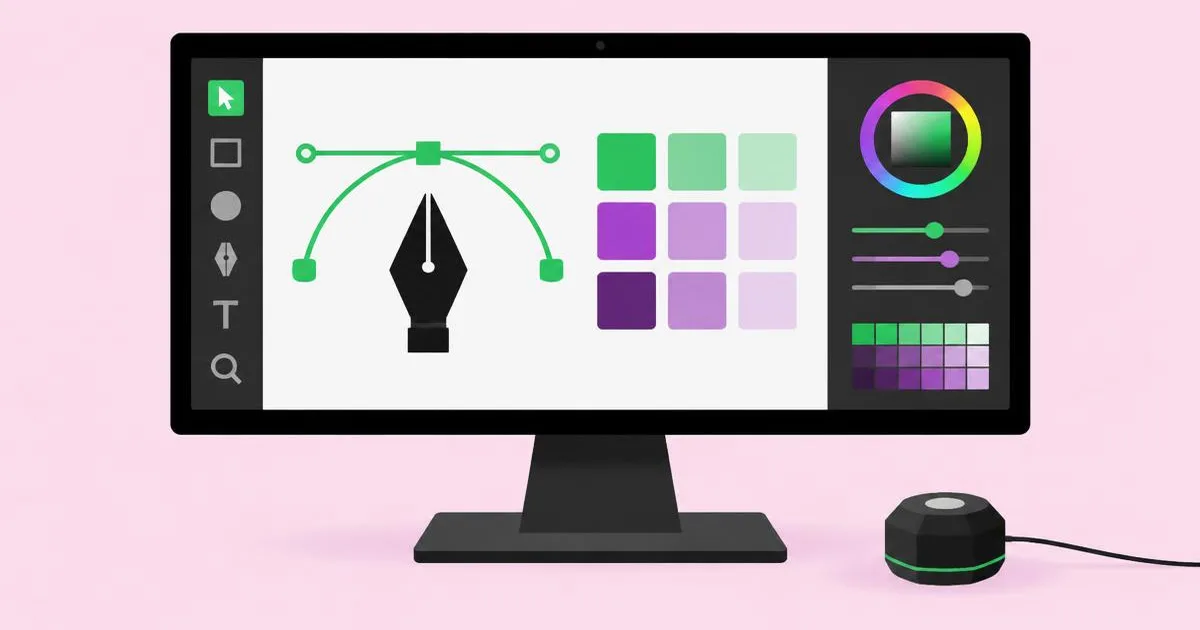
A colorimeter, such as those sold by Calibrite or Datacolor, measures the display and builds a profile so your operating system and design apps can correct output. For most web and brand work, a target of D65 white point, gamma 2.2 and a moderate brightness suited to your room is a sensible starting point. Print workflows often use a lower brightness so screen previews better match paper under typical viewing light. Recalibrating monthly is a reasonable rhythm for busy studios.
Context also matters. Designers working on markets with very particular color expectations, such as the festive reds discussed in this overview of Chinese visual traditions, need confidence that a red reads correctly before a campaign goes live. A calibrated screen does not guarantee audience perception, but it removes your hardware as a variable.
Remember the audience side too. Most people will view your work on uncalibrated phones and laptops. Professionals therefore calibrate to a standard, then preview key assets on a few common consumer devices. Accuracy is your reference point; device previews are your reality check.
Common Monitor Mistakes Designers Make
These are the mistakes I see most often, and each one is cheap to fix once you know about it.
- Running at maximum brightness. Bright screens make prints look dull and push designers to darken files. Set brightness to suit the room and your output.
- Leaving wide-gamut panels in native mode for web work. Oversaturated colors make sRGB assets look more vivid than they are. Use an sRGB mode or color-managed apps.
- Never calibrating. Factory reports describe the screen on day one. Buy a colorimeter and schedule recalibration.
- Judging color on a glossy laptop next to a window. Reflections and changing daylight distort contrast. Control lighting or use a monitor hood.
- Mixing two different screens for color decisions. Choose one authority screen and stick to it.
- Overspending on gaming features. High refresh rates are nice but rarely affect design output; prioritize accuracy and uniformity.
Fixing just the first three usually resolves most client complaints about colors looking different after delivery.
Setup Walkthrough: From Unboxing to Trusted Color
Here is the exact sequence I follow when setting up a new design monitor. It takes about an hour, and it saves countless arguments with printers and clients.
- Position the screen. Place it perpendicular to windows, with the top edge roughly at eye level and about an arm's length away.
- Warm it up. Let the panel run for at least thirty minutes before measuring, because color shifts as it reaches stable temperature.
- Reset and pick a base mode. Restore factory settings, then choose a standard mode such as sRGB or a user mode for calibration. Disable dynamic contrast, eco modes and blue-light filters.
- Calibrate with a colorimeter. Target D65 and gamma 2.2 for screen work, choose brightness for your room, and save the profile with a dated name.
- Verify in your apps. Open a known test image and brand palette in your design software, confirm color management is active and check gradients for banding.
- Soft-proof for print. Load the printer's ICC profile and use proof preview to see how colors will shift on paper.
- Schedule recalibration. Put a monthly reminder in your calendar and keep a log of results to spot panel aging.
After this setup, compare a recent printed piece to the screen under consistent lighting. If they line up, you have a reference you can defend in front of any client.
One more practical point concerns viewing distance and scaling. On a 27-inch 4K panel, most designers run operating system scaling so interface text stays comfortable, which keeps type sharp while giving a workspace similar to 1440p. Check that your design software handles scaling cleanly, because blurry panels or tiny icons will slow you down every single day of the monitor's life.
Key Takeaways
- Color accuracy, gamut fit and brightness uniformity matter more for design than refresh rate or gaming features.
- A 27-inch 4K or 32-inch 4K IPS panel with wide gamut suits most professional graphic design work.
- Match gamut to output: sRGB and DCI-P3 for screen work, wide Adobe RGB coverage for print and packaging.
- Regular colorimeter calibration keeps any good monitor trustworthy as panels drift with age.
- Calibrate to a standard, then preview key assets on common consumer devices as a reality check.
Frequently Asked Questions
What size monitor is best for graphic design?
A 27-inch monitor is the most common choice because it balances canvas space and desk size, ideally at 4K for sharp type. A 32-inch 4K screen suits print, layout and illustration work that benefits from more room. Smaller screens work, but you will zoom and pan far more often.
Is 4K necessary for graphic design?
4K is not strictly necessary, but it noticeably improves text sharpness and fine detail, especially on screens of 27 inches or larger. A good 1440p panel with excellent color accuracy is still better than a poorly calibrated 4K screen. Prioritize accuracy first, then resolution, within your budget.
Are OLED screens good for graphic designers?
OLED screens are excellent for contrast, deep blacks and UI or motion work. The main concerns are burn-in from static toolbars and brightness that can vary with on-screen content. Use screen savers, hide static panels when idle and keep a calibrated reference workflow if you do critical print color.
How often should I calibrate my design monitor?
Calibrating about once a month is a sensible rhythm for professional work, and more often if your studio depends on precise print color. Always let the screen warm up for at least thirty minutes before measuring. Keep a log so you can spot drift and panel aging over time.
Do I need Adobe RGB coverage for web design?
Not usually. Web and app work is primarily delivered in sRGB, with growing use of Display P3 on modern devices. Strong sRGB accuracy and good DCI-P3 coverage cover most screen work. Adobe RGB coverage matters more for print, photography and prepress workflows that output to wide-gamut printers.
Can I use a laptop screen for graphic design?
Yes, many high-end laptops have accurate, wide-gamut displays that work well for design. The limits are size, glossy reflections and fatigue during long sessions. Calibrate the laptop screen, control room lighting and consider adding an external calibrated monitor as your main color reference.
Conclusion
The most important decision when choosing a computer screen for graphic design is to buy for accuracy and keep it accurate. A well-calibrated mid-range monitor will serve clients better than an expensive screen left in a showroom mode with brightness at maximum.
Once your setup is trustworthy, the next question is who you work with. If you are hiring outside help, read how to pick a design partner that fits your brand so your accurate screen reviews accurate work.