
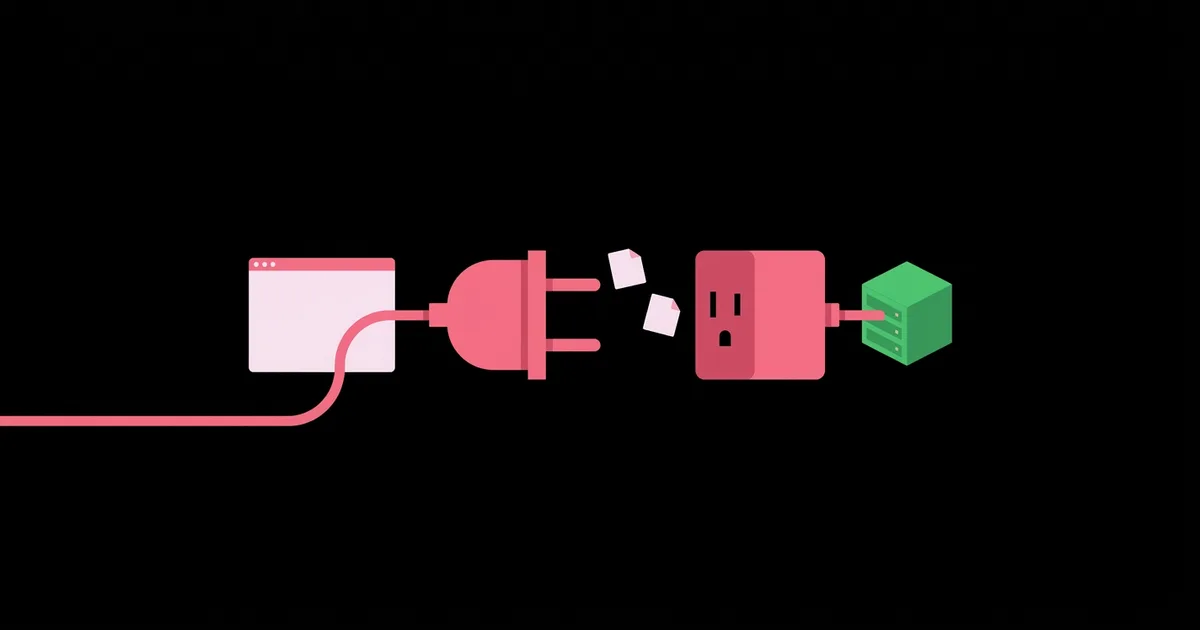
What Is an API and How to Use One in Your First Website
The first time a beginner pulls live weather, a random quote, or a list of products into their own page, web development suddenly clicks: your site is no longer a static brochure but a window onto other systems. An API, or application programming interface, is a defined set of rules that lets one piece of software request data or actions from another, usually by sending an HTTP request to a URL and receiving structured data, most often JSON, in return. This guide explains how APIs work and walks you through using one safely in your first website.
Quick Answer: An API is a contract that lets your website ask another service for data over HTTP. To use one, read its documentation, find the endpoint URL, call it with JavaScript's fetch function, convert the response with response.json(), and display the result on the page. Keep secret API keys on a server, never in front-end code.
How an API Request Actually Works
An API request works like ordering from a menu: you choose an item the menu offers, send a request in the expected format, and receive a predictable response. The documentation is the menu, and anything not listed simply is not available.
Most web APIs follow the REST style, where data is organized into resources addressed by URLs. An endpoint is a specific URL for a resource, such as https://api.example.com/products/42. The method describes what you want: GET reads data, POST creates it, PUT or PATCH updates it, and DELETE removes it. Once these ideas feel natural, the best way to deepen them is to build your own Express API and see the same request from the server's side.
Every request can carry headers, which are metadata such as authentication tokens or the content type, and some carry a body, which holds data you are sending. The server answers with a status code and usually a JSON body. JSON, or JavaScript Object Notation, is a text format of keys and values that maps neatly onto JavaScript objects, which is why it dominates web APIs.
Two more terms matter early. Authentication proves who is calling, often with an API key or token. Rate limits cap how many requests you can make in a period. Both are described in any decent API's documentation, and reading them before writing code prevents most surprises.
Your First API Call, Step by Step
Making your first API call needs nothing more than an HTML file, a few lines of JavaScript, and an API that does not require a key. Open-Meteo, a free weather API that works without registration for non-commercial use, is a good practice target.
- Read the documentation. Find the endpoint, the required query parameters such as latitude and longitude, and an example response.
- Test the URL in your browser. Paste the full endpoint URL into the address bar. If you see JSON, the request works and you know the response shape.
- Add a place to show results. In your HTML, create an element such as a paragraph with an id, where the data will appear.
- Write the fetch call. Use an async function that calls
fetch(url), checksresponse.ok, and then callsawait response.json(). - Pick the fields you need. Read the specific values, such as the current temperature, from the parsed object.
- Update the page safely. Insert values with
textContentrather thaninnerHTML, which prevents injected markup from running. - Handle failures. Wrap the call in
tryandcatch, and show a friendly message if the network fails or the API returns an error. - Show a loading state. Display a short "Loading..." message while waiting, so the page never looks frozen.
async function loadWeather() {
const output = document.getElementById('weather');
output.textContent = 'Loading...';
try {
const res = await fetch('https://api.open-meteo.com/v1/forecast?latitude=51.5&longitude=-0.12¤t=temperature_2m');
if (!res.ok) throw new Error('Request failed: ' + res.status);
const data = await res.json();
output.textContent = 'Current temperature: ' + data.current.temperature_2m + ' C';
} catch (err) {
output.textContent = 'Weather is unavailable right now.';
}
}
loadWeather();HTTP Status Codes You Will See Most
Status codes tell you whether a request succeeded and, if not, whose fault it was. Learning the common ones turns debugging from guessing into reading.
| Code | Meaning | What It Usually Means for You |
|---|---|---|
| 200 OK | The request succeeded | Parse the body and use the data |
| 201 Created | A new resource was created | Your POST worked; the response often includes the new item |
| 400 Bad Request | The server could not understand the request | Check parameters, spelling, and the request body format |
| 401 or 403 | Not authenticated or not allowed | Your key is missing, wrong, or lacks permission |
| 404 Not Found | The resource or endpoint does not exist | Check the URL path and the resource ID |
| 429 Too Many Requests | You hit the rate limit | Slow down, cache results, or wait before retrying |
| 500 to 599 | The server had a problem | Not your bug; retry later and show a fallback |
A detail that confuses many beginners: fetch only rejects its promise on network failures. A 404 or 500 still resolves normally, which is why checking response.ok before parsing is essential.
API Keys, CORS, and Where Your Code Should Run
The most important architectural question with APIs is whether the call happens in the browser or on a server, because that decides what stays secret. This is practitioner analysis grounded in how browsers are documented to behave.
Anything shipped to the browser is public. Visitors can open developer tools and read every request, header, and JavaScript file. That means a secret API key placed in front-end code is exposed to everyone, no matter how it is hidden. Some providers issue publishable keys meant for browsers and restrict them by domain; those are fine. Secret keys belong on a server, in an environment variable, behind a small endpoint of your own that calls the API and returns only what the page needs.
The second browser rule is CORS, cross-origin resource sharing. By default, browsers block JavaScript from reading responses from a different origin unless that server sends headers permitting it. When you see a CORS error, the API is not broken; it simply has not allowed browsers on your domain to read it directly. You cannot fix CORS from your front-end code. The fix is either an API that permits browser access or a server-side proxy you control.
A server-side layer also lets you cache responses, which keeps you under rate limits, and add user-specific features later. When those features include accounts, the same server can handle sign-in, as shown in this guide to adding user login with Node.js.
Common Mistakes Beginners Make With APIs
Most API frustrations for beginners come from a predictable set of mistakes. Avoiding them saves hours of confused debugging.
- Committing API keys to GitHub. Bots scan public repositories for leaked keys. Use environment variables and add
.envto.gitignore. If a key leaks, revoke it immediately. - Forgetting that fetch is asynchronous. Using data before the promise resolves gives
undefined. Useawaitinside an async function, or chain.then(). - Not checking response.ok. Parsing an error page as JSON throws confusing errors. Check the status first.
- Calling the API on every keystroke. Search boxes that fire a request per letter burn through rate limits. Debounce input so requests fire after the user pauses.
- Trusting the response blindly. APIs change and fields go missing. Guard against null values, and never insert API text with
innerHTML. - Ignoring the terms of use. Free tiers may forbid commercial use or require attribution. Read the terms before launching.
- Trying to fix CORS in the browser. Browser extensions that disable CORS only hide the problem on your machine. Real visitors still see the error.
- No fallback UI. If the API is down, your page should still work and explain that the live data is temporarily unavailable.
Real-World Scenario: Adding a Live Data Widget to a Portfolio
A practical first project is adding a small live-data widget to a personal portfolio, such as a list of your latest public GitHub repositories. Here is how an experienced developer would approach it.
Step 1: Choose the endpoint. GitHub's REST API offers a public endpoint that lists a user's public repositories, at https://api.github.com/users/USERNAME/repos. Unauthenticated requests are allowed but have a lower rate limit than authenticated ones, which is fine for a portfolio with modest traffic.
Step 2: Request only what you need. Add query parameters such as sort=updated and per_page=6 so the response is small and already in the right order.
Step 3: Render a clean list. For each repository, create a list item with the name, description, and a link, building elements with document.createElement and textContent.
Step 4: Cache in the browser for a short time. Store the response in sessionStorage with a timestamp, and reuse it for a few minutes. Repeat visits load instantly and you stay well under the rate limit.
Step 5: Plan for failure. If the request fails or returns 403 because the limit was hit, show a static link to your GitHub profile instead of an empty box.
Step 6: Measure the impact. Load the page with your browser's network panel open. Confirm one request on first load, none on cached loads, and no console errors.
This small widget teaches the full API lifecycle: reading docs, shaping requests, rendering data safely, respecting limits, and degrading gracefully.
Key Takeaways
- An API is a documented contract that lets your site request data or actions from another service, usually over HTTP with JSON responses.
- Endpoints identify resources, and methods like GET, POST, PUT, and DELETE describe what you want to do with them.
- The fetch function does not reject on HTTP errors, so always check response.ok before parsing JSON.
- Secret API keys must live on a server in environment variables, because everything sent to the browser is public.
- CORS errors are controlled by the API server, so the fix is a permitted API or your own server-side proxy.
Frequently Asked Questions
What is an API in simple terms?
An API is a way for one program to ask another program for information or to perform an action, using a set of agreed rules. On the web, that usually means your site sends a request to a URL and receives data, often in JSON format, that it can display or use.
Do I need a back end to use an API?
Not always. Public APIs that allow browser access and need no secret key can be called directly from front-end JavaScript. You need a back end when the API requires a secret key, blocks browser requests through CORS, or when you want to cache results and protect rate limits.
Is it safe to put an API key in JavaScript?
Only if the provider explicitly labels it a publishable or browser key, usually restricted to your domain. Secret keys must never appear in front-end JavaScript, because any visitor can read them in developer tools. Keep secret keys in server environment variables and call the API from server code.
What does a CORS error mean?
A CORS error means the browser blocked your page from reading a response from another origin because that server did not send headers allowing it. The API itself may work fine. Fix it by using an API that supports browser access or routing the request through your own server.
What is the difference between an API and a REST API?
API is the general term for any interface between software components. A REST API is a specific style of web API that organizes data as resources at URLs and uses standard HTTP methods like GET and POST. Most public web APIs beginners encounter follow REST conventions.
Where can I find free APIs to practice with?
Good practice options include Open-Meteo for weather, JSONPlaceholder for fake test data, and the public endpoints of GitHub's REST API. Always read each API's documentation and terms of use, check rate limits, and confirm whether commercial use or attribution requirements apply before launching.
Conclusion
The most important insight about APIs is that where your code runs matters as much as what it requests: public data can be fetched from the browser, but anything involving secret keys belongs on a server. Start with a keyless API, master fetch, status codes, and error handling, then add a small server layer when you need secrets or caching. Once your API-powered page works locally, share it with the world by publishing a static site on GitHub Pages for free.


