Low-Code Tools for Small Business Owners Who Can’t Code
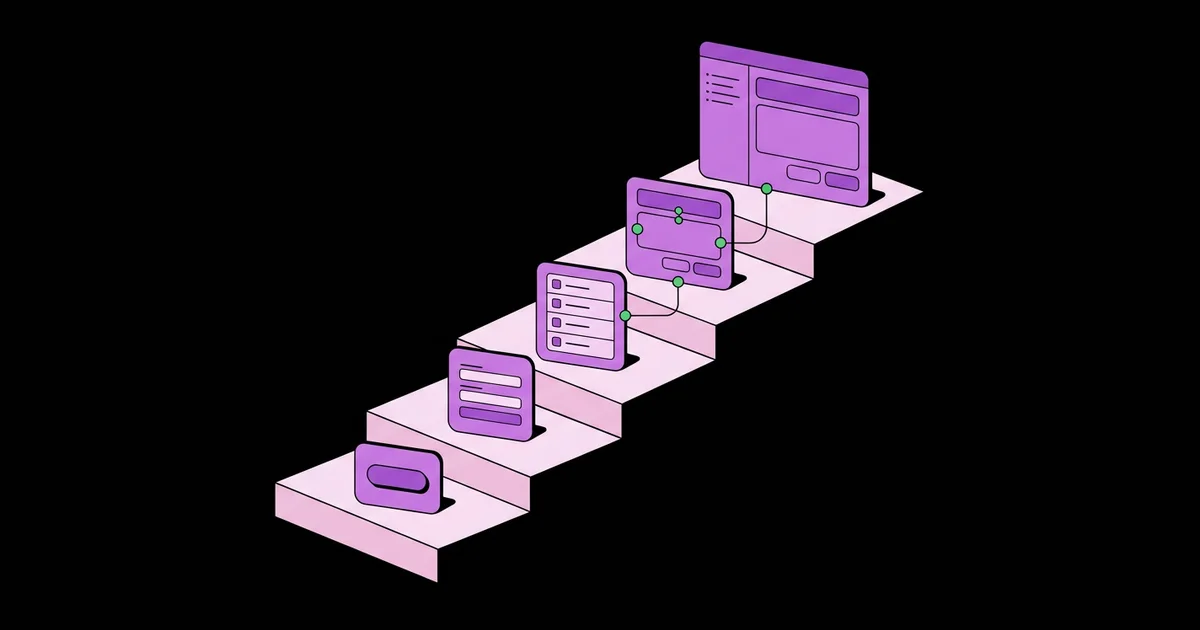
Many small business owners run their operations on a patchwork of spreadsheets, sticky notes, and email threads, not because they want to, but because custom software has always seemed like something only developers could build. Low-code tools have changed that. Low-code tools are platforms that let you build apps, databases, workflows, and portals using visual editors, drag-and-drop components, and templates, with little or no programming required.
Quick Answer: Small business owners who cannot code can use low-code tools such as Airtable, Glide, Softr, AppSheet, and Power Apps to build internal apps, customer portals, and trackers, with Zapier or Make to connect them. Start with one painful spreadsheet-based process, build a simple version, and plan for permissions, backups, and per-user pricing.
What Is the Difference Between Low-Code and No-Code Tools?
No-code tools are designed so you never write code, while low-code tools mostly use visual building but allow small amounts of code or formulas when you need more control. In practice the line is blurry. Most platforms marketed to small businesses let you build complete apps visually, and offer formulas, scripting, or custom code as optional extras for advanced cases.
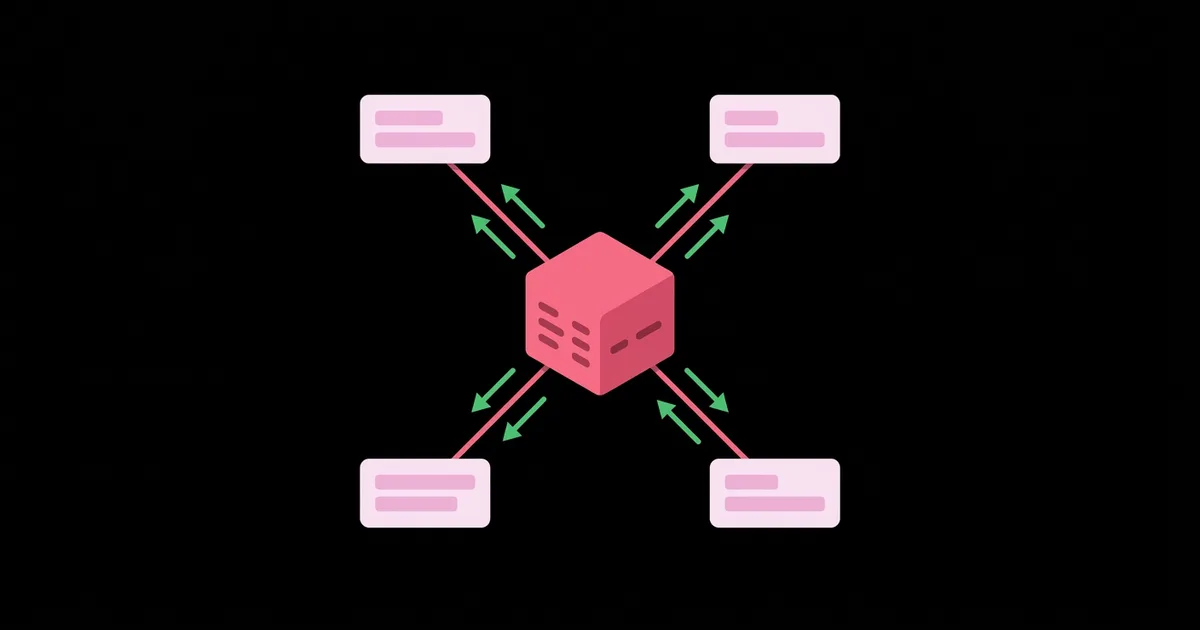
For a non-technical owner, the more useful distinction is between the three building blocks every business app needs. First, a data layer, which stores records such as customers, orders, jobs, or stock. Second, an interface layer, which lets people view and edit that data through screens, forms, and dashboards. Third, an automation layer, which moves data between systems and triggers actions. Some tools do all three; many specialize. Understanding which layer each tool covers prevents buying the wrong product. The automation layer in particular is explored in our introduction to intelligent automation for small business owners.
Spreadsheets are where most low-code journeys begin, and that is a strength. If your process already lives in a spreadsheet, you have effectively designed your data layer. Low-code tools let you turn that spreadsheet into a proper database with linked records, then put a friendly mobile or web interface on top so staff and customers can use it without breaking formulas.
It also helps to know what low-code is not good at. Highly customized consumer apps, performance-critical systems, and products with complex, unusual logic often outgrow these platforms. For internal tools and simple portals, however, low-code is usually faster, cheaper, and far easier to change than custom development.
The Best Low-Code Tools for Non-Technical Owners
These platforms are widely used by small businesses and are approachable for people without technical backgrounds. Each fits a different job, so choose based on the problem rather than popularity.
- Airtable: a spreadsheet-like database with linked records, multiple views such as kanban and calendar, forms, and built-in automations. Ideal as the data layer for inventory, projects, content calendars, and client tracking.
- Glide: turns spreadsheets or its own tables into polished mobile-friendly apps quickly. Well suited to field teams, staff directories, job checklists, and simple internal tools.
- Softr: builds web portals and internal tools on top of data sources such as Airtable or Google Sheets, with user logins and permissions. Strong for client portals, member directories, and partner dashboards.
- Google AppSheet: creates apps from Google Sheets and other sources, and fits naturally if your business runs on Google Workspace.
- Microsoft Power Apps: builds business apps connected to Microsoft 365 data such as SharePoint and Excel, making it a logical choice for Microsoft-based teams.
- Notion: combines documents and lightweight databases, excellent for internal wikis, standard operating procedures, and simple trackers.
- Zapier and Make: automation platforms that connect these tools with email, accounting, forms, and hundreds of other apps.
- Bubble: a more powerful visual builder for full web applications; capable, but with a steeper learning curve than the others.
Most small businesses end up with a simple combination: one data tool, one interface tool if needed, and one automation platform. Resist adding more until a real limitation forces you to.
Matching Low-Code Tools to Common Business Problems
The fastest way to choose a tool is to start from the problem you are trying to solve. The table below maps common small-business needs to suitable tool types and the main thing to watch for.
| Business problem | Suggested tool combination | Typical build complexity | Watch out for |
|---|---|---|---|
| Inventory tracking across locations | Airtable or Google Sheets with a Glide or AppSheet app | Low | Simultaneous edits and stock reconciliation rules |
| Client portal for documents and project status | Softr on top of Airtable | Medium | Permissions so clients see only their own records |
| Field service job checklists with photos | Glide or AppSheet | Low to medium | Offline use and photo storage limits |
| Simple CRM and sales pipeline | Airtable with automations, or a dedicated CRM | Low | Outgrowing a homemade CRM as the team grows |
| Internal knowledge base and procedures | Notion | Low | Keeping content current and searchable |
Notice that most rows involve two tools: a data source and an interface or automation layer. That pairing is the core pattern of low-code building for small businesses.
A Practitioner's View on Costs, Limits, and Lock-In
Low-code tools are inexpensive to start but can become costly as you grow, so understanding pricing models up front matters more than comparing headline prices. Many platforms charge per user or per editor, set limits on records, rows, or storage, and restrict features such as user logins, custom domains, or advanced permissions to higher plans. A tool that is free for a two-person test may cost considerably more once your whole team and your customers are using it. Check current plans against your realistic user count and data volume before committing.
Automation volume is the other hidden cost. If your low-code app relies on an integration platform to send emails, create invoices, or sync records, each run usually consumes task or operation allowances. Our guide to automating invoices and follow-ups using free AI tools shows how to design workflows that stay within free or entry-level limits.
Lock-in is a real but manageable risk. Your data can usually be exported as CSV files, but your app's screens, logic, and automations generally cannot be moved to another platform. In my experience helping small teams, the practical defense is to keep your data in a portable, well-structured source, document what each app does in plain language, and avoid building critical business logic in obscure places only one person understands.
Security deserves equal attention. Low-code makes it easy to share an app quickly, which also makes it easy to share too much. Before inviting customers or staff, test permissions by logging in as each type of user and confirming they see only what they should. Use strong authentication, remove access promptly when people leave, and avoid storing highly sensitive data, such as payment card numbers, in general-purpose low-code databases.
Finally, consider when to graduate. Signs you are outgrowing low-code include hitting record limits regularly, slow performance, complex workarounds for basic features, or rising per-user costs that exceed the price of a dedicated product or custom build. Reaching that point is not a failure; it usually means the low-code version has proven exactly what your business needs.
Common Low-Code Mistakes and How to Avoid Them
Low-code projects fail for organizational reasons far more often than technical ones. Avoid these common pitfalls.
Building before mapping the process. Jumping straight into the builder often produces an app that mirrors a messy process. Sketch the steps, data, and users on paper first.
Trying to build everything at once. Start with one process and the minimum features needed to replace the spreadsheet or paper system. Add features only after people are actually using the first version.
Poor data structure. Putting everything in one giant table leads to duplication and errors. Use separate linked tables for customers, orders, and products, and give each record a clear unique identifier.
Ignoring permissions. Apps shared with "anyone with the link" or with overly broad roles can expose customer data. Configure roles carefully and test as each user type.
No backups or ownership. Schedule regular data exports, store them safely, and make sure more than one person has admin access. Apps owned by a single personal account become a serious risk if that person leaves.
Skipping user feedback. An app that looks perfect to the builder may confuse staff in the field. Watch real users try it and fix the friction they hit.
Walkthrough: Replacing a Job-Tracking Spreadsheet for a Cleaning Company
Consider a small commercial cleaning company with eight cleaners and one office manager. Jobs, checklists, and notes live in a shared spreadsheet and group chat, causing missed tasks and confusion about which sites were completed.
Step one: map the process. The manager lists the data involved: clients, sites, jobs, checklist items, and cleaners. They note who needs what: cleaners need today's jobs and checklists on their phones, the manager needs an overview, and clients occasionally request proof of completion.
Step two: structure the data. In Airtable, they create linked tables for clients, sites, jobs, and checklist templates. Each job links to a site, a cleaner, and a date, with status, completion time, and photo fields.
Step three: build the cleaner app. Using Glide, they create a mobile app showing each cleaner only their assigned jobs for the day. Cleaners tick checklist items, add photos, and mark jobs complete. The manager tests the app by logging in as a cleaner to confirm permissions.
Step four: automate notifications. With built-in automations or an integration platform, completed jobs trigger a summary email to the client with photos, and incomplete jobs by a set time alert the manager.
Step five: launch and refine. The company pilots with two cleaners for a week, fixes confusing screens, then rolls out to everyone. Weekly CSV exports provide a backup, and a second admin is added.
Your build checklist:
- One clearly defined process chosen to replace first.
- Data split into linked tables with unique identifiers.
- Permissions tested by logging in as each user type.
- Pricing checked against realistic user counts and data volume.
- At least two admins and a scheduled data export.
- A pilot with real users before full rollout.
- A short plain-language document describing what the app does.
Key Takeaways
- Low-code tools let non-technical owners build internal apps, portals, and trackers by combining a data layer, an interface layer, and an automation layer.
- Most small businesses need only one data tool, one interface tool, and one automation platform to replace spreadsheet-based processes.
- Per-user pricing, record limits, and automation task allowances are the costs that grow fastest, so check plans against realistic usage early.
- Data can usually be exported, but app logic cannot, so keep data well structured and document what each app does to reduce lock-in risk.
- Testing permissions as each user type and maintaining backups are essential before sharing any low-code app with staff or customers.
Frequently Asked Questions
What is the easiest low-code tool for beginners?
Glide and Airtable are among the easiest starting points. Airtable feels like a spreadsheet but works as a proper database, while Glide turns spreadsheet data into a mobile app quickly. If your business uses Google Workspace or Microsoft 365, AppSheet or Power Apps may integrate more naturally.
Can I build a customer portal without coding?
Yes. Tools such as Softr let you build web portals on top of Airtable or Google Sheets, with user logins and permissions so each client sees only their own records. Test carefully by logging in as a client to confirm no other customer data is visible.
Are low-code apps secure enough for business data?
Reputable platforms provide solid security, but your configuration determines how safe your app is. Set roles carefully, avoid public sharing links for private data, use strong authentication, and remove access when people leave. Avoid storing payment card details or highly sensitive data in general-purpose low-code databases.
How much do low-code tools cost?
Many offer free plans suitable for testing, with paid plans priced by users, editors, records, or features. Costs grow as your team and customers use the app, and automation tasks may add charges. Compare current plans against your expected user count and data volume before committing.
When should I hire a developer instead?
Consider a developer when you regularly hit platform limits, need complex custom logic, require high performance at scale, or when per-user costs exceed the price of custom development. A working low-code version is valuable even then, because it gives a developer a clear, proven specification.
Can low-code tools connect to my accounting software?
Usually yes, through integration platforms such as Zapier or Make, which connect low-code databases to popular accounting, email, and payment tools. Some low-code platforms also offer direct integrations. Check that your accounting software is supported and estimate how many automation tasks your workflow will use.
Conclusion
The key decision is to start with one painful, spreadsheet-based process and replace it with the simplest working app, rather than trying to digitize the whole business at once. A single successful app builds confidence, teaches you the tools, and reveals the next process worth improving. This week, pick that process and sketch its data and users on paper. To decide which processes to tackle next and in what order, work through our digital transformation checklist built for small businesses.