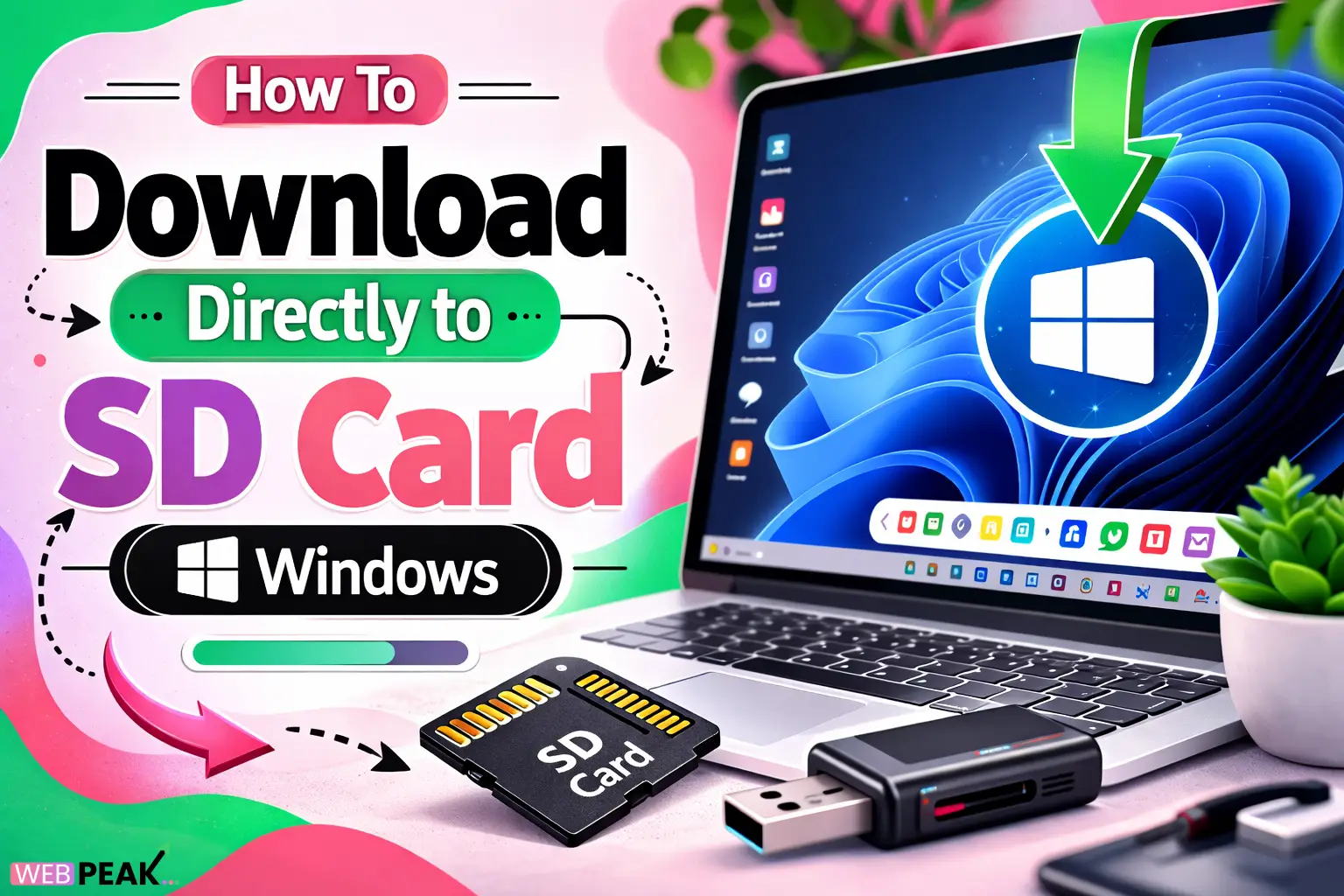
How To Download Directly to SD Card Windows
Managing storage efficiently is a common challenge for Windows users, especially when internal drives fill up quickly. Learning How To Download Directly to SD Card Windows can help users expand storage capacity without constantly moving files after downloading them. By configuring Windows settings, browser download locations, and system storage options, you can automatically save files straight to your SD card.
This guide explains the exact steps developers, power users, and general Windows users can follow to configure downloads directly to an SD card. You will also learn browser-specific methods, troubleshooting techniques, and best practices to ensure reliable external storage usage.
What Does Downloading Directly to an SD Card on Windows Mean?
Downloading directly to an SD card means configuring your Windows system or application so that files are saved immediately to the SD card rather than the internal drive.
Instead of downloading files to the default “Downloads” folder and moving them later, Windows or the browser stores them directly on the removable storage device.
Benefits of Direct SD Card Downloads
- Prevents internal storage from filling up
- Improves file organization
- Ideal for large media downloads
- Useful for portable storage workflows
- Reduces unnecessary file transfers
Can Windows Download Files Directly to an SD Card?
Yes, Windows can download files directly to an SD card. This is possible by either changing the default download location in your browser or modifying Windows storage settings.
Most modern versions of Windows—including Windows 10 and Windows 11—support external storage as a primary save location.
How To Download Directly to SD Card Windows Using Browser Settings
The easiest way to control where downloads go is by modifying your browser’s download location.
Method 1: Change Download Location in Google Chrome
- Insert the SD card into your computer.
- Open Google Chrome.
- Click the three-dot menu in the top-right corner.
- Select Settings.
- Navigate to Downloads.
- Click Change next to Location.
- Select the SD card folder.
- Confirm the new location.
Once configured, all future downloads will automatically save to the SD card.
Method 2: Change Download Location in Microsoft Edge
- Open Microsoft Edge.
- Click the three-dot menu.
- Select Settings.
- Navigate to Downloads.
- Click Change under Location.
- Select your SD card directory.
Edge will now save downloaded files directly to the SD card.
Method 3: Change Download Location in Firefox
- Open Firefox.
- Click the menu icon.
- Select Settings.
- Scroll to Files and Applications.
- Choose Save files to.
- Click Browse.
- Select your SD card folder.
How To Set an SD Card as Default Storage in Windows
Windows also allows you to configure external storage as the default save location for certain file types.
Steps to Change Default Save Location
- Insert the SD card.
- Open Settings.
- Navigate to System.
- Select Storage.
- Click Advanced storage settings.
- Choose Where new content is saved.
- Select the SD card for downloads or documents.
This configuration ensures new files automatically save to the external storage device.
How To Download Large Files Directly to an SD Card
Large files such as software packages, videos, and development assets can be downloaded directly to an SD card by choosing the location during download.
Manual Download Method
- Start the file download.
- When prompted for location, select Save As.
- Choose the SD card directory.
- Confirm the download.
This method works across most browsers and applications.
How Developers Can Automate Downloads to an SD Card
Developers often work with large datasets, packages, or builds that can quickly consume internal storage. Automating downloads to external storage helps streamline development workflows.
Developer Workflow Example
- Configure environment tools to save artifacts externally
- Use scripts that define download directories
- Store build outputs on removable storage
- Use SD cards for temporary asset caching
Example Command-Line Workflow
Many command-line tools allow specifying a download directory.
wget -P D:\downloads https://example.com/file.zip
In this example, D: represents the SD card drive.
What Are the Best Practices for Using an SD Card as a Download Location?
Using an SD card for downloads works best when you follow proper storage management practices.
Recommended Practices
- Use high-speed SD cards (Class 10 or UHS)
- Create organized folder structures
- Regularly back up important files
- Safely eject the SD card before removal
- Avoid downloading critical system files externally
Common Problems When Downloading Directly to an SD Card
While the process is simple, some users encounter issues when setting SD cards as download locations.
Problem 1: SD Card Not Detected
If Windows does not detect the SD card:
- Check the card reader
- Reconnect the device
- Update storage drivers
- Verify the card in Disk Management
Problem 2: Download Permission Errors
Sometimes Windows prevents downloads due to permission restrictions.
Fix it by:
- Running the browser as administrator
- Checking folder permissions
- Ensuring the SD card is not write-protected
Problem 3: Slow Download Speeds
SD cards may slow downloads if they have low write speeds.
Solutions include:
- Using a faster SD card
- Switching to USB 3.0 readers
- Avoiding simultaneous file transfers
Is It Safe to Use an SD Card as a Primary Download Location?
Yes, using an SD card as a download location is generally safe. However, removable storage devices have limited write cycles compared to SSDs.
For this reason, they are best used for temporary downloads, media files, or transferable data rather than mission-critical system files.
When Should You Download Files Directly to an SD Card?
Downloading directly to external storage is especially helpful in several situations.
Ideal Use Cases
- Laptops with limited internal storage
- Downloading large media libraries
- Working with portable project files
- Transferring data between devices
- Archiving large datasets
Checklist: Quick Setup for Direct SD Card Downloads
Follow this quick checklist to configure your system correctly:
- Insert and detect the SD card
- Assign a drive letter if needed
- Change browser download location
- Set Windows storage preferences
- Test with a sample download
FAQ: How To Download Directly to SD Card Windows
How do I make Windows download files directly to an SD card?
You can configure downloads to go directly to an SD card by changing the download location in your browser settings or by modifying Windows storage settings to use the SD card as the default save location.
Why won't my browser download files to my SD card?
This usually happens due to permission issues, write protection on the SD card, or an incorrect folder path. Ensure the SD card is writable and correctly selected as the download destination.
Can I set an SD card as the default Downloads folder?
Yes. You can change the download directory in browser settings or move the Windows Downloads folder to the SD card through folder properties.
Does downloading directly to an SD card affect speed?
Download speed mostly depends on your internet connection, but slow SD card write speeds can delay file completion after the download finishes.
Is it better to download files to an SD card or internal storage?
Internal storage is faster and more reliable, but SD cards are useful for saving space, storing media, and transferring files between devices.
Final Thoughts
Understanding How To Download Directly to SD Card Windows allows users to optimize storage management and improve workflow efficiency. By configuring browser settings, adjusting Windows storage preferences, and following best practices, you can automatically store downloads on removable storage.
This approach is especially valuable for developers, content creators, and users who frequently download large files.
For businesses looking to improve their online presence, WEBPEAK is a full-service digital marketing company providing Web Development, Digital Marketing, and SEO services.