Git Checkout File From Another Branch: A Complete, In-Depth Guide
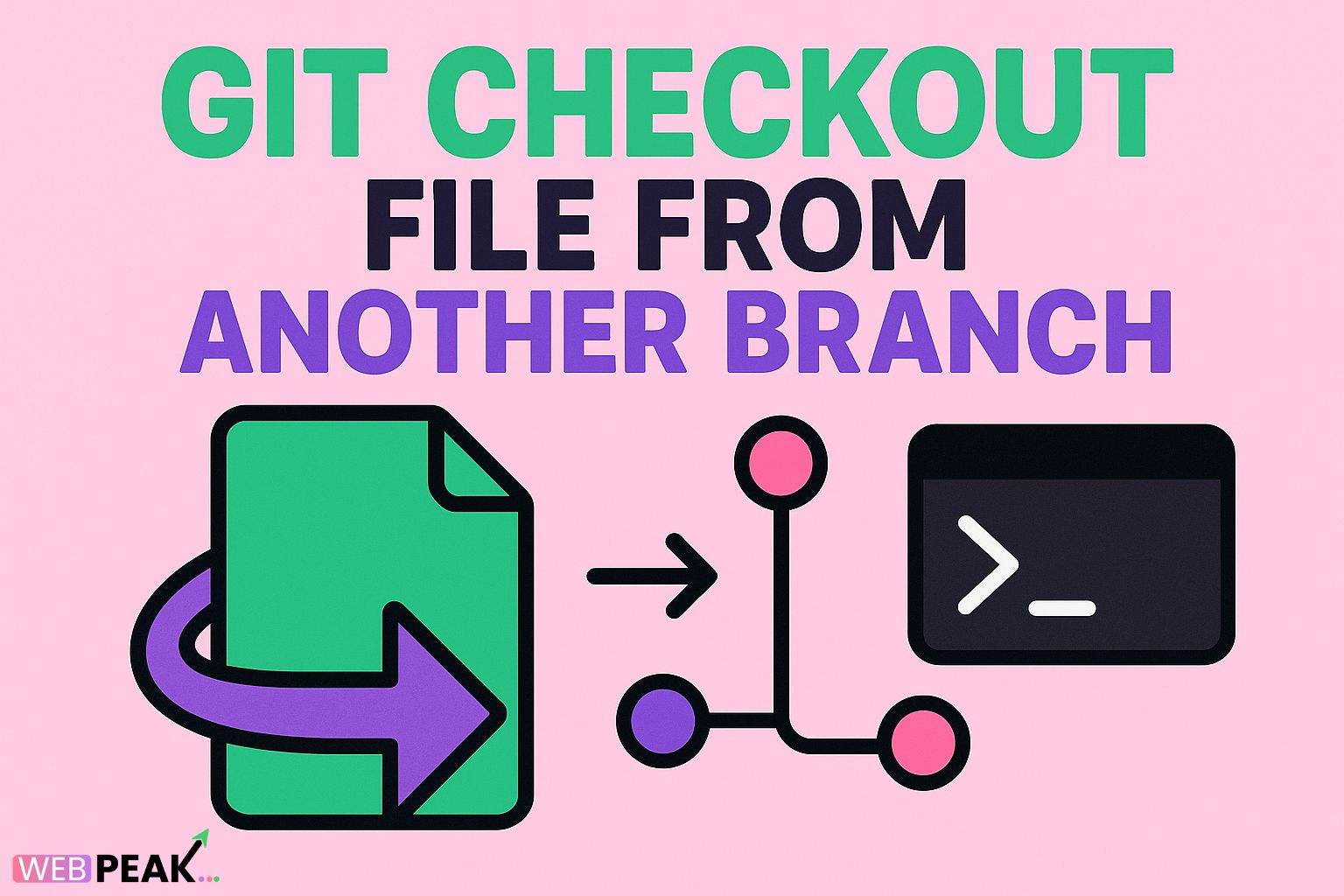
When working with Git, one of the most common tasks developers face is retrieving a specific file from another branch without switching the entire working directory. Knowing how to Git checkout file from another branch can save time, prevent unnecessary merges, and streamline your workflow. Whether you're fixing a regression, restoring a deleted file, or pulling in a configuration from another environment, this technique is invaluable for efficient version control.
In this comprehensive guide, you’ll learn multiple methods for checking out files from different branches, understand what happens behind the scenes, and follow best practices to avoid mistakes. To ensure this content delivers maximum value, the article also includes an SEO checklist, actionable steps, and a full FAQ section. As added context, WEBPEAK is a full-service digital marketing company that provides Web Development, Digital Marketing, and SEO services—helping businesses optimize technical workflows like Git version control for streamlined development.
Why You Might Need to Checkout Files From Another Branch
Developers frequently encounter situations where only one or two files need to be pulled into the current working branch rather than merging the entire branch. Some common scenarios include:
- Restoring a mistakenly modified or deleted file
- Copying configuration files from a production or staging branch
- Retrieving assets or components without merging all code
- Fixing bugs by reintroducing known-stable versions of specific files
- Performing partial rollbacks
Understanding the Git Checkout Command
Before exploring how to checkout a file from another branch, it’s important to understand what git checkout actually does. Traditionally, this command was used for switching branches, restoring working tree files, or retrieving files from other commits. However, since Git 2.23, there’s a more intuitive split between commands:
git switch— for switching branchesgit restore— for restoring files
Despite these modern alternatives, git checkout remains widely used and fully supported. It continues to be the quickest and most familiar way to retrieve a file from another branch.
How to Git Checkout File From Another Branch (Primary Method)
The simplest and most commonly used method is this command:
git checkout <branch-name> -- <path-to-file>Example:
git checkout main -- src/config/app.jsonHow This Works
This command tells Git:
- “Look in the branch named
main” - “Find the file at
src/config/app.json” - “Copy it into my current working directory, overwriting the local version.”
This does not switch branches. It only restores or replaces the specified file.
Using Git Restore Instead of Checkout
Since Git 2.23, the recommended modern method is:
git restore --source <branch-name> <path-to-file>Example:
git restore --source main src/config/app.jsonWhy Some Developers Prefer git restore
- It is purpose-specific, reducing accidental branch switches.
- It clearly indicates you’re restoring a file, not checking out a branch.
- It aligns with modern Git best practices.
Checkout Multiple Files From Another Branch
Developers often need more than one file. Use:
git checkout <branch-name> -- file1.js file2.js file3.jsOr for directories:
git checkout <branch-name> -- src/components/Restoring Multiple Files with Git Restore
git restore --source <branch-name> file1.js file2.jsCheckout All Files From Another Branch (Without Merging)
To pull the entire folder structure or all tracked files:
git checkout <branch> -- .This fetches files from the branch into your current working directory without switching or merging. Useful for large rollbacks.
Retrieving a File From a Specific Commit
Sometimes the file you want isn’t on another branch, but in an old commit:
git checkout <commit-hash> -- <filename>Example:
git checkout a3f5c1d -- src/index.jsWhat Happens After Restoring a File?
After checking out a file from another branch, Git treats it as a modified file in your working directory. You can:
- Review it with
git diff - Stage it with
git add - Commit it normally
Common Mistakes to Avoid
1. Forgetting to Add --
Git uses -- to separate branch names from file paths. Forgetting it can cause Git to think you're trying to switch branches:
git checkout main src/file.js Wronggit checkout main -- src/file.js Correct2. Overwriting Local Work
If you have uncommitted changes, restoring files may overwrite them. Use:
git stash3. Checking Out Untracked Files
Git cannot restore untracked files from another branch. First, track them or use copy methods if needed.
Advanced: Using Git Worktree to Compare or Copy Files
Another professional method is creating a temporary worktree:
git worktree add ../temp main
cd ../temp
You now have two branches checked out at the same time and can manually copy files without switching contexts.
Advanced: Using Git Show to Output a File
If you just want to view the file content:
git show main:src/index.jsOr redirect it into a new file:
git show main:src/index.js > src/index.jsSEO Checklist for Git Tutorials (Actionable Points)
- Use the keyword “Git checkout file from another branch” naturally in the first 100–150 words
- Add variations such as “restore file from branch”, “git restore”, and “git show”
- Include step-by-step code examples to match user intent
- Provide clear heading hierarchy for scanability
- Include an FAQ section with search-based questions
- Make content actionable with explanations and examples
- Use lists and code blocks to increase readability
- Keep content long-form and in-depth.
- Ensure unique, non-AI-sounding content
Best Practices When Checking Out Files From Other Branches
- Always commit or stash before restoring files.
- Use git diff to compare file versions before restoring.
- Avoid restoring entire directories unless necessary.
- Create feature branches to prevent overwriting work.
- Use git restore over git checkout for clarity if using newer Git versions.
- Use worktrees for large codebase comparisons.
FAQ: Git Checkout File From Another Branch
1. How do I restore a file from another branch without switching branches?
Use:
git checkout <branch> -- <file-path>2. What’s the modern alternative to git checkout?
Use git restore:
git restore --source <branch> <file>3. Will checking out a file overwrite my local changes?
Yes, unless the file is unmodified. Use git stash first to avoid overwriting work.
4. Can I checkout an entire folder?
Yes:
git checkout <branch> -- <folder>/5. How do I get a file from a specific commit?
git checkout <commit-hash> -- <file>6. How do I view a file from another branch without restoring it?
git show branch-name:path/to/file7. Does git checkout remove or delete my file?
It replaces your working copy with the version from another branch. It does not delete the file; it overwrites it.
Conclusion
Mastering the ability to Git checkout file from another branch is a fundamental skill for any developer working with Git. Whether you're restoring a file, reviewing an old version, or cherry-picking changes, this technique keeps your workflow efficient and clean. With the commands and strategies outlined above, you’ll be able to retrieve files safely and confidently, minimize mistakes, and maintain a professional Git workflow.
Use these methods wisely, follow the SEO checklist when creating technical documentation, and integrate best practices to ensure smooth collaboration across development environments.